
Settings Tab - Websites
The Settings tab is where you configure essential elements of your website, from naming and domain connection to tracking code setup and more. These settings ensure your website is functional, professional, and tailored to your needs.
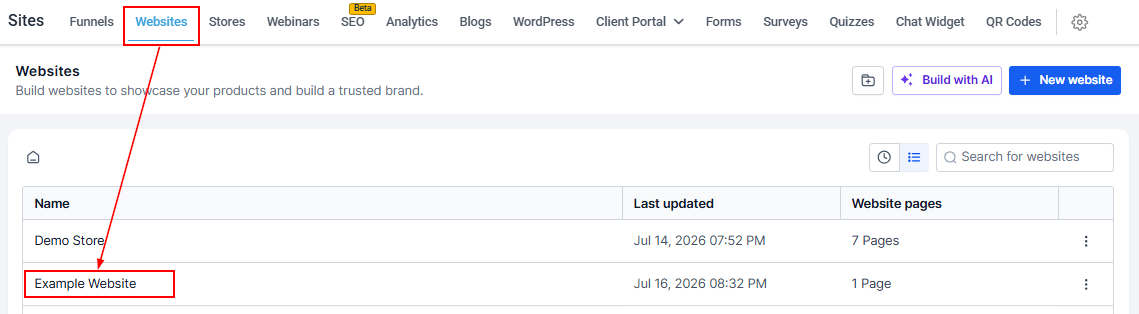
To access the Settings tab, navigate to Sites > Websites, then select the website you want to manage.
Settings Tab
In the new window, click on the Setting tab in order to view the settings table.
Website URL
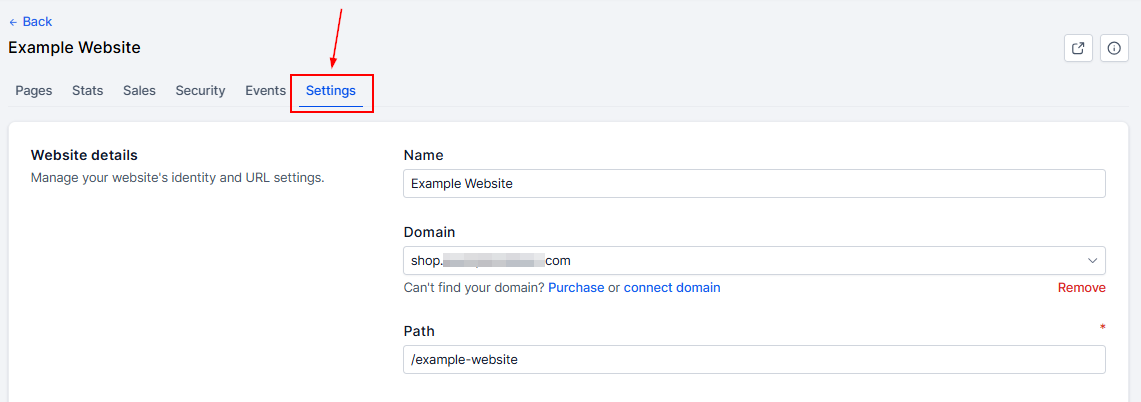
The Website URL icons allow you to share and access the site directly. You can use the URL for promotional purposes, track performance, or share it with your audience.
Settings Menu
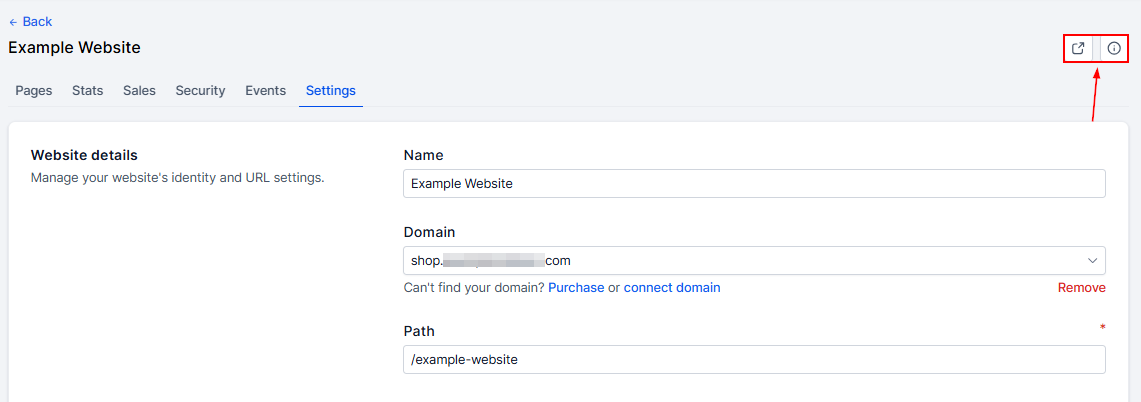
The Settings menu is your command center for managing the foundational aspects of your website. Let’s break down its key components:
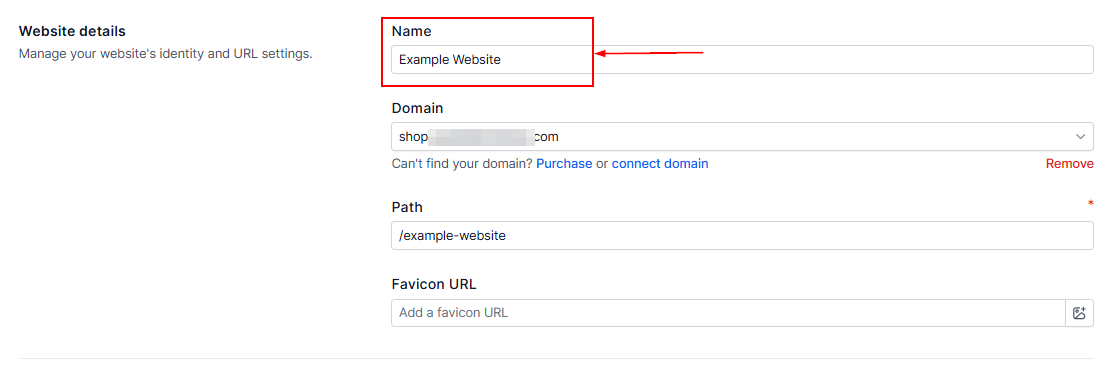
Name
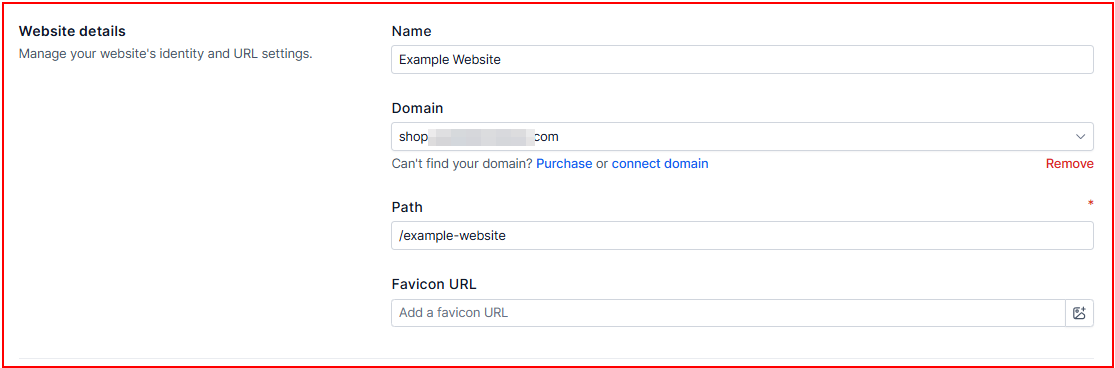
Assign a unique name to your website or edit the existing name. A meaningful name helps you easily identify the website within your dashboard.
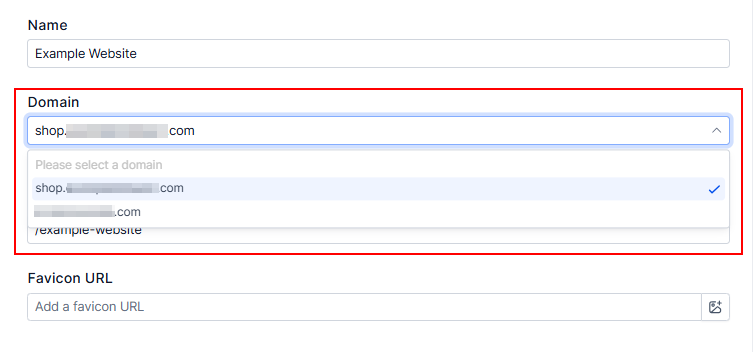
Domain
Connecting your website to a domain is crucial for going live. Simply paste your domain URL into the "Domain" field, and your website will be accessible to the public.
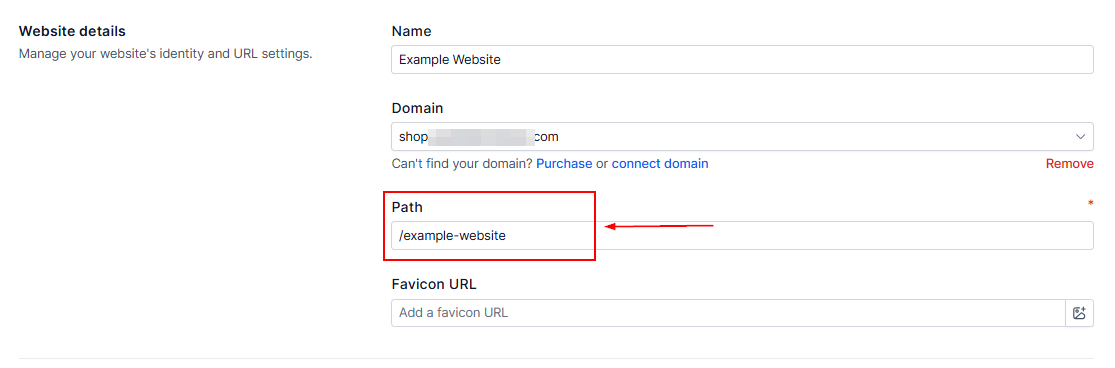
Path
The Path section allows you to set the default URL path for your website. This determines how users navigate to your main page.
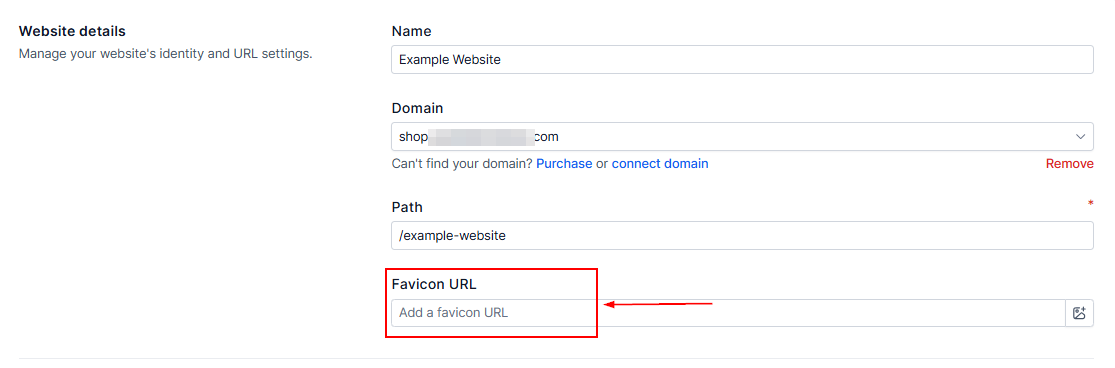
Favicon URL
Your favicon is the small icon or logo displayed on browser tabs. Paste the URL of your favicon image (.png or .ico) into this field, and it will automatically apply to all pages of your website.
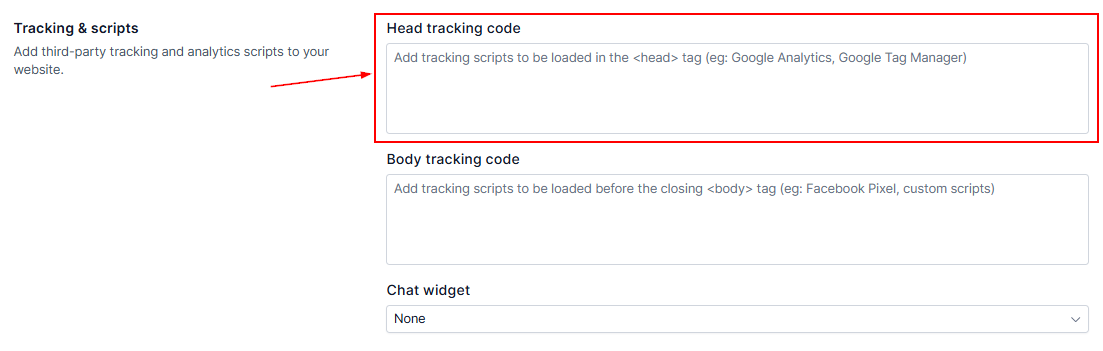
Head Tracking Code
Insert your website’s head tracking code here to enable advanced functionalities like analytics, SEO tags, or third-party integrations.
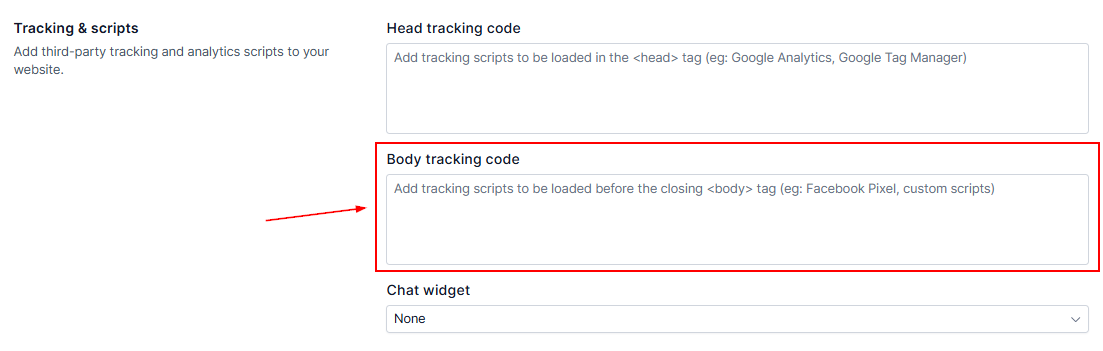
Body Tracking Code
Paste the body tracking code in this section to track user behavior, implement scripts, or enable specific functionalities across your website.
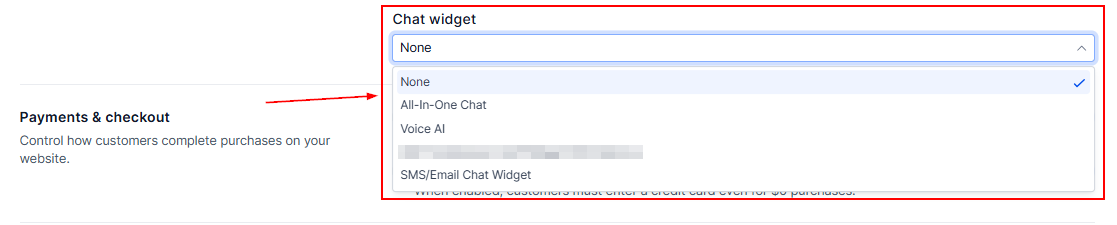
Chat Widget
Integrate a chat widget to enhance customer interaction and support. Configure the widget settings to suit your business needs.
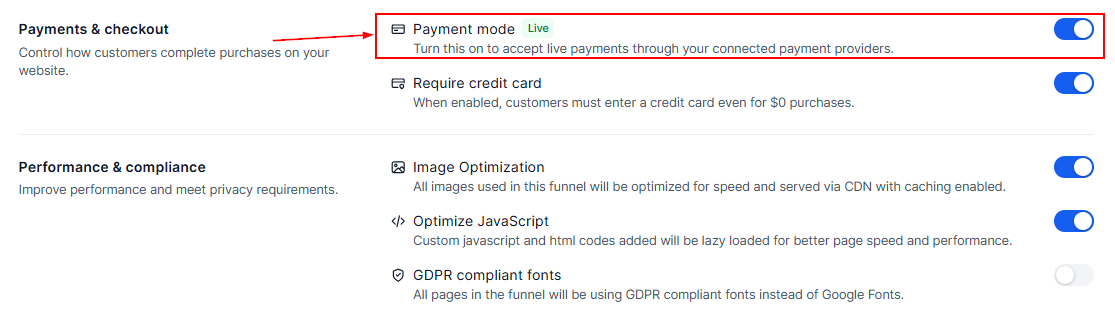
Payment Mode
Toggle the payment mode to manage transactions:
On: Enable live payments for customer transactions.
Off: Test payment functionality without processing real payments.
Require Credit Card
Set this option to require credit card details during the checkout process to facilitate secure payments.
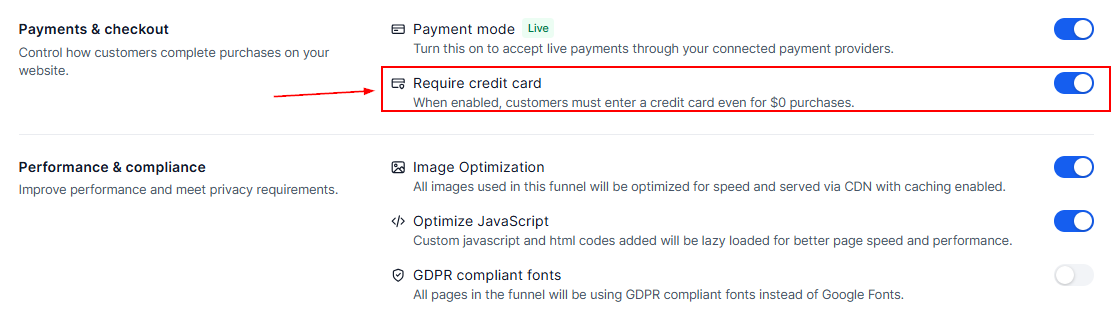
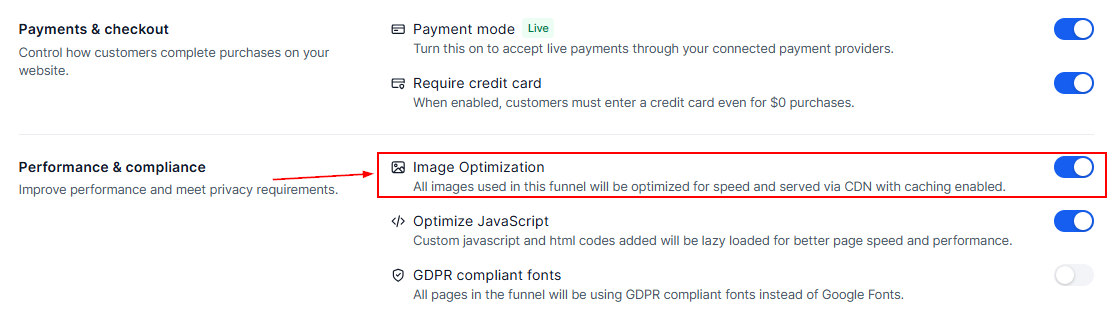
Image Optimization
Turn image optimization on to reduce file sizes for faster page loading, or turn it off for maximum image quality if that’s your priority.
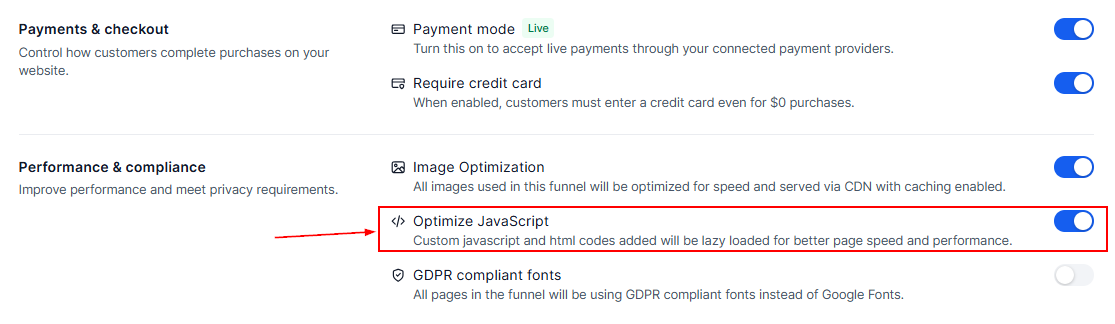
Optimize Javascript
Enable JavaScript optimization to improve website performance by minimizing and streamlining code execution.
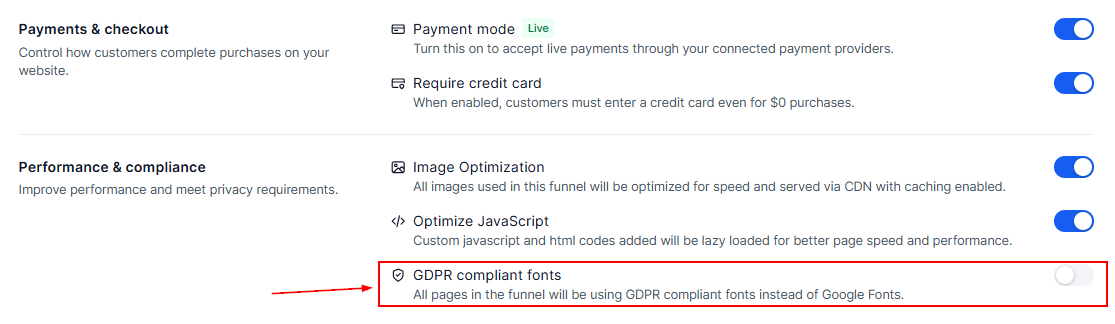
GDPR Compliant Fonts
Ensure your website adheres to GDPR by using compliant fonts. This option helps maintain legal compliance for websites targeting EU audiences.
SEO & AEO
Schema markup powers rich results in Google and AI answer engines, so here you can enable or disable their automatic creation for all pages at once.

Delete Website
If you no longer need a website, use this option to delete it permanently. Be cautious, as this action cannot be undone.

Save Settings
After making any changes, click the Save button to apply them. This ensures your updates are successfully implemented.

The Settings tab is your go-to for fine-tuning your website’s functionality and appearance. From connecting a domain to optimizing performance, every feature is designed to simplify your website management. With just a few clicks, you can ensure your website is live, efficient, and user-friendly.