
Image Element
The Image Element in your Form Builder lets you easily add visual elements like header images, background images, or other visuals to enhance the appeal of your forms. This guide walks you through adding and styling images to create visually engaging designs.
Accessing the Form Builder
Within your account, locate the "Sites" section and click “Forms”.
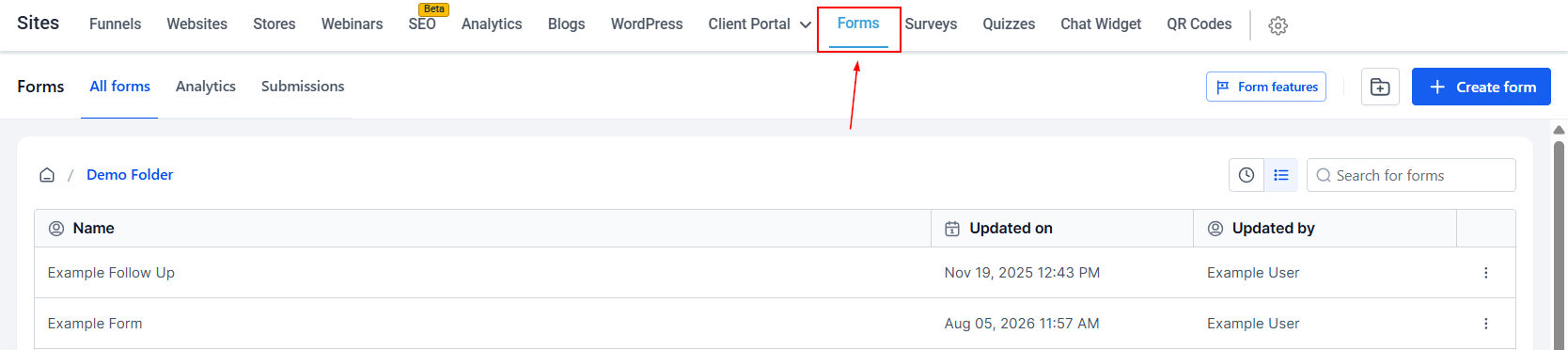
Edit Your Form
Choose the form you wish to edit or create a new one.

Add Your Images
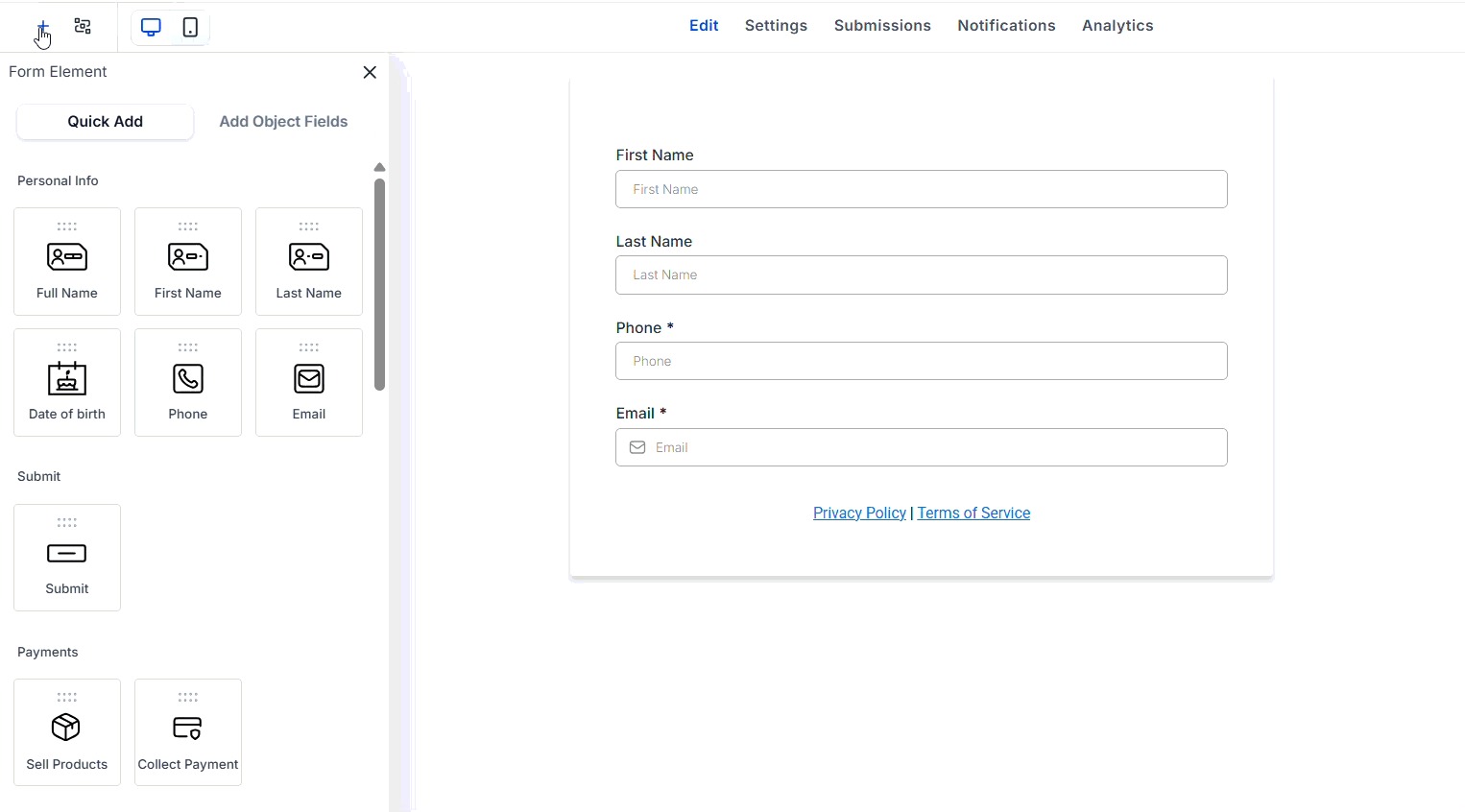
In the form editor, click on the “+” Icon, and drag and drop the image element into your design. Place the image element where you want it to appear in the form layout.
Editing Image Settings
Once added, click the icon to upload an image from your device, media library, Google Drive, or Canva, or create a new image using AI.
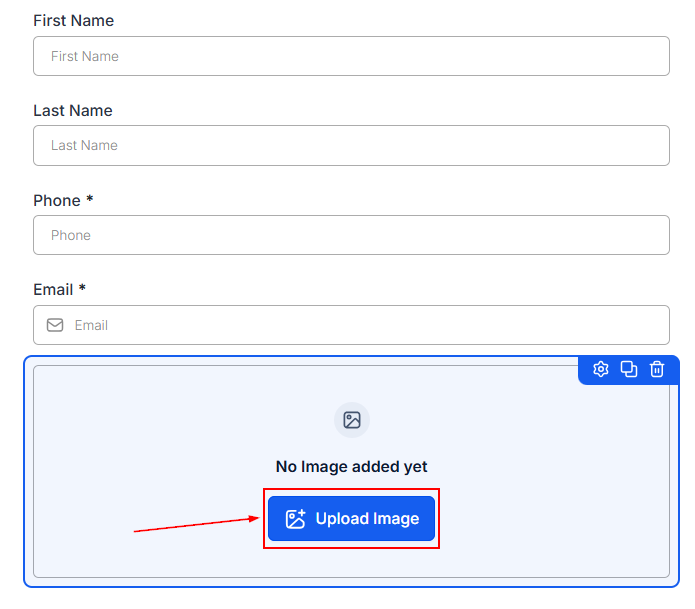
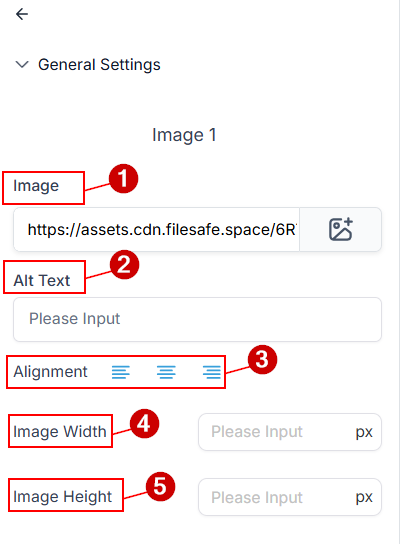
After adding your image, you also have some additional information to customize.
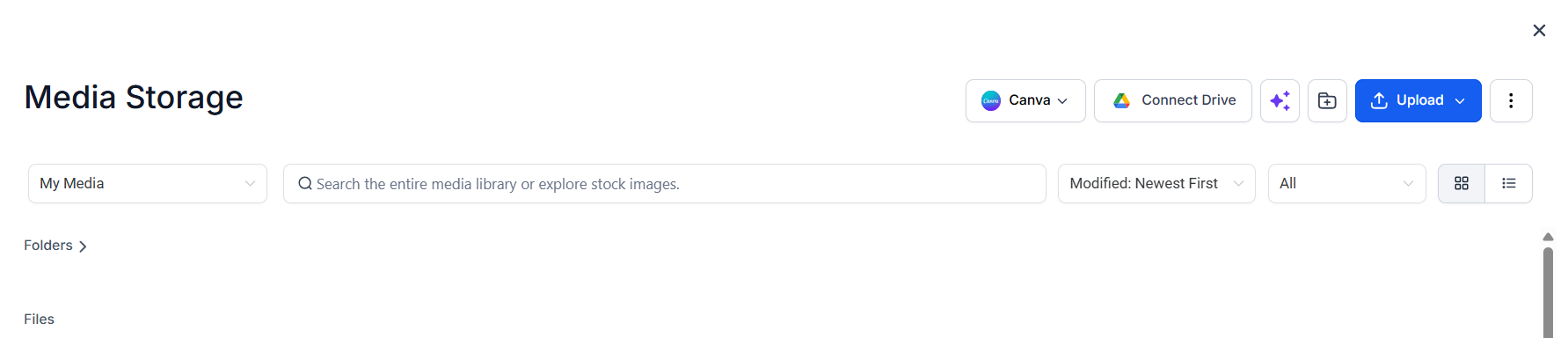
- Image: This field displays your image URL. You can also directly add an externally hosted image here.
- Alt Text: Insert alt text for SEO purposes.
- Alignment: Adjust the alignment of your image for a more cohesive look.
- Image Width: Resize the image with the width controls. The image sizing will be measured in px.
- Image Height: Resize the image using the height controls. The image sizing will be measured in px.
Styles & Options
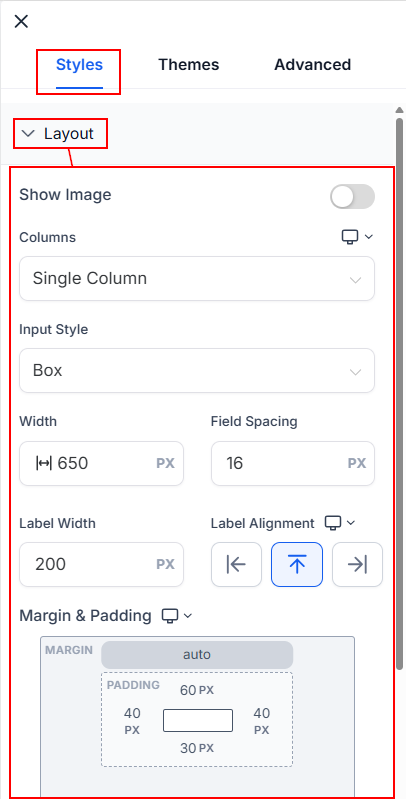
You can also open the Styles section to adjust the column display, input style, and other form styling options. Adjust the Margin & Padding settings to add or remove any spacing around the image. This space will be measured in px.
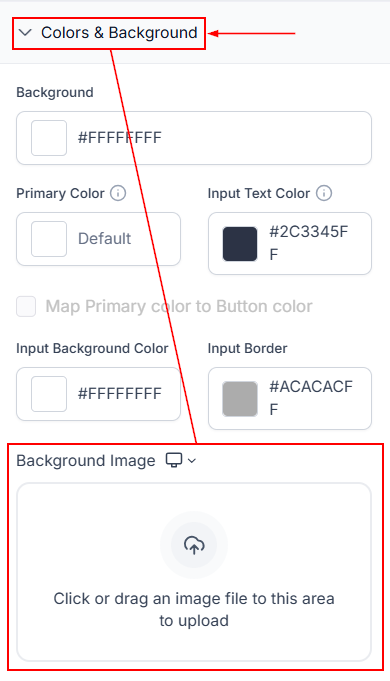
There, you can also find options to add a background image under the "Colors & Background" tab.
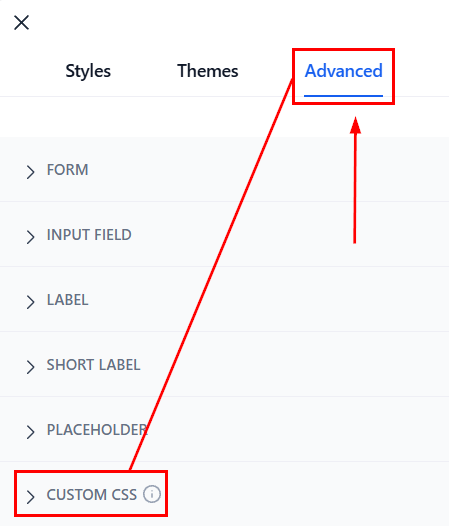
Alternatively, click on Advanced settings, and scroll down to the "Custom CSS" section. Here, you can upload CSS codes for background images.
The Image Element in your Form Builder helps enhance the visual appeal of your forms. By adding background visuals or custom designs, you can create layouts that align with your brand and engage your audience effectively.
Frequently Asked Questions
Q: Can I use any image in my form background?
- A: Yes, but it’s best to use optimized, web-friendly images that load quickly and display well on all devices.
Q: How do I ensure images added via CSS load properly?
- A: Make sure your image links are correctly formatted and hosted on accessible servers to prevent loading issues or broken visuals.