
Survey Builder Tab Overview
Surveys are great at asking the right questions—this tab makes creating and managing them just as easy. Whether you're collecting leads, gathering customer feedback, or capturing information, the Survey Builder keeps all your surveys organized and within easy reach, so you can spend less time searching and more time collecting meaningful responses.
Builder
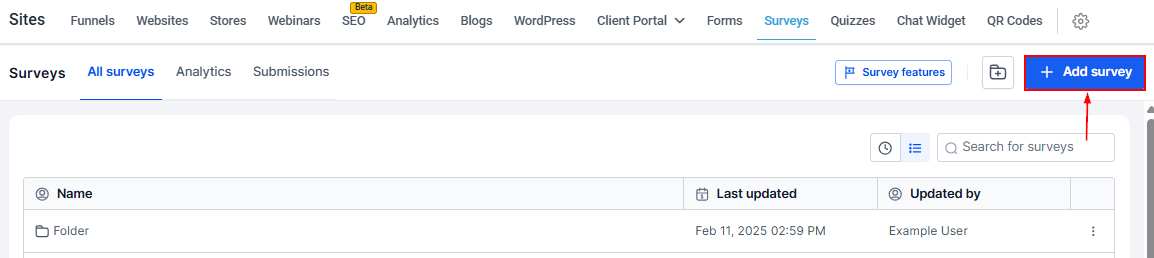
Add New Survey
When you are ready to create your own survey, you simply click the "Add new Survey" button!
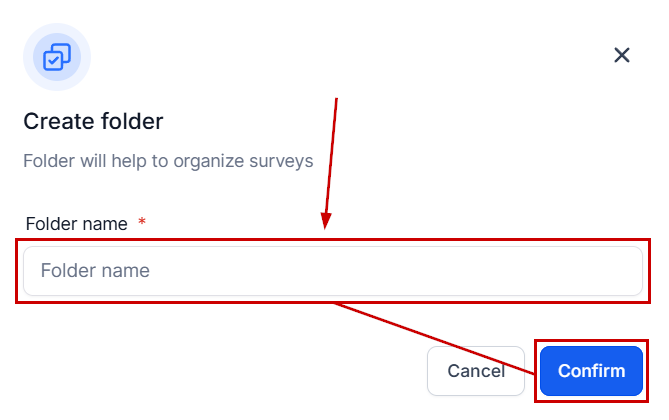
Create Folder
If you want to create a new folder click the "create folder" button.

Give the folder a name then click "confirm" to save it!
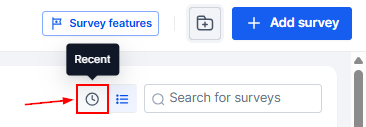
Recent tab
Click the clock icon to view the surveys you've accessed recently.
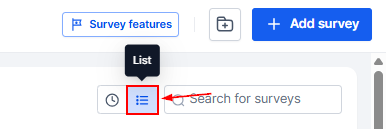
Survey List
This option organizes the surveys in alphabetical order.
Search Surveys By Name
If you have a long list of surveys, you can search for a particular form by typing the name of that form here.

Survey List
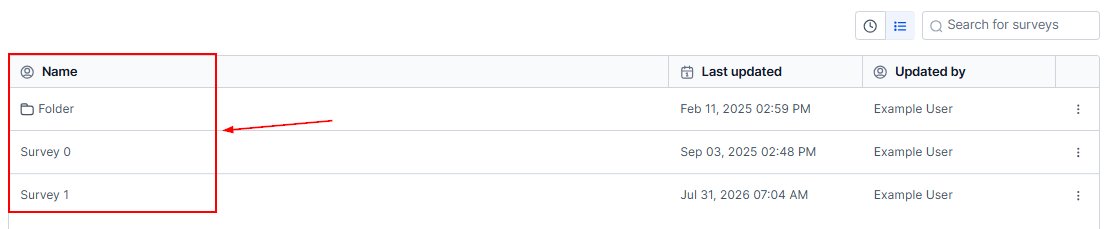
Name
You can see the name of each Survey or Survey Folder displayed here.
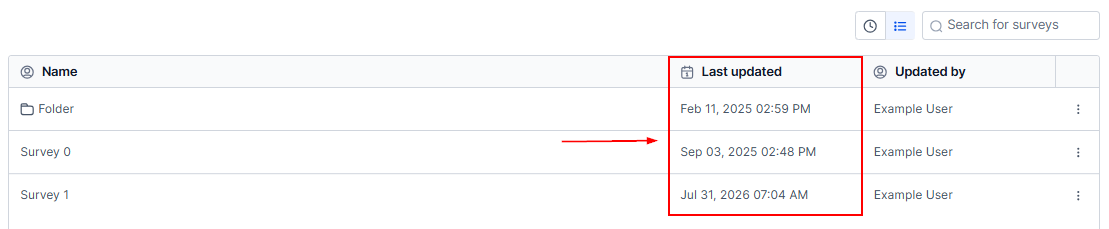
Last updated
This column shows you the date and time each survey or folder was updated.
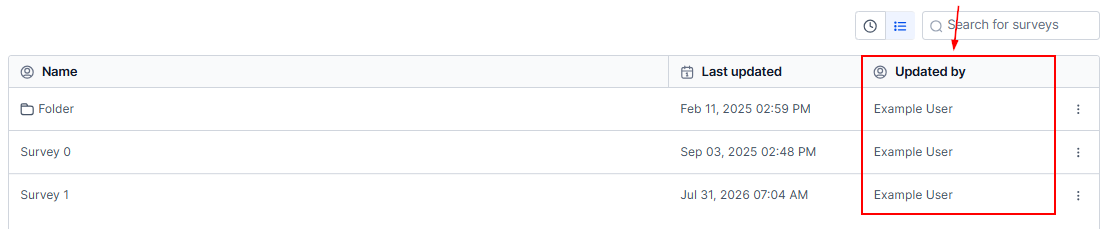
Updated By
In this column, you will see the name of the CRM user who last updated the survey or a folder.
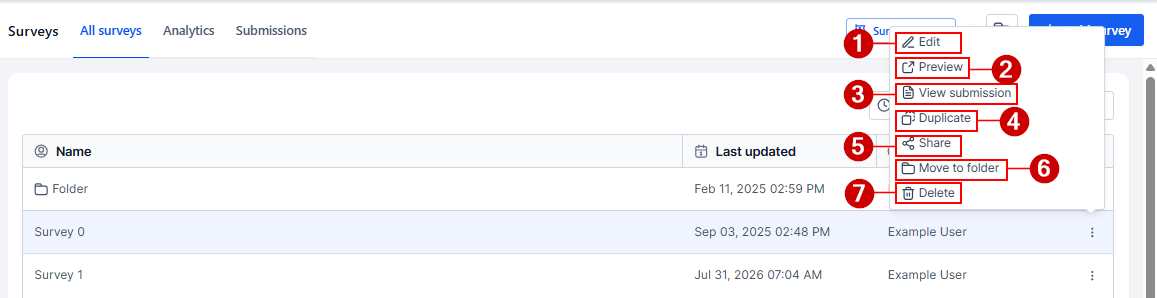
Survey Actions
- Edit: Click this button to edit a current survey.
- Preview: Open the survey in a new tab by clicking this button.
- View Submission: View all the submissions to the survey using this option.
- Duplicate: Click "duplicate" If you'd like to have a copy of a survey.
- Share: If you'd like to share a survey from this location or another within your CRM, click on the "Share" button and select the location you want.
- Move To Folder: If you'd like to move a survey from your list to a folder simply click on this button and select the folder.
- Delete: You can also select "delete" if you wish to delete this survey. If you delete a survey, it will be permanently deleted.
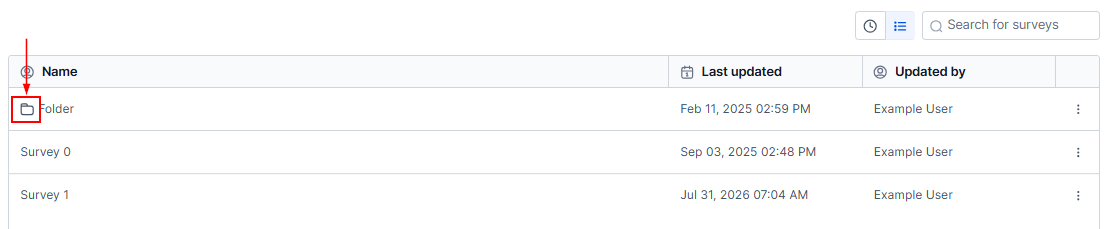
Survey Folder
All the survey folders you have created will have a folder icon like this.
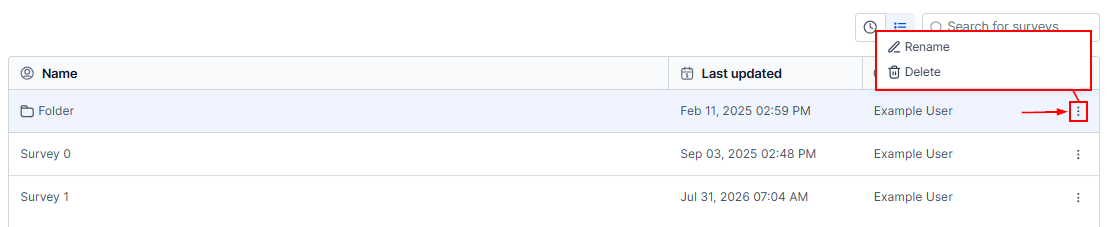
Folder Actions
- Rename: Click this button to edit the name of a current survey folder.
- Delete: You can also select "Delete" if you wish to delete this Survey permanently.
There you have it, now you're an expert on the Builder tab's layout of your Survey builder!