
How To Get a Form or Survey's I-Frame Code?
When hosting your website outside the CRM or running external ads, having the ability to add your forms or surveys to those sources is essential. Let's follow these steps to access it!
Accessing the Builder
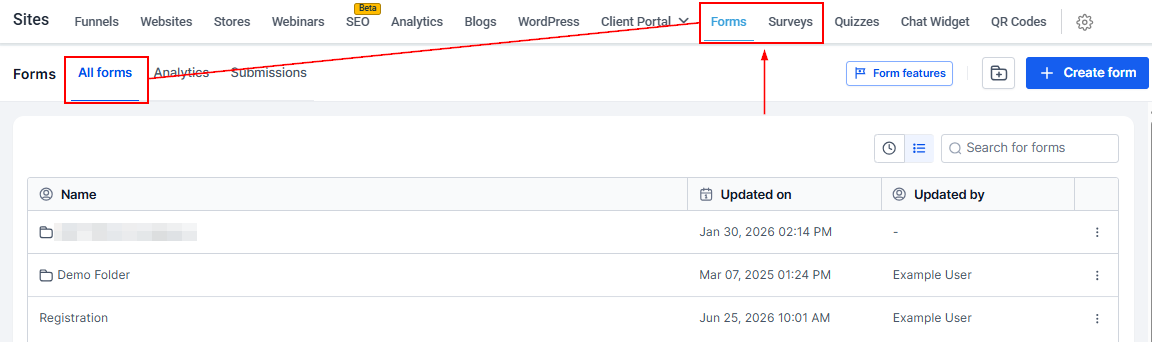
Navigate to the Forms or Surveys tab inside the Sites section and select the All Forms/Surveys option.
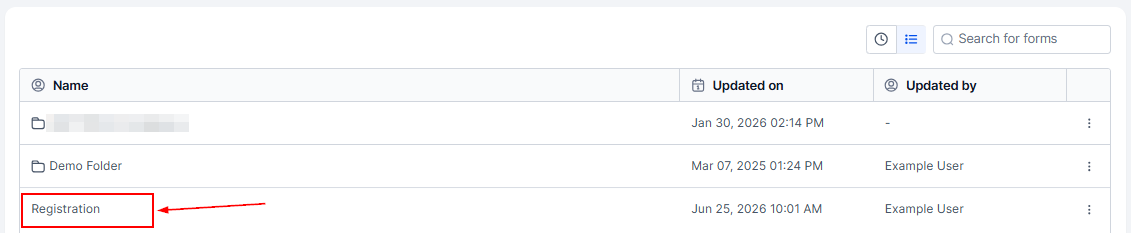
Select the Form/Survey you want to get the code for.
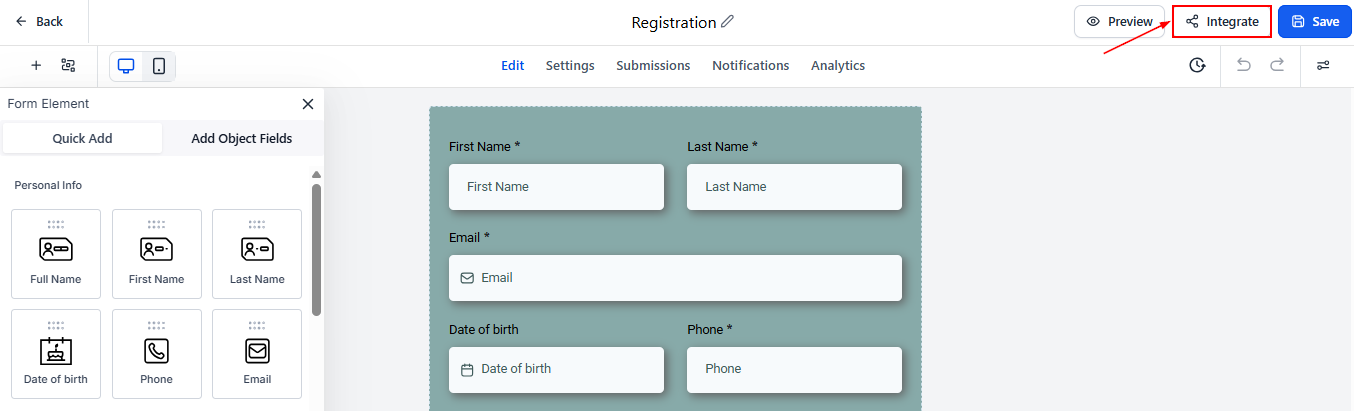
Click Integrate at the top right corner.
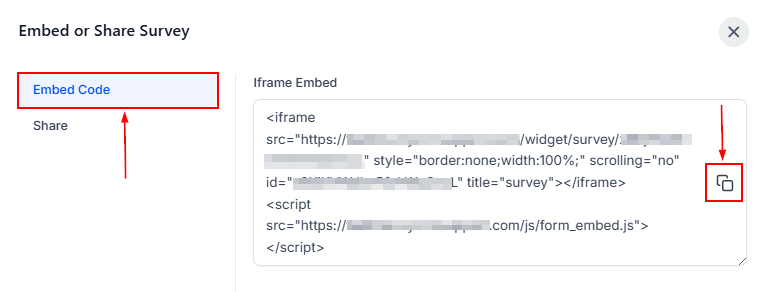
By default, the Embed Code section will open. Click the copy icon in surveys to save it to your clipboard.
For forms, you can adjust the embed layout type, trigger type, and activation and deactivation options before clicking the Copy embed code button.
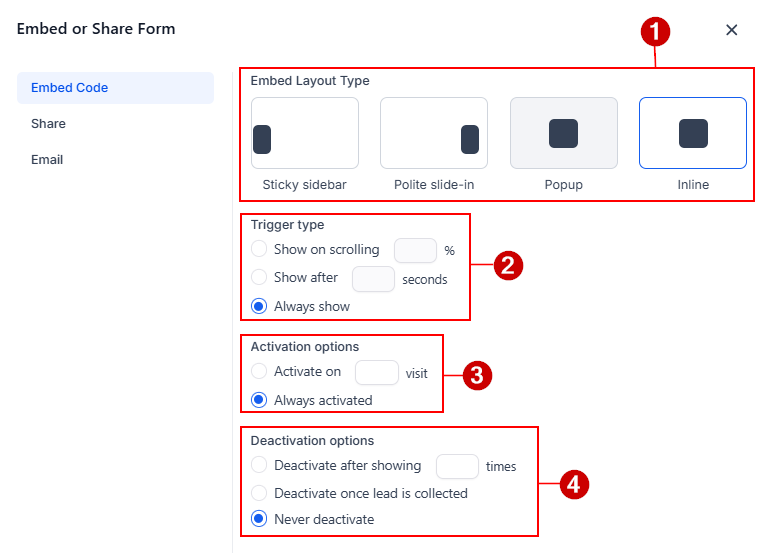
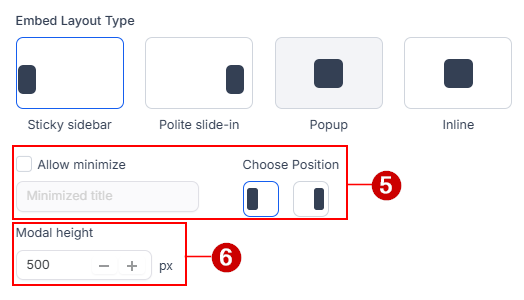
The sticky sidebar, polite slide-in, and popup options have additional customization features. For each option, you can set a custom modal height (6), but the “Allow minimize" and "Choose Position” features are restricted to the sticky sidebar and polite slide-in options.
The embed code will be copied to your clipboard. Now you can head over to your website editor to paste the code element as you would normally. Creating an easy integration with your CRM, even for external sites!