
Conditional Logic in Surveys
Conditional Logic for surveys empowers you to create smarter, more personalized experiences that adapt in real-time to each respondent’s answers. Whether you're guiding prospects to relevant questions, skipping unnecessary steps, or directing leads to custom landing pages, conditional logic helps streamline the survey journey and improve data quality. In this guide, you'll learn why conditional logic matters in surveys and how to set it up with step-by-step instructions.
Why Conditional Logic Matters
Using Conditional Logic in surveys offers multiple benefits:
- Personalize the Experience: Tailor questions based on responses to keep users engaged.
- Improve Data Quality: Filter out unqualified leads automatically.
- Shorten Surveys: Minimize unnecessary questions and reduce survey fatigue.
- Drive Action: Redirect high-value leads to booking pages or specialized offers.
How to Access and Set Up Conditional Logic
Open the Survey Builder
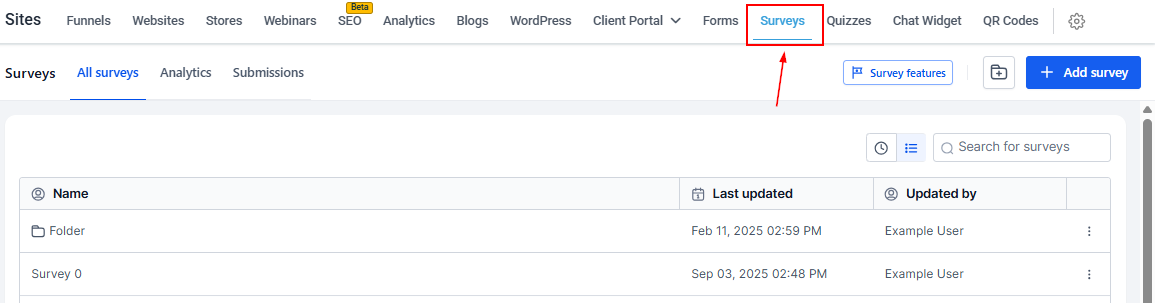
Navigate to Sites > Surveys from your account dashboard.
Create a new survey or edit an existing one.
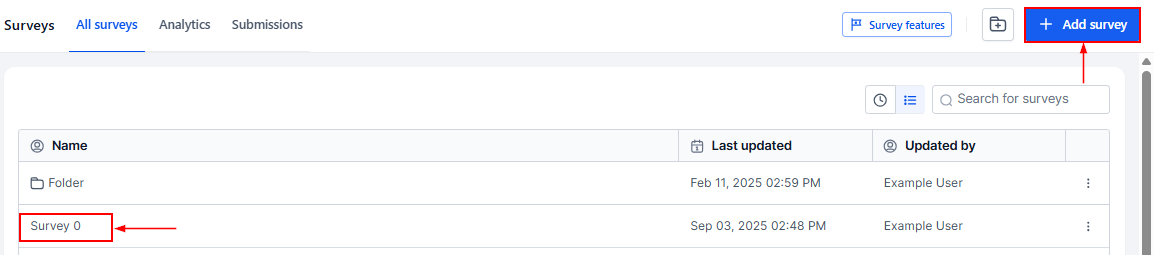
Add at least one question type (radio button, dropdown, etc.) to use as a trigger.
Open the Conditions Panel
In the survey builder toolbar, click the Conditional Logic icon to open the panel.
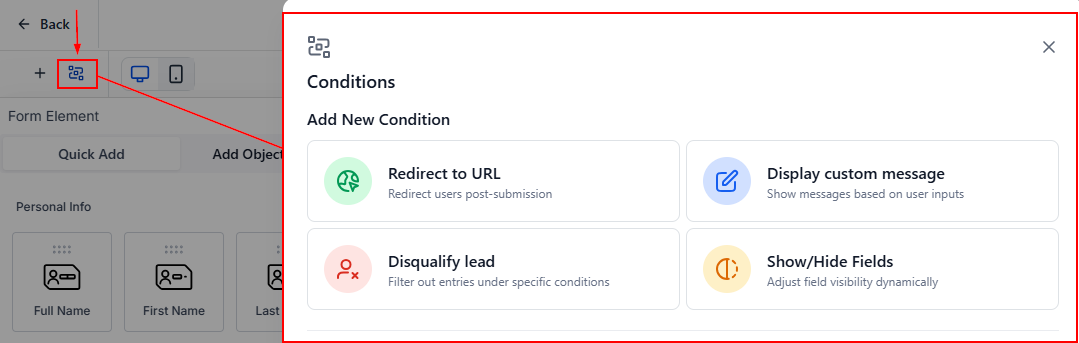
Conditional Logic Options
- Redirect to URL: Send respondents to a specific landing page.
- Display Custom Message: Show tailored instructions or thank-you notes.
- Disqualify Lead: Automatically remove unqualified prospects.
- Show/Hide Fields: Dynamically reveal or hide questions.
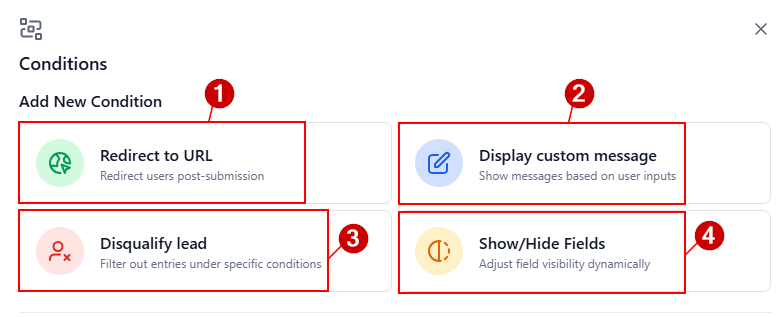
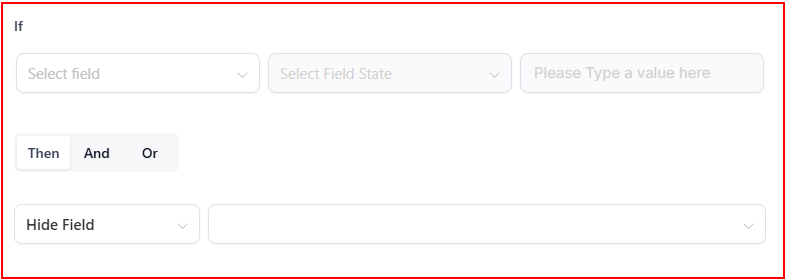
In general, each option requires IF-THEN selections; however, additional clauses can be included using AND/OR operators for each option except “Jump To”.
For instance:
- IF the answer to "Are you interested in our premium services?" is Yes,
- THEN show the next question about premium packages or redirect to a booking page.
You can then refine your logic using AND/OR conditions to create more complex pathways. For example:
- IF the answer is Yes AND the location is New York, THEN show a special offer.
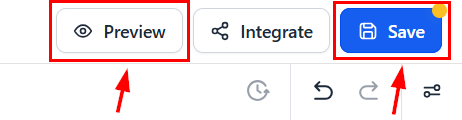
Save your changes, then preview your survey to ensure the logic works as expected. Walk through multiple answer paths to confirm that the right questions appear, redirects function correctly, and disqualification rules trigger as intended.
With Conditional Logic, your surveys become more than just data collection tools—they turn into interactive experiences that feel personalized and intentional. By guiding respondents through tailored pathways, you can boost engagement, improve response accuracy, and create meaningful follow-up opportunities. Whether you’re qualifying leads, shortening survey time, or directing users to the right offers, conditional logic helps you deliver smarter, more efficient surveys that truly work for your goals.
Practical Examples and Use Cases
Show/Hide Fields
Display follow-ups based on responses
IF "Modality" = "Online" THEN show "Link to Meeting"
Display Custom Message
Show custom feedback or warnings
IF "Satisfaction Rating" < 3 THEN show "We're sorry—our team will follow up."
Redirect to URL
Send to custom pages or demos
IF "Are you interested in being an affiliate" = "Yes" THEN redirect to the affiliate signup page
Disqualify Lead
Filter out low-quality leads
IF "Number of pets" < 5 THEN mark as disqualified
Frequently Asked Questions
Q: What happens if conditions overlap?
- A: Only the first valid condition (from top to bottom) will execute.
Q: Can I display a custom message when disqualifying a lead?
- A: Yes, custom disqualification messages are supported.