
Client Portal Notifications
In-app notifications offer a convenient way for clients to stay connected and engaged. By providing real-time updates, this feature ensures that they are always in the loop. Additionally, the intuitive bell icon simplifies navigation, helping them easily distinguish between read and unread notifications to keep their feed organized.
Let’s walk through how you can guide your clients to access their client portal notifications, starting from your CRM account.
Accessing the Client Portal
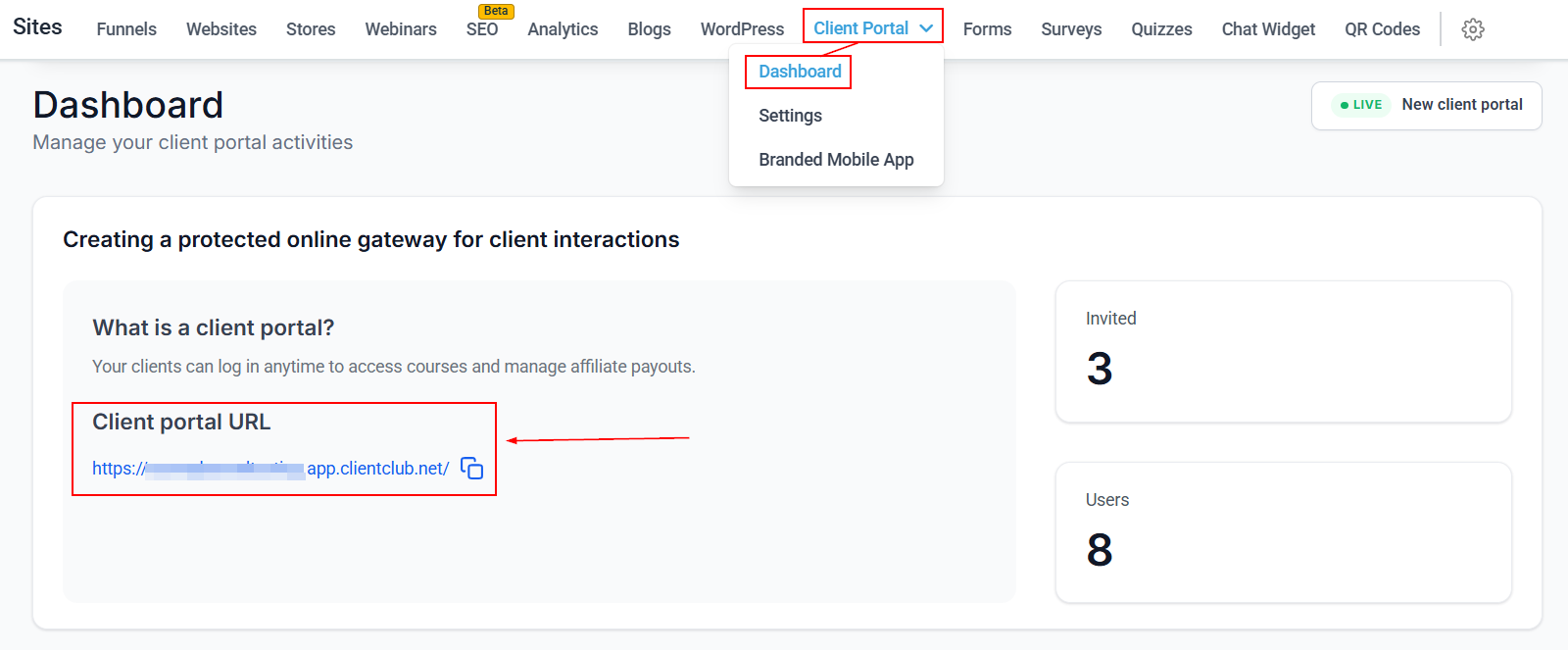
Navigate to the "Sites" tab on the left navigation menu. From here, select "Client Portal" and then "Dashboard". You will see your Client Portal URL, which you can click to open in a new tab, or copy and paste into your browser.
Locating the Notification Bell
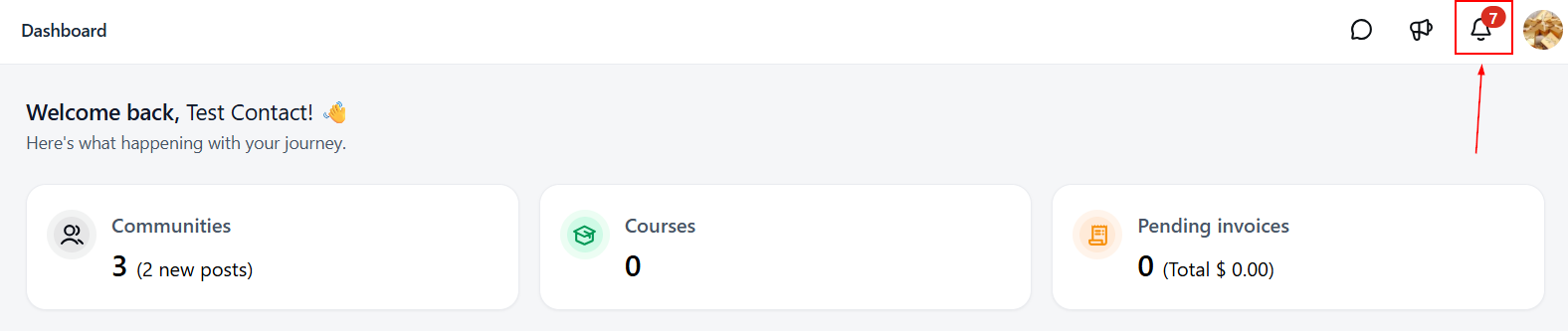
Once inside the portal, look for the bell icon located at the top right corner of the page.
Viewing Notifications
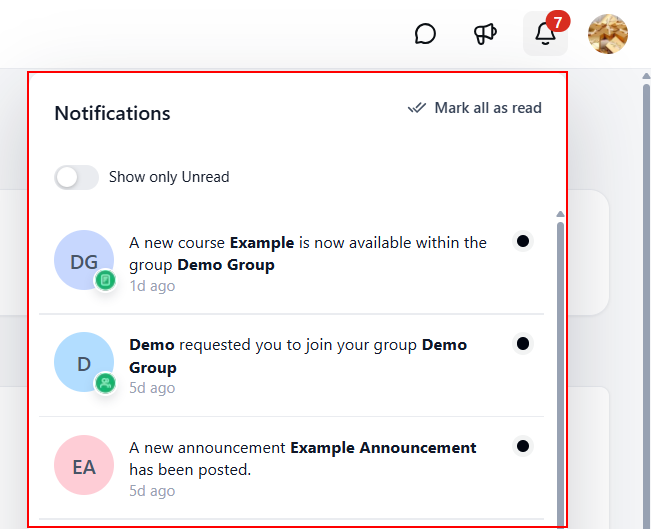
Click on the bell icon to reveal a drop-down menu displaying all your notifications.
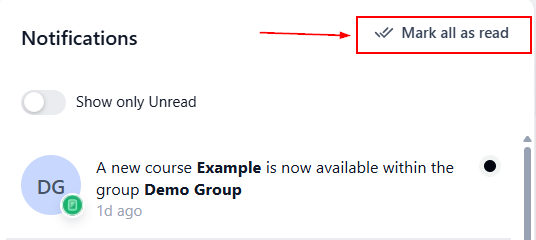
You can toggle between viewing all notifications or just the unread ones.
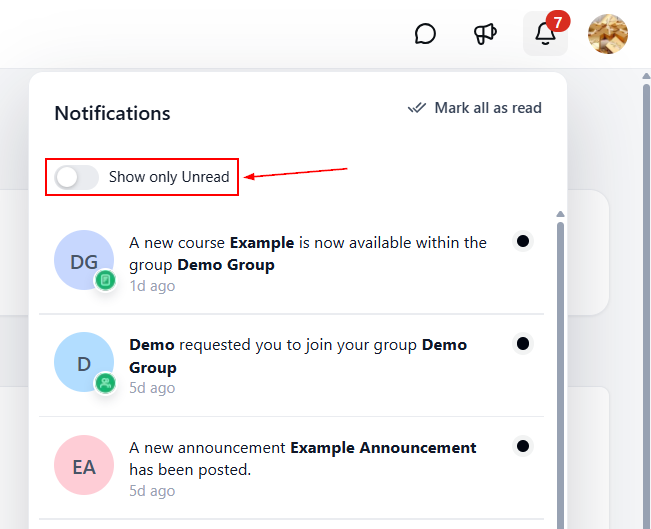
After reviewing your notifications, you can mark them as read by selecting the option. Once this is done, the Unread section will be cleared.
By guiding clients through these simple steps, you can help them make the most of the client portal and stay connected with the latest updates from your community.