
How To Use Sticky Contact
The Sticky Contact feature tells the system to remember the information a contact fills out on a form or survey for future interactions. This helps you streamline the form-fill-out process for returning contacts. The feature works by carrying over the information using browser cookies.
When Should You Use It?
This feature works best for customer-facing forms and surveys. It provides added convenience and minimizes churn when multiple forms, surveys, and appointment requests are filled out for the same client. However, using Sticky Contact can cause data integrity issues if used without care, so what should you keep in mind before enabling this option:
- Ensure that all team members who interact with forms and surveys know when Sticky Contact is enabled and understand how it works.
- Teach your team the best practices for managing this feature, such as clearing browser cookies before entering information for a new contact or using an incognito window.
- If your team frequently enters information for different contacts in succession, consider disabling Sticky Contact.
How To Enable/Disable Sticky Contact
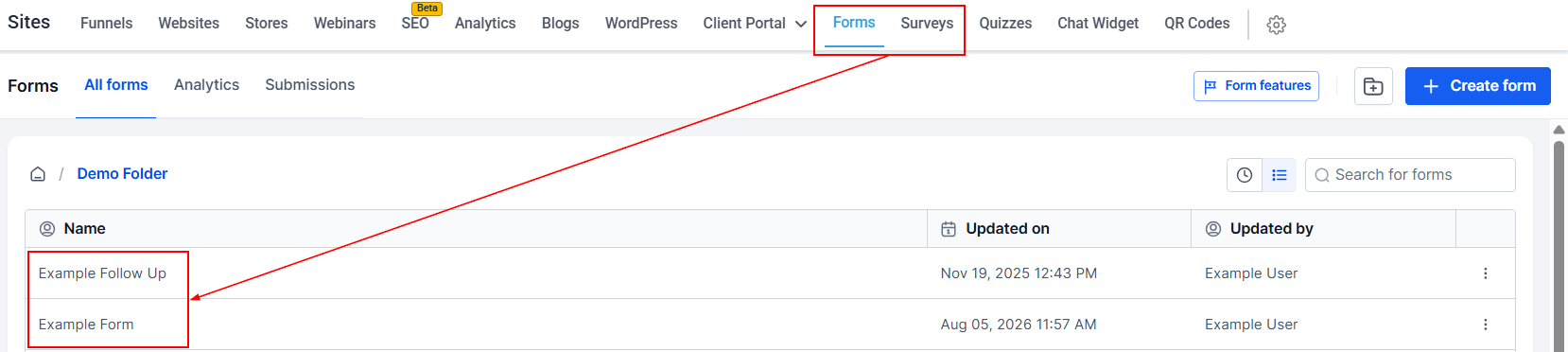
Navigate to the Form/Survey tab inside the Sites section and access your desired form/survey by clicking on its name.
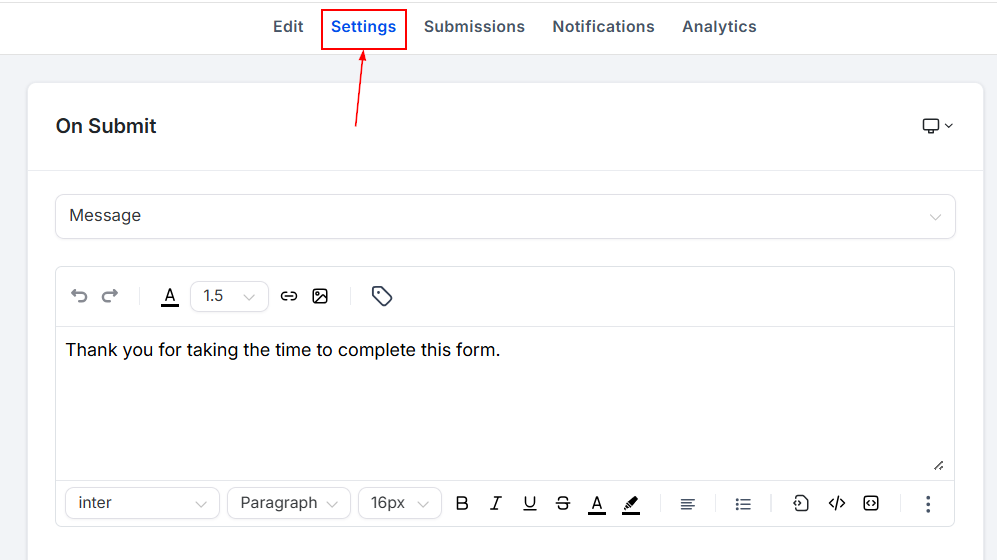
Click on the Settings option on the upper panel.
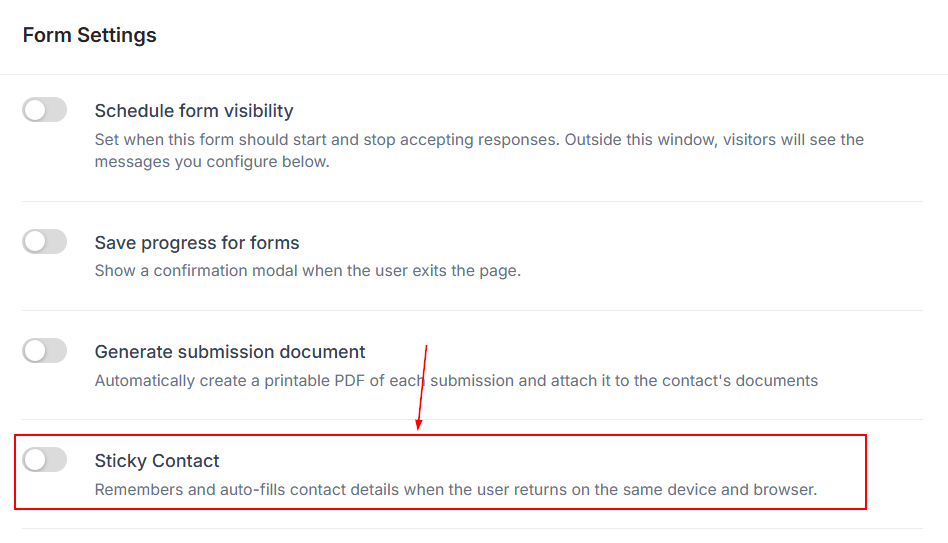
Under Form/Survey Settings, toggle the Sticky Contact option to ON or OFF as required.
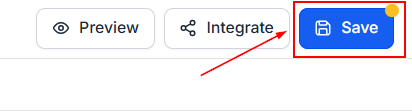
Click Save in the top-right corner to keep your changes.
Frequently Asked Questions
Q: Can I recover overwritten contact information?
A: If you notice missing contact information, you can manually edit it using the information on previous form/survey submissions.
Q: How do I disable sticky contacts for specific forms?
A: Disabling sticky contacts can be done in the form or survey. Look for an option labeled "Sticky Contacts" in the Form/Survey Settings.