
Appointments in the Client Portal
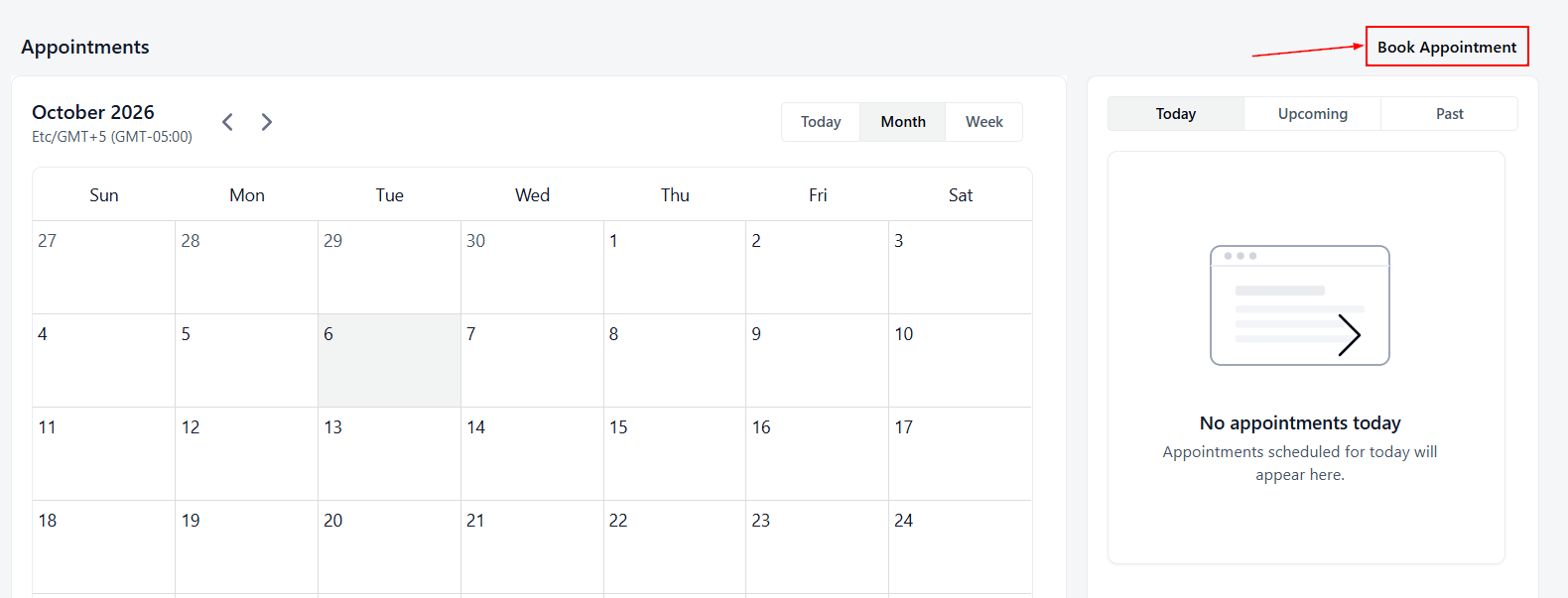
The Appointments section in the Client Portal provides users with a convenient way to view scheduled appointments and book new ones. From this section, users can check their appointment calendar, review upcoming or past appointments, and select an available date and time when booking a new appointment.
How to Access Appointments in the Client Portal
To access appointments, select Appointments from the navigation menu on the left side of the Client Portal.
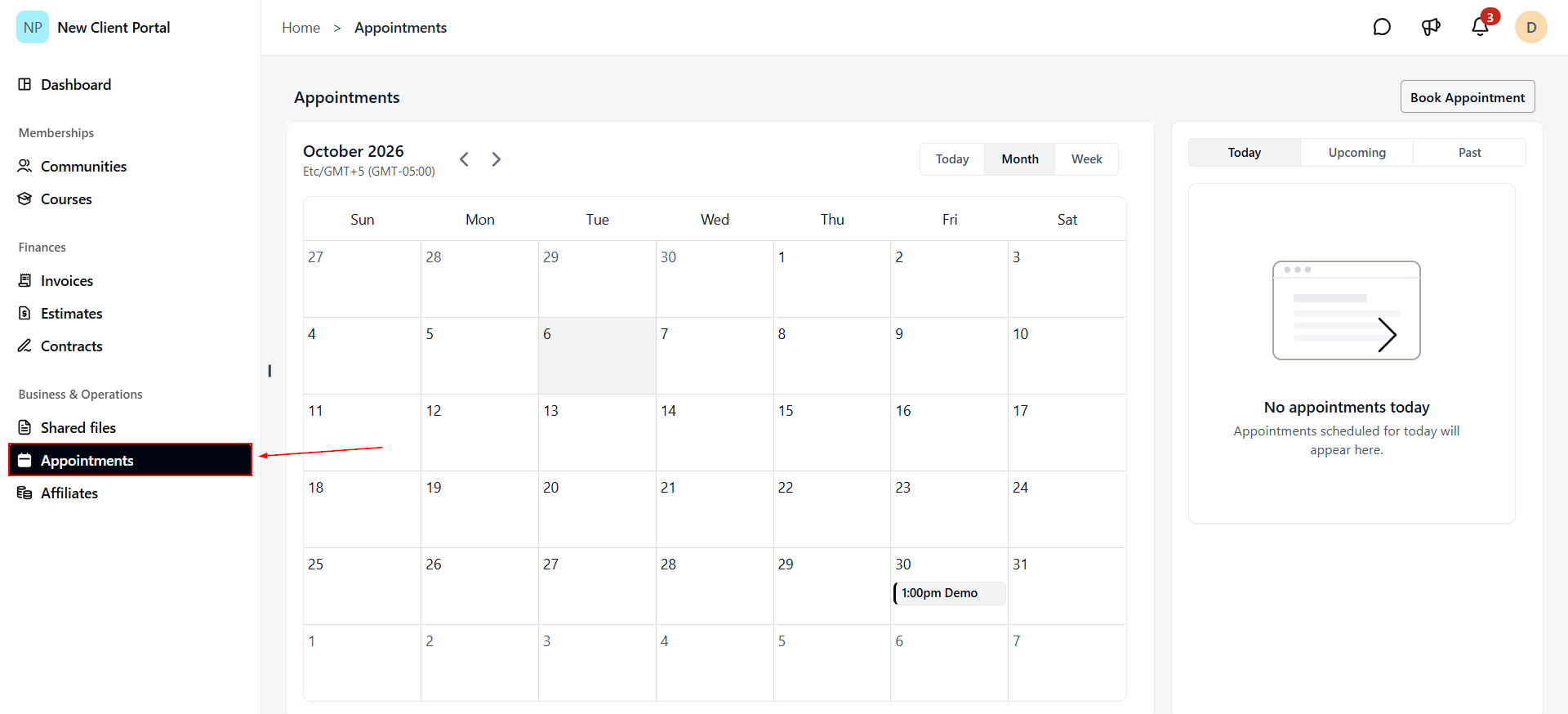
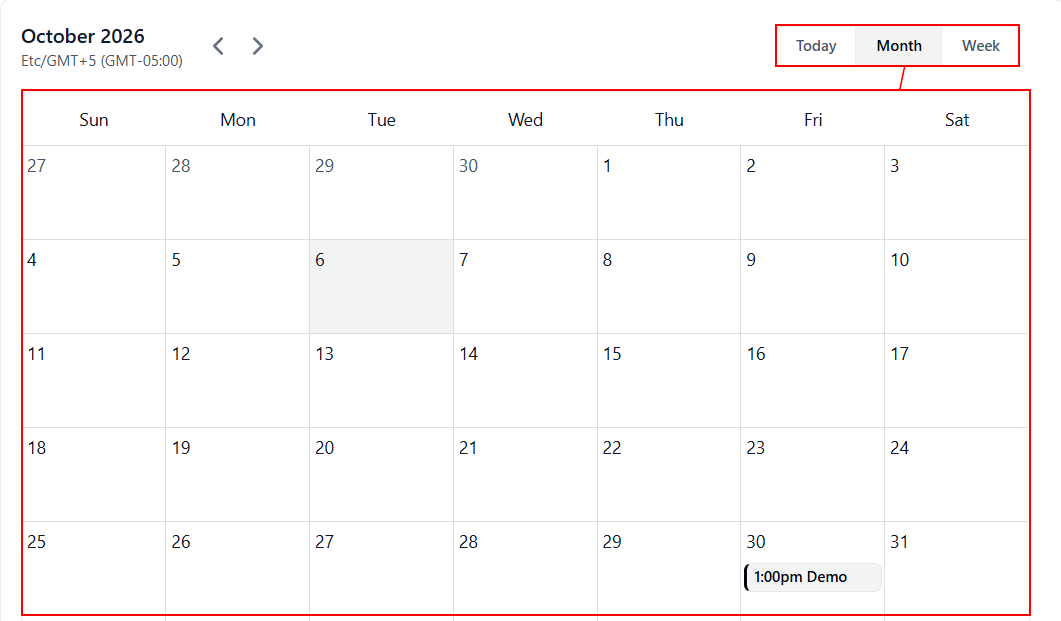
The Appointments page displays a calendar where users can view their appointments by month or week. Users can also select Today to quickly return to the current date.
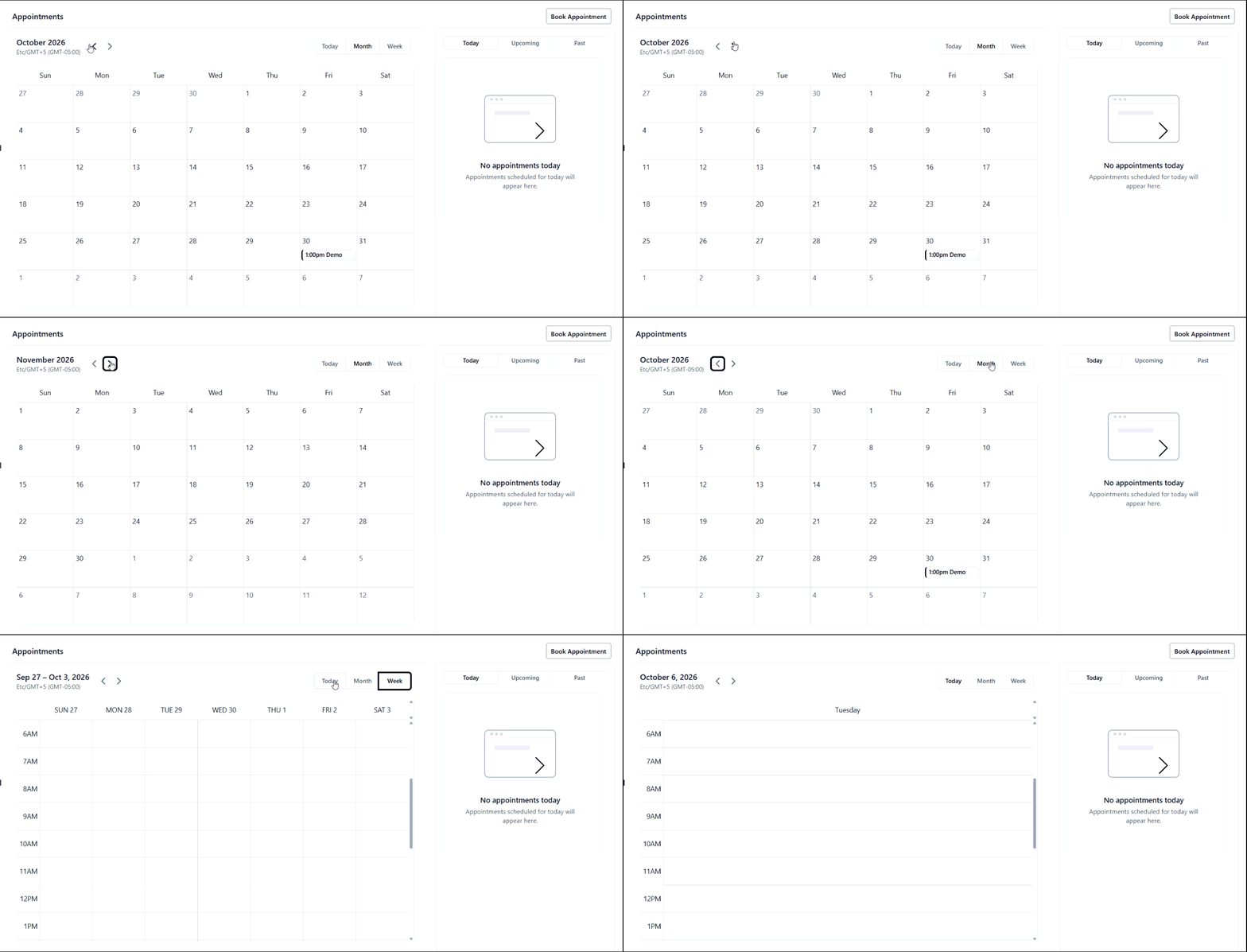
The calendar includes navigation arrows that allow users to move between the selected time intervals.
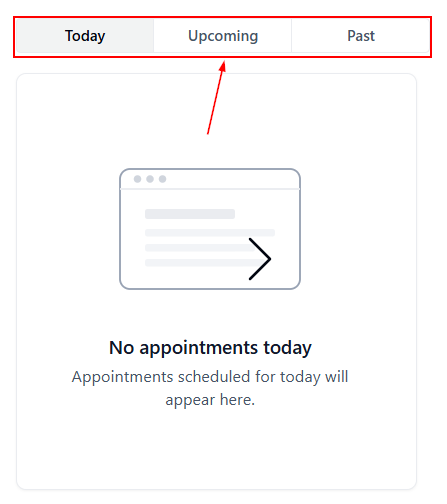
On the right side of the page, users can switch between Today, Upcoming, and Past appointments.
How to Book an Appointment
To schedule a new appointment, select Book Appointment in the upper-right corner of the Appointments page.
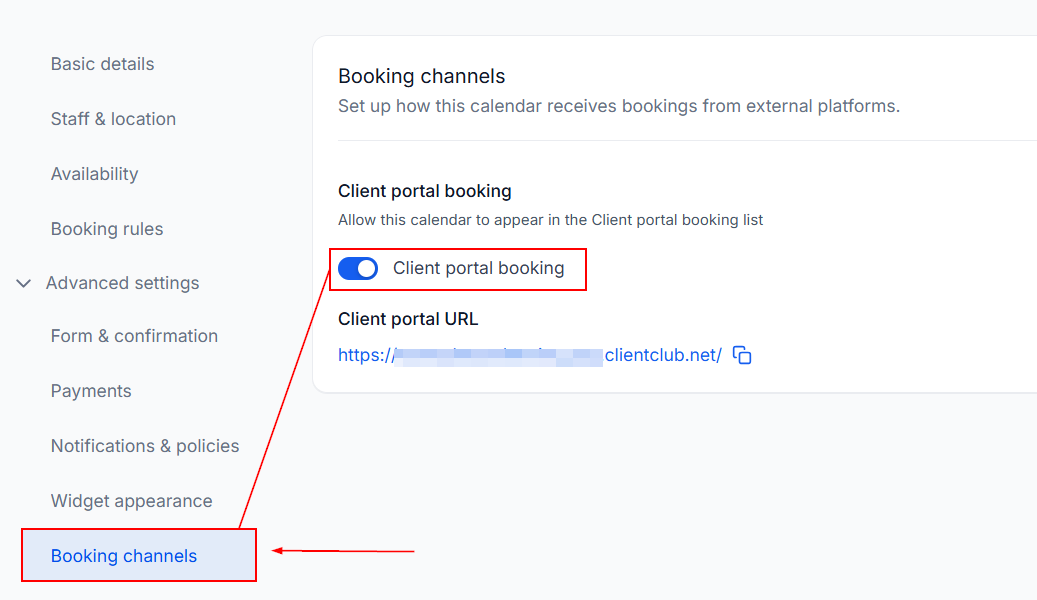
Note: The booking screen displays the available slots of calendars which have Client Portal Booking feature enabled.
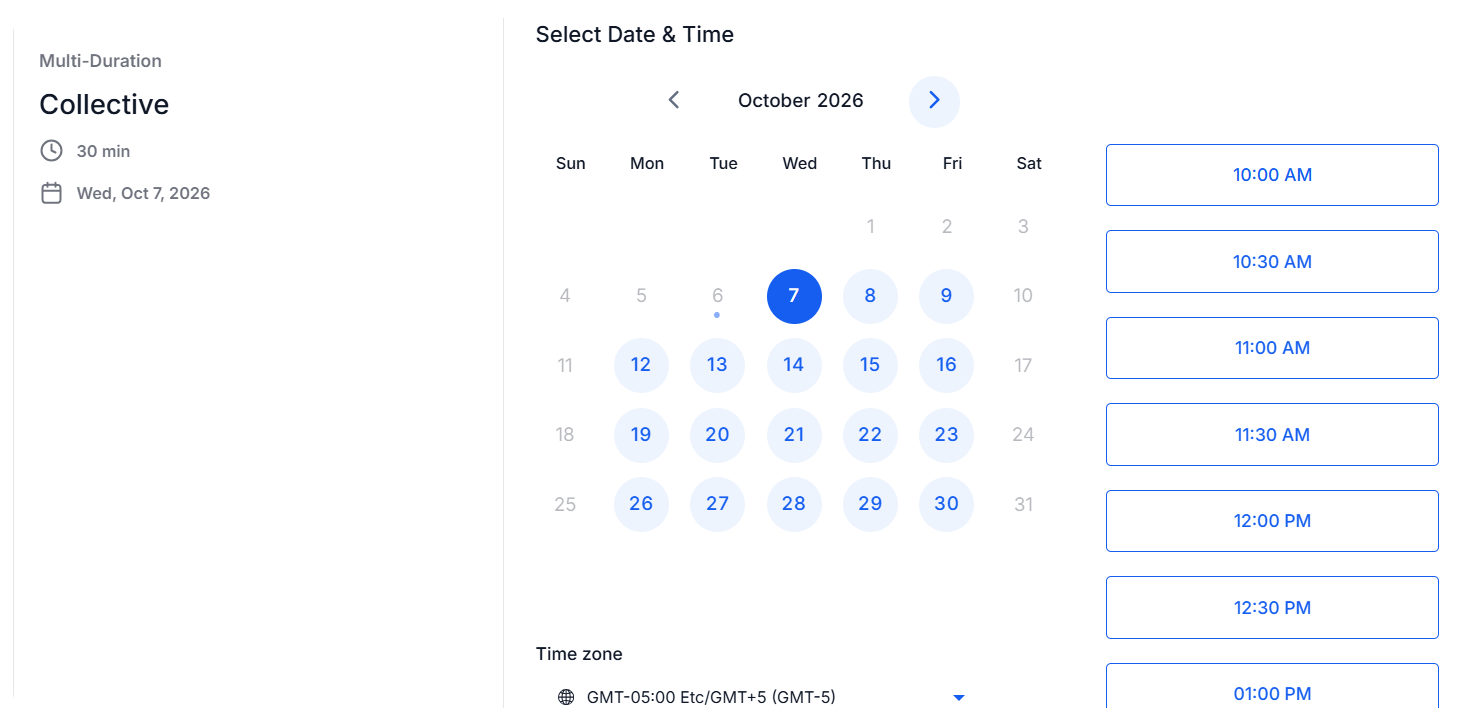
Available dates are highlighted on the calendar, while unavailable dates appear greyed out. After selecting a date, the available time slots for that day are displayed on the right. Select the preferred time to continue with the booking.
The booking screen also displays the Time zone being used for the appointment. Users can review the displayed time zone and select a different one if needed before scheduling the appointment.
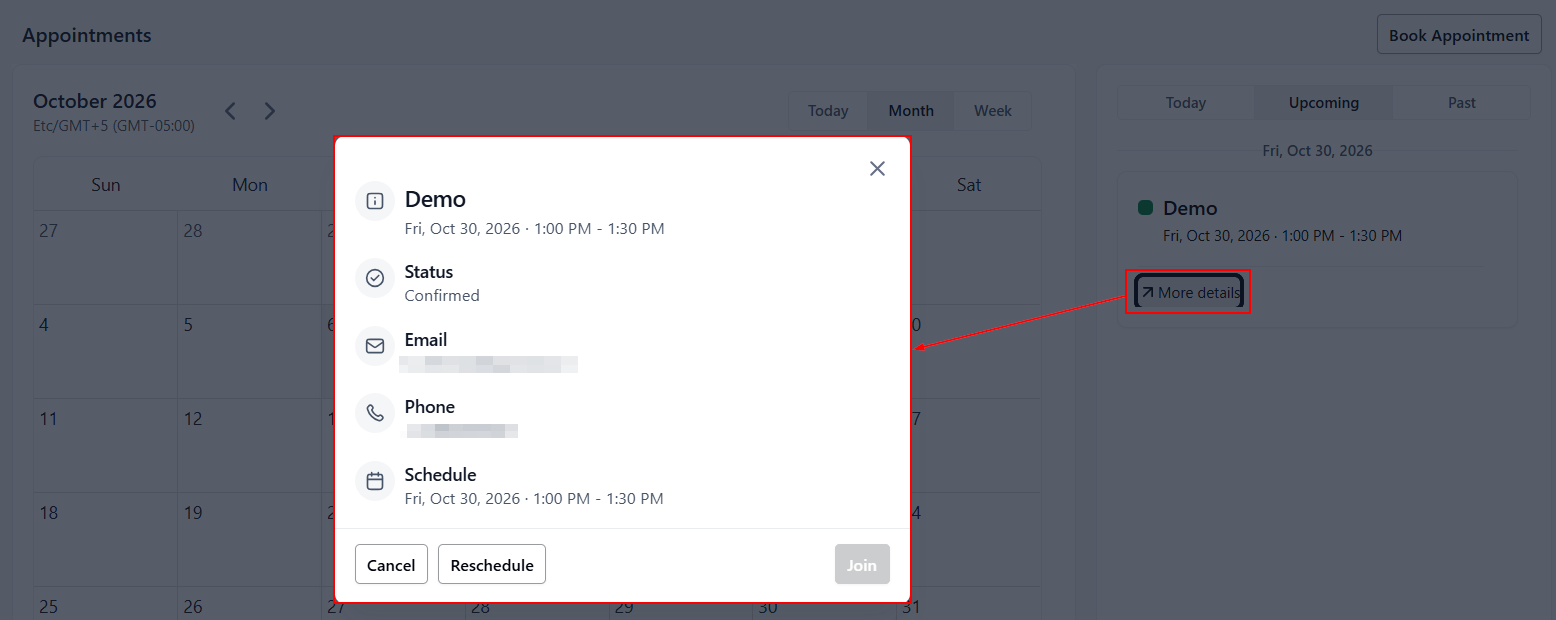
After appointments have been scheduled, users can return to the Appointments section to cancel, reschedule, or join them.
Whether checking the calendar or arranging a new appointment, users can complete these tasks directly from the Client Portal and keep their bookings organized in one place.