
How to Generate Submission Documents for Forms, Surveys & Quizzes
Capturing responses is great, but having them instantly available as printable documents is even better. Let’s learn how to use the “Generate submission document” setting to create and store PDF copies of every submission.
Enabling Submission Document Generation
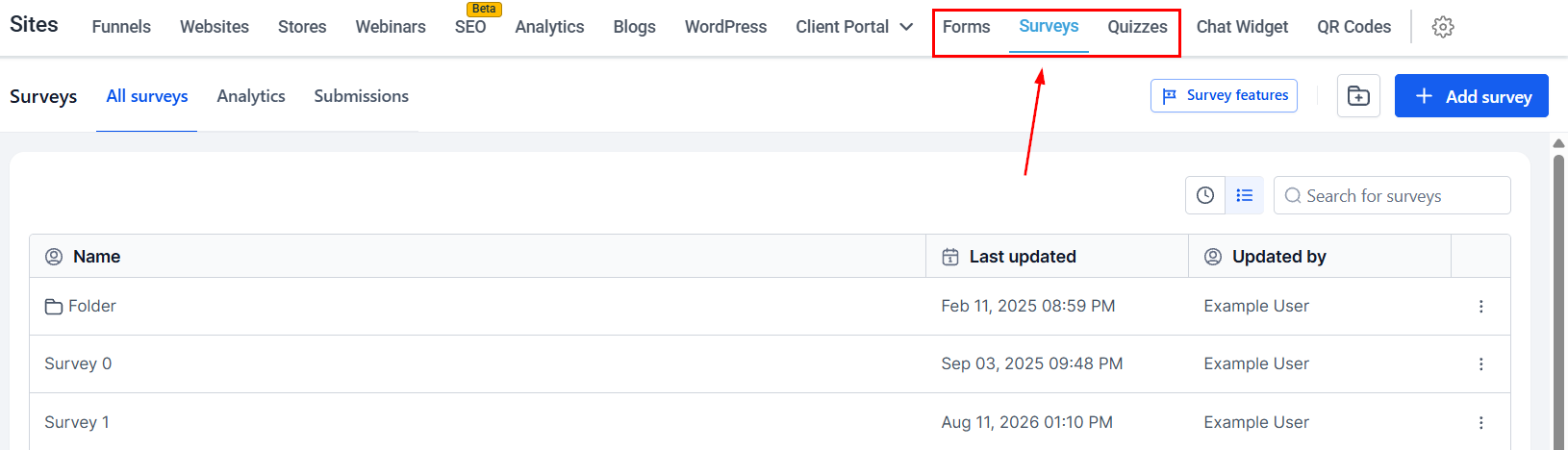
Navigate to the Forms, Surveys, or Quizzes tab inside the Sites section.
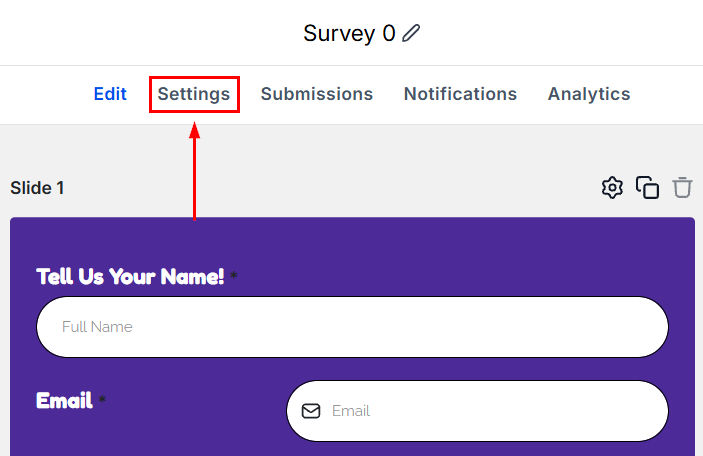
Select the Settings tab from the top menu.
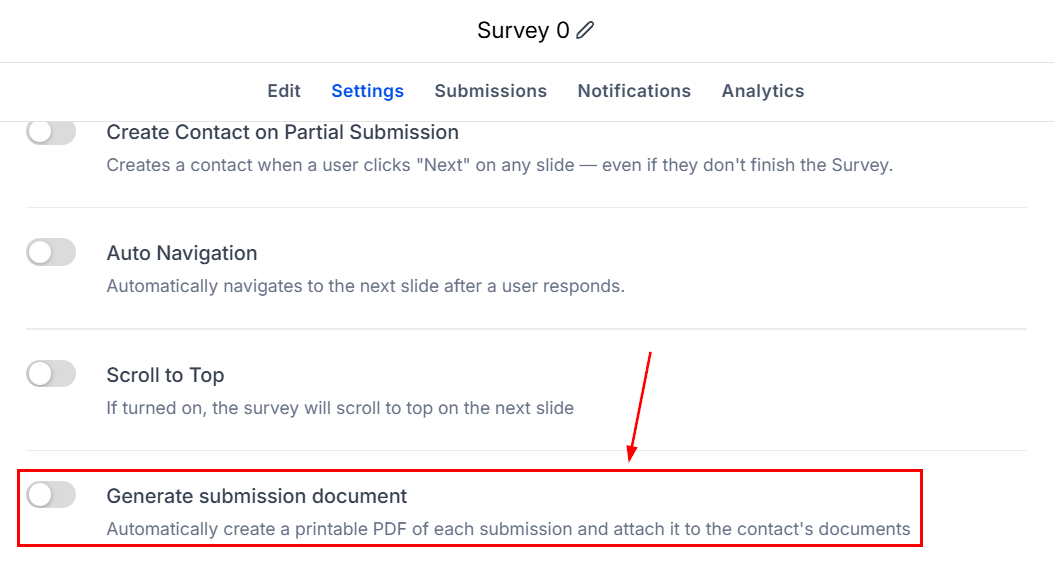
Enable the “Generate submission document” confirmation toggle.
Click Save in the top right corner.

Viewing Submissions
This saves a fixed copy of data that will not change if the live online form is deleted or updated, acting as a reliable submission trail. To view it, head to the contact's Documents section inside the Contacts or Conversation tab.
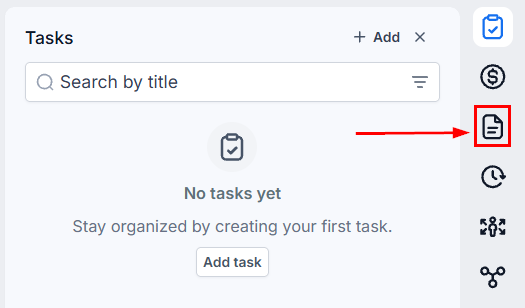
Locate the Forms, Surveys, or Quizzes folder.
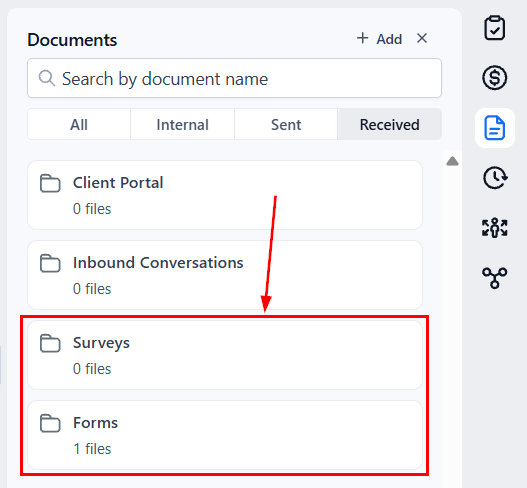
Click the document to preview it in your browser and download a copy.
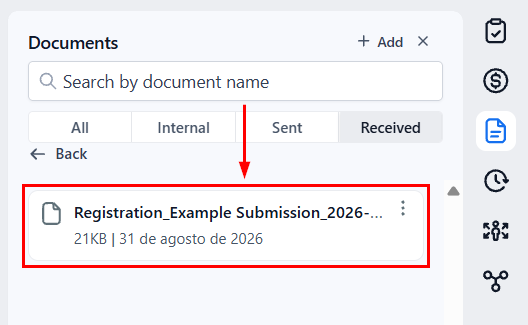
The PDF generation allows you to improve your recordkeeping, maintain a backlog of submissions that help you share important information without including raw data, and more accurately evaluate submissions even upon repeated responses.