
Settings Tab - Webinars
Managing your webinar settings is essential for optimizing their performance and functionality, which in turn will keep your learners engaged. This section contains the configurations for multiple important elements, from naming and domain connection to tracking code setup and more. Let's learn how to customize and manage them.
From the Webinars section in your account, select the desired site, then navigate to the Settings tab.
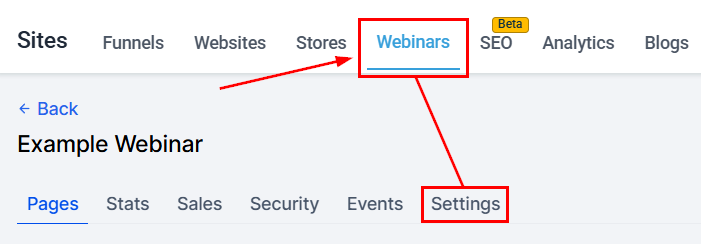
More Information
Clicking the More Information icon provides additional details about the webinar's URL.
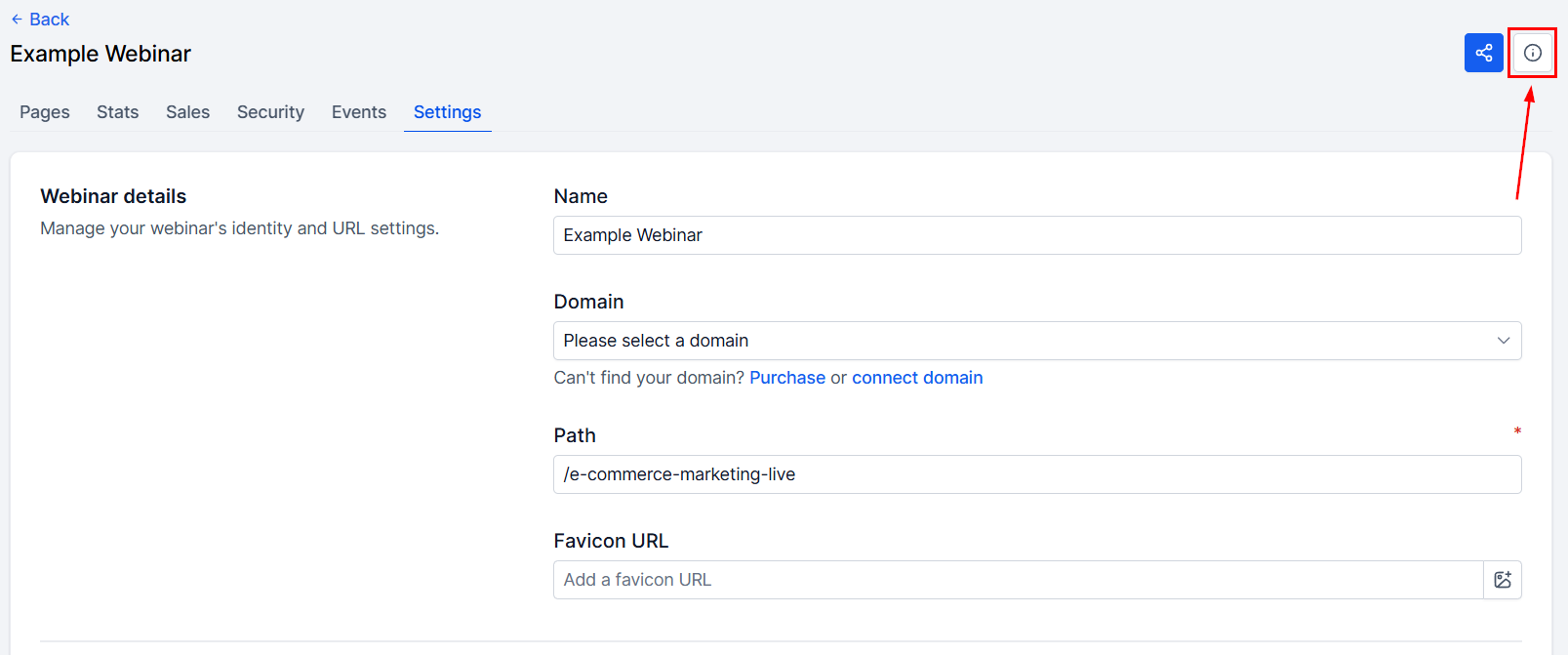
Webinar Name
You can name or rename your webinar by entering your preferred name in the designated field.
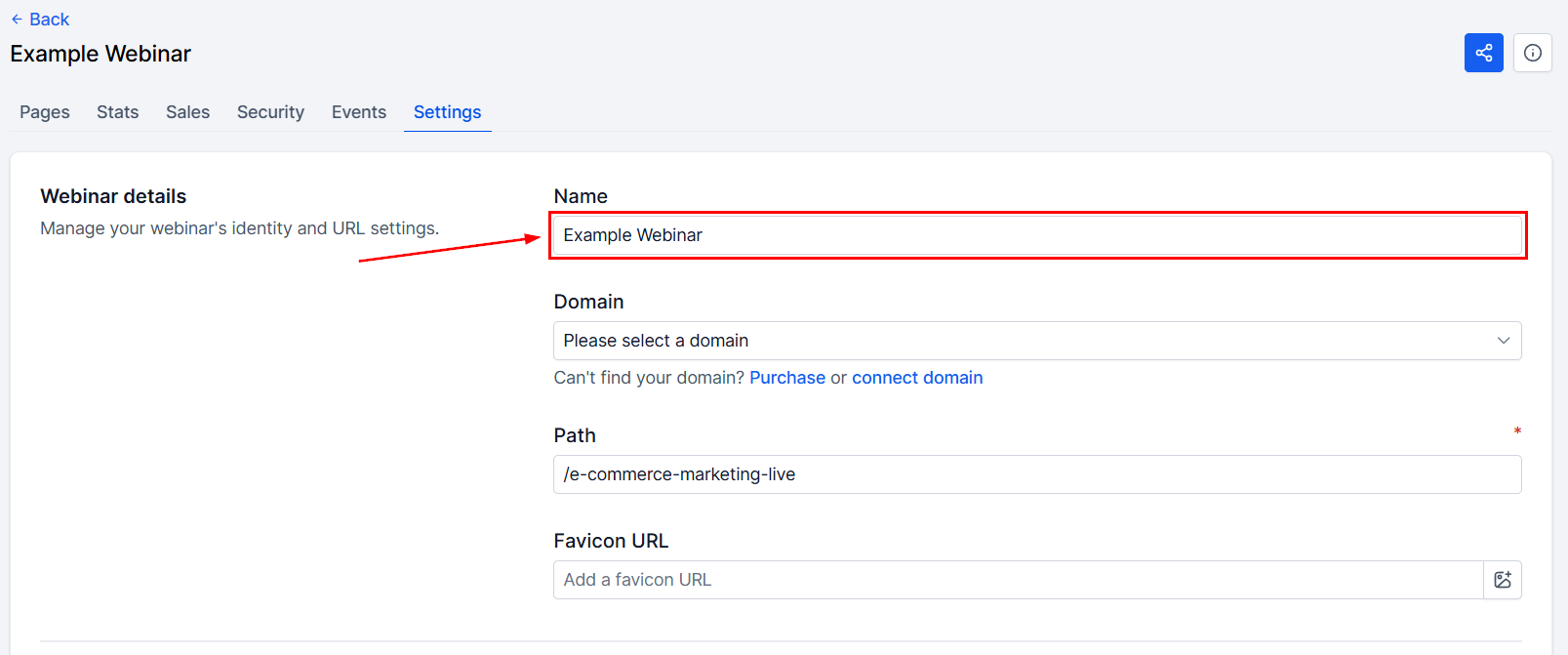
Domain
In the "Domain" field, select the domain you wish to associate with this webinar. This is essential, as the webinar cannot be live without an assigned domain.
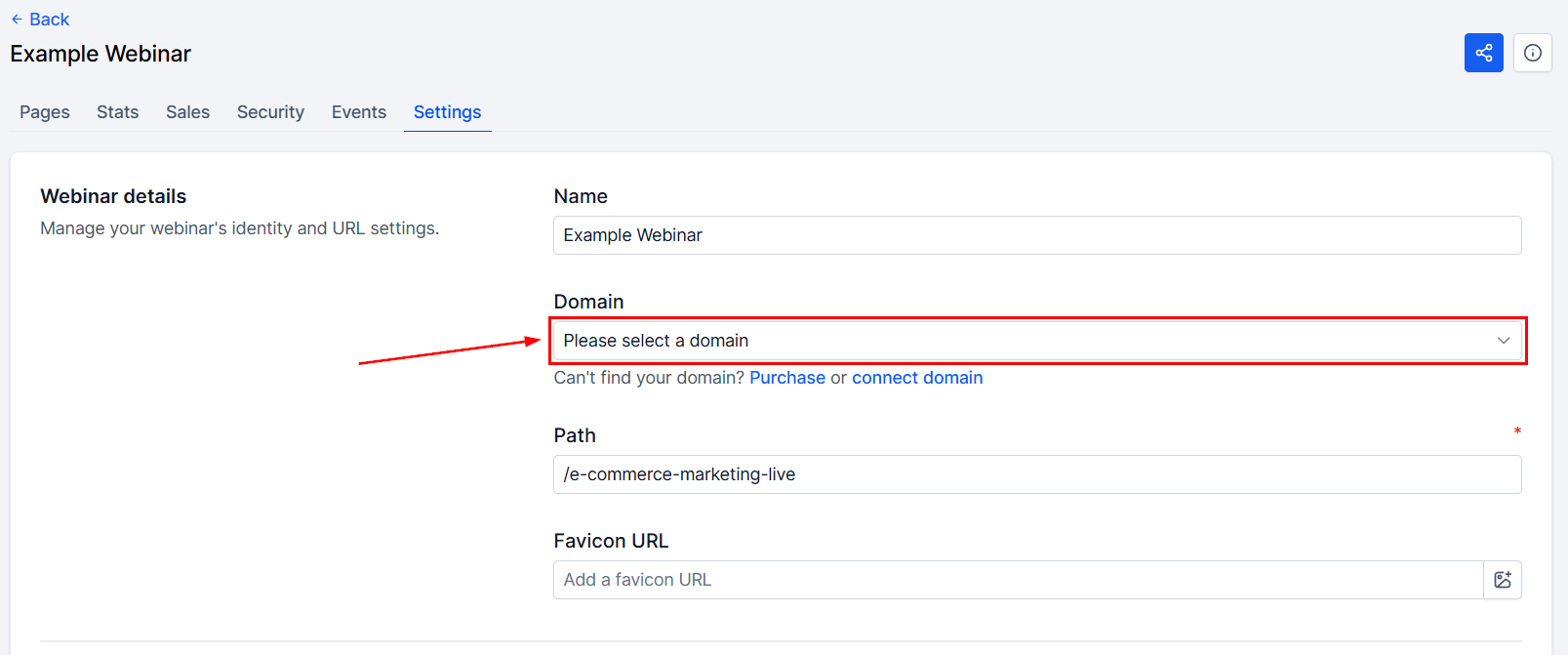
If you don't have a domain in your system yet, navigate to the Domain section of your account settings to create one, or contact your administrator for access.
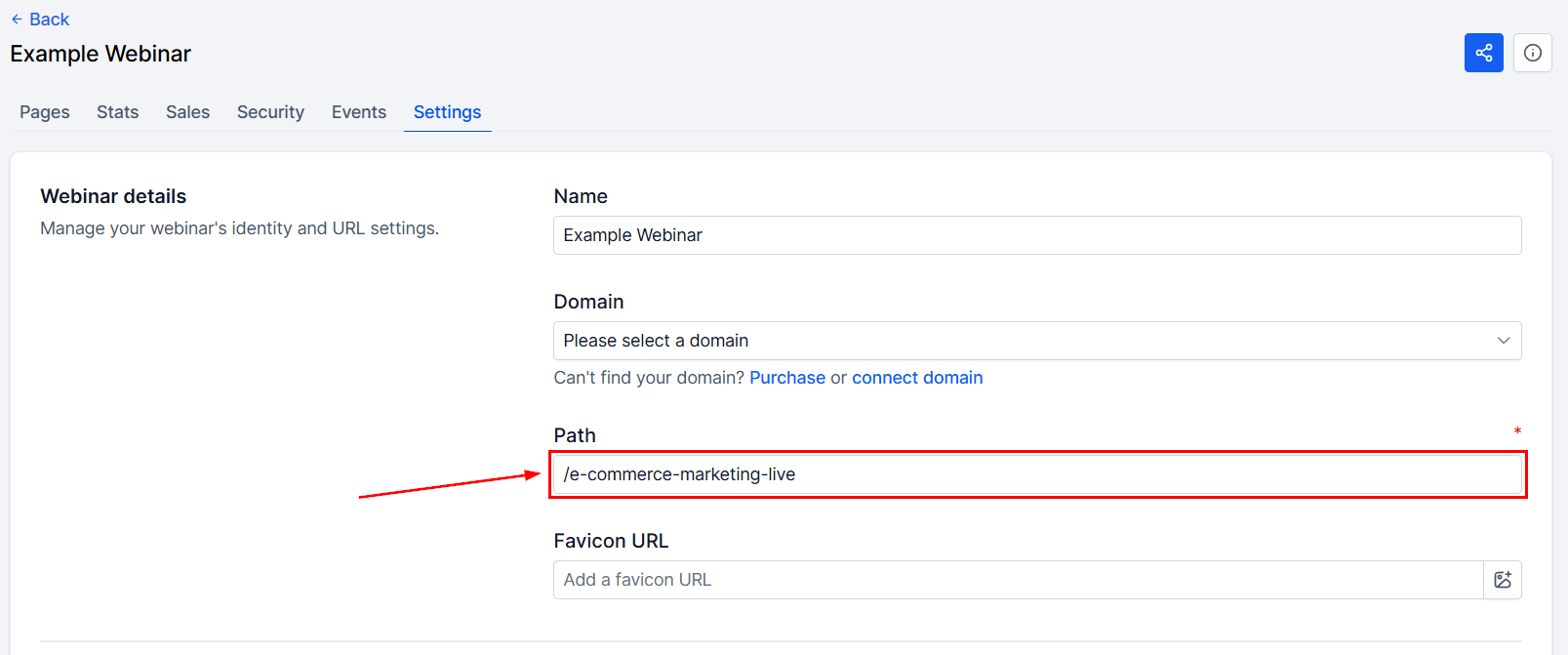
Path
Set a default path for your webinar by entering a path description in the provided field. You can also modify the path for each webinar step under the "Step" tab.
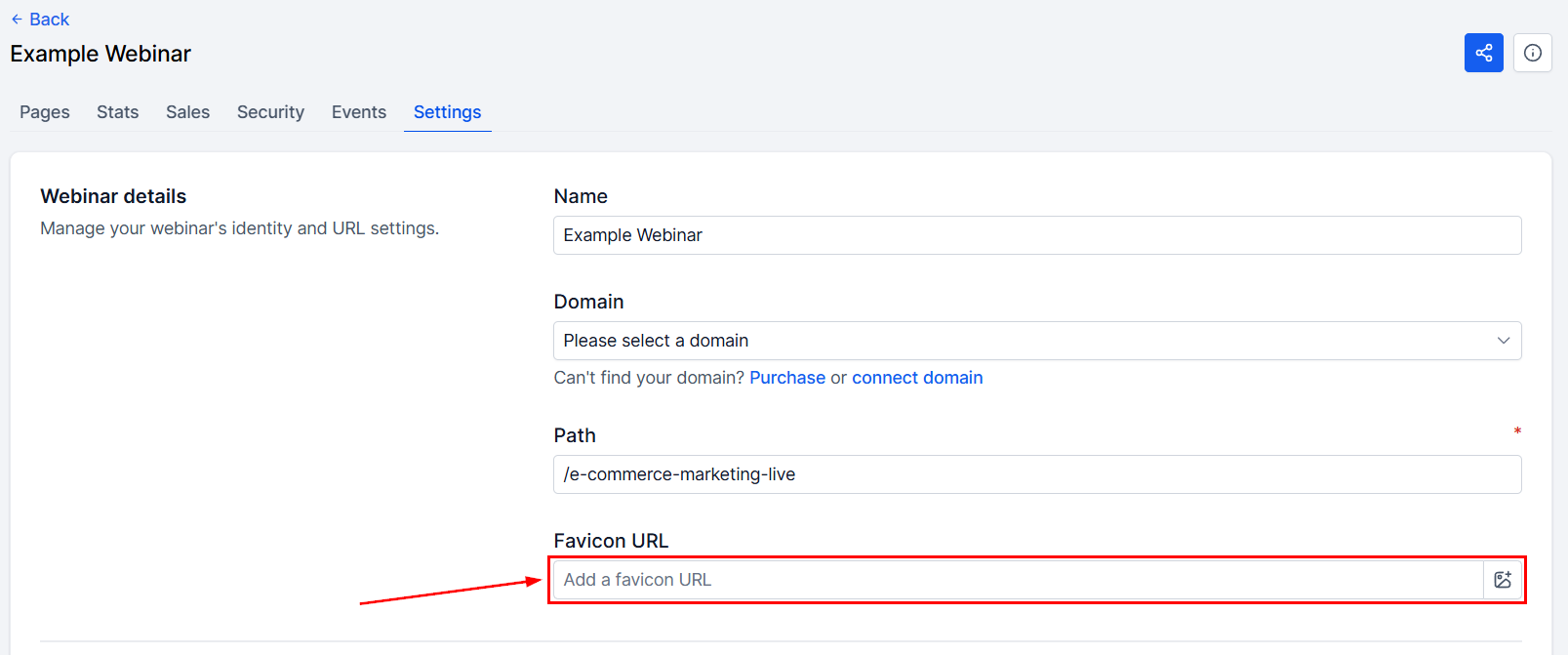
Favicon URL
The favicon is the small icon or logo, typically representing your business, displayed in the browser tab. To add a favicon to your webinar, paste the favicon URL (.png or .ico) in the designated field. This will apply the favicon to all pages within the webinar.
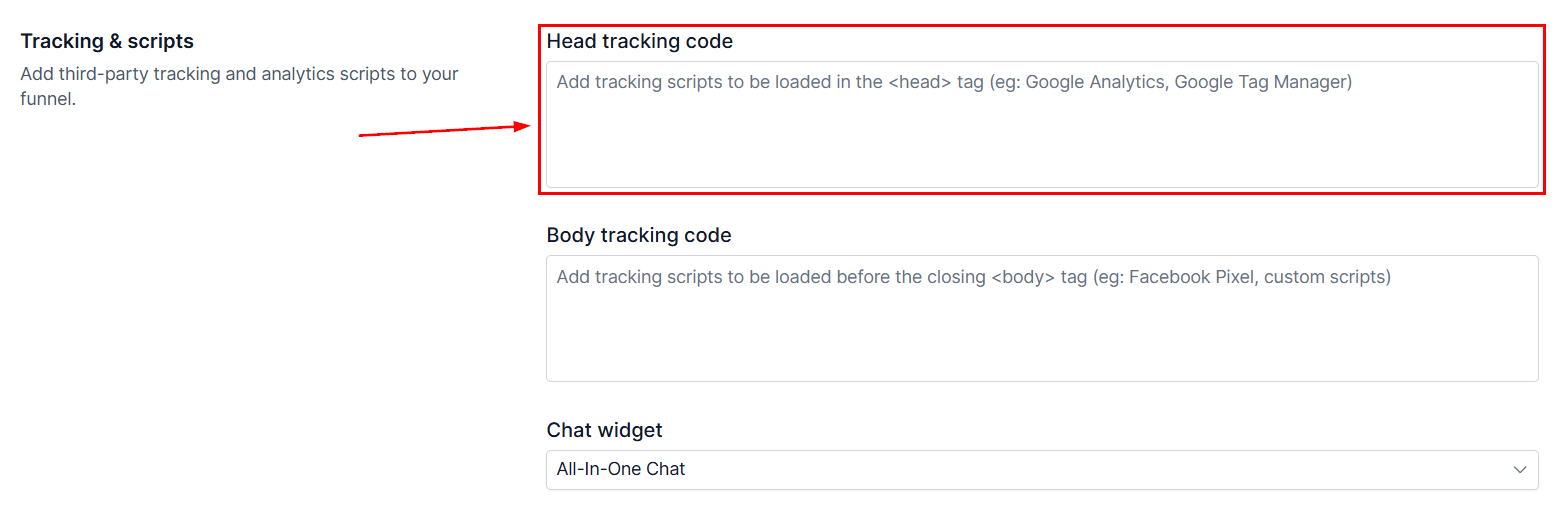
Head Tracking Code
Enter your Head tracking code here for the head tag.
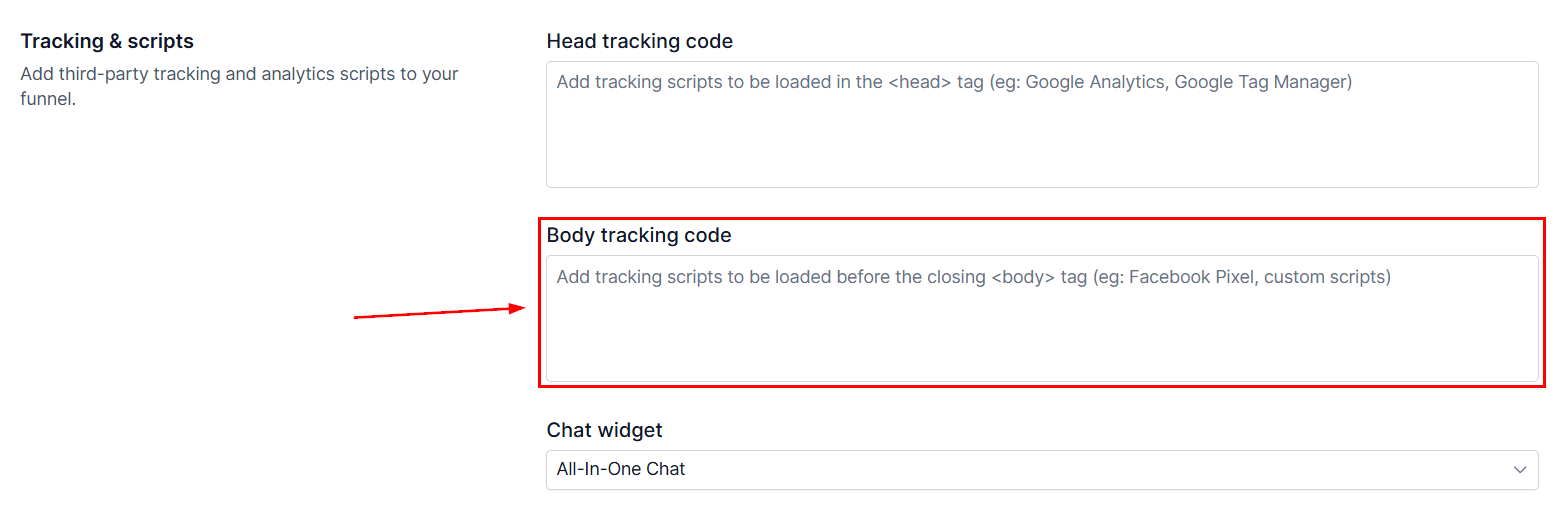
Body Tracking Code
Enter your Body tracking code here for additional tracking options.
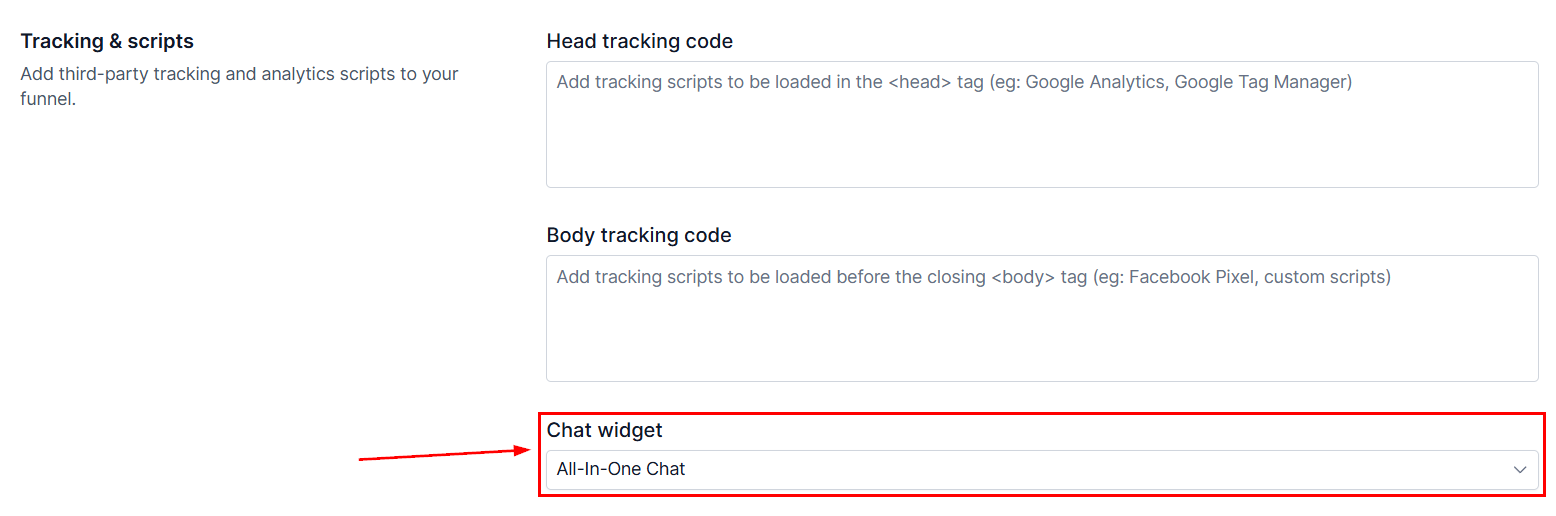
Chat Widget
To enable the chat widget for this webinar, select the desired widget from the dropdown menu. The chat widget is particularly useful for lead generation webinars, as it consolidates conversations with leads into a single channel.
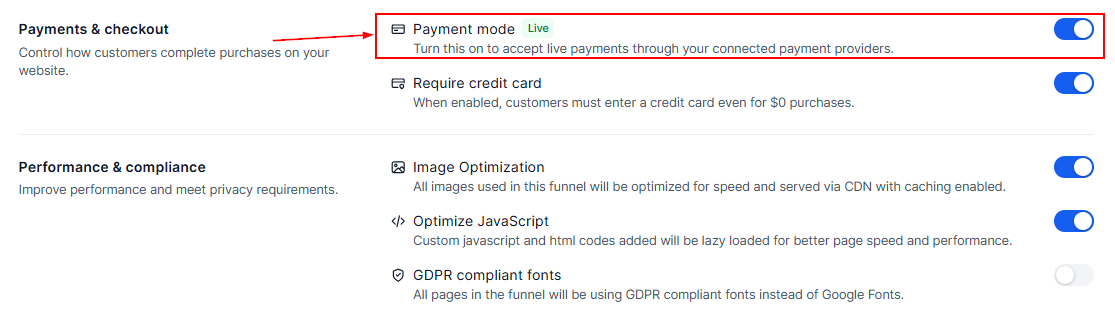
Payment Mode
The payment status of the webinar is determined by the payment mode. If you're testing payments, toggle "Payment Mode" Off, so that transactions will be for test purposes and won’t process any real payments. Once you toggle it "On," the webinar will go live, and all payments will be processed as real transactions.
Require Credit Card
Enable this option to require leads to add a credit card for purchases of $0.
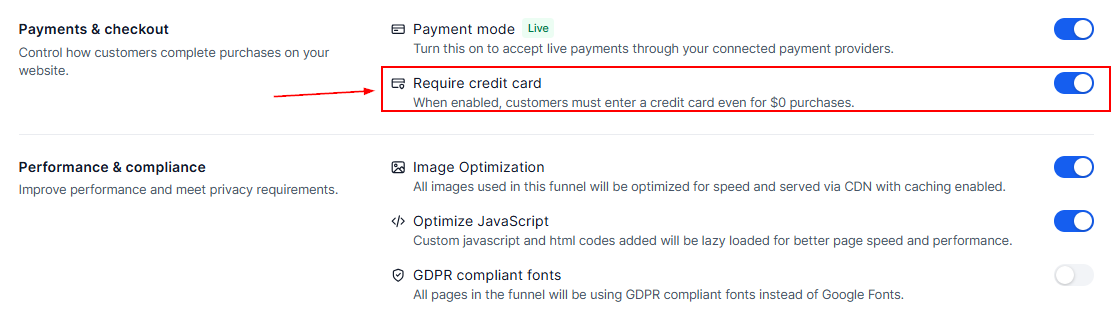
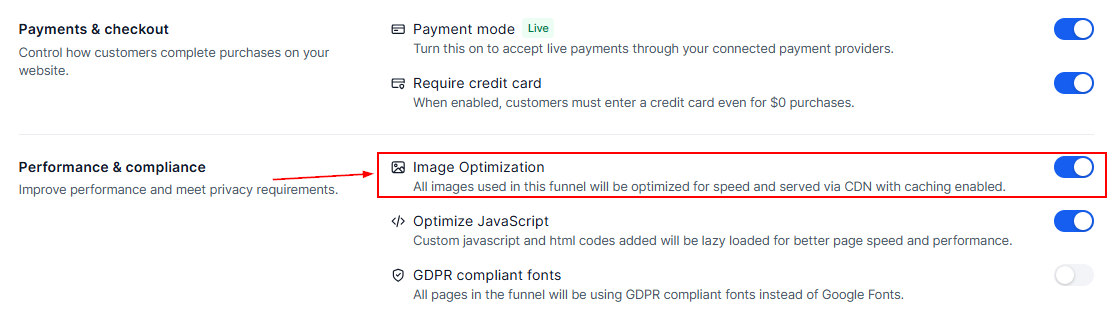
Image Optimization
Enable this option to optimize all images added to the webinar for performance. These images will be delivered through a CDN with caching enabled, ensuring faster load times.
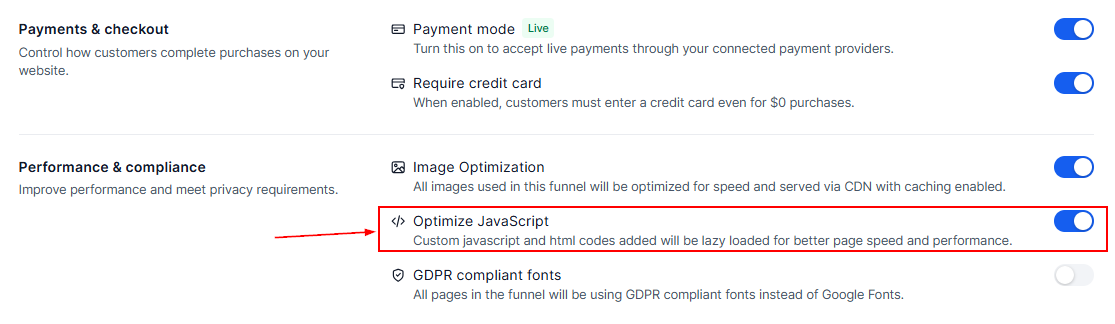
Optimize Javascript
When enabled, custom JavaScript and HTML code added to the webinar will be lazy-loaded to enhance page speed and overall performance.
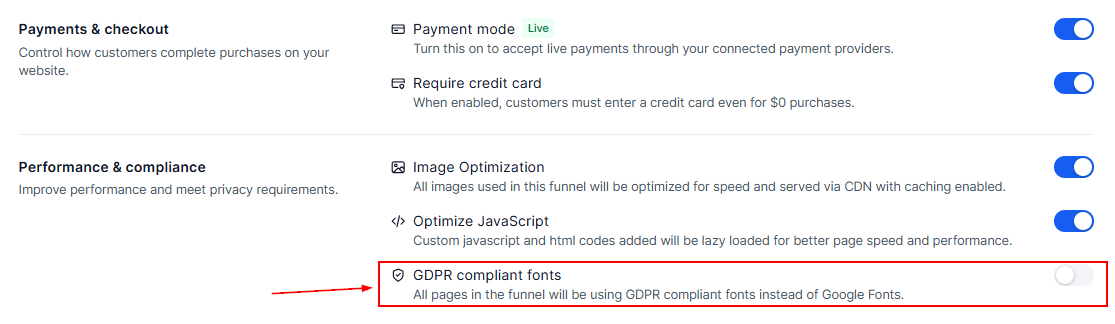
GDPR Compliant Fonts
If this option is enabled, the fonts used in the webinar will be GDPR Compliant fonts instead of Google Fonts.
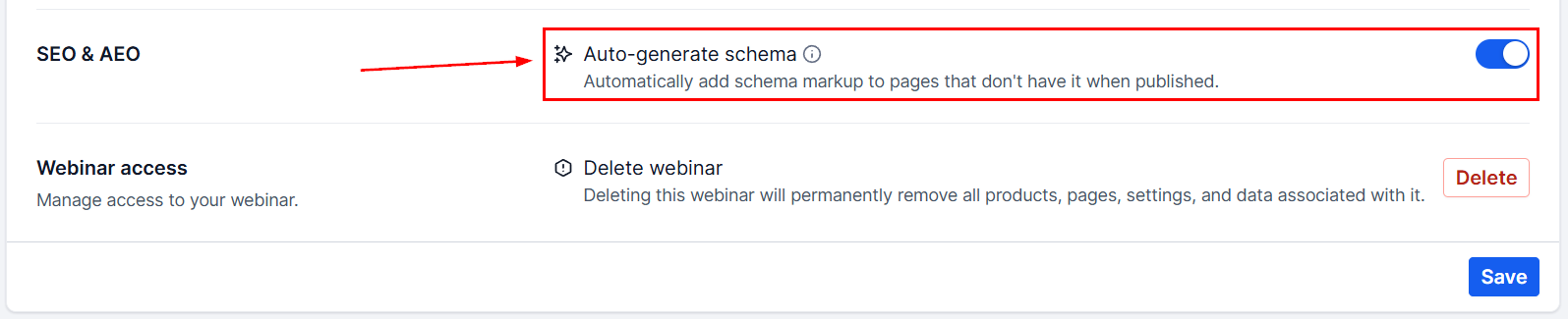
SEO & AEO
Schema markup powers rich results in Google and AI answer engines, so here you can enable or disable their automatic creation for all pages at once.
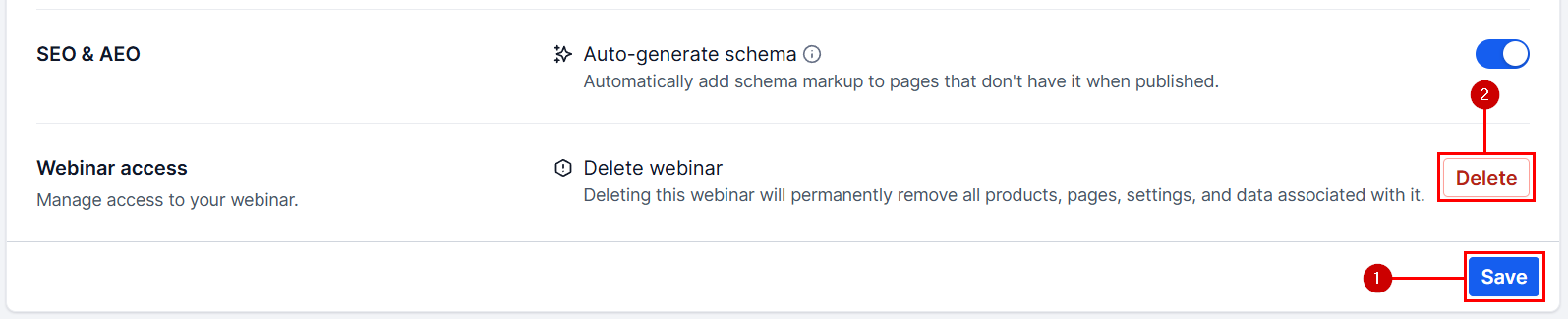
Lastly, you can delete the entire webinar (1) or save the changes (2) you made to the webinar settings by clicking the respective option.
The Settings tab is your go-to for fine-tuning your webinar’s functionality and appearance. And, by managing these settings effectively, you ensure that every aspect of your webinar is optimized for your business needs, thus creating appealing content that keeps people coming back for more.