
Creating Your Chat Widget
You may already know the benefits of having a Chat Widget. It allows you to connect with your customers easily, reduces the churn they might feel on your website, and generates more leads. So, let us help you create one that fits your brand and satisfies your needs.
Creating a New Chat Widget
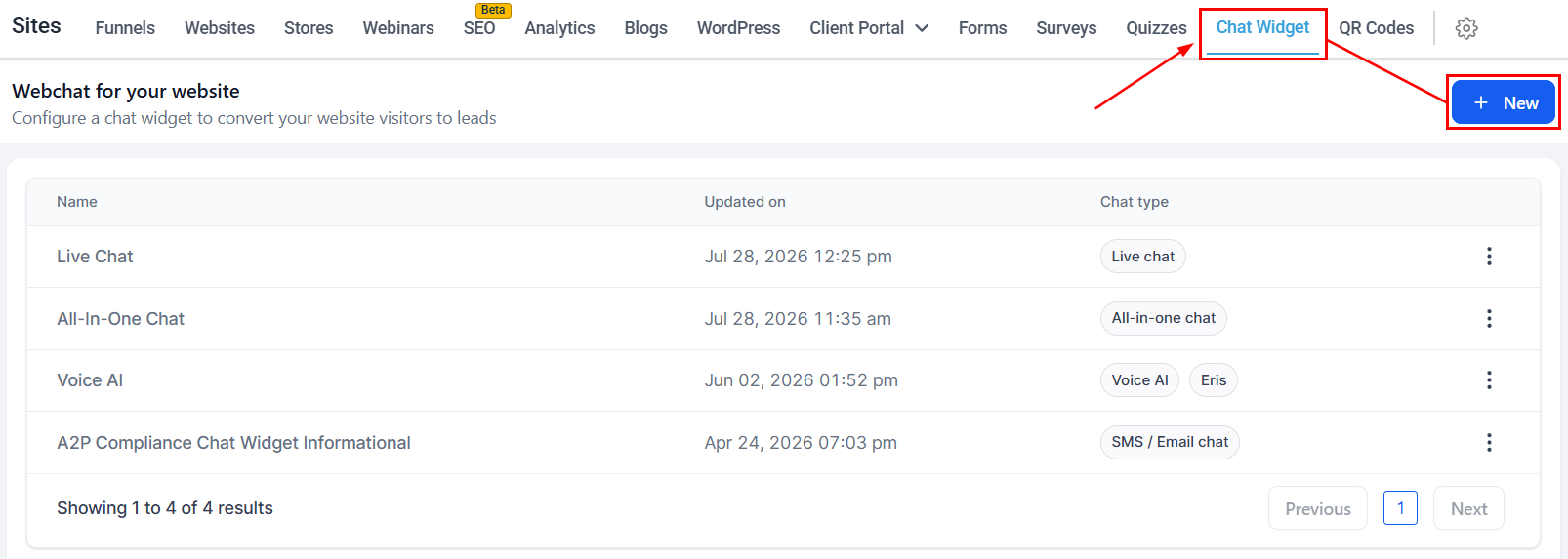
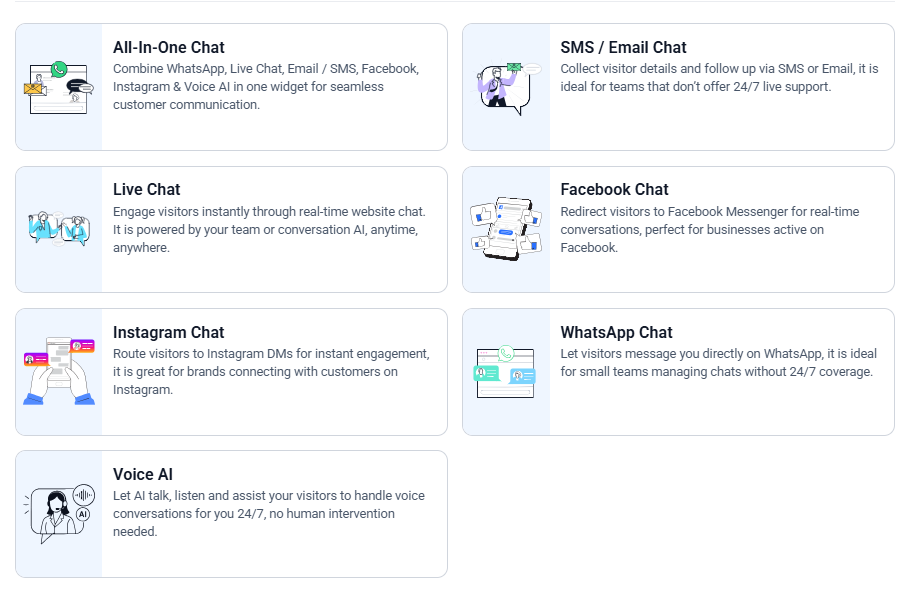
Inside the Chat Widget tab within the Sites section, click the +New button. This will prompt you to select between the Chat widget types: All-In-One, SMS/Email Chats, Live Chat, Facebook, Instagram, WhatsApp, and Voice AI. By default, a SMS/Email chat widget will be added to your list, but you can add as many as you see fit.
Once you've selected the type, you can start personalizing it.
Customizing the Chat Widget
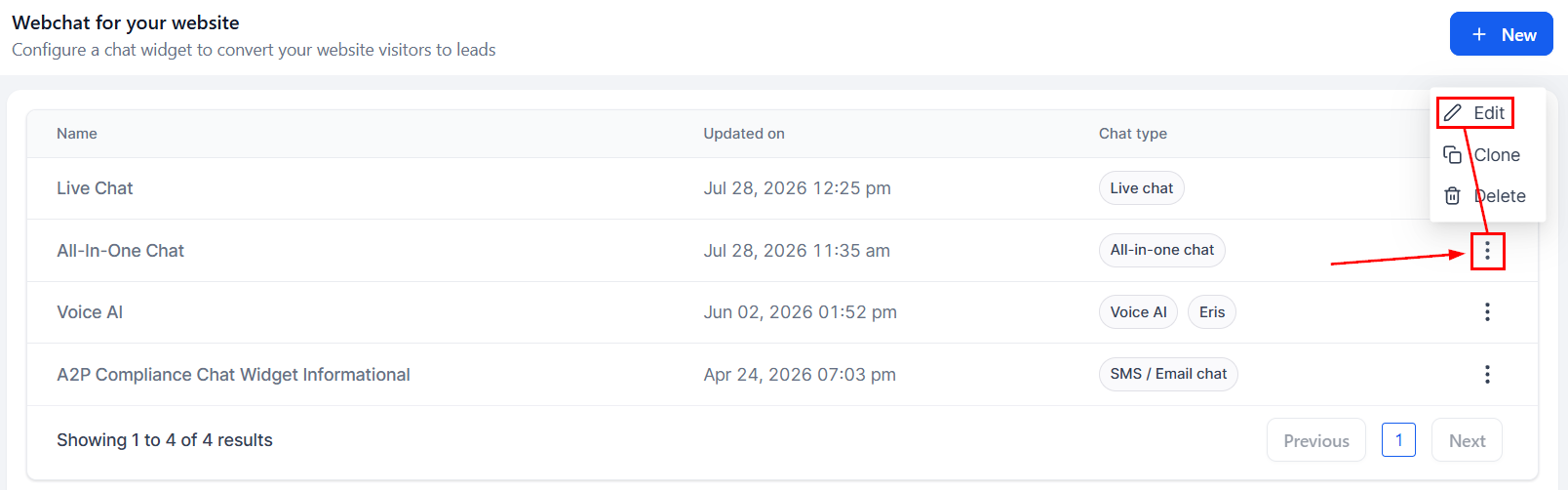
You can make the Chat Widget your own and align it better with your brand by customizing it. When creating a new widget, you'll be taken to the customization options directly, or if you want to modify a previous widget, click on the three dots (:) icon and select Edit.
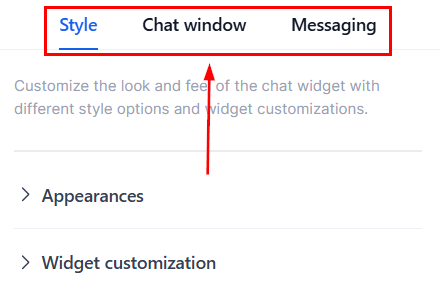
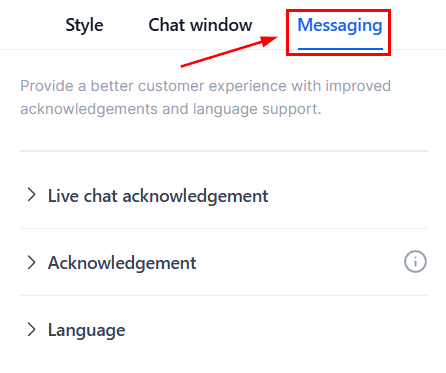
The customization aspect is divided into three tabs Style, Chat Window, and Messaging.
Style
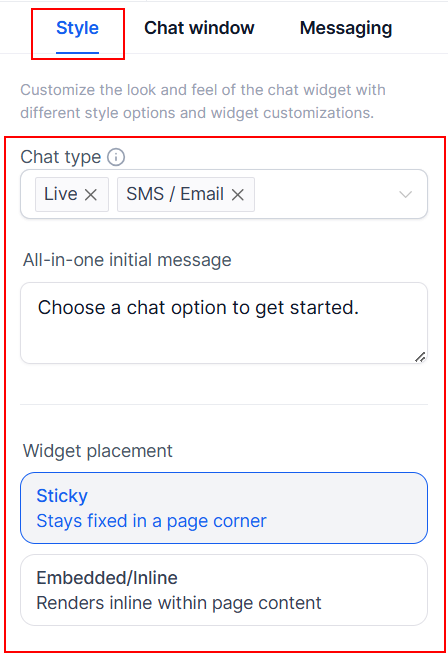
This area controls the initial look of the Widget. The settings here will vary depending on the widget you are editing, besides the widget placement feature which allows you to choose where the widget will be on the page.
For All-In-One Chat widgets, you must select the available channels and starting message in this section.
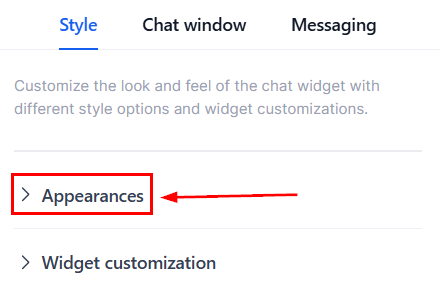
Under Appearances, you can change the colors, image, position, and other aspects of the widget.
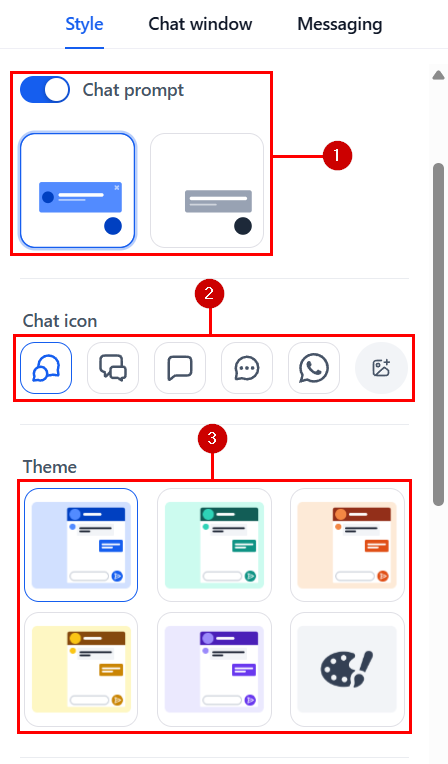
The options will be:
- Chat Prompt: Enabling this option will display a greeting message.
- Chat Icon: This corner icon will show in your chat bubble.
- Theme: Select a predesigned color palette or click the gray paint palette icon to customize the colors and typography for each element of the chat widget.
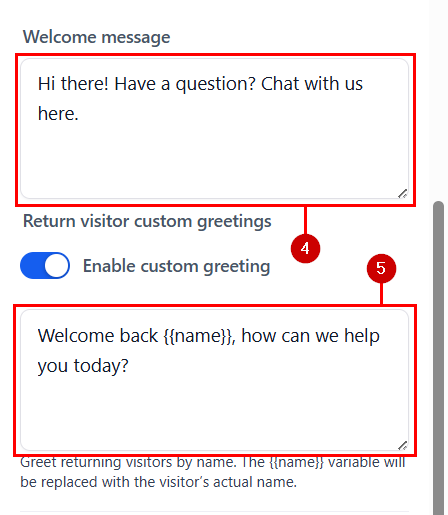
- Welcome Message: This will be the message displayed by the chat bubble, prompting customers to start a conversation.
- Return Visitor Custom Greetings: If this option is enabled, the chat widget will use the saved cookies from previous sections to personalize the message.
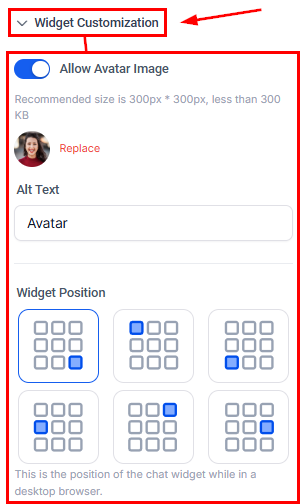
If you would like to display an avatar image, you can replace the default picture with your own and choose where the widget should appear on a desktop browser.
Chat Window
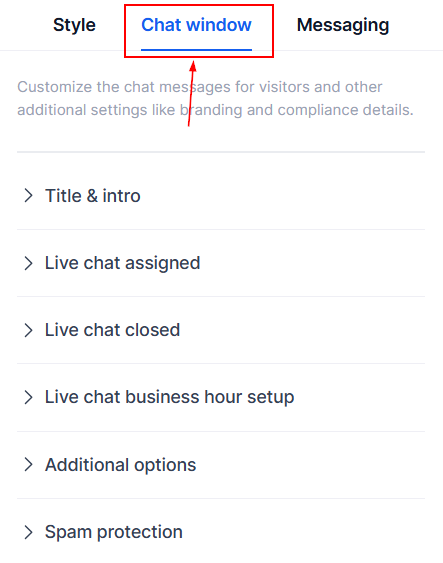
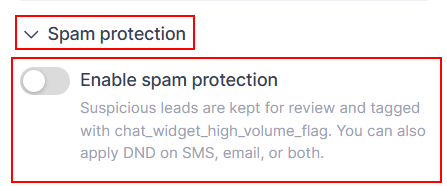
The Chat Window settings affect the user experience within the chat widget. You can customize the title, intro message, and contact form fields, such as name and phone. Additionally, you can enable or disable features like call-to-action redirects, agency branding, and spam protection.
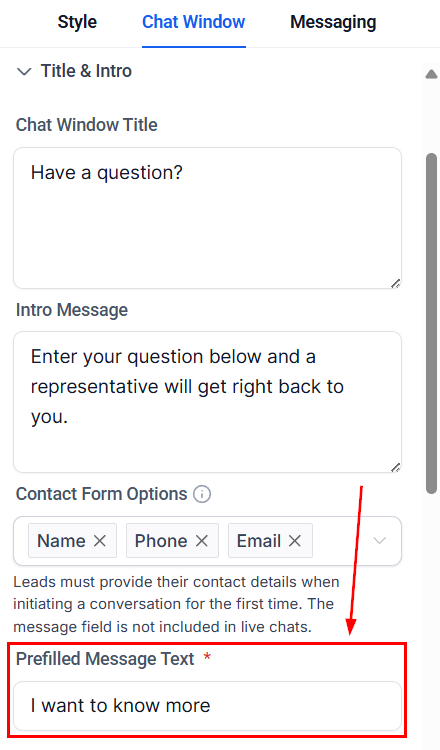
You can edit the Prefilled Message Text for all your chat widgets, except live chat, to give customers an easy way to start interacting. If your Contact Form already has a message field, the pre-defined field is optional, but still available.
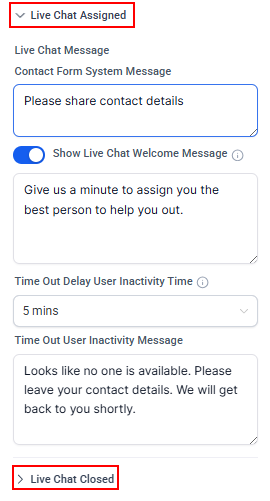
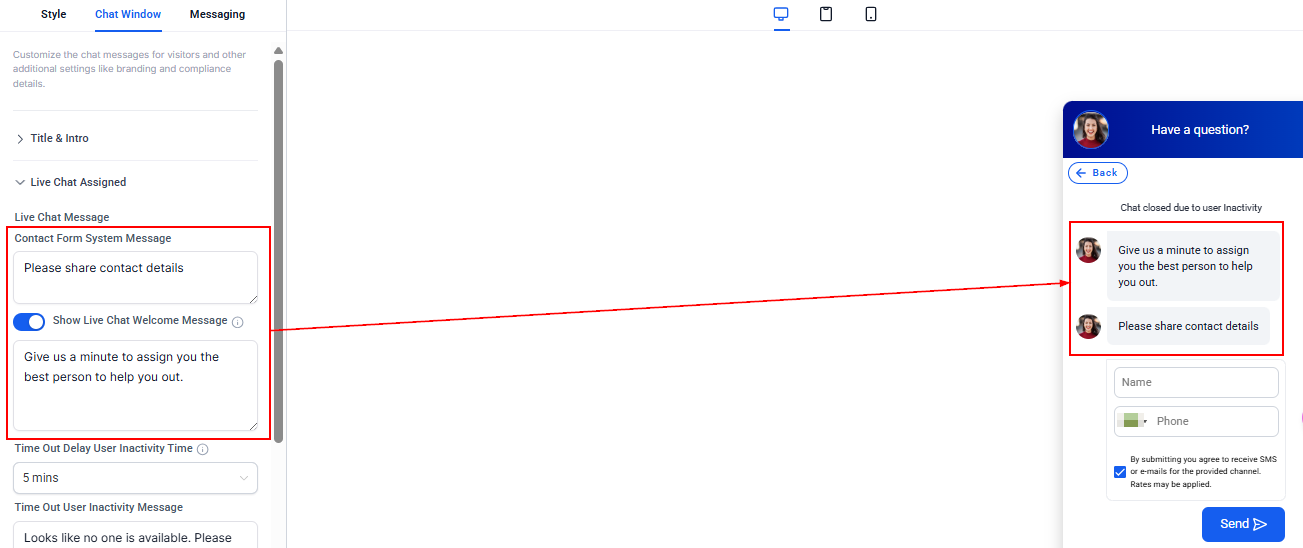
For Live Chat, you can customize messages for when a chat is assigned or closed.
Under the Live Chat Assigned section, you can set the welcome message, inactivity timeout period, and the message shown when the user is inactive.
In the Live Chat Closed section, you can configure the inactivity duration and the message displayed when the chat is closed due to inactivity.
Remember to preview the chat window to see where your changes are being applied.
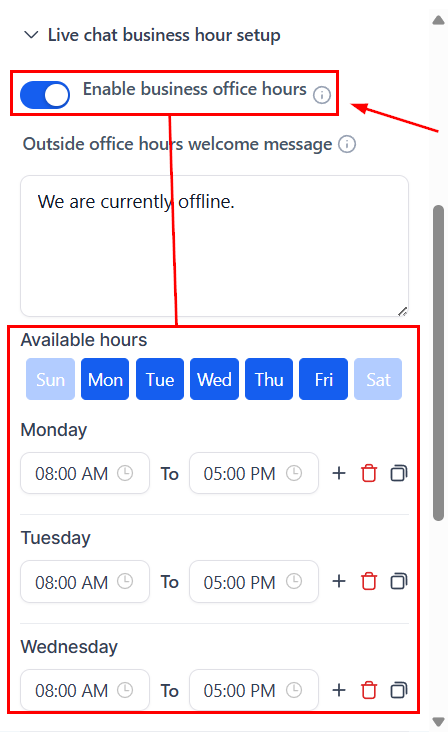
Add your business office hours to live chat by enabling business office hours and adding your business's available hours.
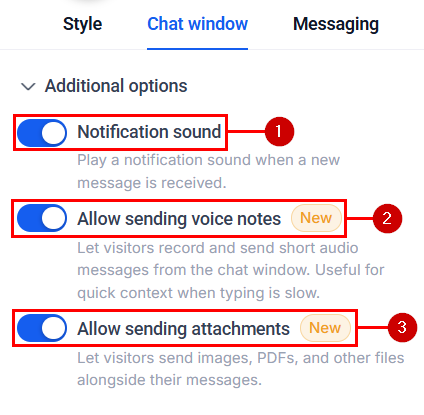
In the Additional Options, you can enable the following options:
- Notification Sound: When enabled, sound notifications play for all key live chat, business hours, system greeting, and form-related messages.
- Allow Sending Voice Notes: Enabling it allows visitors to record and send short audio messages from the chat window.
- Allow Sending Attachments: This lets visitors send images, PDFs, and other files alongside their messages.
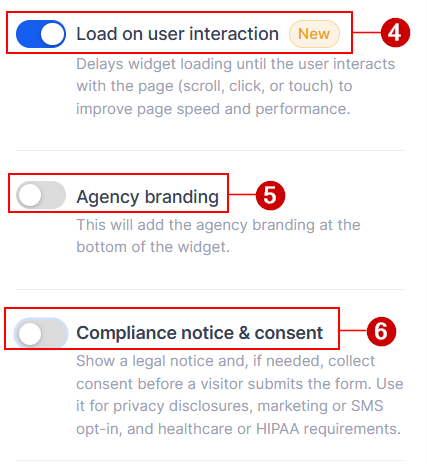
- Load on user interaction: When enabled, the widget will only show after a user interacts with the page.
- Agency Branding: Toggle this switch to add the agency branding to the widget.
- Compliance notice & consent: This section also allows you to activate the consent checkbox for HIPAA compliance, input a legal consent message, and more.
You can also enable spam protection to review and flag suspicious leads.
Messaging
Here you can change the chat widget's language and the message it sends to acknowledge and finish a chat.
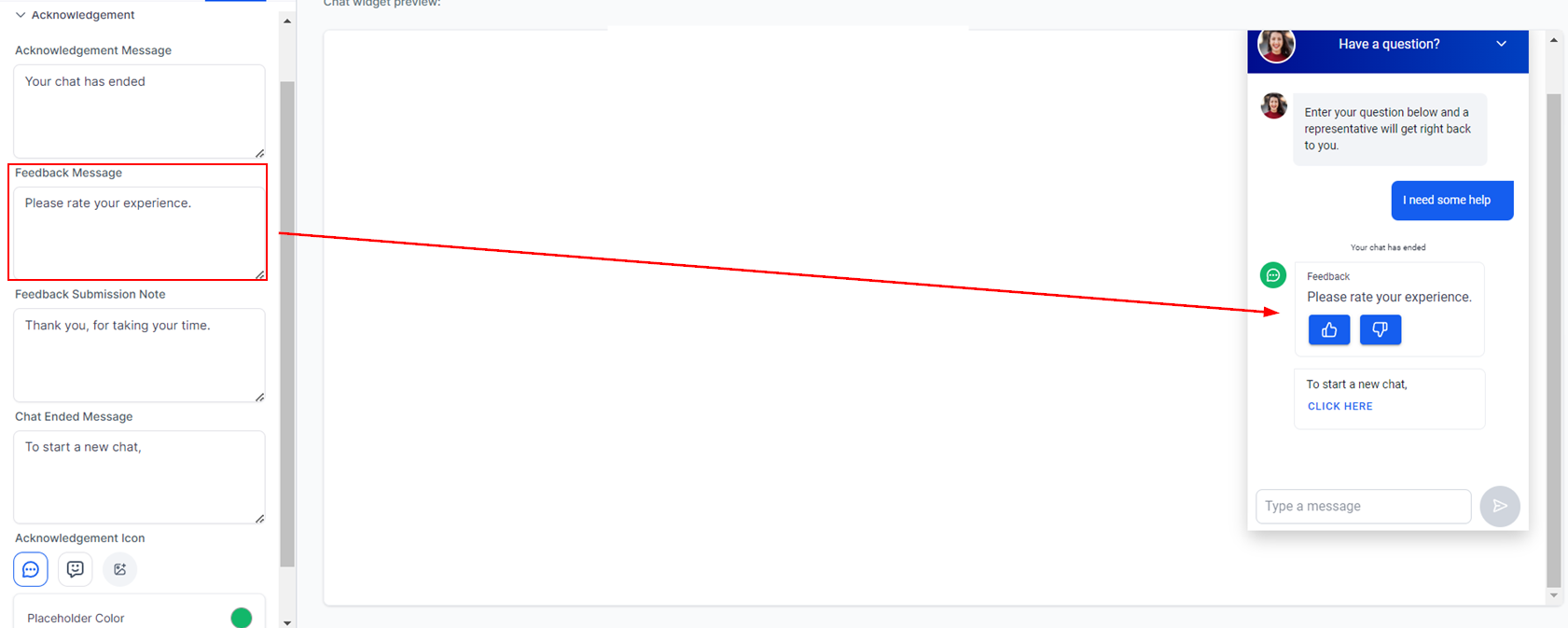
The messages to modify depend on the type of Chat Widget you selected before. With the Live Chat option, you can edit more messages, such as the Feedback-related ones.
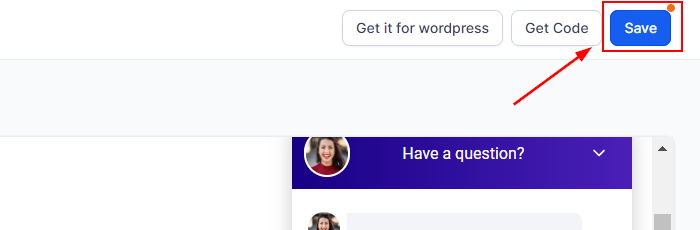
Make sure to click Save once you're satisfied with the Chat Widget. If you had installed the Chat Widget on a website previously, clicking on Save will implement the changes in the Live version as well.
And there you have it! Now you can create and customize your Chat Widget to embody your brand to the max, keep the customer interactions rolling, and ensure no opportunity is missed. Explore the other articles in this section to learn more about chat widgets.