
Affiliates in the Client Portal
For affiliates promoting a business, the Affiliates section of the portal is where results become visible. Referral links, leads and customers, earned commissions, and marketing assets all live here.
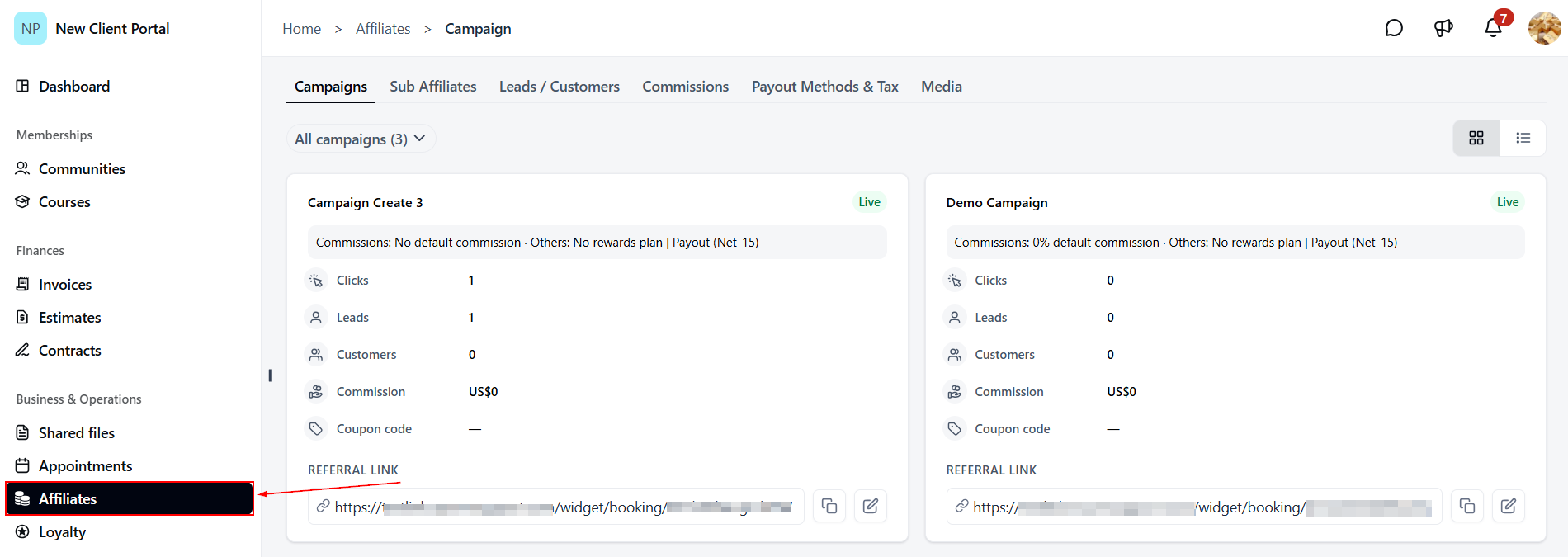
To get there, users log in to the portal and select Affiliates from the left-hand menu. They’ll land on a row of tabs: Campaigns, Sub Affiliates, Leads / Customers, Commissions, Payout Methods & Tax, and Media. This guide walks through each one so users know what’s available and how to make the most of it.
Campaigns
Campaigns is the home base of the Affiliates section. Each campaign an affiliate belongs to appears as its own card, making it easy to see how each one is performing at a glance.
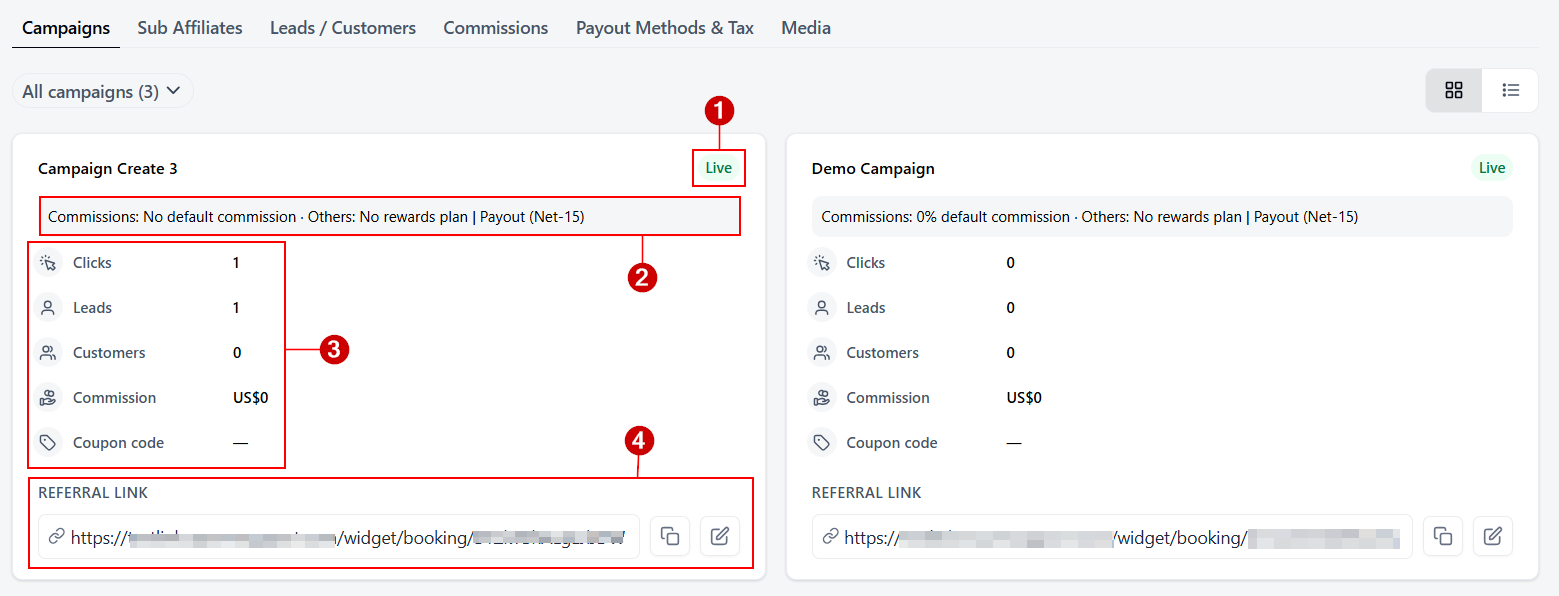
Every card includes:
- Status: A badge showing whether the campaign is active.
- Commission summary: A short line covering the default commission, any rewards plan, and payout timing.
- Performance stats: Clicks, leads, customers, and total commission for that campaign, plus a coupon code if one has been assigned.
- Referral link: The affiliate’s unique link for that campaign. To share a link, users click the copy icon beside it and paste it wherever they’re promoting. The edit icon next to it allows the link to be adjusted where the campaign permits.
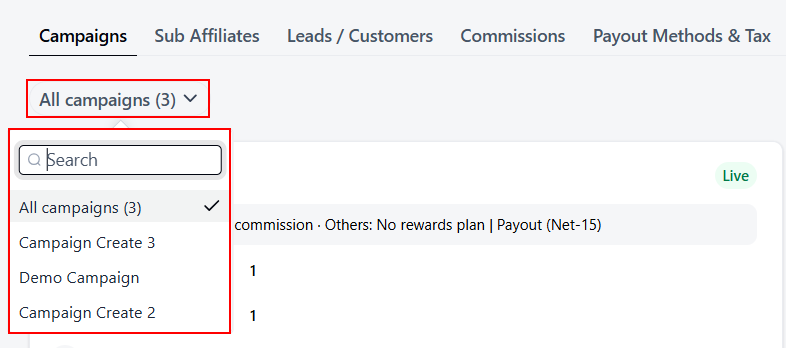
Affiliates who belong to more than one campaign can use the All campaigns dropdown to filter the view.
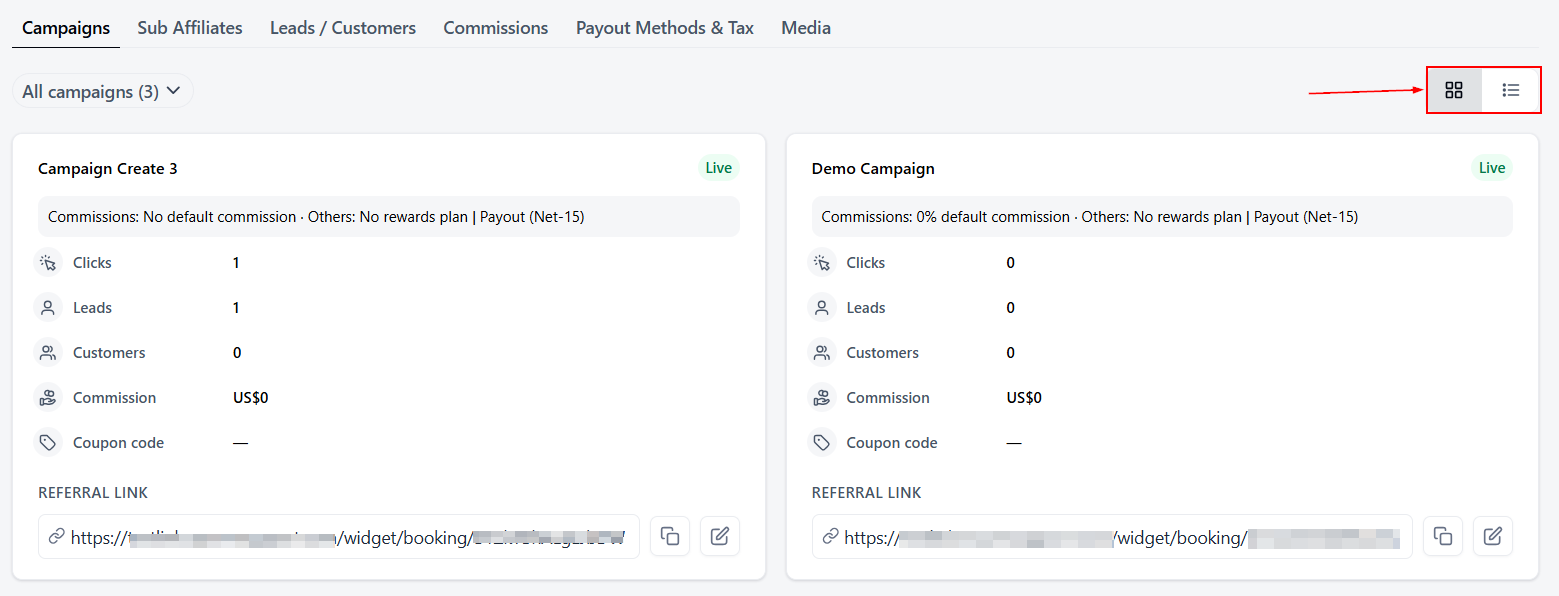
The grid and list icons in the top right switch between card and list layouts.
Sub Affiliates
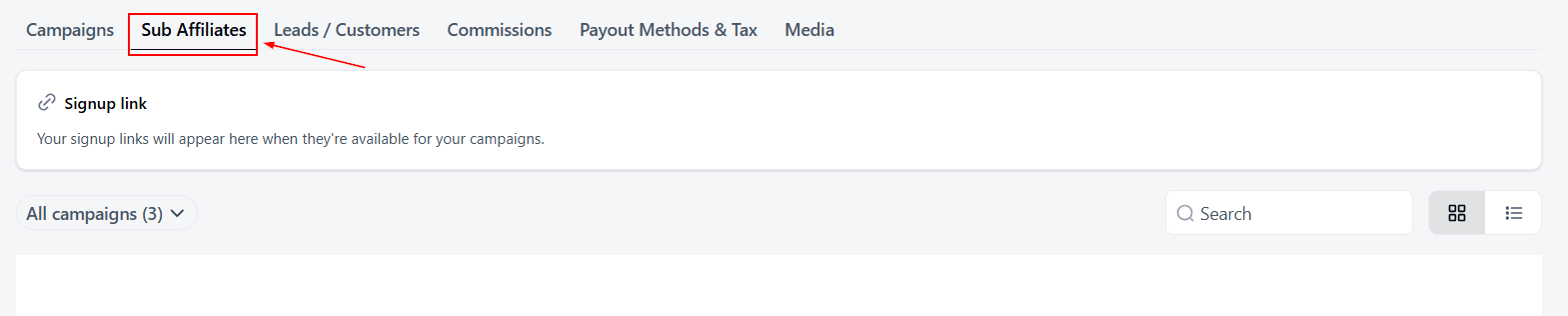
This tab is for affiliates who join the program through another affiliate. Where a campaign includes multi-level rewards, it shows the people an affiliate has brought in and how they’re doing.
A Signup link card at the top displays the link affiliates can share to invite others. Below it, users can search, filter by campaign, and switch between grid and list views. Once sub affiliates sign up, they appear here automatically.
Leads / Customers
This tab shows who has come through an affiliate’s links and where they are in the journey. Six summary cards sit at the top:
- Leads: Contacts who signed up through the affiliate’s link.
- Customers: Referrals who have become paying customers.
- Cancelled: Referrals who are no longer active.
- Paid: Commission that has already been paid out.
- Owed: Commission that has been earned but is still waiting to be paid.
- Revenue: Total revenue generated by the affiliate’s referrals.
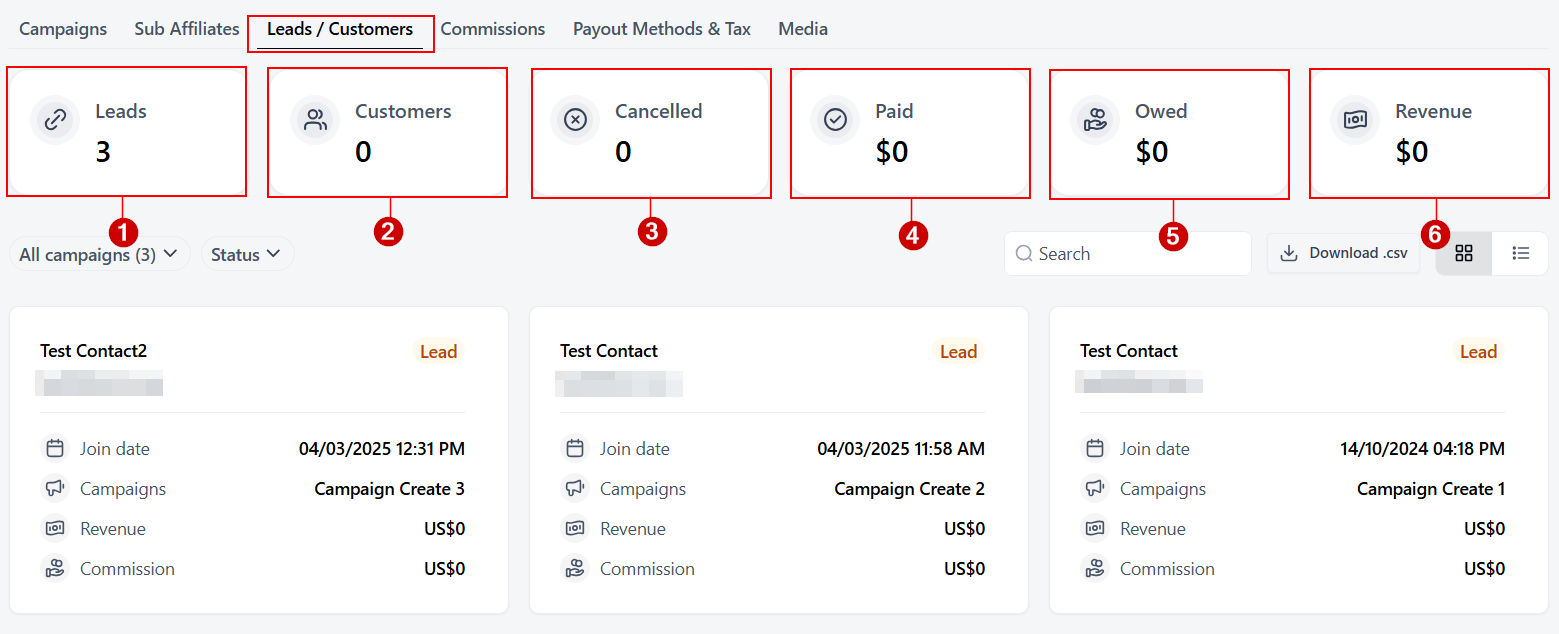
Beneath the cards, each contact has an individual entry showing their name, email, status, join date, campaign, revenue, and the commission earned from them. Users can narrow the list by campaign or status, search for a specific contact, or click Download .csv to export the data for their own records.
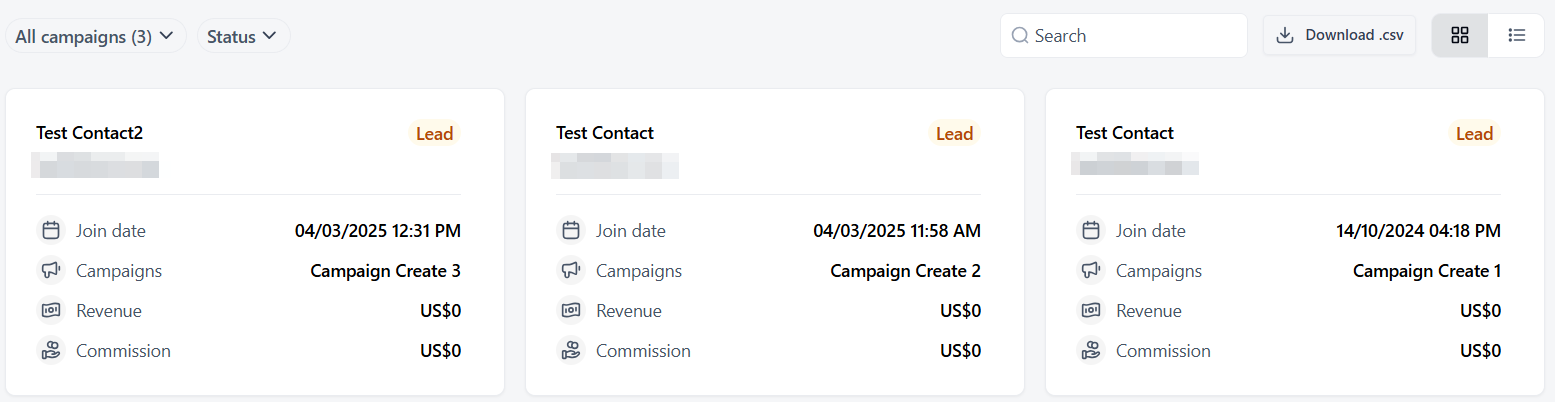
It’s worth remembering that commission is earned on paying customers. If a referral pauses, cancels, or is refunded, the commission on that customer may not apply, so checking this tab regularly helps users spot changes early.
Commissions
The Commissions tab gives affiliates a detailed view of their earnings. It opens with the same summary cards found on the Leads / Customers tab, followed by a breakdown of individual commissions.
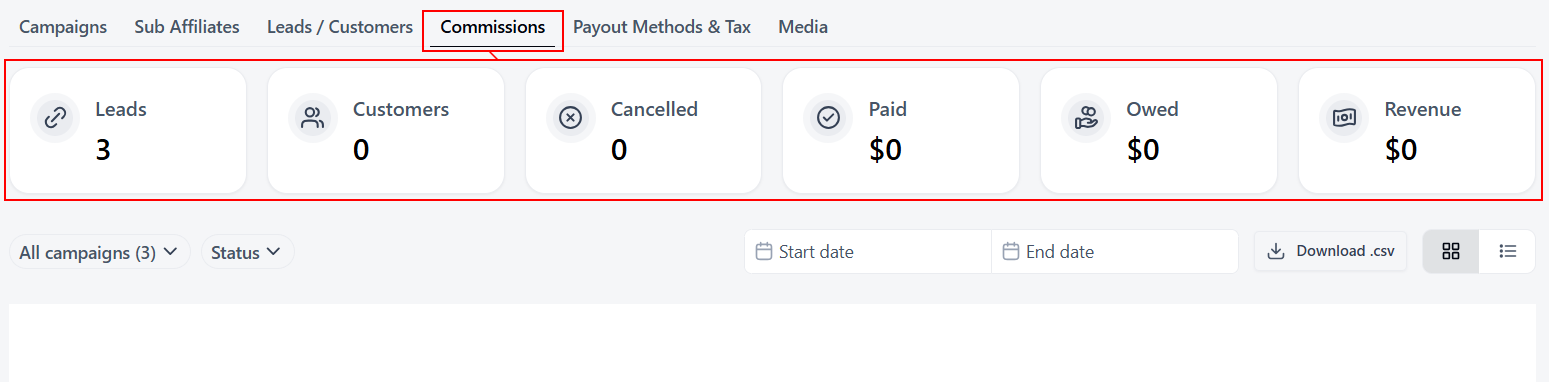
Users can apply the All campaigns and Status filters, or set a Start date and End date, to review a specific period. This is especially useful for month-end reconciliation. The full list can also be exported with Download .csv.

Payout Methods & Tax
This tab is where affiliates set up how they get paid. Completing it early helps ensure nothing delays a first payout.
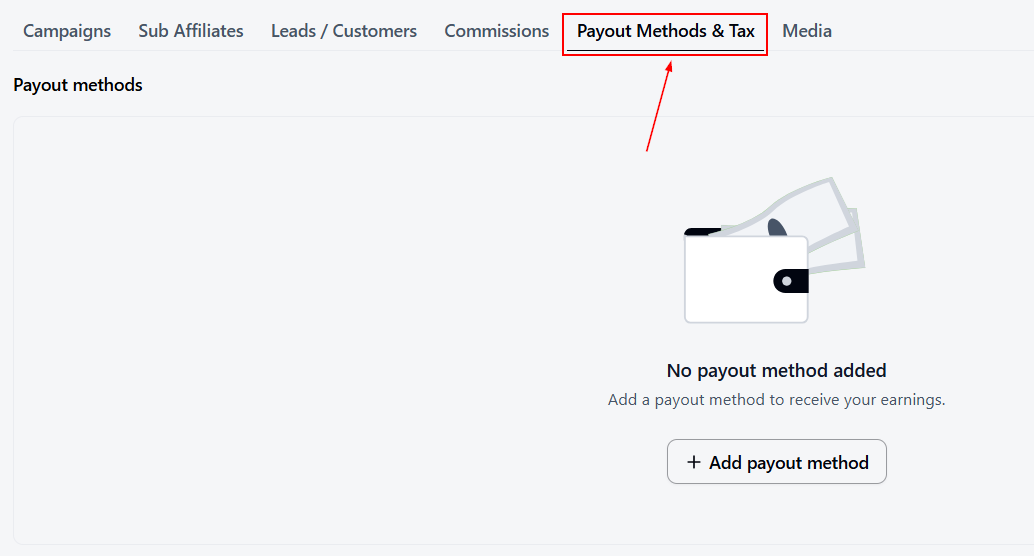
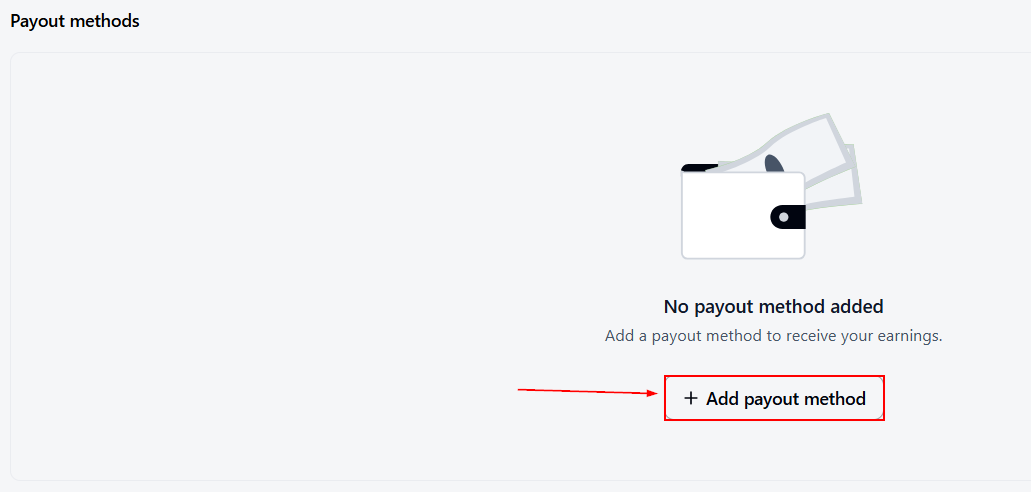
Payout methods: Users click Add payout method and follow the prompts to choose how they’d like to receive their earnings. The options available depend on what the business has enabled.
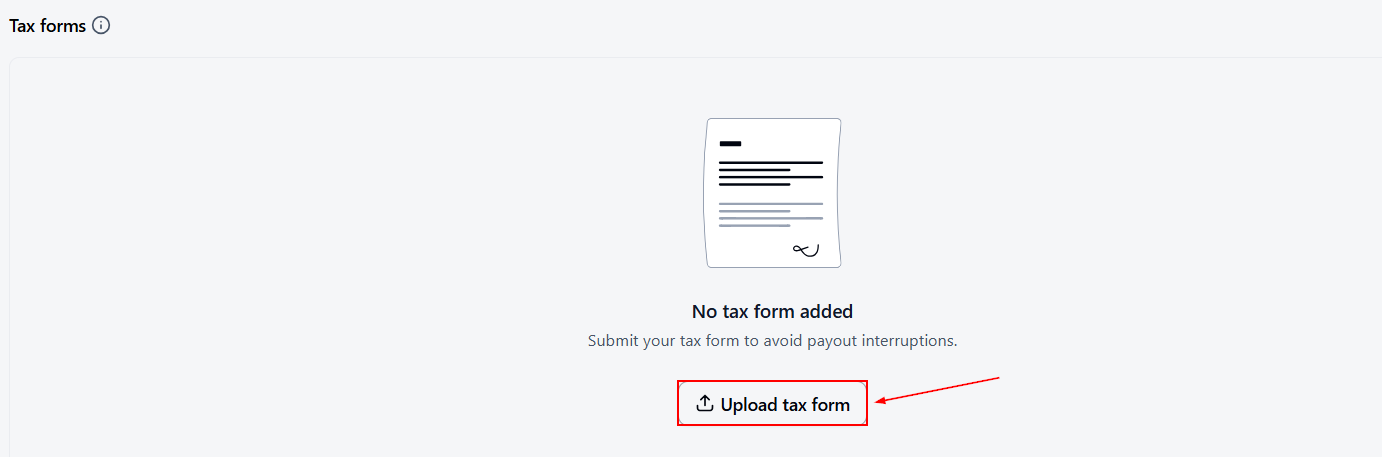
Tax forms: Users click Upload tax form to submit their W8 or W9 tax forms. It is recommended to do this to avoid payout interruptions, so it’s best handled sooner rather than later.
Media
The Media tab is the affiliate’s promotional toolkit. It holds the images, videos, and other files the business has made available. Some assets are shared across all campaigns, while others are tied to specific ones.
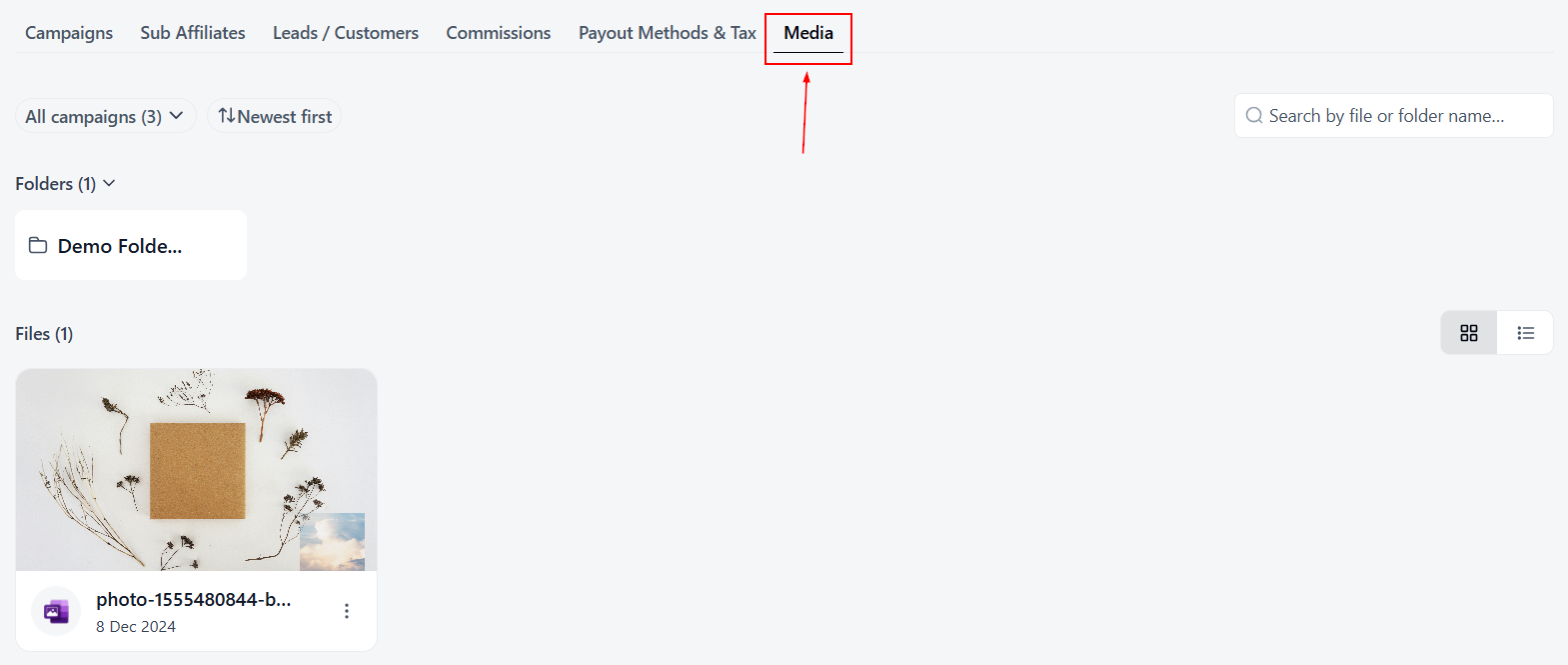
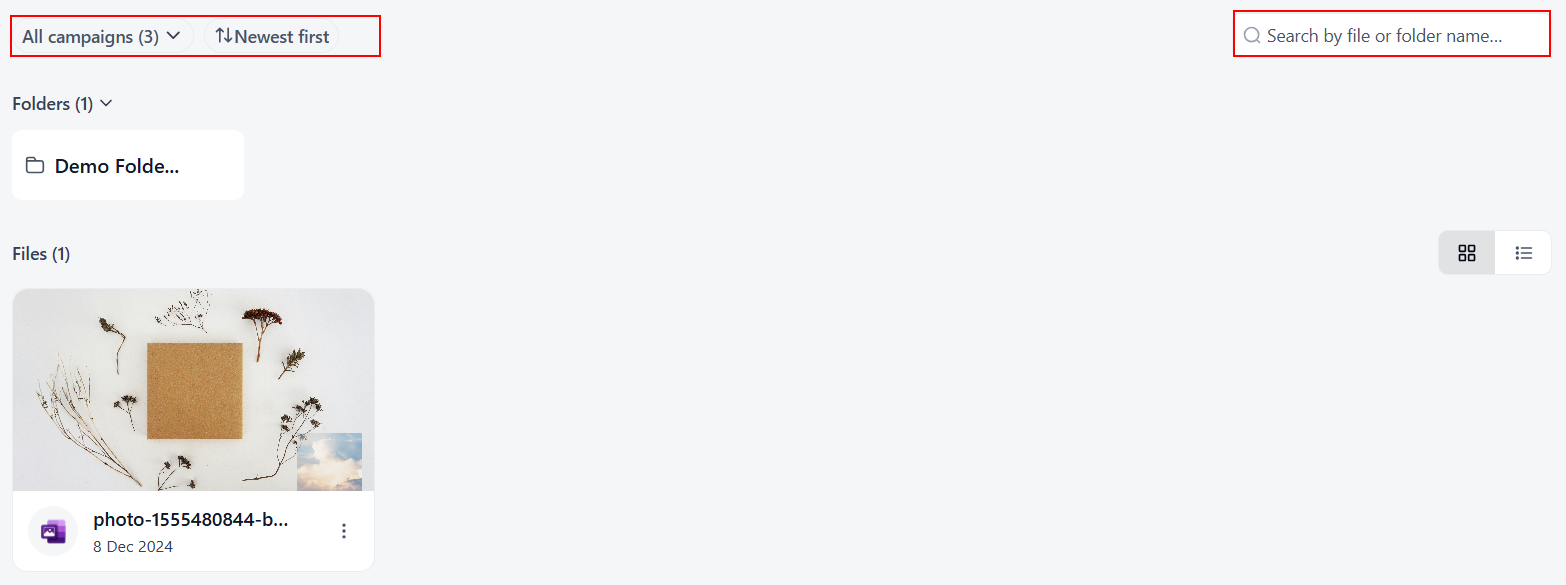
The All campaigns dropdown filters assets by campaign, and the Newest first sort places recent uploads at the top. For anything specific, the search bar works for both file and folder names.
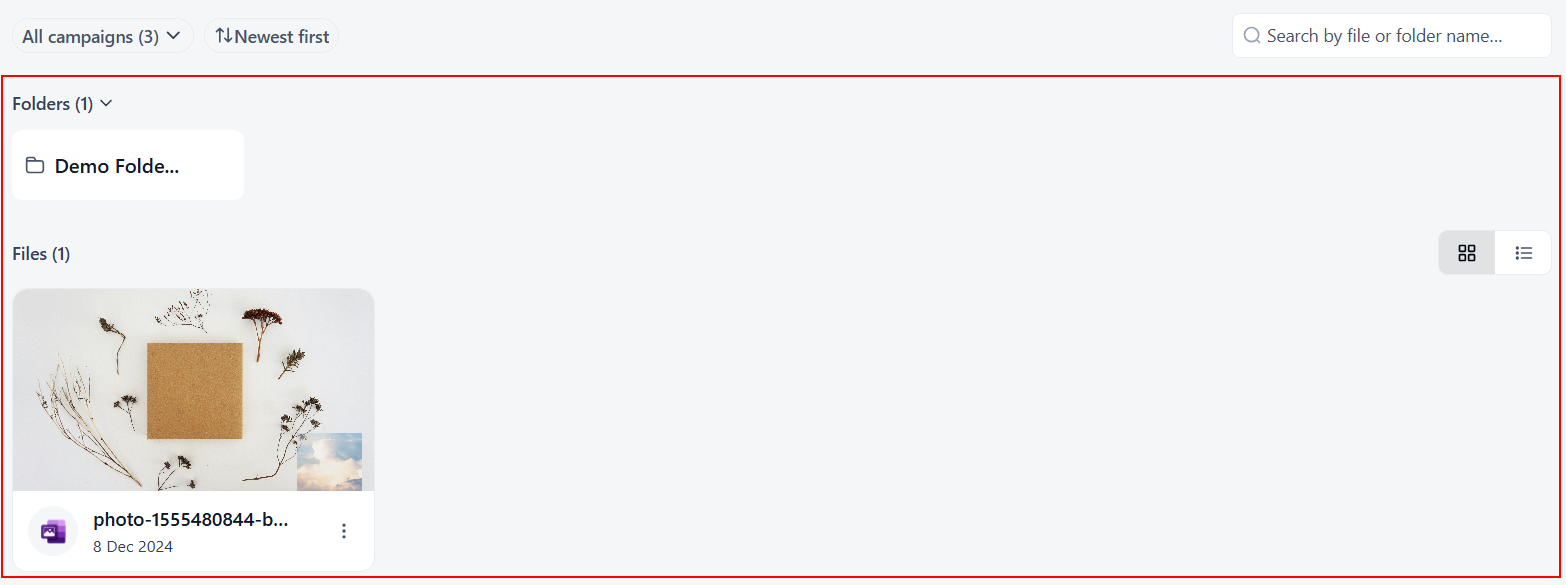
Folders appear at the top of the page, with individual files below. Each file displays its name and upload date, and the three-dot menu provides further options. As on the other tabs, the grid and list icons switch the layout.
An affiliate’s success often comes down to knowing where to look, and this section puts every tool and insight within easy reach. With the basics set up and a routine of regular check-ins, users can focus less on the administrative tasks and more on growing their referrals.