
How to Schedule Availability in Forms, Surveys & Quizzes
The Schedule Availability feature lets you control when a Form, Survey, or Quiz becomes available and when it stops accepting submissions. You can set an opening date and time, define an expiration date, and customize what visitors see before the experience opens or after it closes. This feature is useful for event registrations, limited-time promotions, contests, and other campaigns with specific deadlines. Once configured, availability updates automatically, reducing the need to manually enable or disable submissions.
Open the Settings
Navigate to the Form, Survey, or Quiz you want to configure and open its settings.
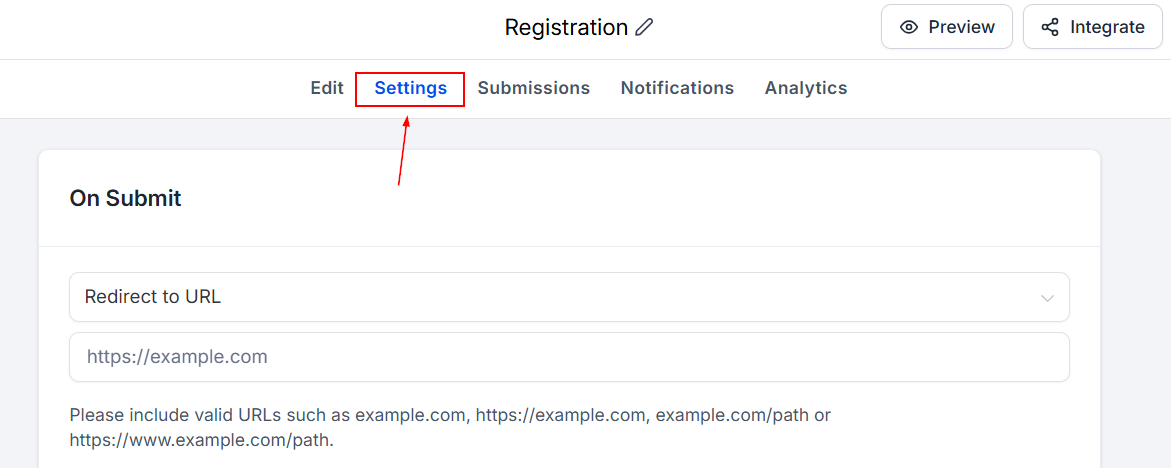
Enable the Schedule visibility option. This setting allows you to control the period during which the selected experience accepts submissions.
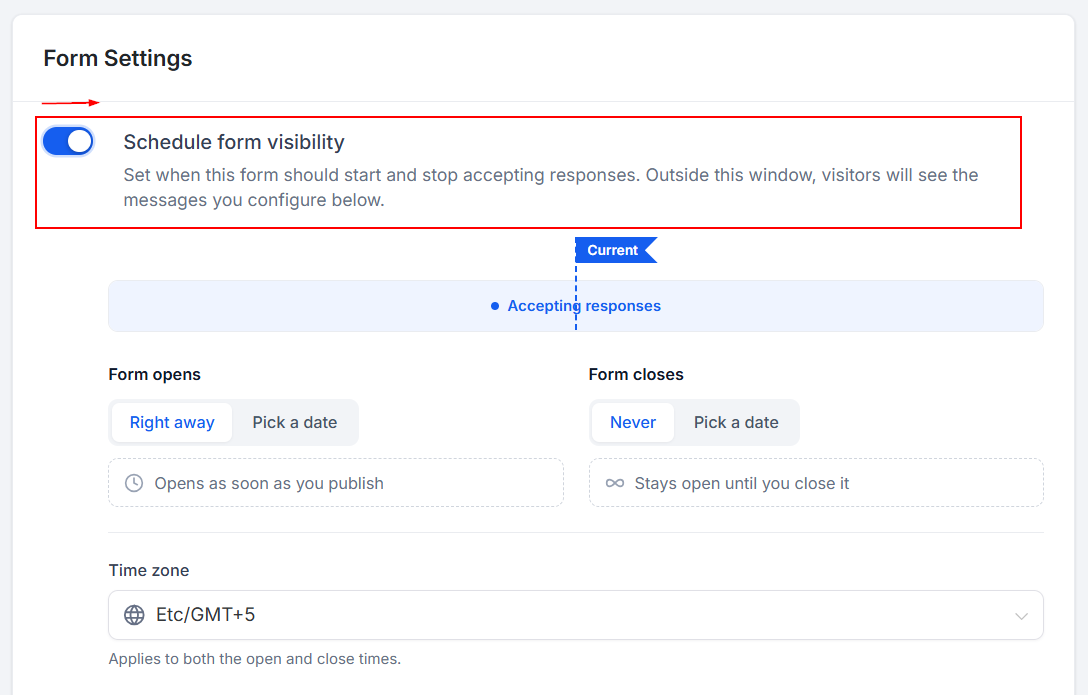
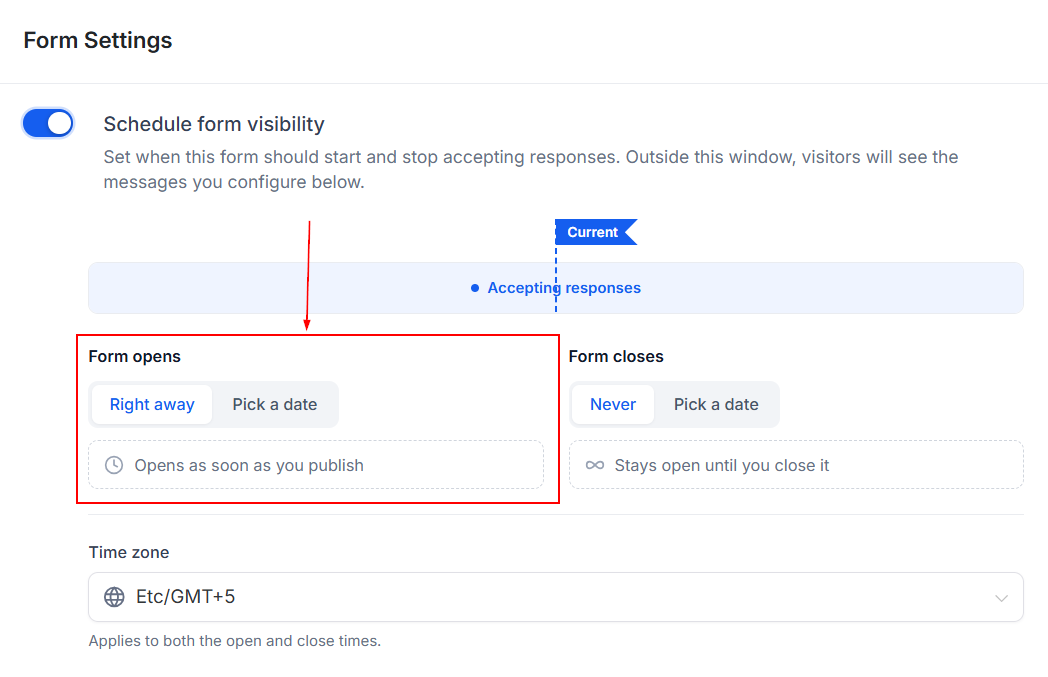
Configure When the Form, Survey, or Quiz Opens
Under the opening schedule, choose when the asset should become available.
You can select one of the following options:
- Right away: The asset is available immediately.
- Pick a date: Set a specific date and time when the asset should begin accepting submissions.
If you are preparing a campaign in advance, selecting a specific date allows you to configure and publish the experience before the intended launch.
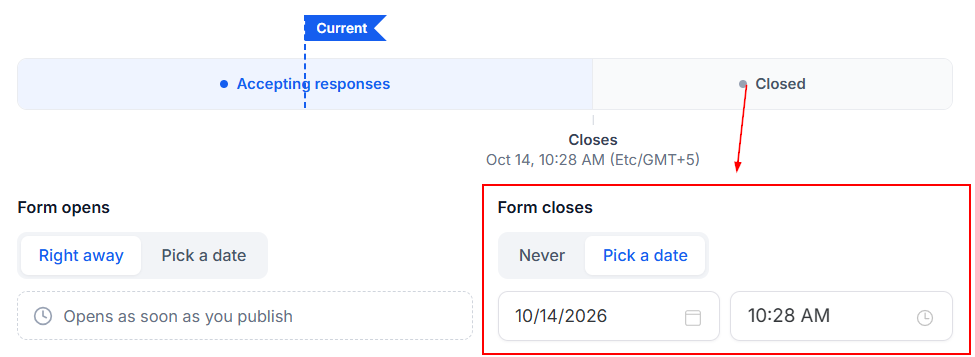
Configure When the Asset Closes
Next, define when the Form, Survey, or Quiz should stop accepting submissions.
Choose one of the following options:
- Never: The asset remains available without a scheduled closing date.
- Pick a date: Set a specific date and time when submissions should stop.
When a closing date is configured, new submissions are automatically blocked after the scheduled deadline. This is useful for enforcing registration cutoffs, ending promotions, or limiting participation in a contest.
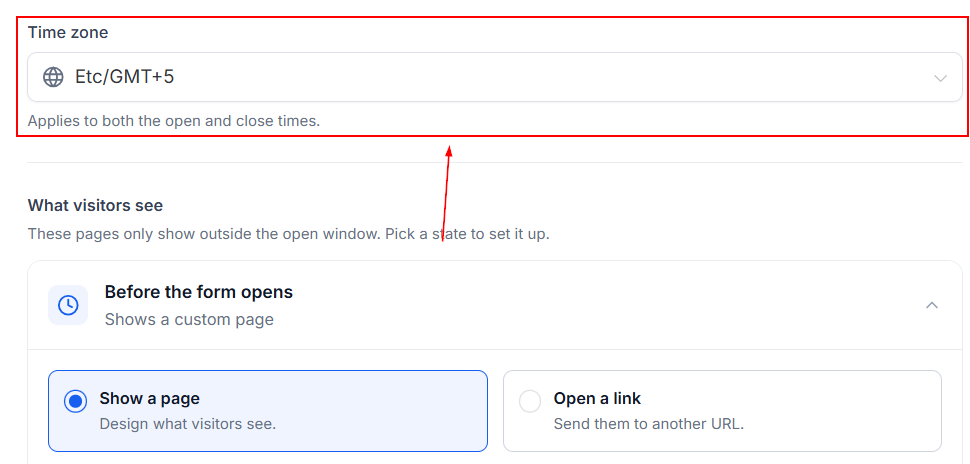
Select the Time Zone
Choose the time zone that should be used for the opening and closing schedule. Make sure the selected time zone matches the intended campaign or audience timing. This helps ensure that the asset opens and closes at the correct time.
Customize the Asset Before Opening or After Expiration
You can control what visitors see when they access the Form, Survey, or Quiz outside its scheduled availability window (before it is opened and after it closes).
The available options let you display a customized page or redirect visitors to another URL.
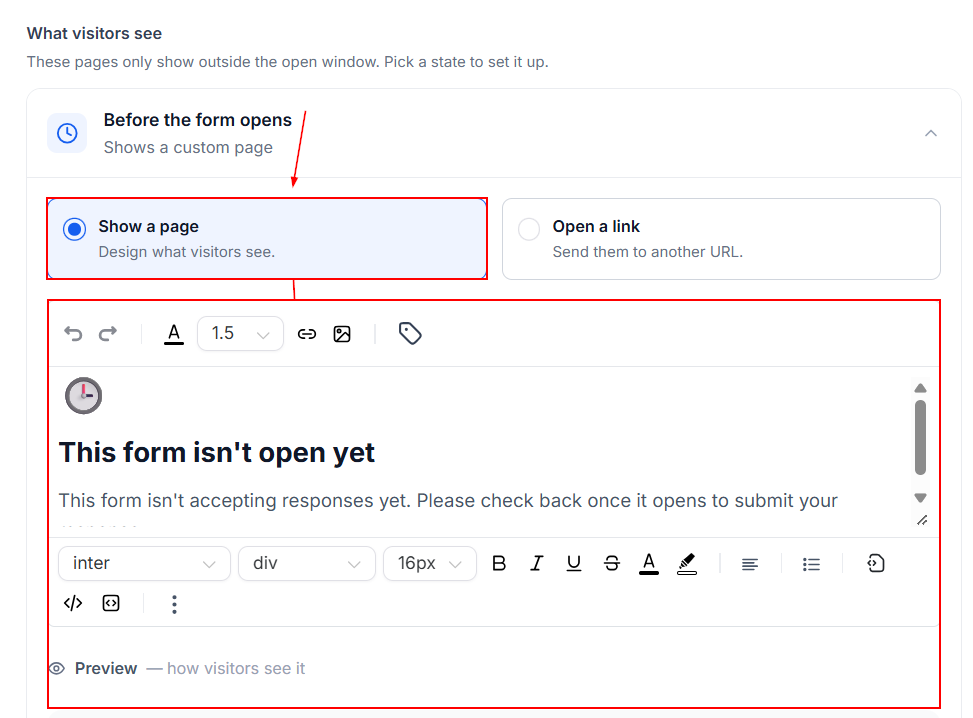
Show a PageSelect Show a page to display a custom message when the experience is not yet open or has already expired.
Use the available content customization tools to create a message that explains the current status and guides visitors on what to do next.
For example:
- Before opening: “Registration opens soon. Please check back on the launch date.”
- After expiration: “Registration is now closed. Thank you for your interest.”
Tailor the message to the purpose of your campaign so visitors understand why they cannot submit a response.
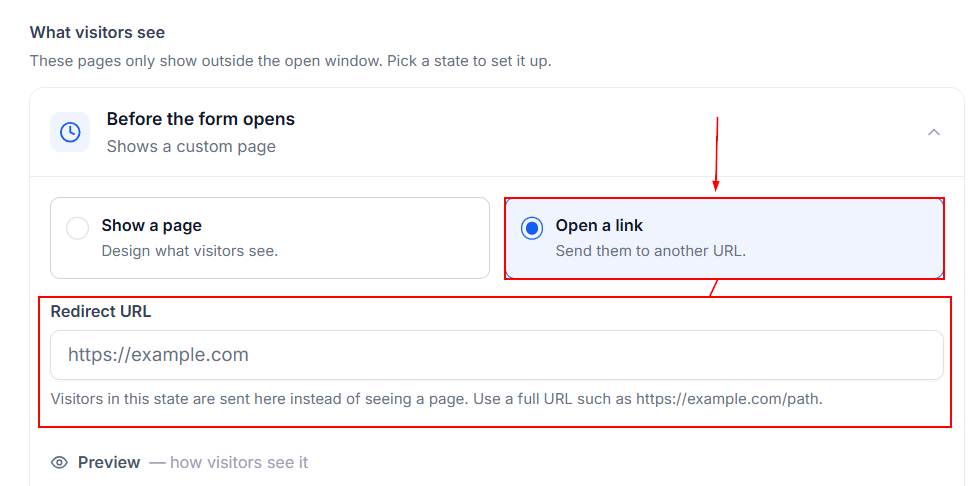
Select Open a link if you want visitors to be redirected to another URL instead of seeing a custom page.
Enter the destination URL where visitors should be sent. This option is particularly useful when you want to guide visitors toward the next step after a registration window or promotion ends.
Preview the Unavailable Experience
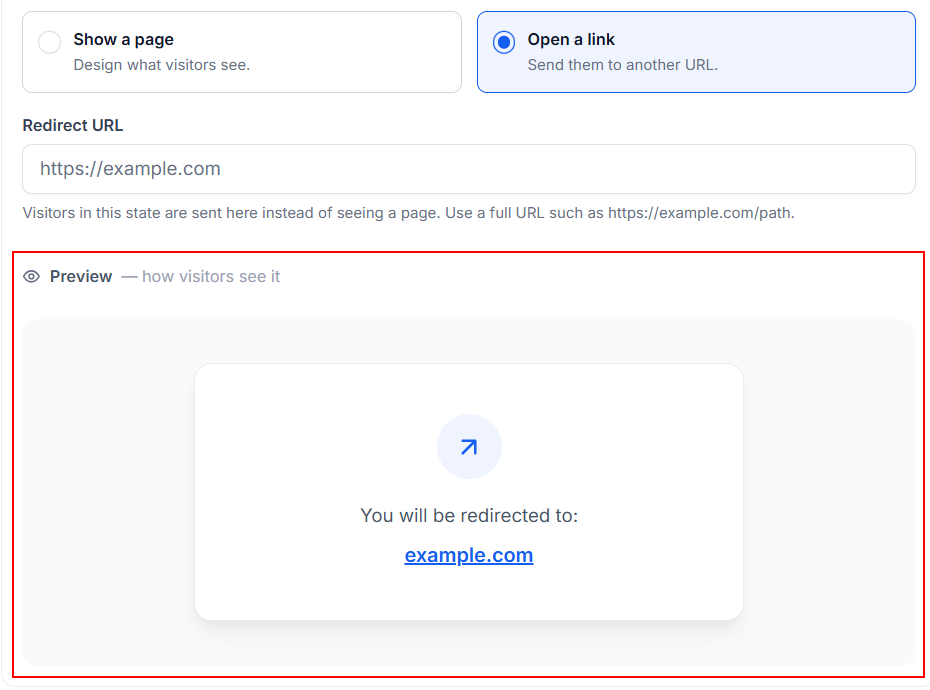
Before finalizing your settings, use the preview option to review how the configured unavailable experience will appear to visitors.
Check that the message is clear, the content displays as intended, and any redirect destination is correct. If necessary, return to the customization settings and make adjustments before completing the configuration.
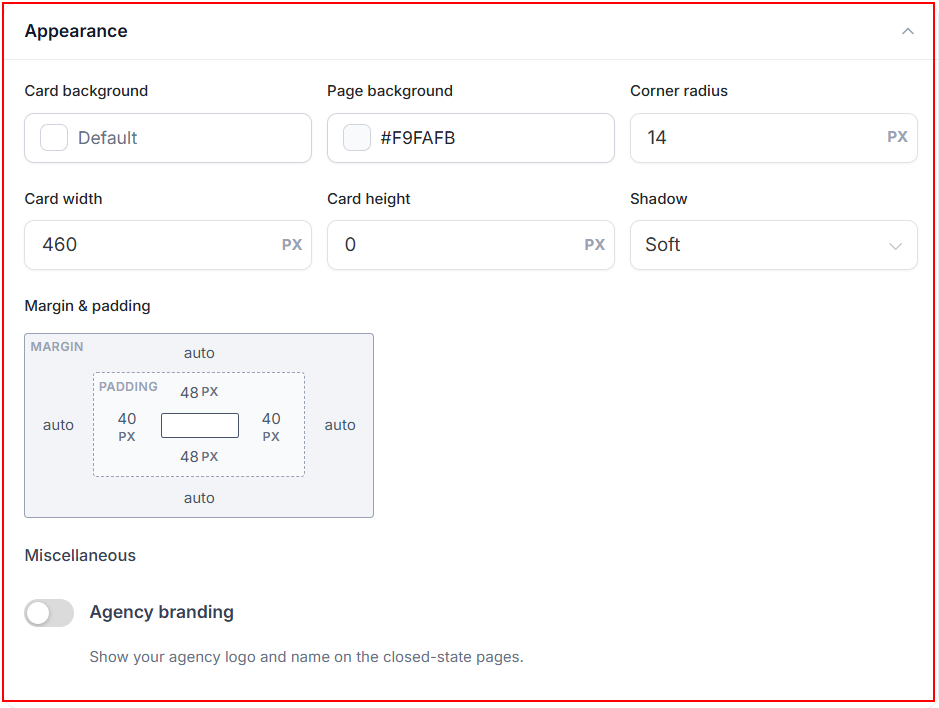
After configuring the opening and closing schedule, adjust the Appearance settings to customize how the page appears to your customers.
Save and Verify the Configuration
Review the opening date, closing date, time zone, and unavailable experience settings.
Once the configuration is saved, the Form, Survey, or Quiz will follow the schedule you defined:
- Before the opening time, visitors see the configured pre-launch experience.
- During the active availability window, visitors can access the experience and submit responses.
- After the closing time, new submissions are blocked, and visitors see the configured expired experience or are redirected to the specified URL.
The Schedule Availability feature makes it easier to manage time-sensitive Forms, Surveys, and Quizzes without manually opening or closing them at specific times. By configuring an availability window, selecting the appropriate time zone, and customizing the experience visitors see outside that window, you can create a more consistent and organized user experience.
Common Use Cases
The Schedule Availability feature can support a variety of time-sensitive activities:
- Event registrations: Automatically stop accepting registrations after the deadline.
- Webinars and launches: Prepare the experience in advance and display a pre-launch message until registration opens.
- Limited-time promotions: Keep submissions available only during the promotional period.
- Quizzes and contests: Define a participation window and prevent late entries.
- Post-campaign traffic: Redirect visitors to a waitlist, alternative offer, or upcoming event after the experience expires.