
QR Codes Overview
QR codes (Quick Response codes) are an essential tool for sharing information quickly and efficiently. They can be scanned using smartphones or other devices equipped with QR code readers. When scanned, the QR code directs the user to a specific URL, text, or action, making it a versatile tool for accessing information quickly. This article will provide an overview of the QR Code section within the platform, where you can create and manage QR codes.
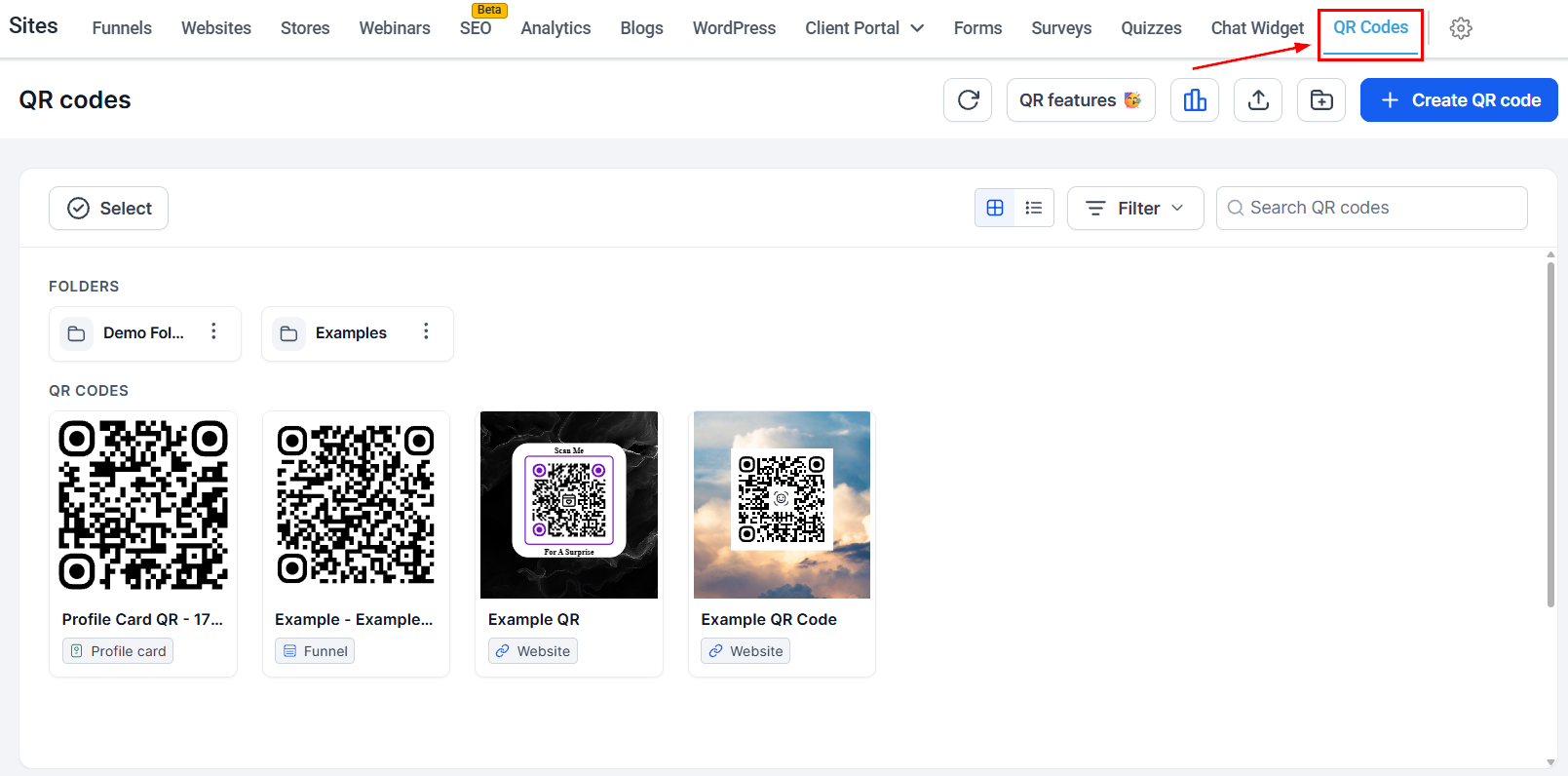
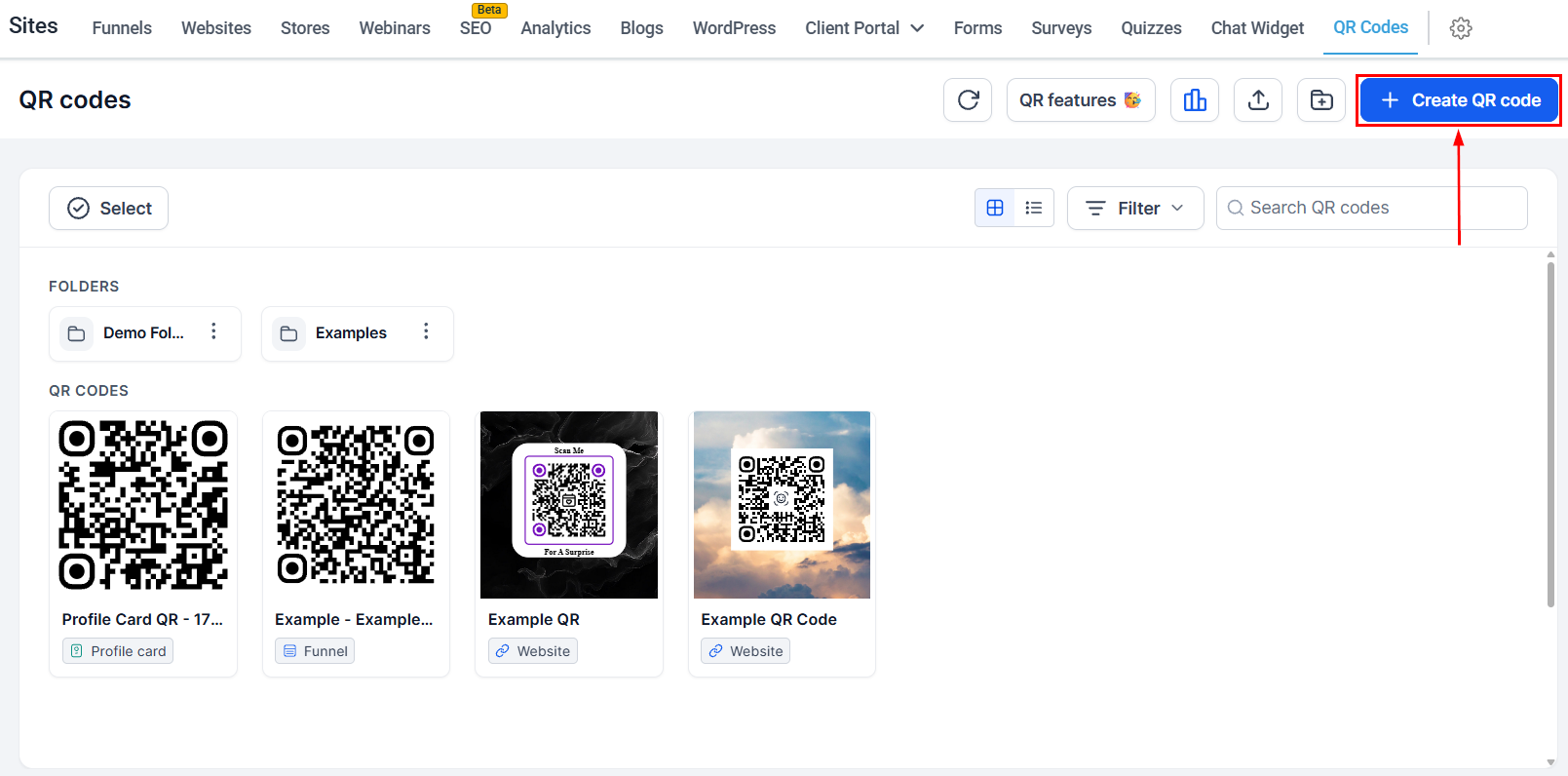
Navigate to the QR Codes tab from the Sites section of your account to begin.
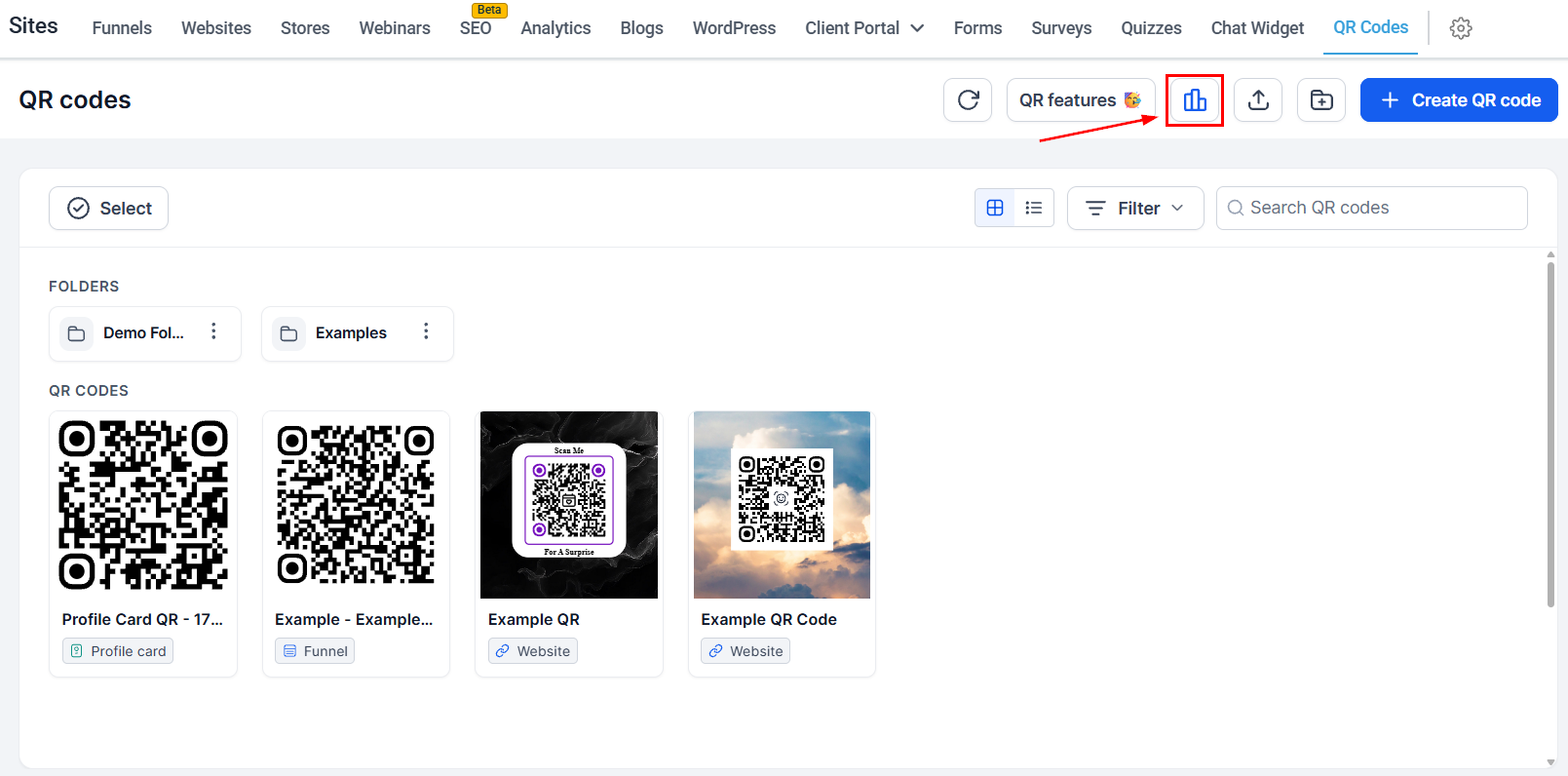
Analytics
One of the most valuable aspects of QR codes is QR code analytics. Click the Analytics button to see the total number of scans versus the number of unique scans over a selected time frame.
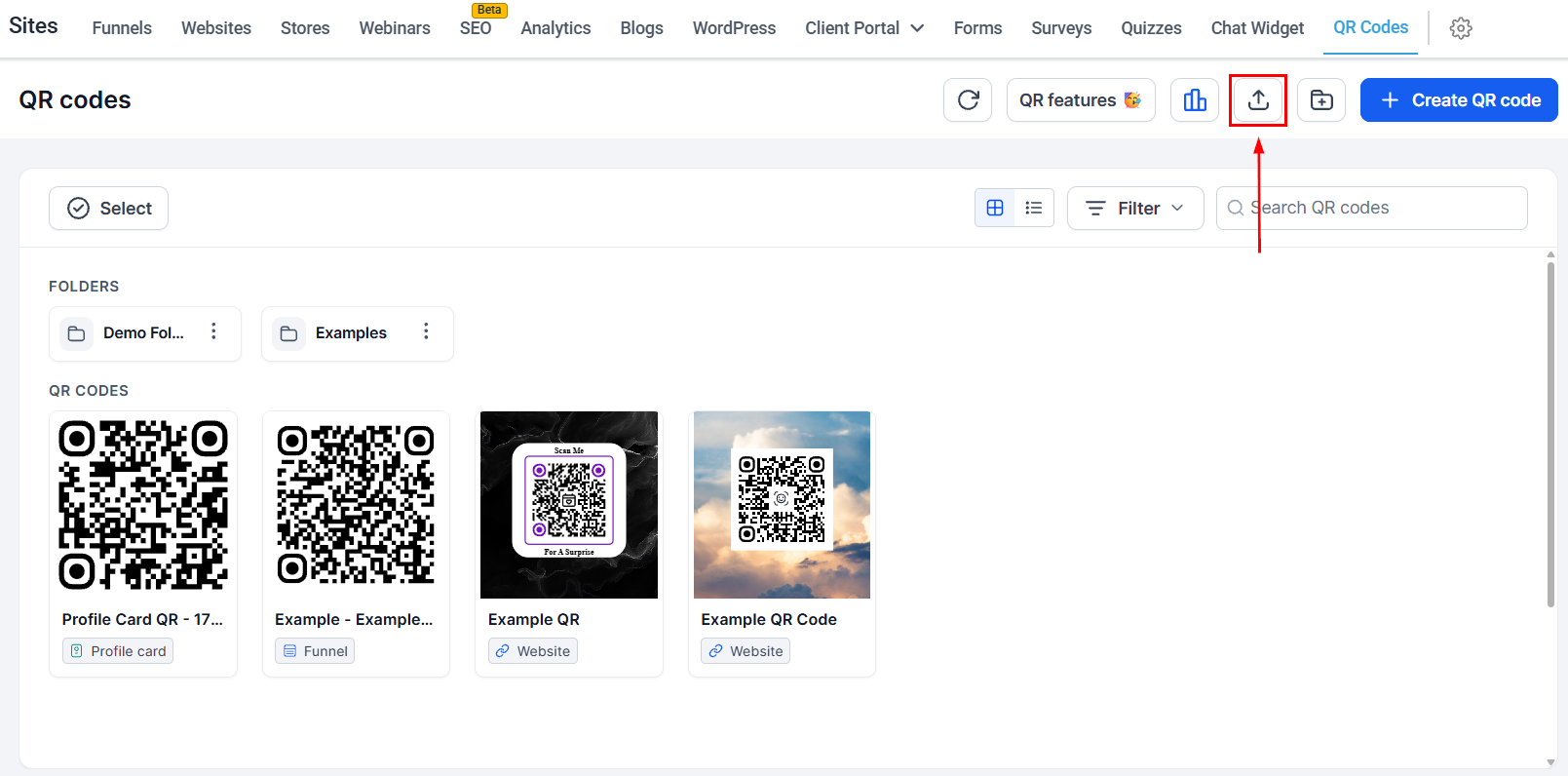
Bulk Creation
Use this option to generate multiple QR Codes at once, leaving QR creation in the background while you complete other tasks, and make changes after they’re created.
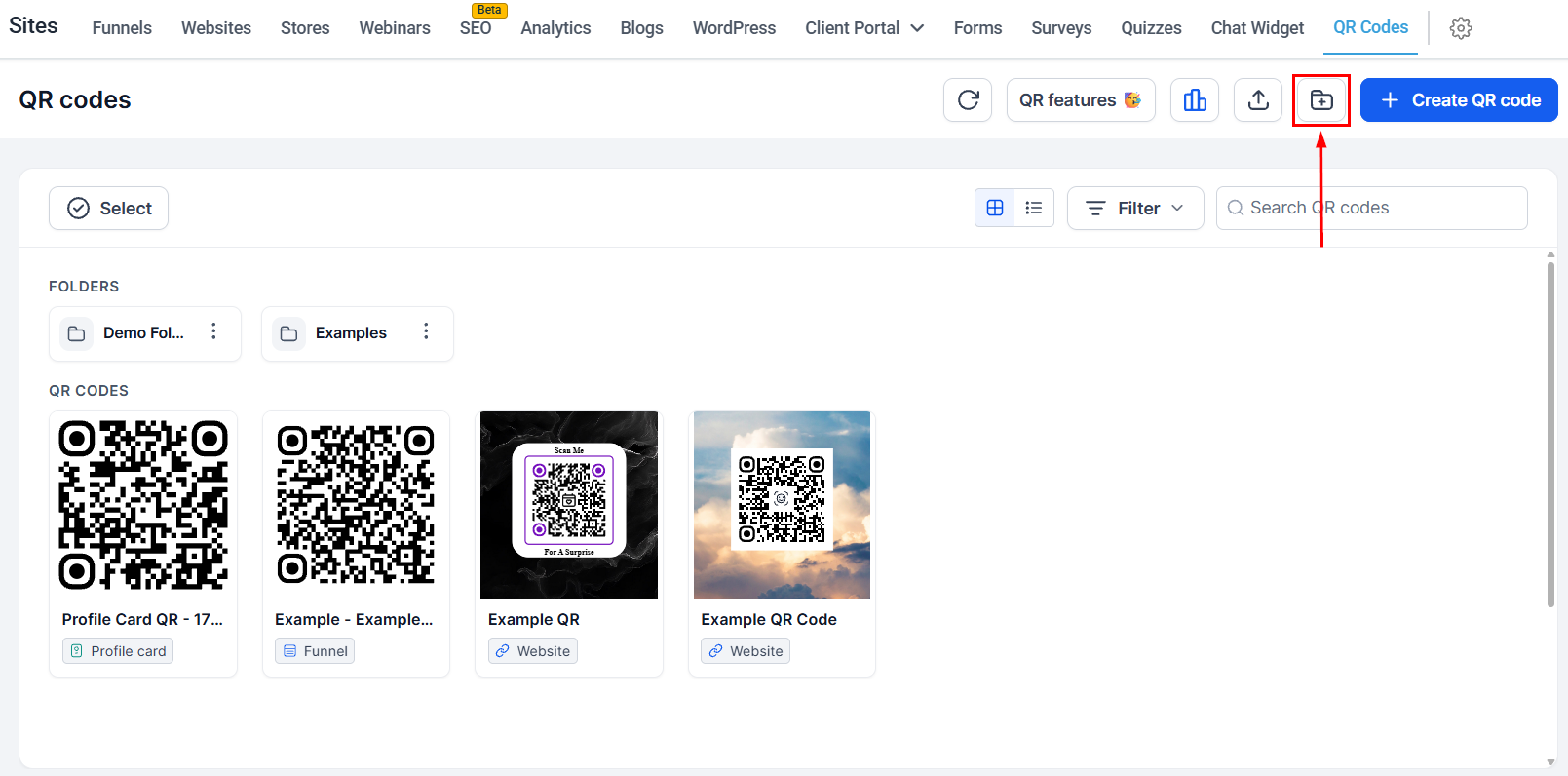
Create Folder
For businesses managing multiple QR codes, organizing them into folders can help streamline the process. This is particularly useful for organizations with many campaigns or products.
Create QR Code
Create a QR Code to simplify your workflow. QR codes can store a variety of data types, such as URLs, Contact information (vCards), Event details (iCalendar), Plain text messages, Wi-Fi network credentials, and more.
Managing Folders
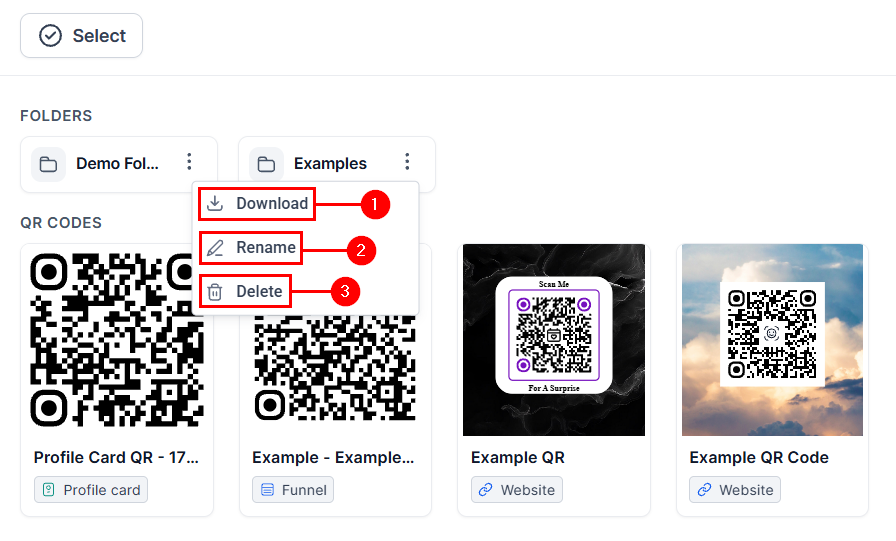
The folders you have created will be displayed above your QR Code list. Click the three-dot icon to download the QR codes it contains (1), rename (2), or delete it. Access a folder by double-clicking it. You can then add new QR codes or create sub-folders.
Managing QR Codes
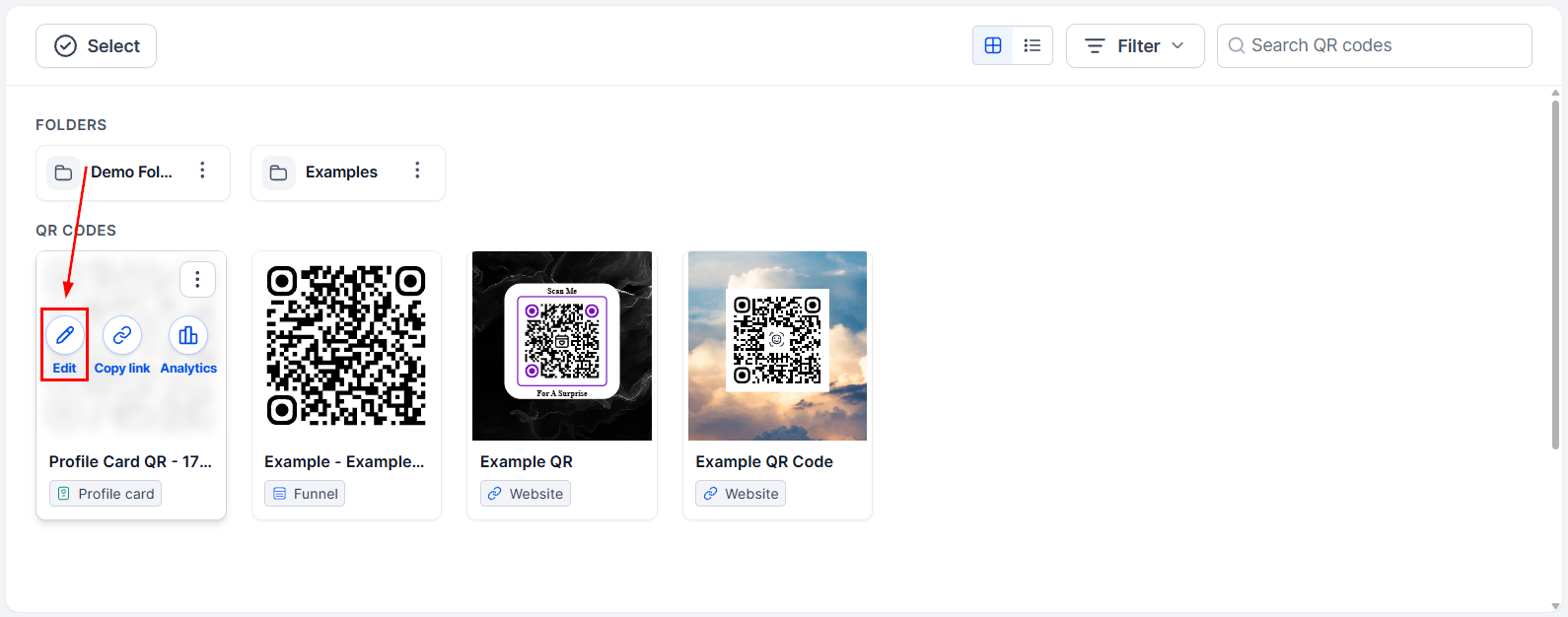
When you hover over the QR code, you’ll have the option to edit its content, allowing you to update the information it contains.
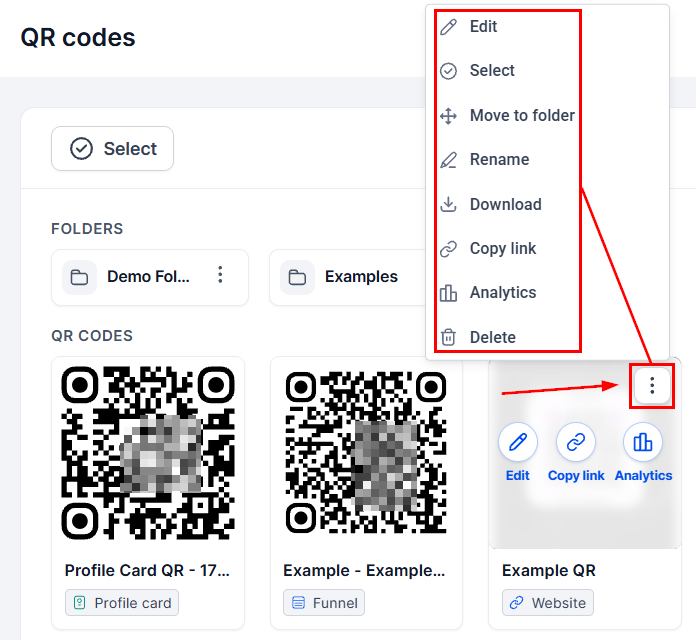
Click the three-dot icon next to the edit button to move the code into a folder, rename it, download it in your preferred format, between PNG, SVG, or PDF, copy its shareable link, or delete it if it’s no longer needed.
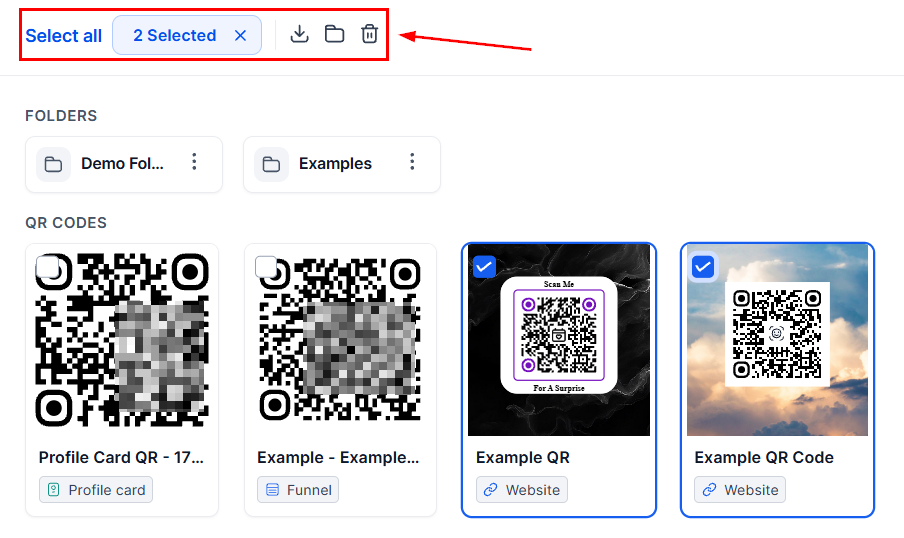
By using the select option, you can pick multiple QR Codes to download, move to a folder or delete simultaneously.
Now that you understand the basics, check out the other articles in this section to learn more about this valuable tool.