
How to Use Upsell Element in Stores
Upsell pages provide an effective way to present customers with additional purchase opportunities immediately after they complete checkout. This guide walks you through creating and configuring an upsell page, connecting it to your checkout flow, and setting up the necessary actions to deliver a smooth post-purchase experience while helping increase the value of each order.
Implementing Upsell Strategies
Creating an Upsell Page
Begin by either opening an existing store or creating a new one within the Sites section of your account.
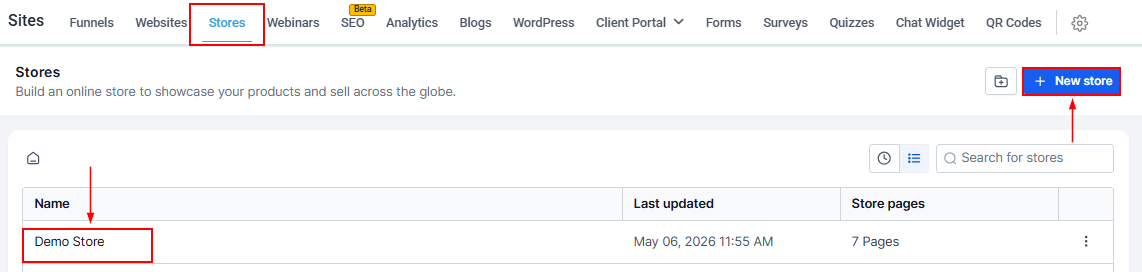
Create a new page dedicated to upsells, separate from your existing store pages. Add a full-width section, columns, and a row.
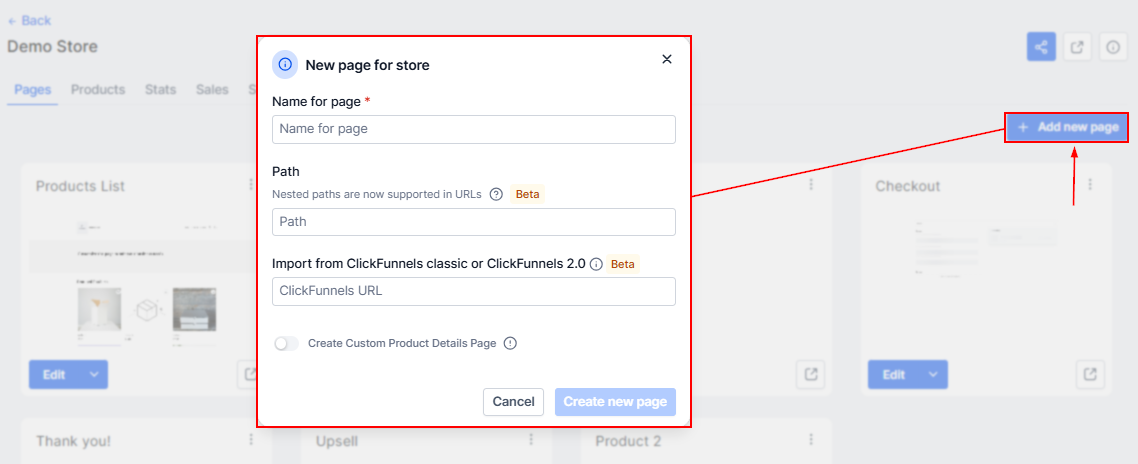
Adding the Upsell Element
Click on the "Add Element" button, then drag and drop the Upsell element into the row.
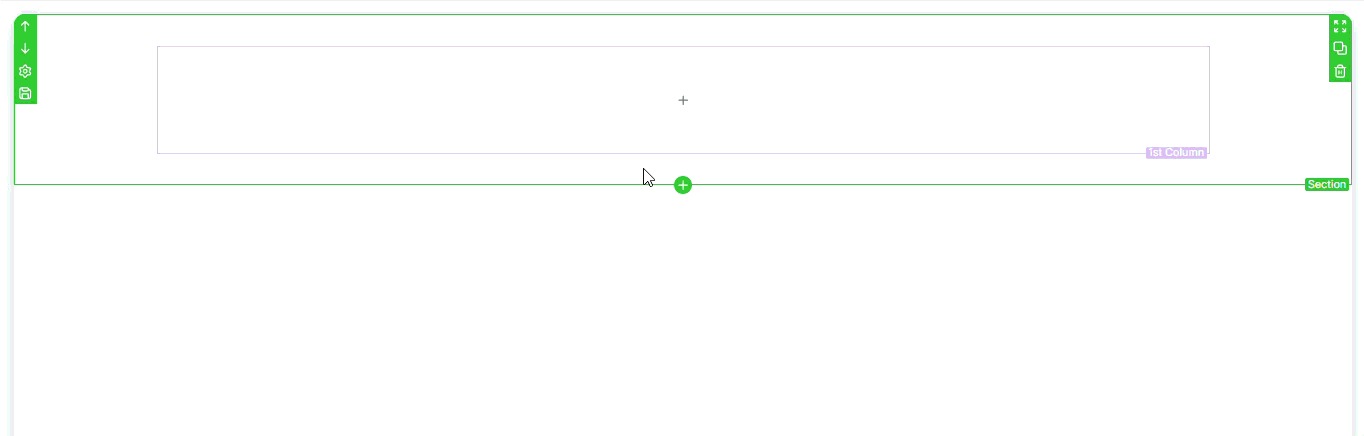
You can include multiple upsell components within different columns to showcase a variety of products.
Configuring the Upsell Element
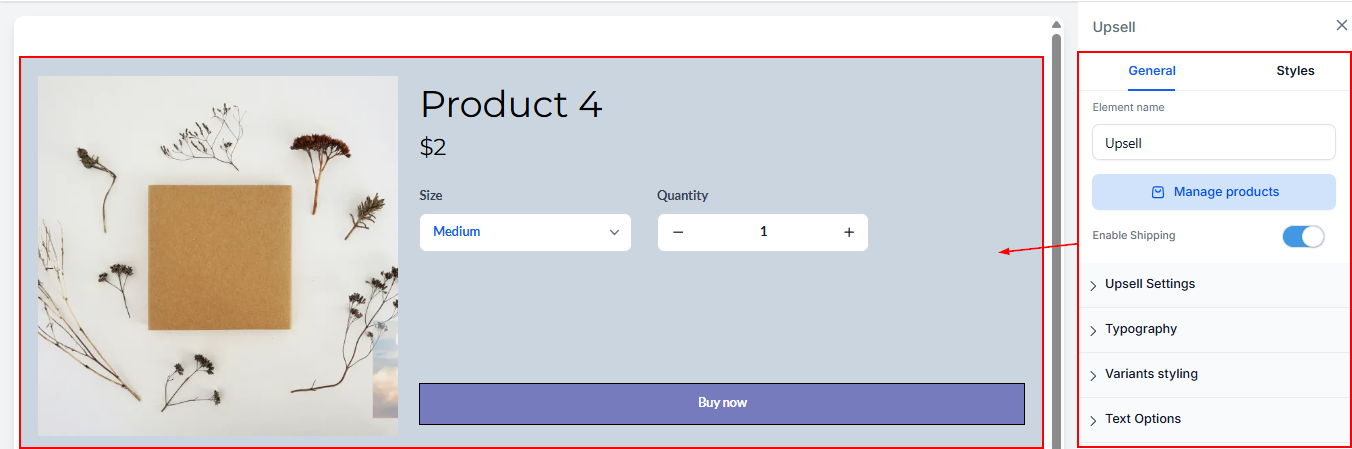
Select the upsell element to access its configuration settings.
You will have the option to enable or disable shipping charges for each upsell product by toggling the setting within the builder preview. When enabled, customers will have the option to choose from available shipping rates in a dropdown menu.
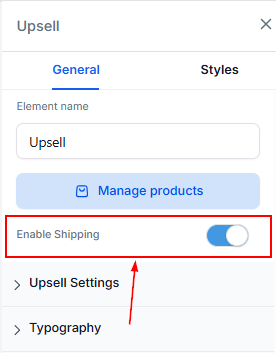
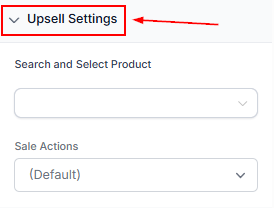
In the Upsell settings, search and select the desired product.
Then, configure the Sale Action, which determines the redirection after the "Buy Now" button is clicked. Options include redirecting customers to another upsell page or the Thank You Page.
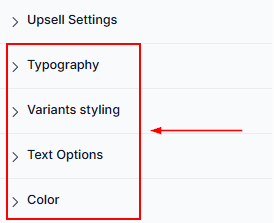
Open the other sections to further customize how the upsell is displayed on your page.
As you go along, you can preview your changes in the builder.
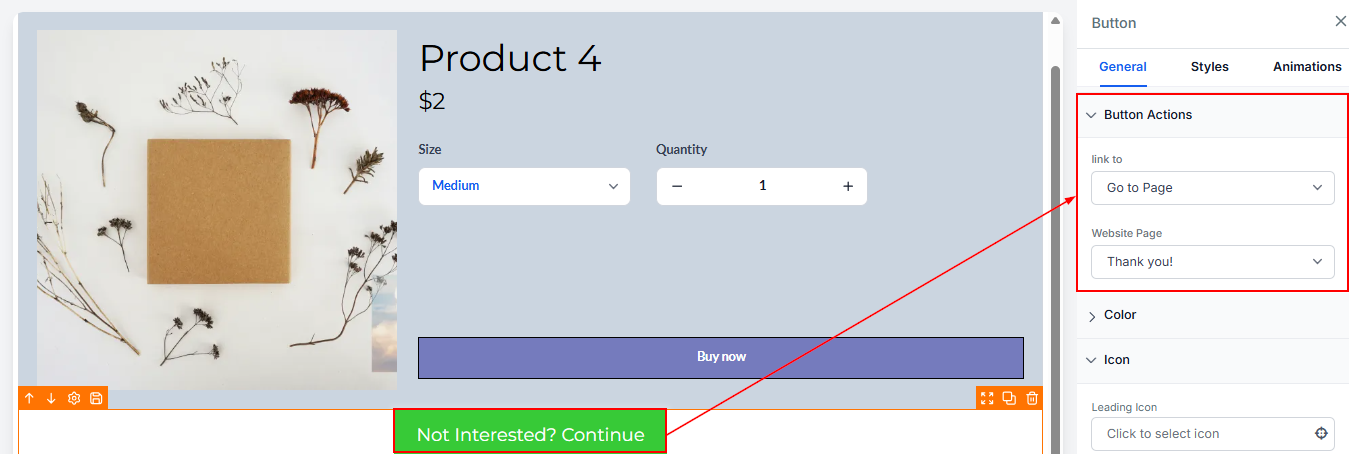
Adding a Skip Action for the Upsell Page
To allow customers to bypass the upsell, add a button with an action that redirects users directly to the Thank You Page. This provides flexibility for those who do not wish to purchase additional products.
Configuring the Checkout Page
Use the Page Switcher to open the builder for the Checkout Page.
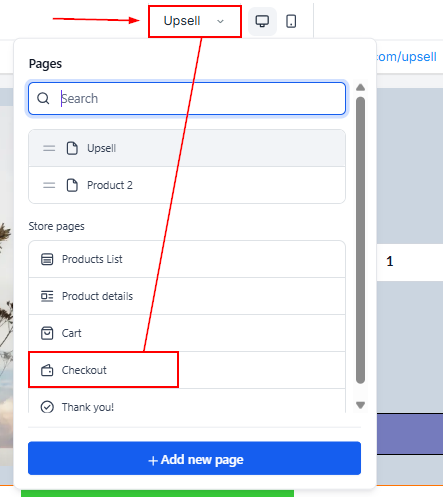
Then update the Checkout Page settings by selecting Sale Action as "Go to Page" and linking it to the newly created Upsell Page.
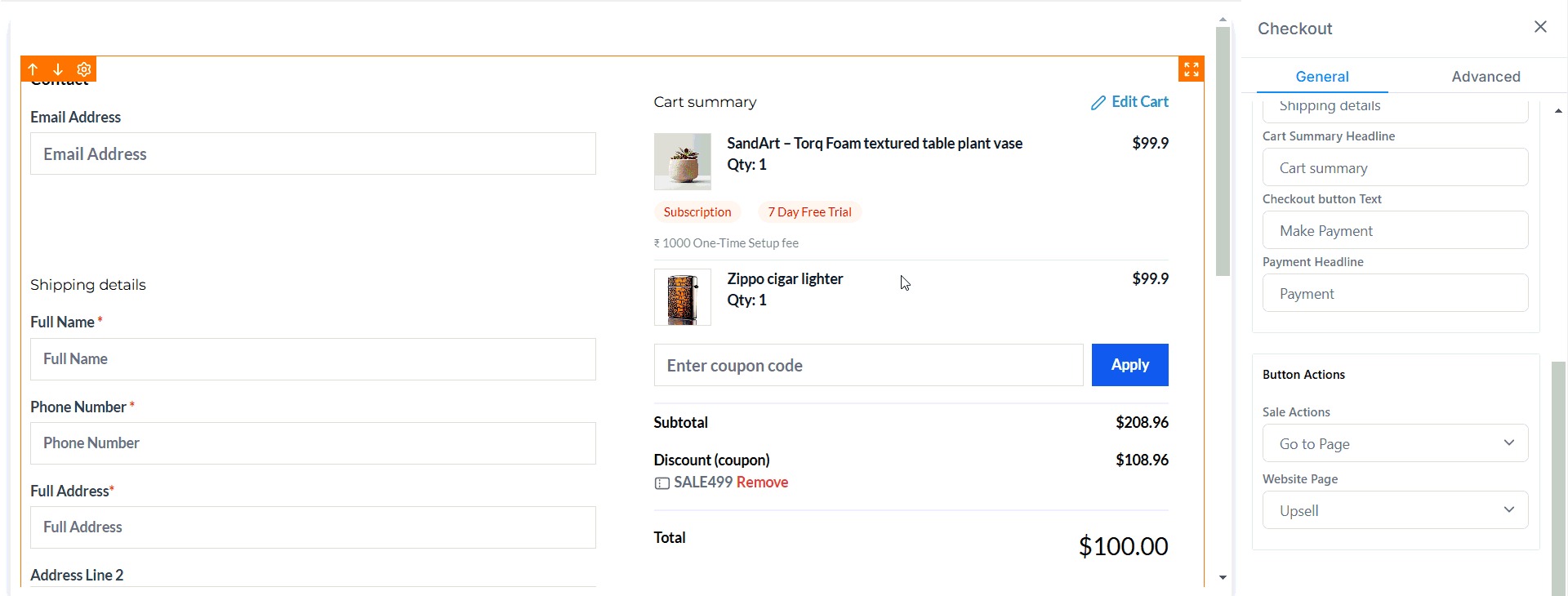
By incorporating upsell funnels into your store, you can effectively increase your average order value and product awareness.
✍️Important Notes
- If a customer purchases an upsell product, it will generate a separate order.
- To provide a smooth customer experience, ensure a skip button is available. Without it, users may be forced to purchase an upsell product to proceed to the Thank You Page.