
Courses in the Client Portal
The Courses section in the Client Portal gives users a central place to access the courses they're enrolled in. From here, they can view available courses, keep track of their learning activity, and open a course to continue learning.
How to Access Courses in the Client Portal
To access courses, select Courses from the navigation menu on the left side of the Client Portal.
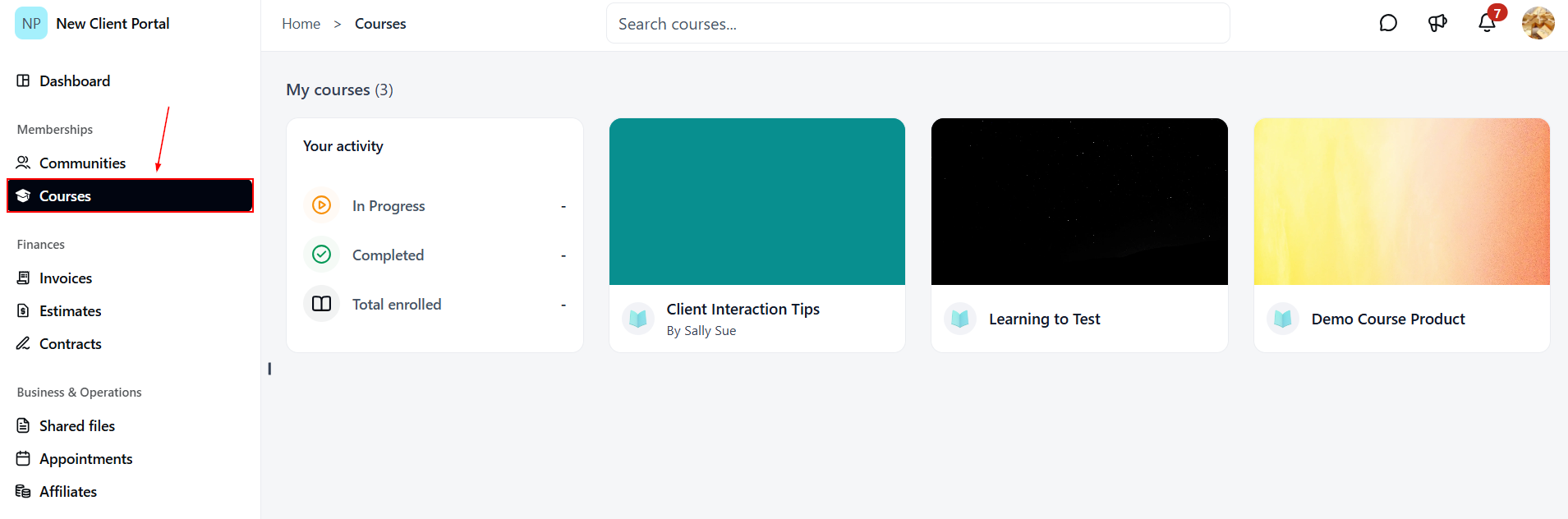
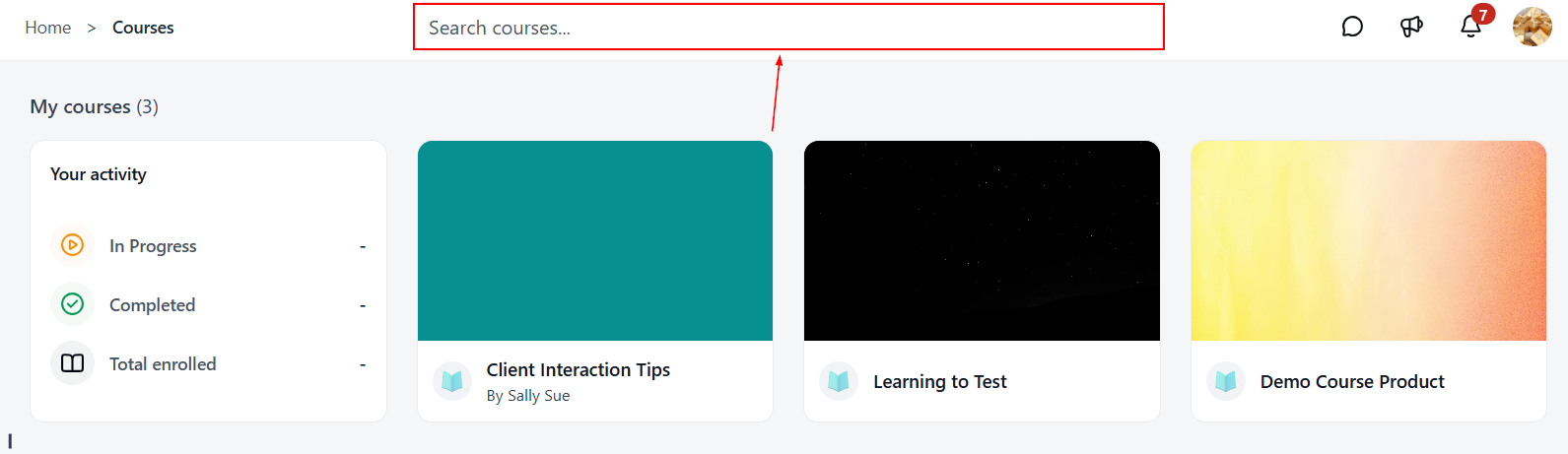
Once the Courses section is opened, all available courses are displayed on the page. At the top, users can also find the Search courses... field, which can be used to quickly locate a specific course.
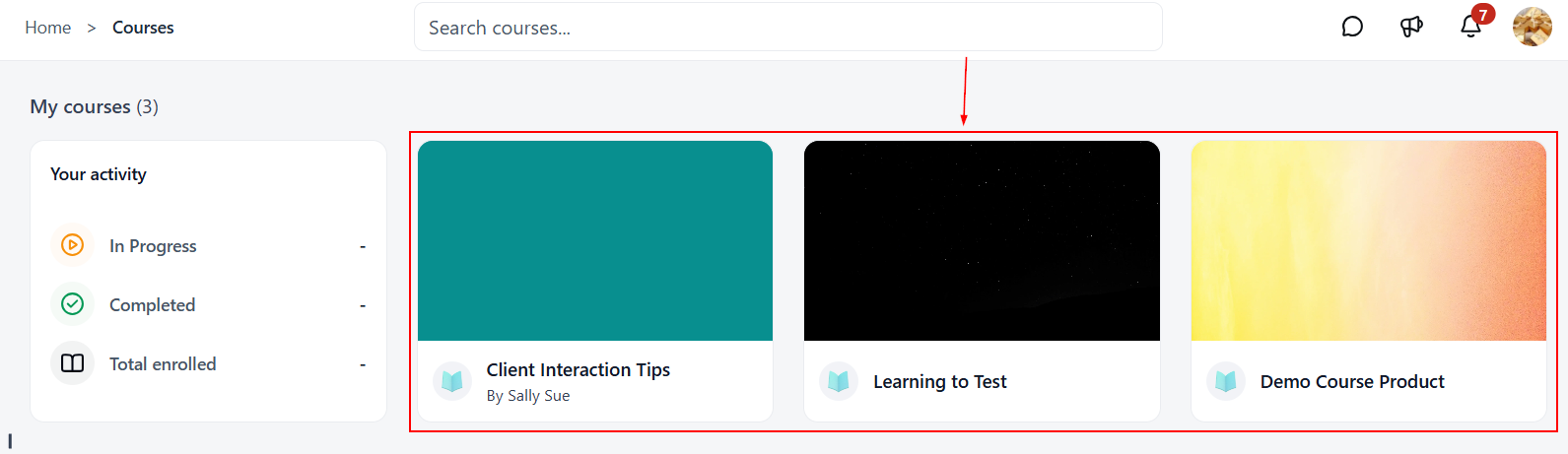
My Courses
The My Courses section displays the courses available to the user. Each course appears as a card showing the course title and, where applicable, the course instructor.
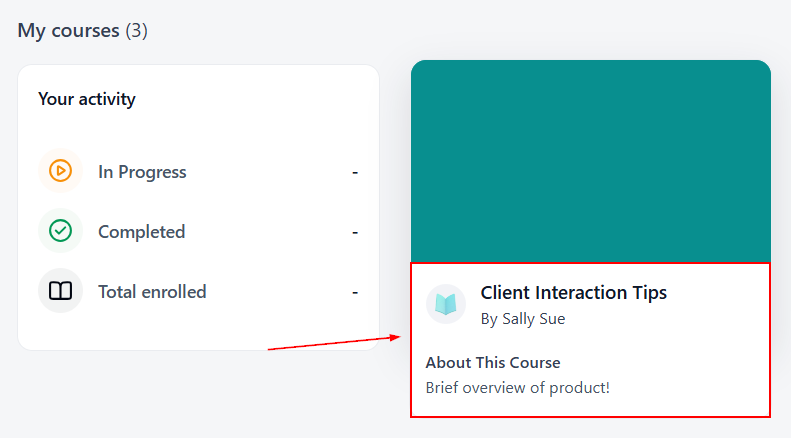
Clients can hover over the course to view the product description.
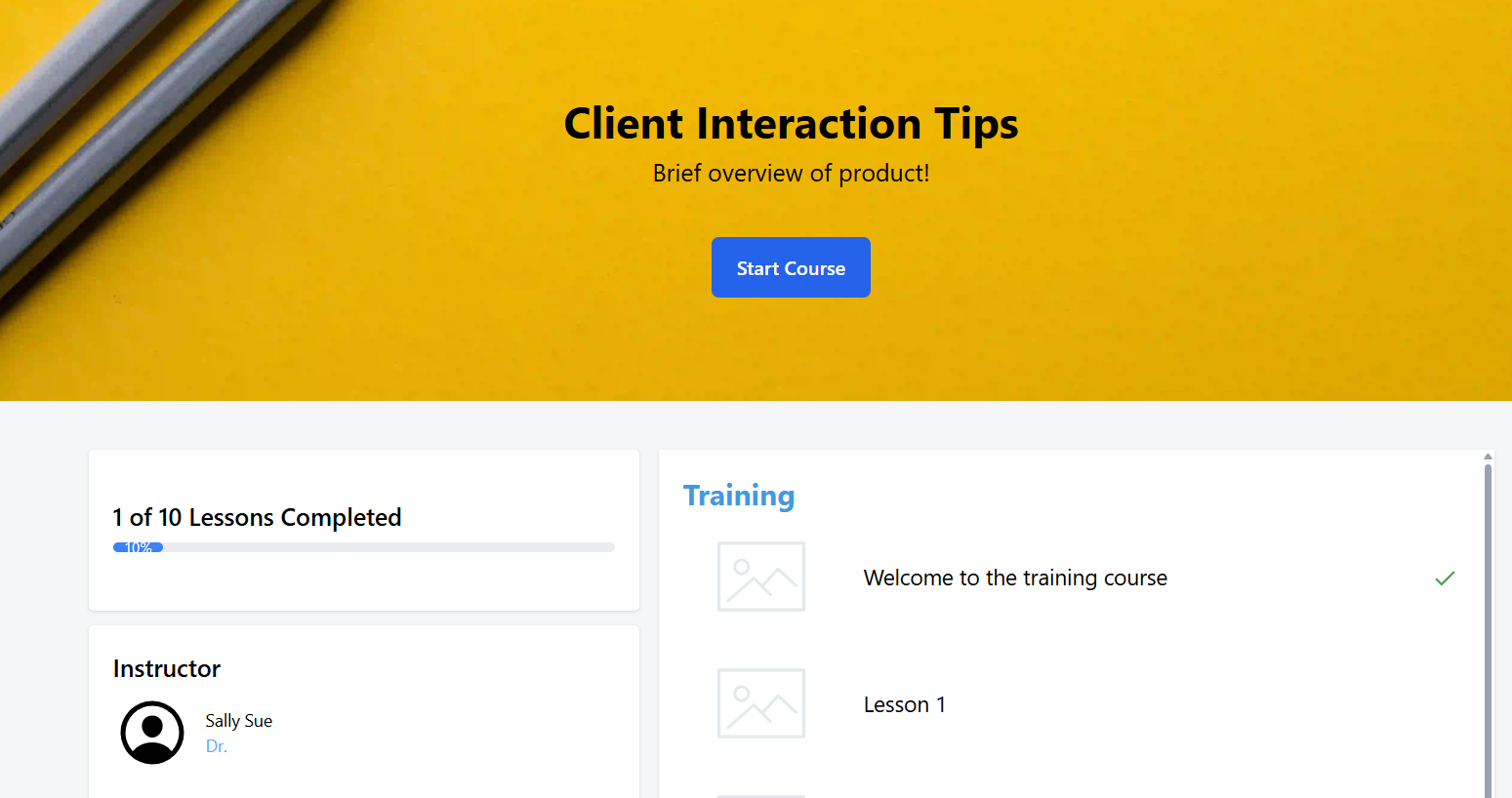
To access a course, select the corresponding course card. This opens the course, where users can begin or continue working through the available content.
Your Activity
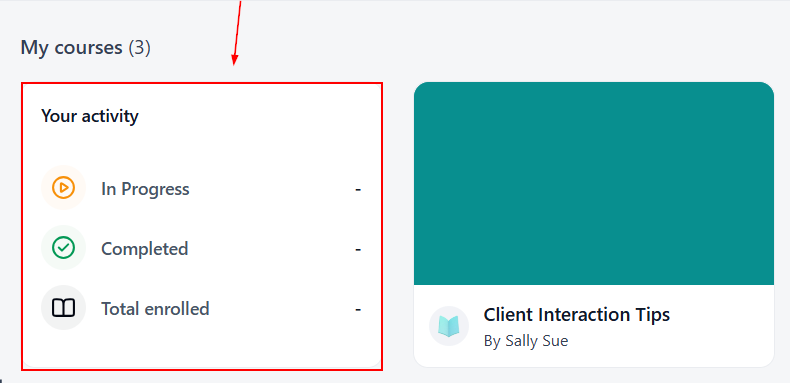
The Your activity panel provides an overview of course activity. It includes:
- In Progress — Displays courses the user has started but has not yet completed.
- Completed — Displays courses the user has finished.
- Total enrolled — Displays the total number of courses the user is enrolled in.
This makes it easy to get a quick overview of their learning progress directly from the Courses page.
The Courses section provides a dedicated space for users to engage with their learning without leaving the Client Portal. With their course content and learning activity readily available, users can return whenever they’re ready to continue their training.