
Version History in Forms/Surveys
Making changes to a form or survey is a normal part of the building process, but sometimes you may need to review an earlier version or undo a recent update. Version History automatically saves a new version each time you save your form or survey, giving you a complete record of your changes and the flexibility to restore a previous version whenever needed.
How to View Version History
Open Your Form or Survey
Navigate to the Forms or Surveys builder and open the item you want to review.
Open the Versions Panel
Click the Versions button in the builder toolbar.
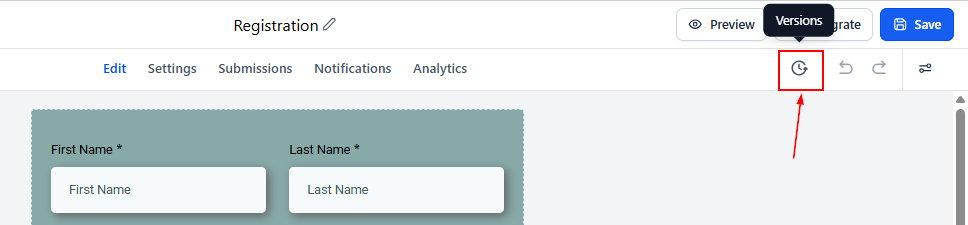
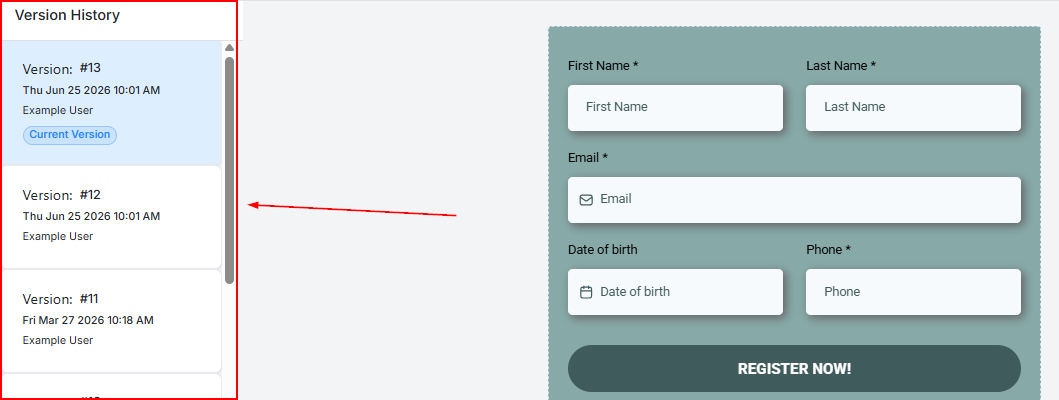
This opens the Version History panel, where you'll find a chronological list of every saved version.
Review Available Versions
Each version displays useful information, including:
- Version number
- Date and time it was saved
- The user who updated the form/survey
This makes it easy to locate the version you're looking for.
Restore a Previous Version
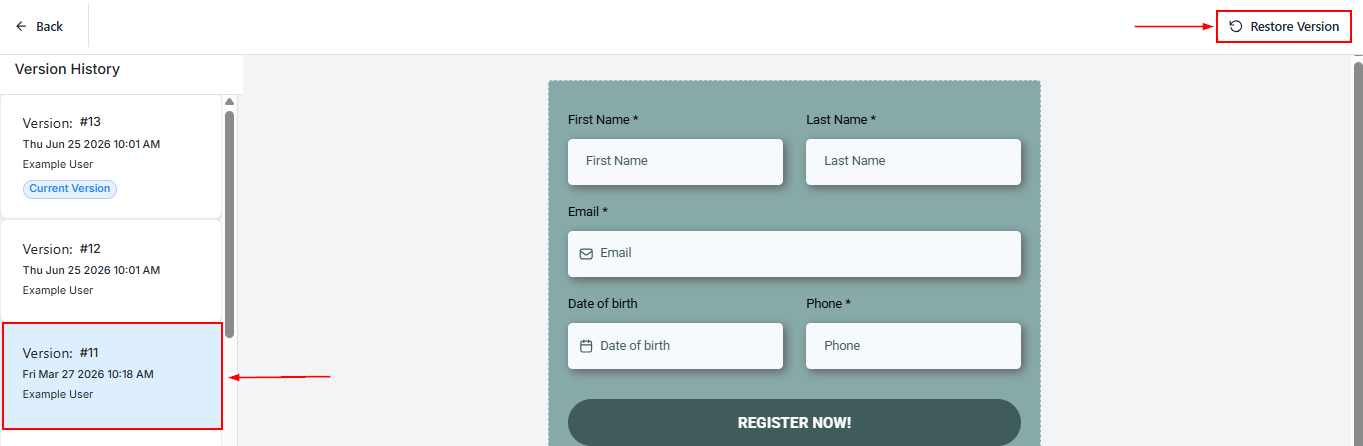
Before restoring an earlier version, you can preview it directly from the Version History panel. Previewing allows you to review the form or survey as it existed at that point in time, helping you confirm you've selected the correct version before making any changes.
If you've made changes that you'd like to undo, you can restore any previously saved version. Once restored, that version becomes the active version of your form or survey, allowing you to continue editing from that point.
Version History provides a reliable safety net while building forms and surveys. By automatically saving every version, allowing you to preview previous iterations, and making it easy to restore earlier versions, you can confidently update your forms knowing that your previous work is always within reach.
Frequently Asked Questions
Does a new version get created automatically?
- Yes. A new version is created every time you save your form or survey, so you don't need to manually create backups.
Can I preview a version before restoring it?
- Yes. You can preview any saved version directly from the Version History panel before deciding whether to restore it.
What happens when I restore a version?
- The selected version becomes the current version of your form or survey. You can continue making edits from that restored version just like any other form.
Will restoring a version delete my newer versions?
- No. Your version history remains available, allowing you to move between saved versions if needed.
Troubleshooting
I Don't See Any Saved Versions
- Make sure you've saved your form or survey at least once after making changes. Refresh the builder if newly saved versions don't appear immediately and verify that you're editing the correct form or survey.
I Can't Preview a Version
- Refresh the page and reopen the Version History panel. Clear your browser cache if the preview doesn't load correctly, and ensure you're using a supported, up-to-date browser.
Restore Option Isn't Working
- Confirm that you've selected a version from the list. Refresh the builder and try again. If the issue persists, save your current work and reopen the form before attempting another restore.