
Date Fields in Forms/Surveys
When collecting dates through forms and surveys, using a familiar date format can make it easier for respondents to complete your forms accurately. Whether you're gathering appointment dates, birthdays, event registrations, or other date-based information, you can customize how dates are displayed to better match your audience's regional preferences or your organization's standards.
Benefits of Custom Date Formats
Customizing your date fields provides a better experience for both form builders and respondents by:
- Displaying dates in a familiar regional format.
- Allowing respondents to quickly select dates using the calendar date picker.
- Creating a more consistent experience across your forms and surveys.
How to Configure the Date Field
Add a Date Field
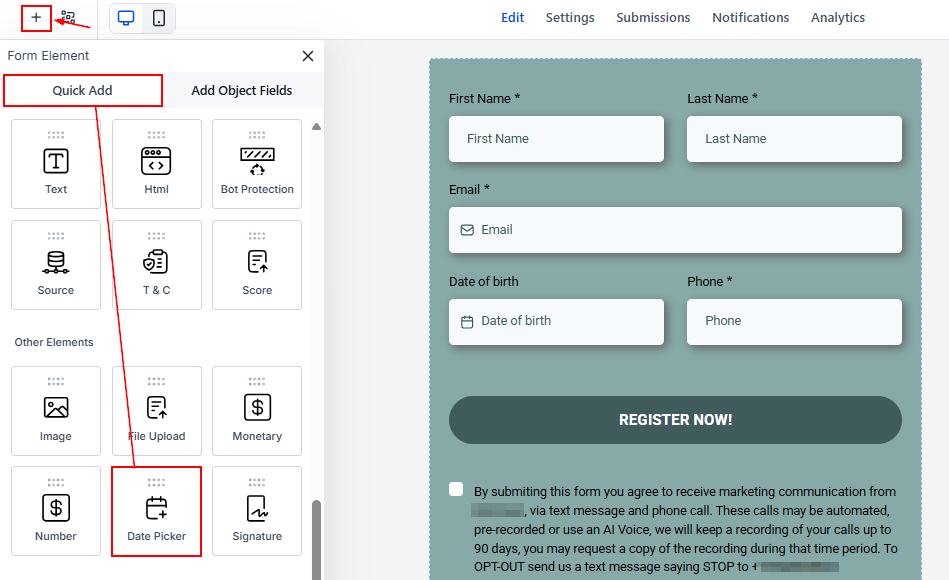
Open your form or survey in the builder and drag a Date Field onto the canvas.
Open the Field Settings
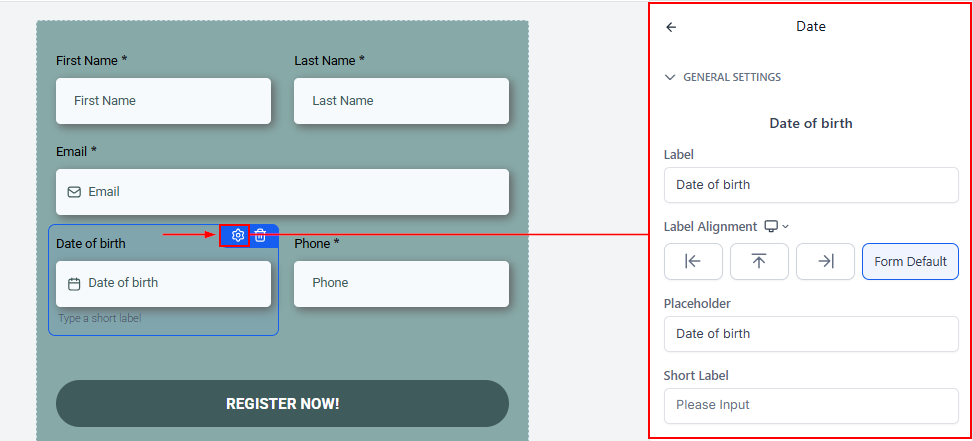
Click the Date Field to open its settings panel.
From here, you'll be able to customize how the selected date is displayed to respondents.
Select a Date Format
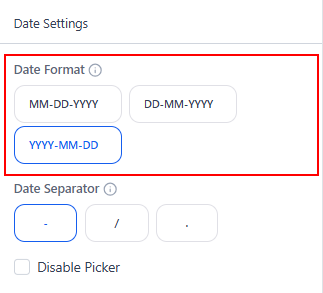
Choose the date format that best fits your use case or audience.
For example, you can display dates using formats such as:
- MM/DD/YYYY
- DD/MM/YYYY
- YYYY-MM-DD
The selected format determines how the date appears in the form while maintaining a consistent date value behind the scenes.
Choose a Date Separator
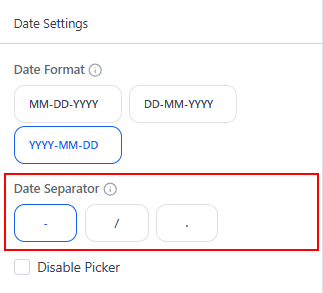
You can also customize the separator used between the day, month, and year.
Separator options include:
- Slash (/)
- Hyphen (-)
- Period (.)
After selecting your preferred format and separator, save your form or survey to apply the changes.
Customizing the Date Field helps make forms and surveys more intuitive by displaying dates in a format that your audience recognizes. Combined with the built-in calendar picker, these settings reduce input errors, improve usability, and create a smoother experience for everyone completing your forms.
Troubleshooting
The Date Format Didn't Update
- If the selected format isn't displaying correctly, make sure you've saved your changes. Refresh the page after saving, then confirm that the correct Date Field is being edited.
The Date Picker Isn't Working
- If respondents cannot open the calendar picker, verify that you're using a supported, up-to-date browser. Refresh the page and try again. Clear your browser cache if the issue persists and check your internet connection.
Submitted Dates Don't Match the Expected Format
- If submitted dates appear differently than expected, reopen the Date Field settings and verify the selected format and separator. Save the form again and test it using the Preview option before publishing.