
Todoist Actions & Triggers in Workflows
The Todoist integration allows you to connect your Todoist account with Workflows so you can automate task and project management. You can trigger workflows based on Todoist activity or perform Todoist actions directly from your automations.
Before You Begin
Before using the integration, note the following:
- You must connect your Todoist account through OAuth.
- All Todoist triggers and actions are Premium workflow components.
- Todoist triggers check for new activity every 5 minutes.
- Your Todoist subscription and usage are managed and billed separately through Todoist.
Connect Your Todoist Account
You can connect your account using either of these methods:
Option 1: Connect from the Workflow Builder
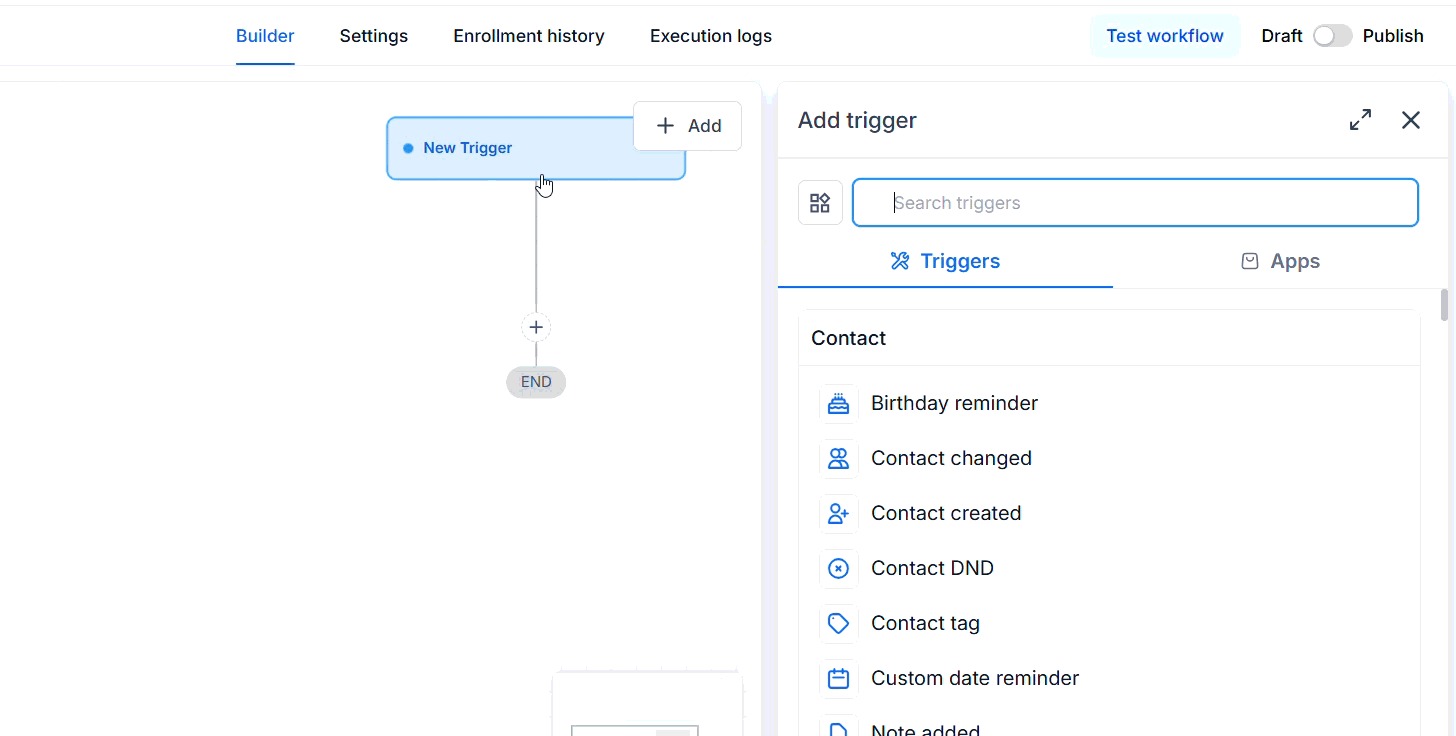
Open an existing workflow or create a new one. Add a Todoist trigger or action from the Apps tab.
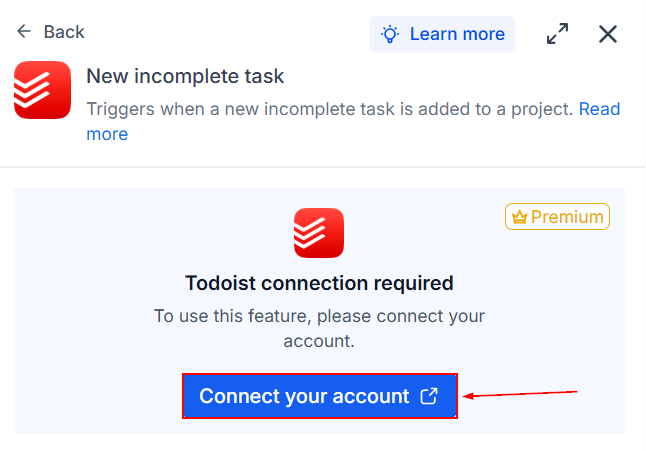
Click Connect your account.
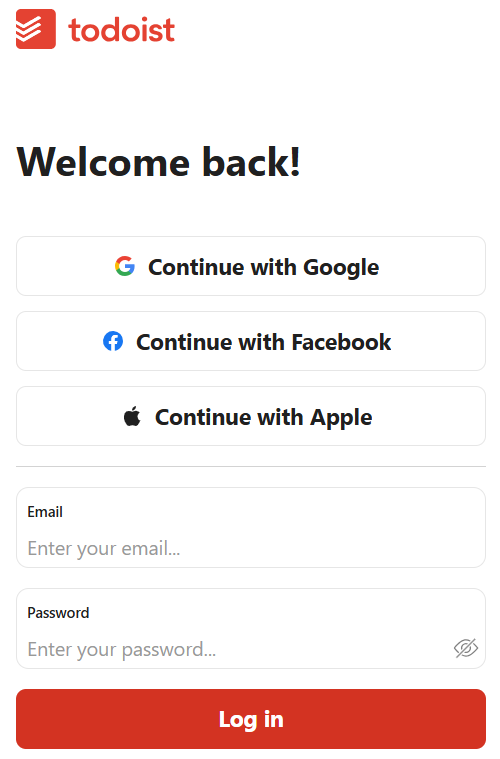
Complete the Todoist OAuth authorization by signing in with Google, Facebook, or Apple, or using your email and password.
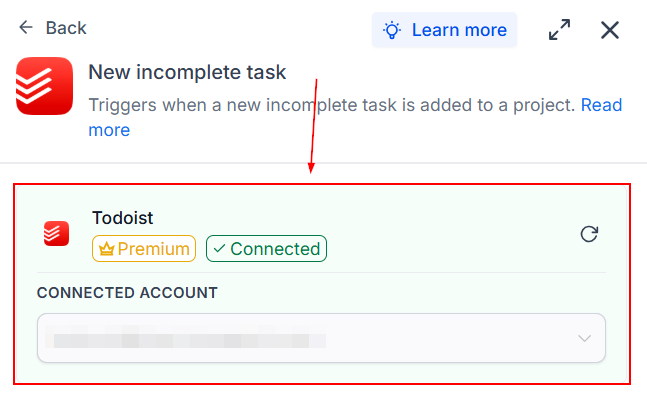
Return to the Workflow Builder and confirm the account shows as Connected.
Option 2: Connect from Settings
Go to Settings → Integrations and click Connect within the Todoist tile.
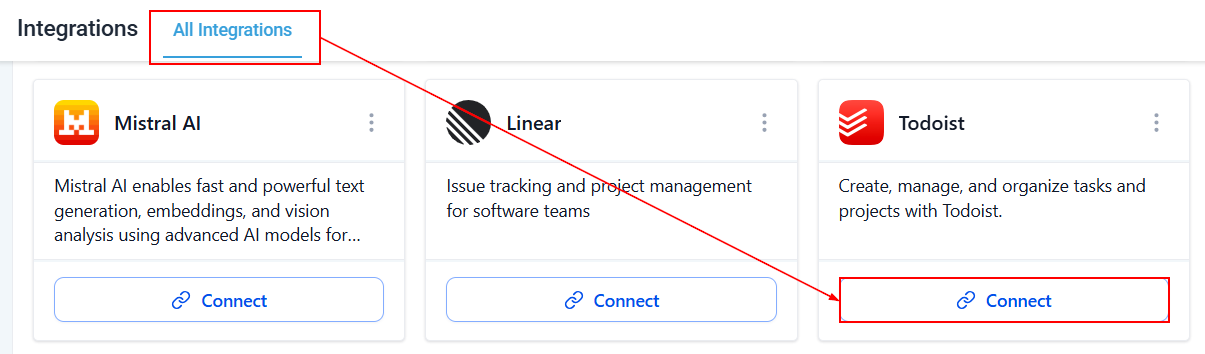
Complete the OAuth authorization process.
Configure a Trigger
To configure a trigger, open your workflow and Click Add Trigger.
Select Todoist from the Apps tab.
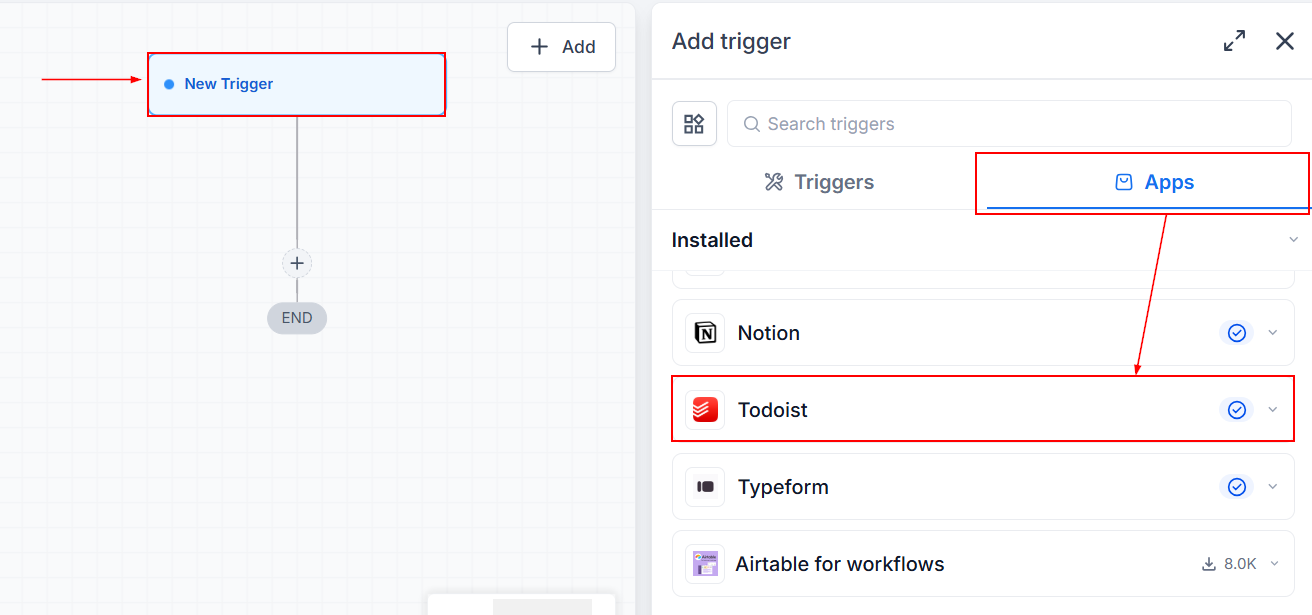
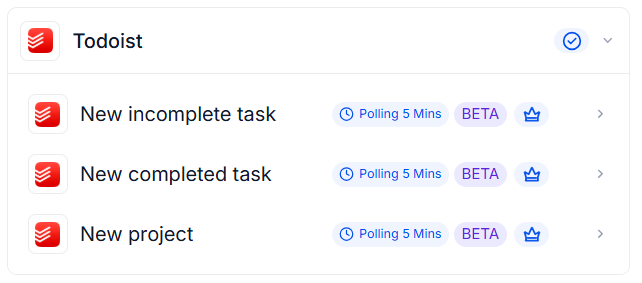
Choose the trigger you want to use. Todoist provides three workflow triggers:
- New Incomplete Task – Runs when a new task is added to a project.
- New Completed Task – Runs when an existing task is completed.
- New Project – Runs when a new project is created.
All triggers poll Todoist every five minutes and return matching records since the previous poll.
Give the trigger a descriptive name.
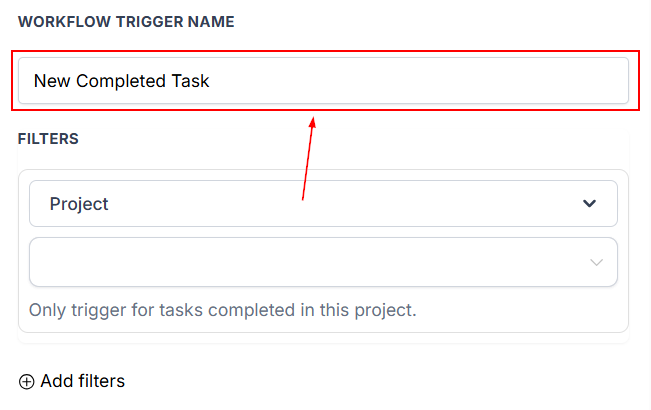
Apply any available filters, such as filtering by project.
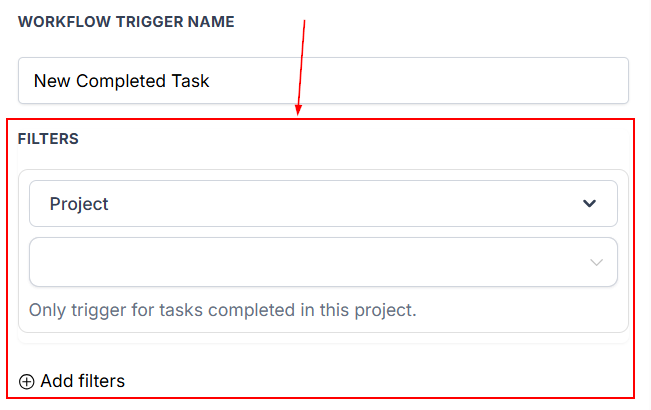
Save the trigger after testing it.
Configure a Create Task Action
To create a Todoist task from a workflow, add a new workflow action and select Todoist.
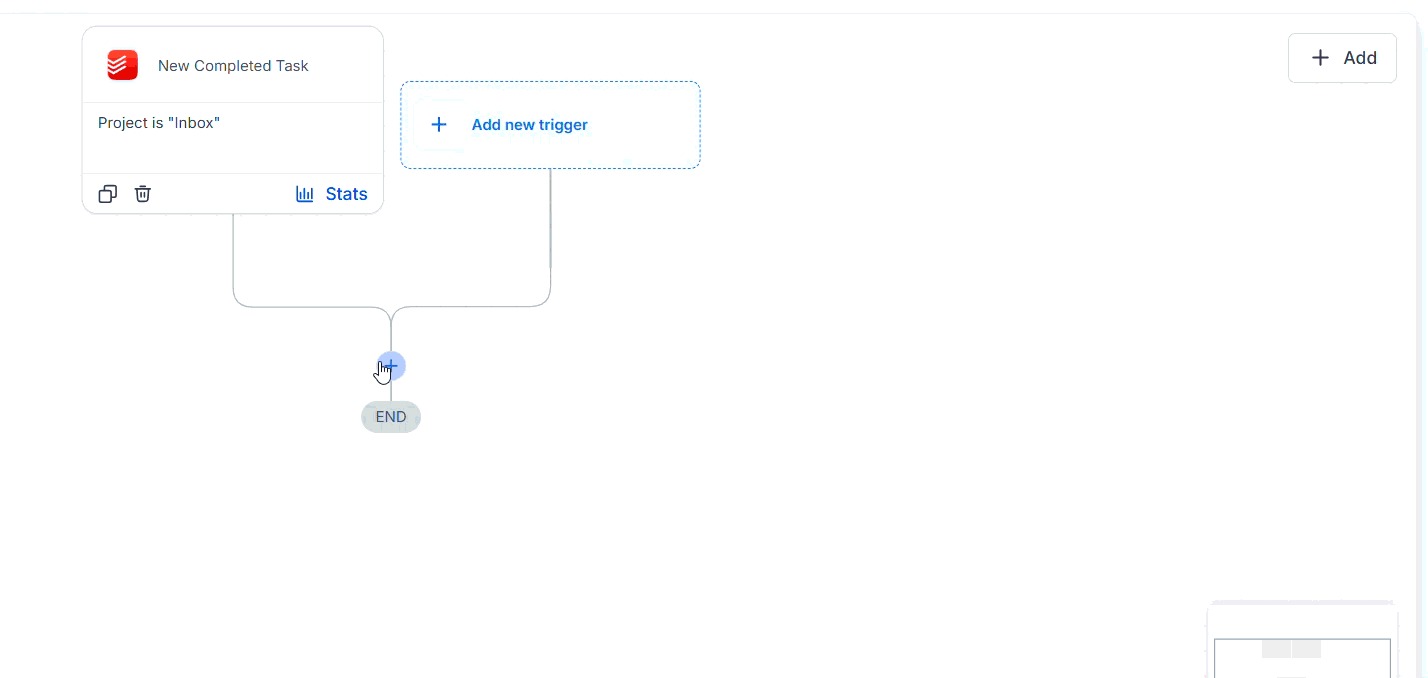
Configure the fields for the action and test the action before saving.
Test Your Workflow
Before publishing your workflow, test both the trigger and any actions you've added.
Test a Trigger
Click Find New Records. If no records are found, create or complete a Todoist task (or create a project). Wait for the next polling cycle (up to five minutes) and fetch the records again. Select a returned record for mapping.
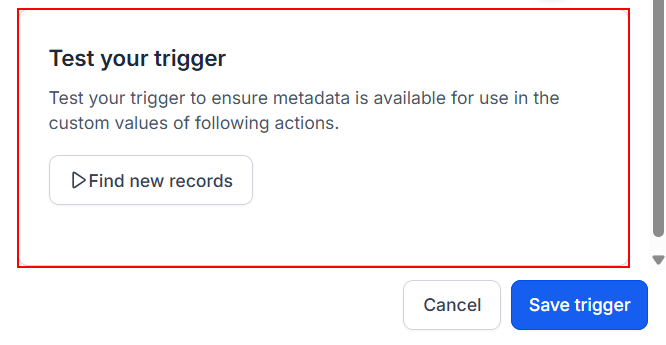
Test an Action
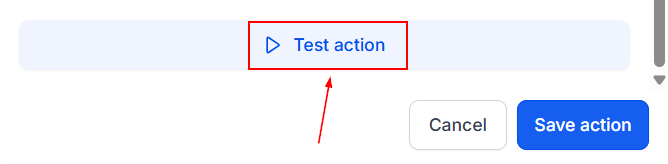
Click Test Action. Verify the action in your Todoist account and remove any test data if necessary before publishing the workflow.
By connecting Todoist with Workflows, you can automate task management, respond to project activity, and keep your processes synchronized between platforms. After connecting your account, you can configure triggers and actions, test your workflow, and publish automations that fit your team's existing task management process.
Common Use Cases
The Todoist integration can be used to automate several workflows, including:
- Creating Todoist tasks from form submissions.
- Updating CRM records or sending notifications when Todoist tasks are completed.
- Creating team tasks with predefined priorities, labels, due dates, and comments.