
Client Portal File Uploaded Trigger
The Client Portal Shared Documents experience allows you to manage files more efficiently, keeping them organized and connected. You can automate the management process by triggering workflows when a contact uploads a file through this experience. Let’s learn how!
How To Use The Client Portal File Uploaded Trigger?
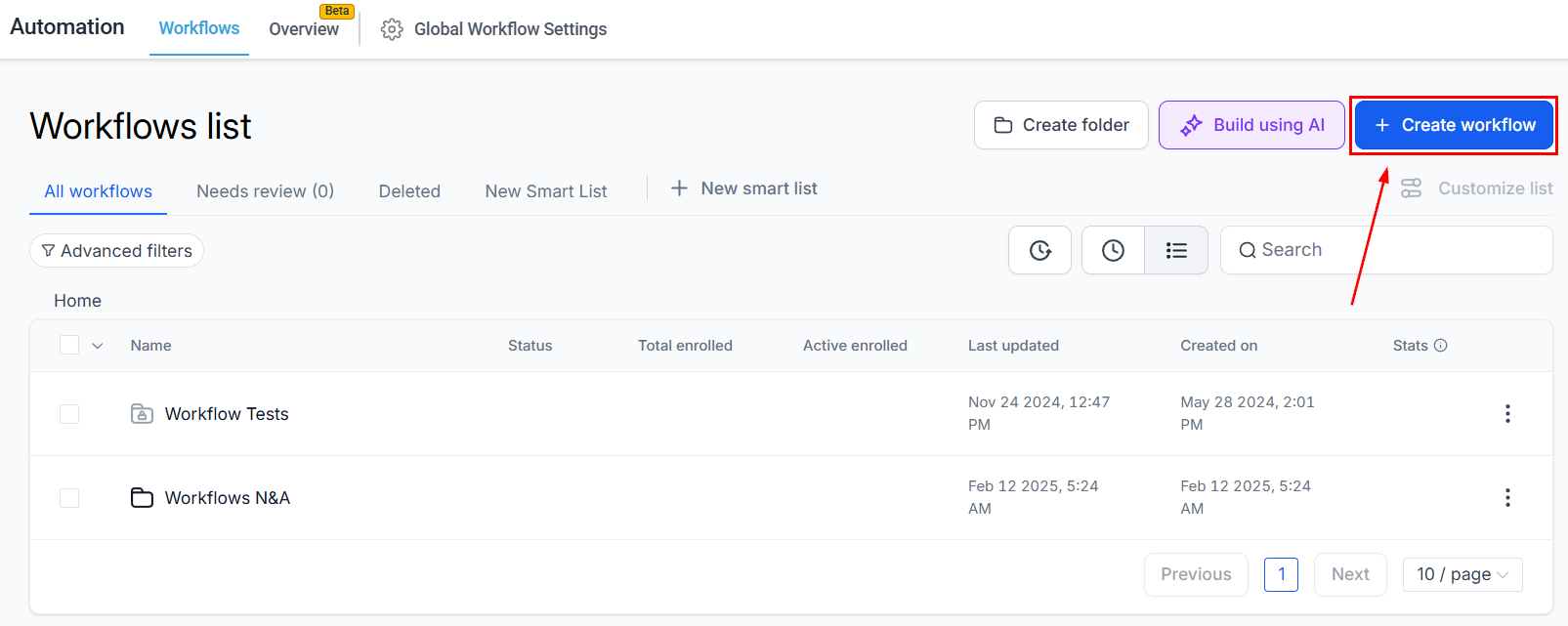
Navigate to the Workflows tab inside the Automation section and create a new workflow.
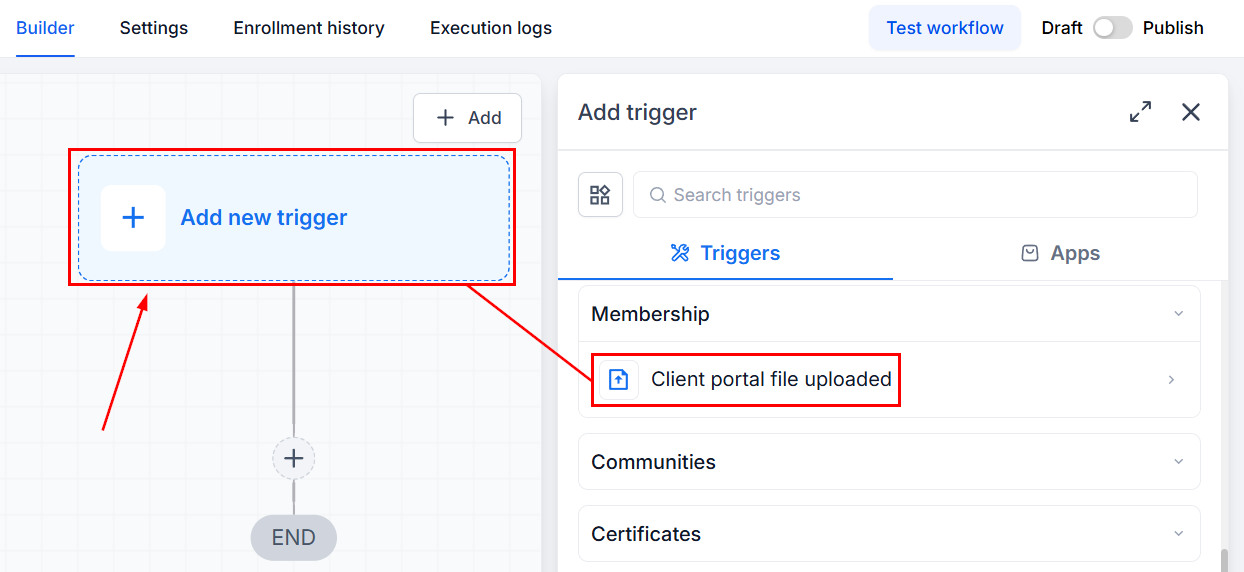
Add the trigger Client Portal File Uploaded.
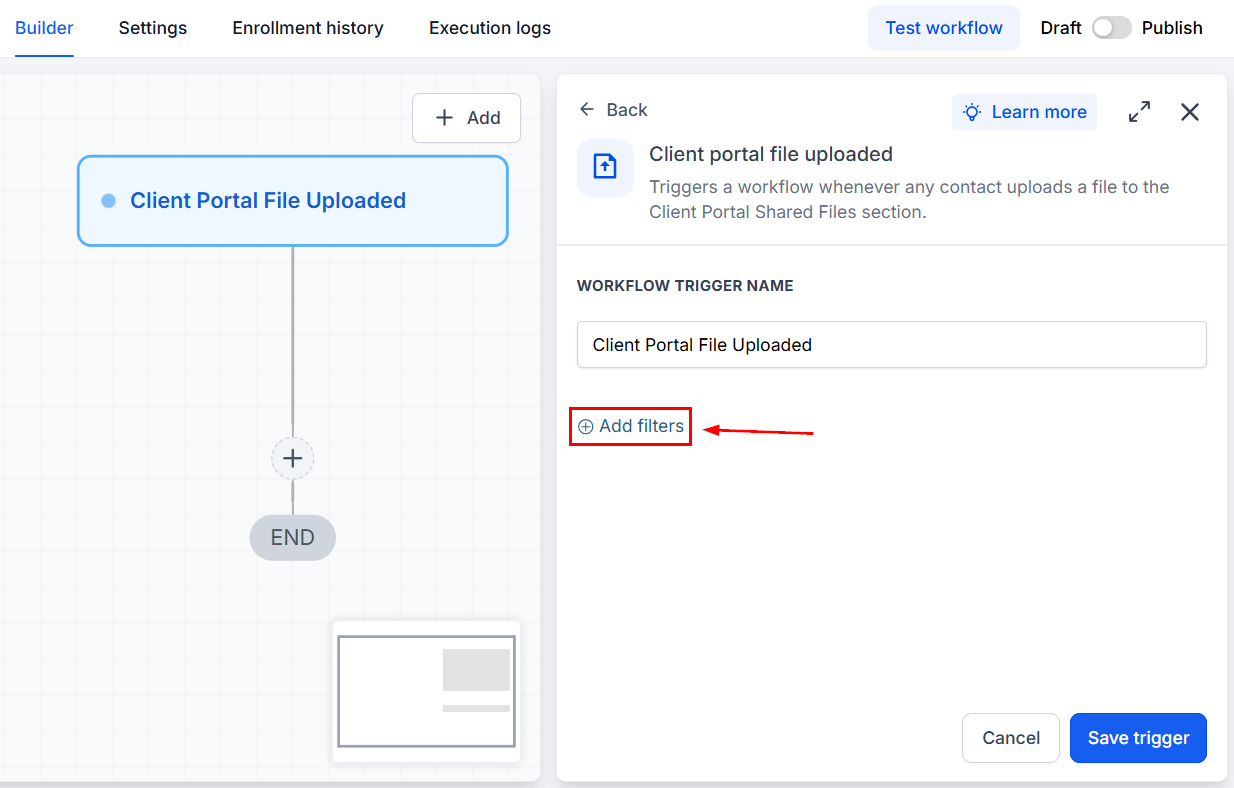
To refine the triggering, click “+Add Filters” and select your desired fields.
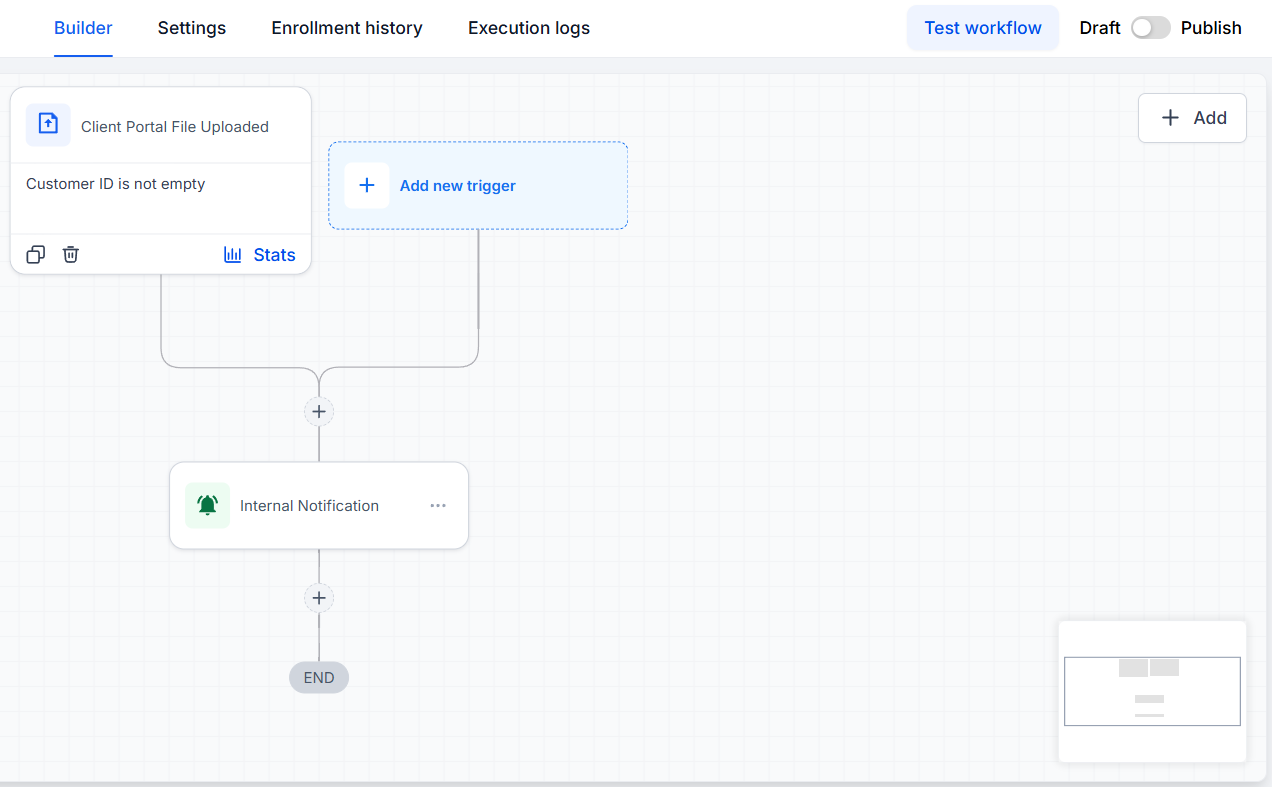
Configure the workflow actions as relevant and publish the workflow.
How Do Customers Upload Files?
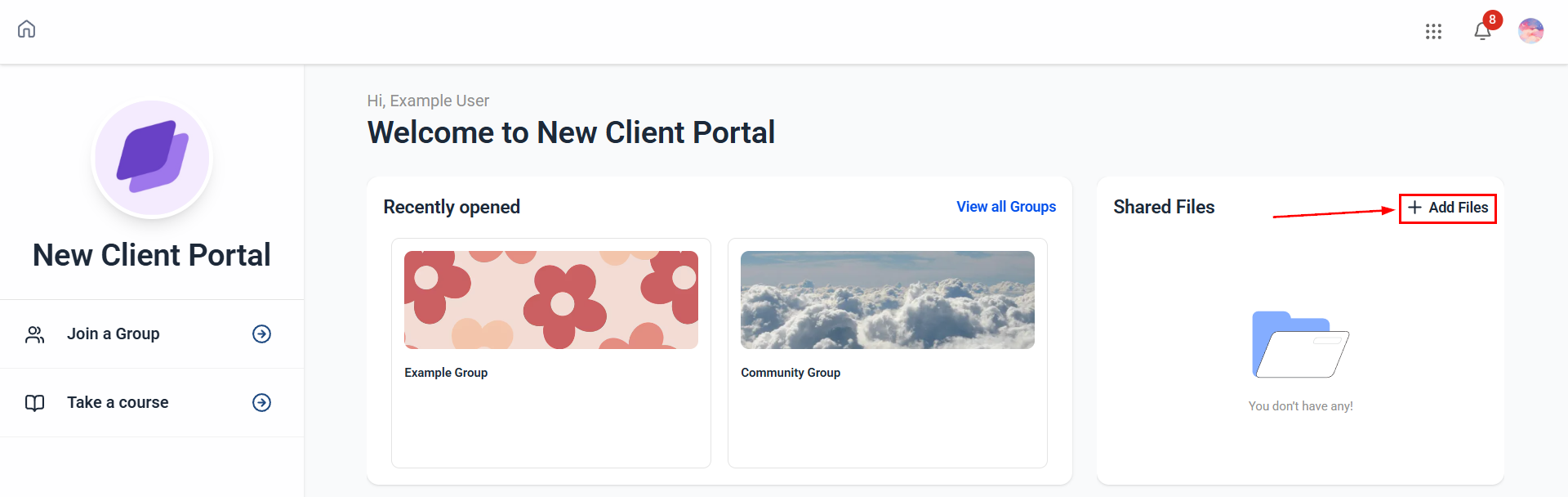
For this trigger to work, customers must add the files directly in the Client Portal. So, let’s quickly go over how this process is done. To start, navigate to the Shared Documents section and click + Add Files.
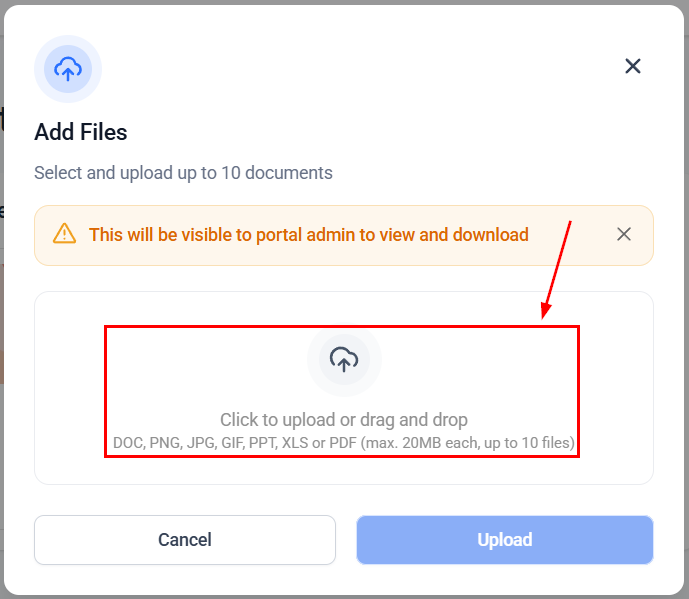
Upload a single file or multiple files.
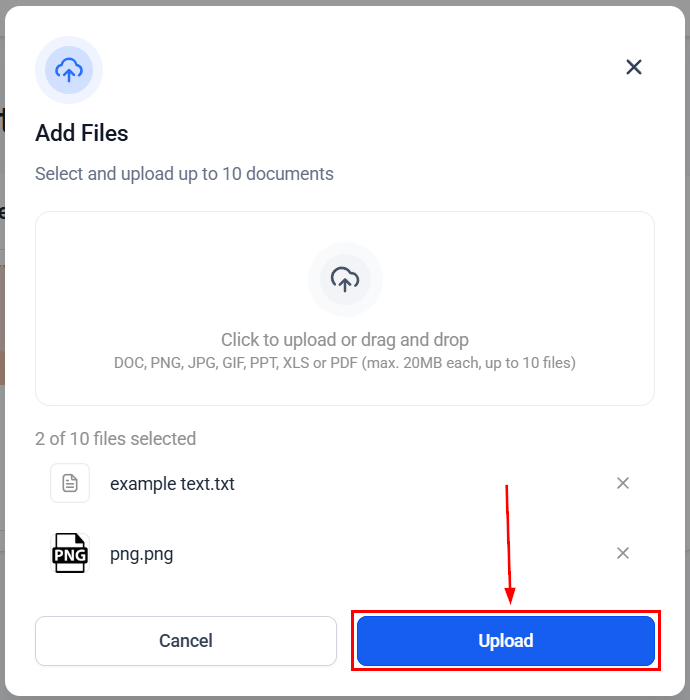
Click Upload to submit the files.
This feature closes that automation gap by enabling you to notify team members and start onboarding and approval processes. Helping you ensure no important uploads are missed. We hope you enjoy it!