
Calendly Actions & Triggers in Workflows
Calendly makes it easy to schedule meetings by allowing people to book time based on your availability. By connecting Calendly to your workflows, you can automatically respond to scheduling events, such as new bookings, cancellations, and no-shows, and route form submissions. You can also create, update, and manage Calendly meetings and contacts directly from your workflows, reducing manual work and keeping your processes running smoothly.
📌Note: All Calendly triggers and actions are premium workflow components and consume premium action credits. Any Calendly subscription charges continue to be managed through your Calendly account.
Connect Your Calendly Account
Before you can use any Calendly trigger or action, you must connect your Calendly account using OAuth authentication.
Option 1: Connect from the Workflow Builder
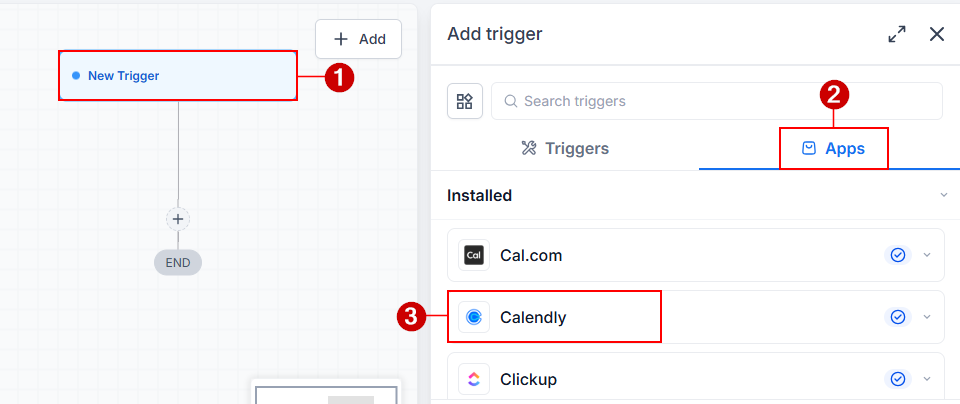
Create a new workflow or open an existing one in the Automation > Workflows section of your account.
Add any Calendly trigger or action.
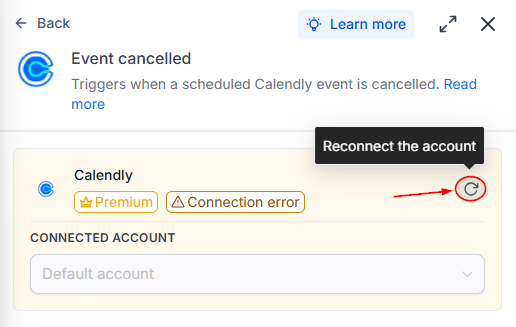
Click the button to connect/reconnect your account.
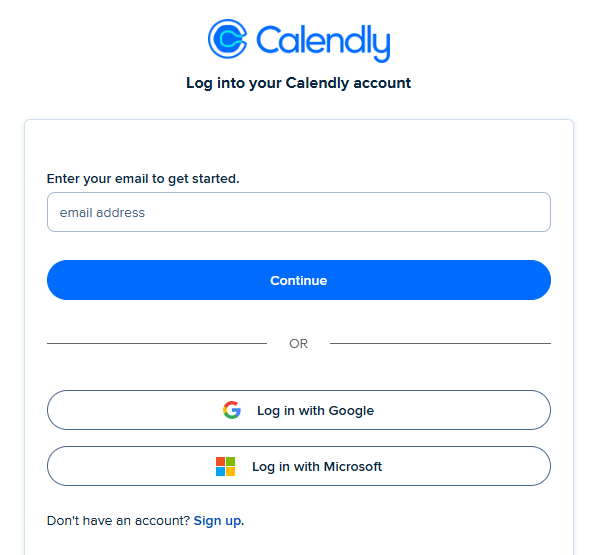
Enter your email address and password or sign in with Google.
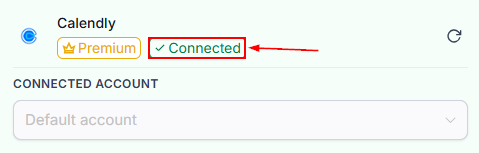
Review the requested permissions and click Allow. Once authorization is complete, you'll return to the workflow, and the account will appear as connected.
Option 2: Connect from Settings
You can also connect Calendly outside of a workflow within Settings > Integrations. From here, locate Calendly and click Connect.
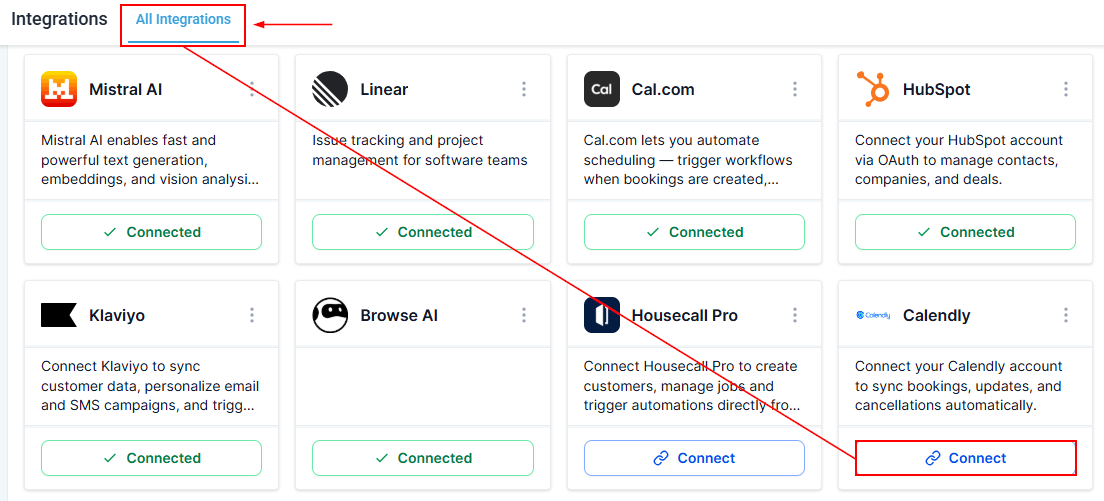
Enter the email address and password. Complete the Calendly authorization process.
Once connected, your account will be available whenever you add a Calendly trigger or action.
Configure Calendly Triggers and Actions
Once your Calendly account is connected, you can begin building workflows using Calendly triggers and actions.
Add the Trigger
Open the workflow you want to edit and search for Calendly in the Add Trigger Apps tab.
After adding the trigger, configure the following settings:
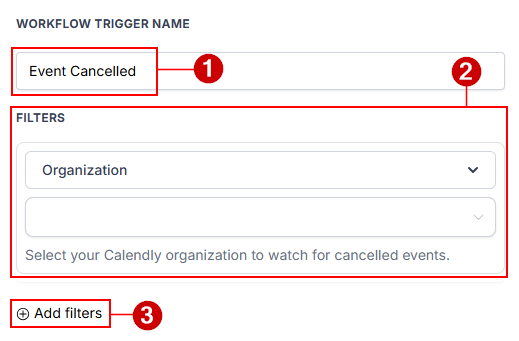
- Trigger Name: Give the trigger a descriptive name, such as New Discovery Call Booking or Demo Scheduled. Using meaningful names makes workflows easier to identify later.
- Subscription Scope: Choose how broadly the trigger should monitor events:
- User – Watches bookings for the connected user only.
- Organization – Watches bookings across your entire Calendly organization.
- Optional Filters: You can further narrow when the workflow should run by applying filters such as: Event type, Invitee email domain, and responses to custom booking questions
Adding filters helps ensure the workflow only runs for the meetings that matter.
Before publishing the workflow, test the trigger by clicking Find New Records. If no records appear, create a test booking using the connected Calendly account and run Find New Records again. Select one of the returned records.
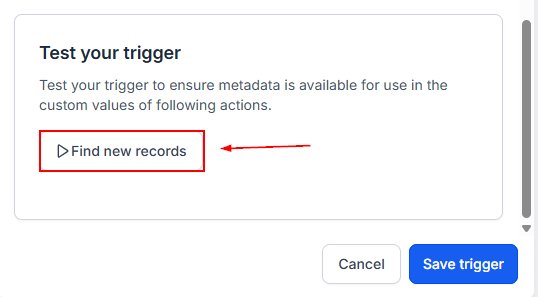
Save the trigger.
Add the Action
Inside your workflow, click Add to insert a new step. Open the Apps tab and select Calendly.
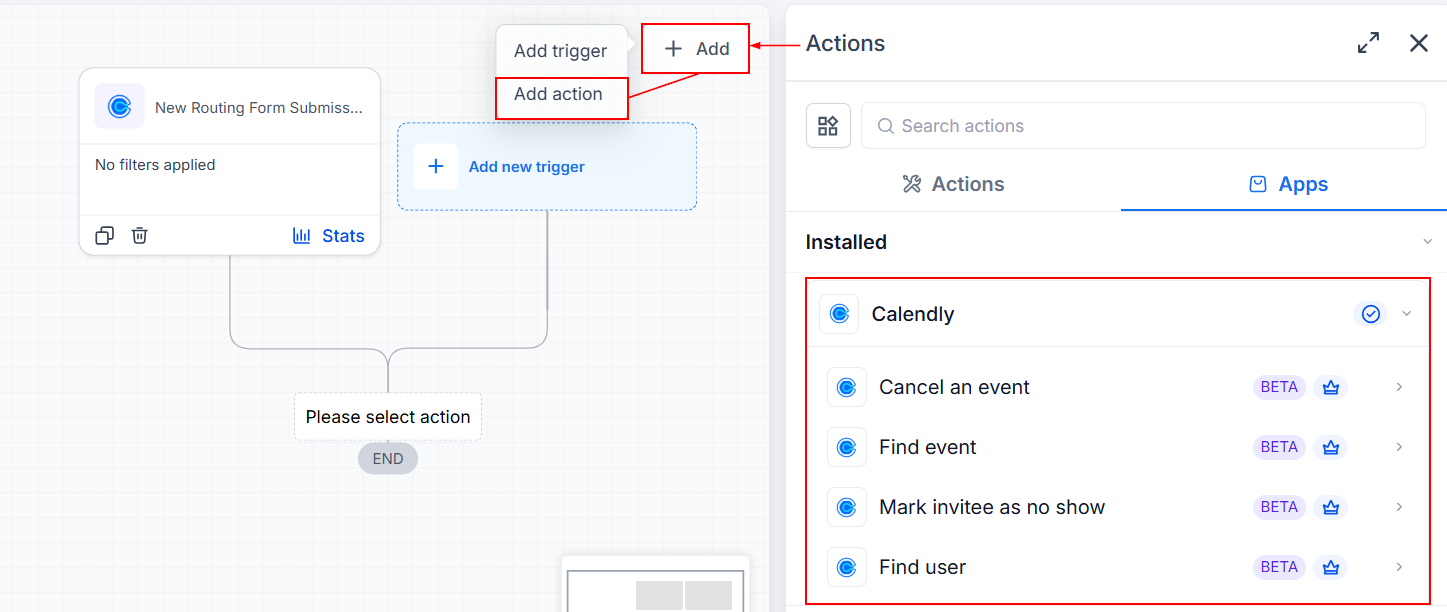
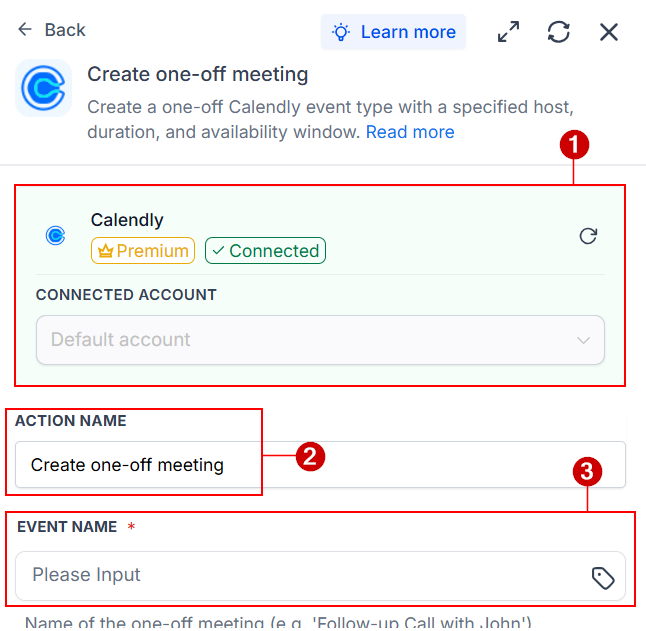
Complete the required settings. We will go through the Create one-off meeting action in this guide.
- Connected Account: Choose the Calendly account that will host the meeting.
- Action Name: Give the action a descriptive name.
- Event Name: Enter the meeting name that invitees will see when booking.
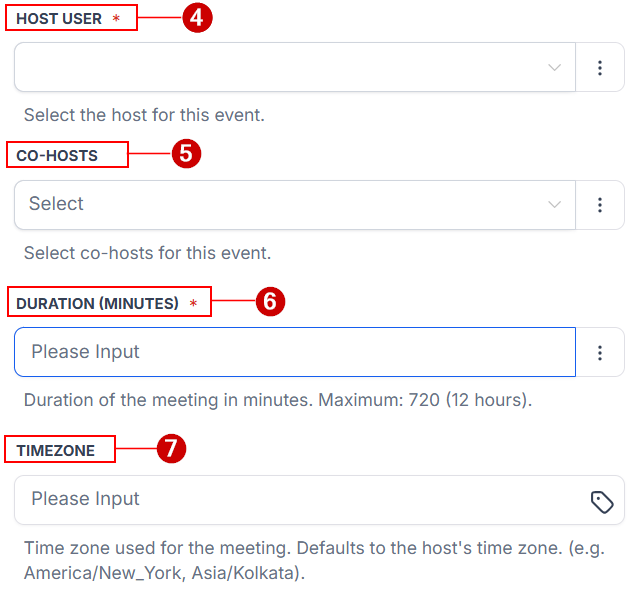
 4. Host User: Select the user who will host the meeting. If the meeting host changes dynamically, you can use the Find User action earlier in the workflow to retrieve the correct user automatically.
- Co-Hosts: Choose co-hosts for the event from the dropdown.
- Duration: Specify the meeting length in minutes. The maximum duration is 720 minutes (12 hours).
- Time Zone (Optional): Choose an IANA time zone, such as: America/New_York, Europe/London, or Asia/Kolkata. If left blank, Calendly uses the host's default time zone.
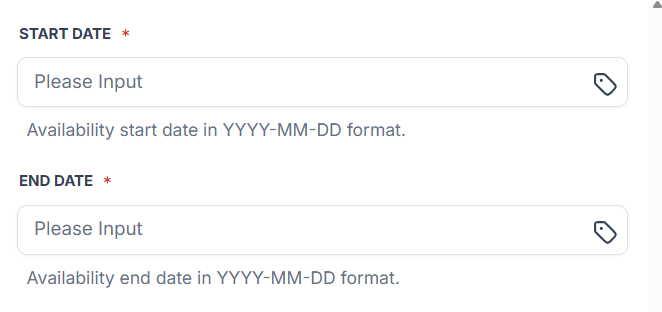
Availability Window
Provide the Start Date and End Date using the YYYY-MM-DD format.
These dates determine when invitees can book the meeting.
Test the Action
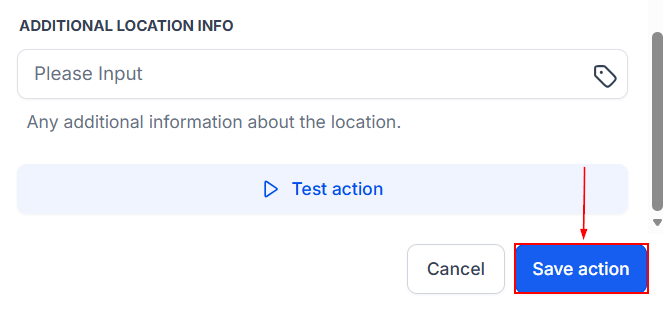
After completing the configuration, click Test Action.
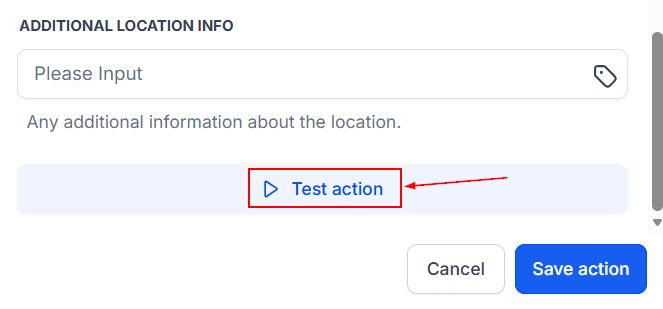
Review the returned booking URL and Verify that the one-off meeting appears in Calendly. Testing creates a real one-off meeting, so it's a good idea to use temporary test values whenever possible.
Save the action.
With your Calendly account connected and your triggers and actions configured, you can automate scheduling tasks and reduce manual work across your workflows. As your processes evolve, revisit and refine your automations to ensure they continue to support your team's scheduling needs efficiently.
Best Practices
To build reliable scheduling automations:
- Always test every trigger and action before publishing.
- Use descriptive names for triggers and actions to make workflows easier to maintain.
- Apply filters whenever possible to prevent workflows from running unnecessarily.
- Verify that changes made by workflow actions appear correctly in Calendly before activating the workflow.
- Test with real sample data so downstream workflow steps have accurate information available for mapping.