
How to Create a Workflow for Events
Managing event communication manually can become difficult as registrations increase. From confirming registrations and sending reminders to following up with attendees after an event, there are numerous steps that need to happen at the right time.
A workflow can automate these tasks by responding to important event activities, such as when someone registers or checks in. With the right triggers, conditions, and actions, you can create an automated process that guides attendees through the entire event journey while reducing the amount of manual work required.
This guide explains how to create a workflow for events and use event information to deliver timely, personalized communication.
How It Works
Start With an Event Trigger
The first step in creating an event workflow is deciding what should cause the workflow to begin. A registration trigger can start a workflow as soon as someone signs up for an event, making it useful for confirmation messages, reminders, and pre-event communication. A check-in trigger can start a separate sequence when an attendee arrives, allowing you to respond to their participation in real time.
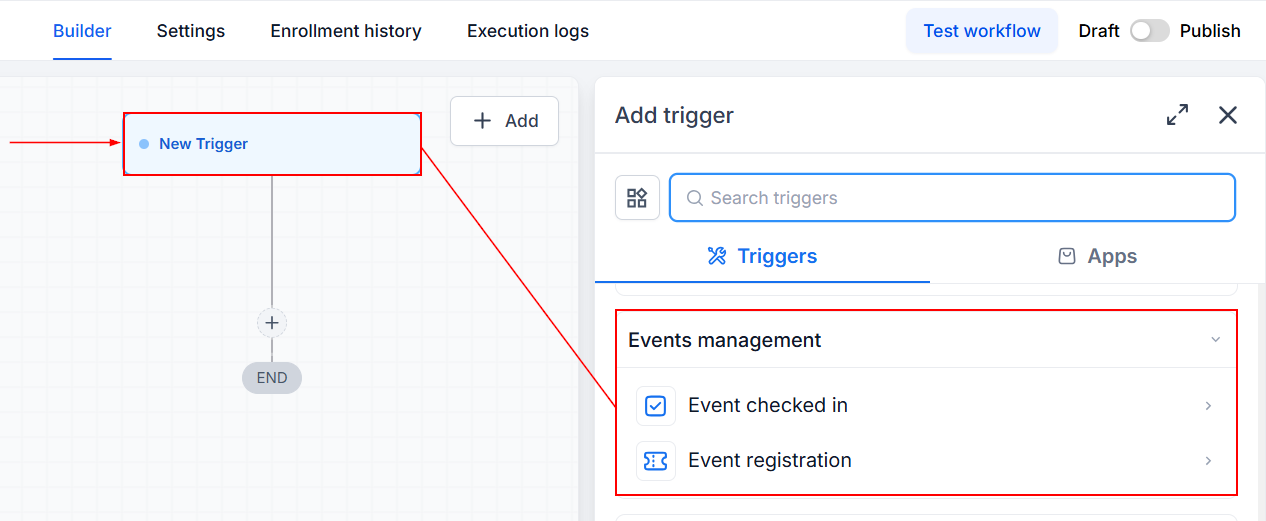
After selecting the trigger, configure the event details that determine which attendees should enter the workflow.
Add Filters to Define the Right Audience
Once the trigger is selected, filters can be used to control which event registrations enter the workflow.
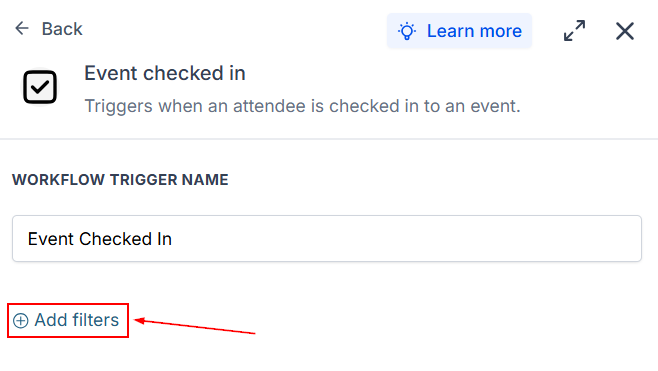
Event-related information can help narrow the audience based on factors such as the specific event, event type, registration status, ticket type, or booking information. This allows a single workflow to handle different attendee groups. For example, a workflow could be configured to respond differently to attendees who checked in manually or via a QR Code.
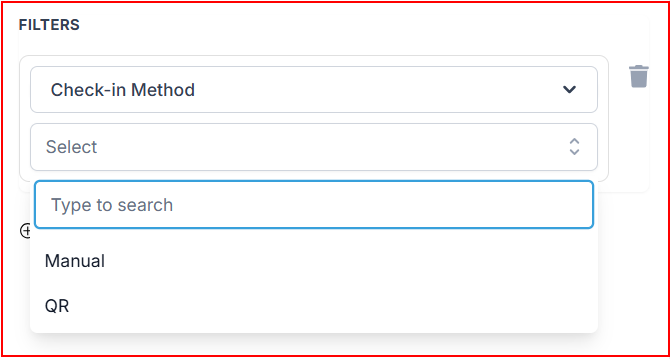
Using filters at this stage helps ensure that each attendee receives communication relevant to their event and registration.
Configure the Workflow Actions
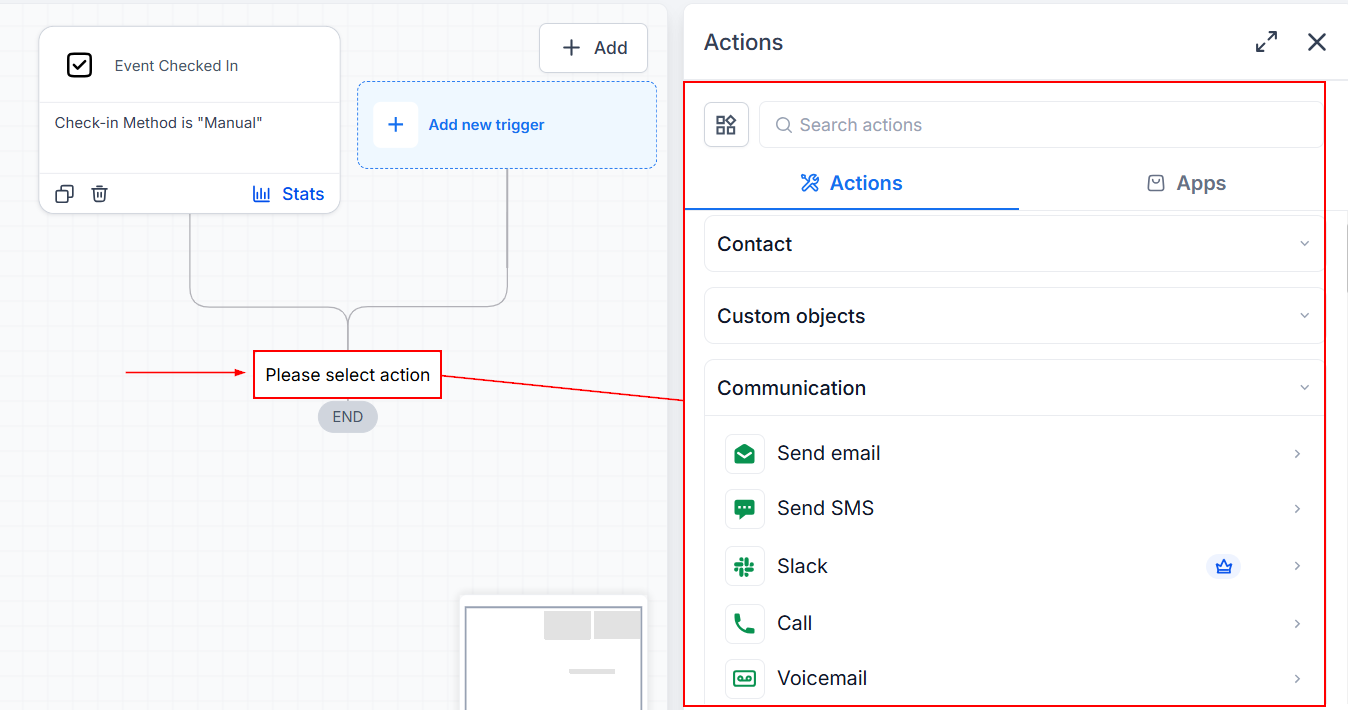
After defining who should enter the workflow, determine what should happen next. Actions can include sending emails or text messages, updating contact information, adding tags, creating tasks, sending internal notifications, or moving contacts through other business processes.
For an event registration workflow, the first action might be a confirmation message containing the event details. Additional actions can then provide preparation instructions, reminders, or other useful information leading up to the event.
Schedule Actions Around the Event
Timing is an important part of any event workflow. Rather than sending every message immediately after registration, actions can be scheduled in relation to the event date.
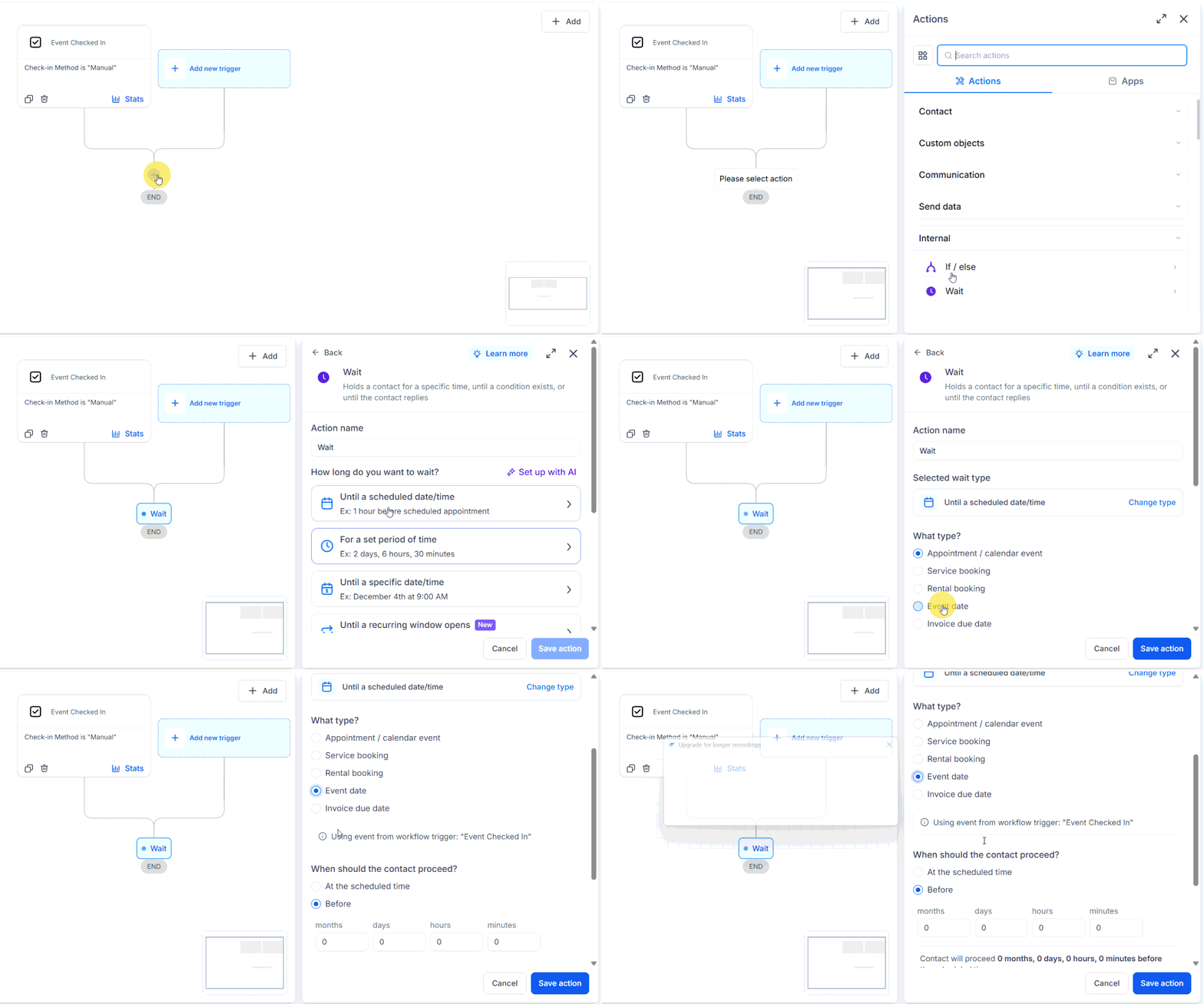
For example, you might send an initial confirmation immediately after registration, followed by a reminder several days before the event and another message shortly before the event begins. Add multiple wait steps to customize each client’s reminder journey.
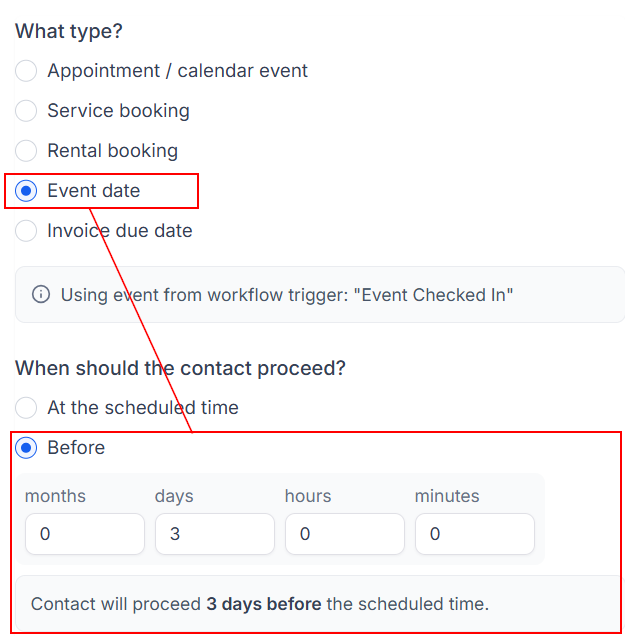
You can also schedule actions to occur when the event starts or after it ends. This makes it possible to automate day-of-event communication as well as post-event follow-up.
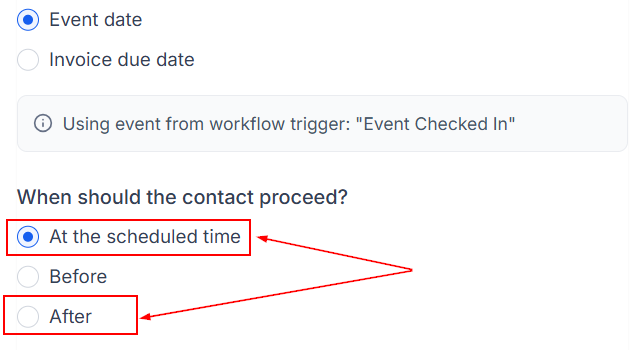
Event-relative timing is particularly useful when the same workflow is used for multiple events because the timing can be based on each event's own schedule rather than a fixed calendar date.
Use Event Information to Personalize the Workflow
Event workflows become more flexible when they use the information associated with each event and registration.
Details such as the event name, event type, start and end dates, time zone, location, ticket information, and check-in status can be used within workflow logic.
This allows the workflow to make decisions based on an attendee's circumstances. For example, attendees with a particular ticket type can be directed into one communication path, while other attendees follow another.
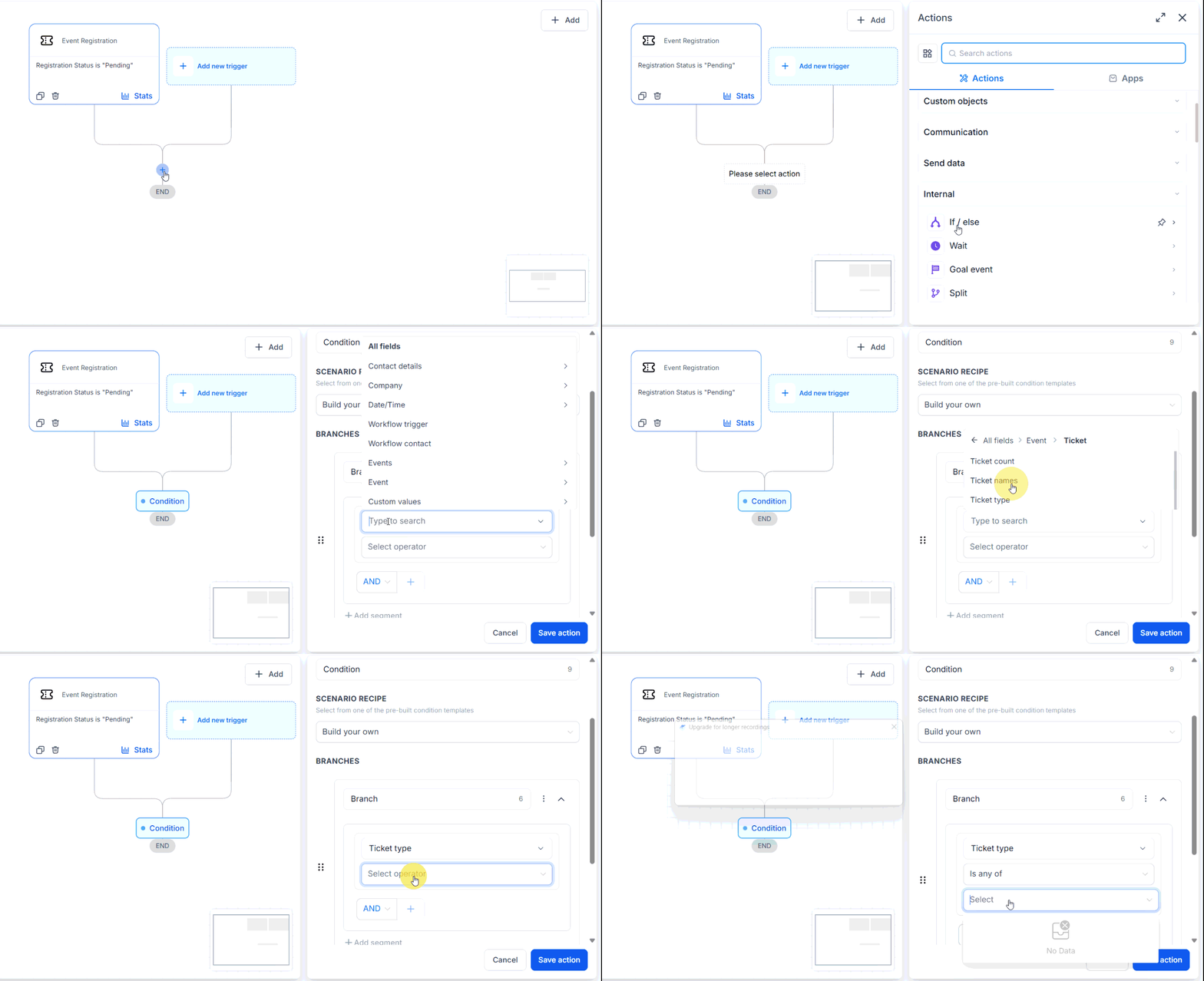
Conditional logic can also be used to create different experiences within the same workflow. Rather than creating a separate automation for every possible attendee type, you can build different branches that respond to the information associated with each registration.
A VIP attendee, for example, might receive additional information or exclusive resources. A standard attendee could follow a simpler reminder sequence. After the event, attendees who checked in could receive a follow-up message that differs from the communication sent to people who registered but did not attend. This makes the workflow more responsive to attendee behavior while keeping the overall automation within a single system.
Test the Workflow Before Activating It
Before putting an event workflow into use, test the complete sequence to make sure each component behaves as expected:
- Check that the correct event triggers the workflow, that filters include the intended attendees, and that conditional branches lead to the appropriate actions.
- Pay particular attention to wait steps and event-based timing to ensure messages are scheduled correctly.
Once the workflow has been tested and the timing and actions have been confirmed, it can be activated for the intended event or events.
Creating a workflow for events involves more than simply sending an automated reminder. A well-designed workflow can manage the attendee journey from the moment someone registers through check-in and post-event follow-up. Check out the articles on the actions and triggers used in this guide if you need further instructions on setting them up!