
AI Analyze Image Action
The AI Analyze Image action allows workflows to analyze an image and return a text response based on a prompt. You can use it to extract text, describe images, identify objects or attributes, verify image content, and process visual information as part of an automated workflow.
Note: This is a premium workflow action and will incur additional charges per execution.
How It Works
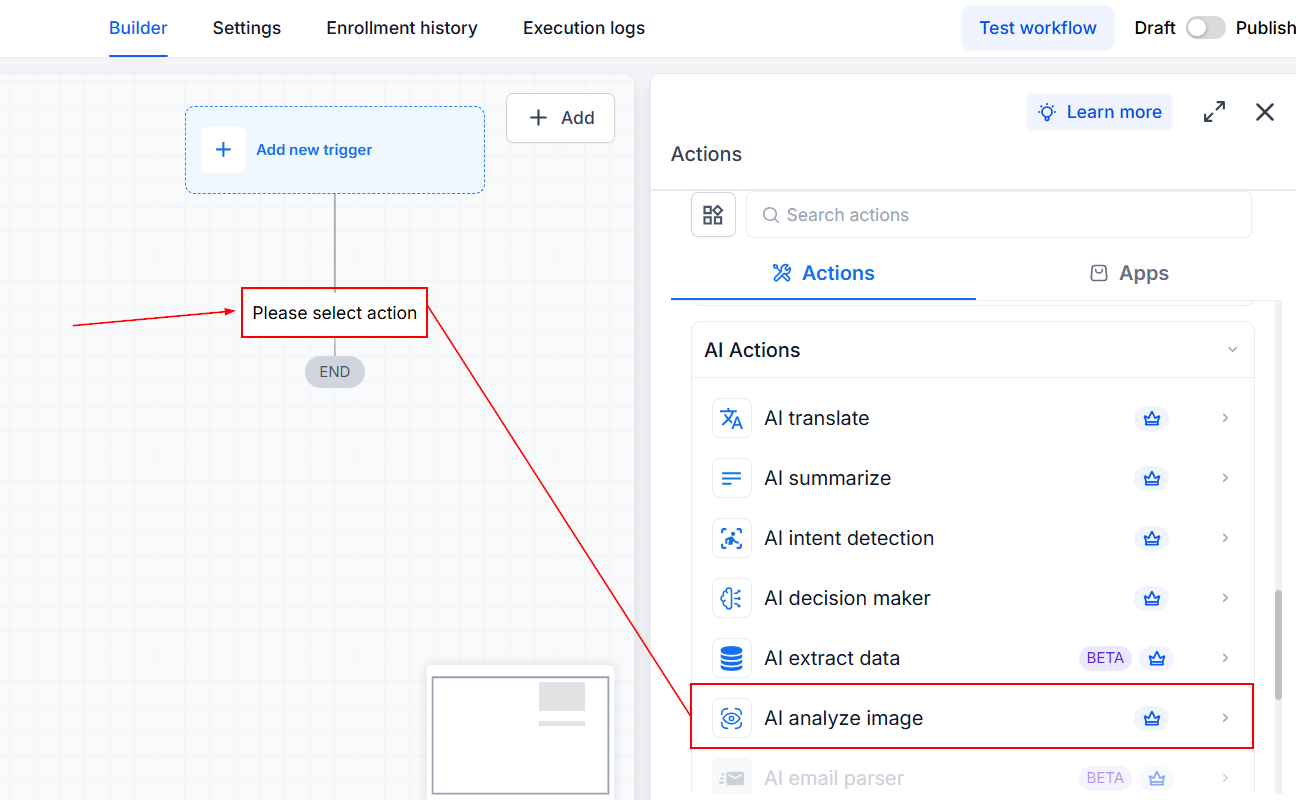
Go to Automation > Workflows and create a new workflow or open an existing one. Add a new action and select AI Analyze Image under AI Actions.
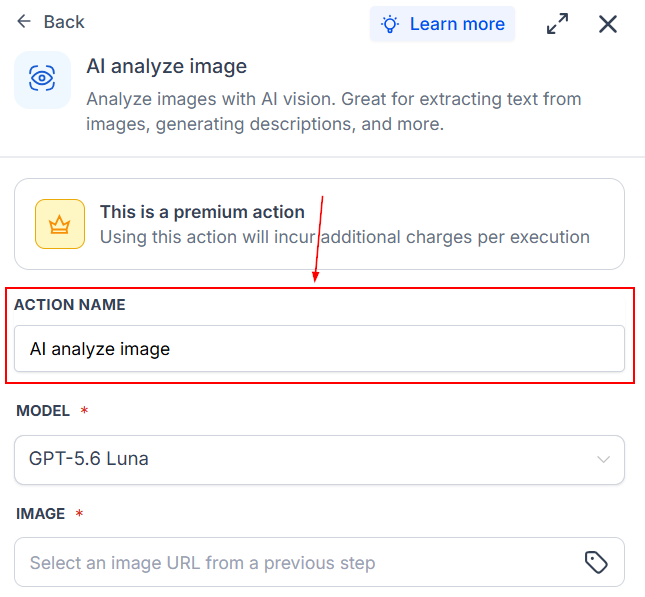
Give the action a descriptive name so it can be easily identified in the workflow.
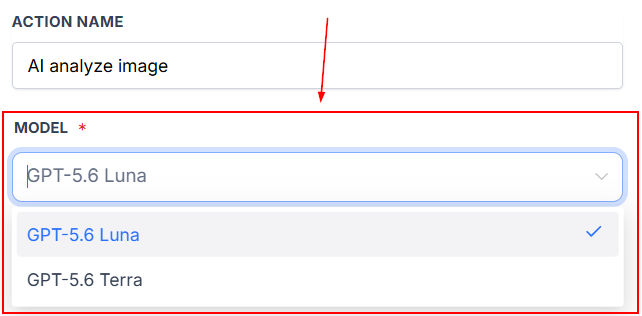
Select the AI Model
Choose the AI vision model you want to use for the analysis. The available models are GPT-5.6 Luna and GPT-5.6 Tera.
If you're unsure which model to use, you can test the same image and prompt with both models and compare their responses before publishing the workflow.
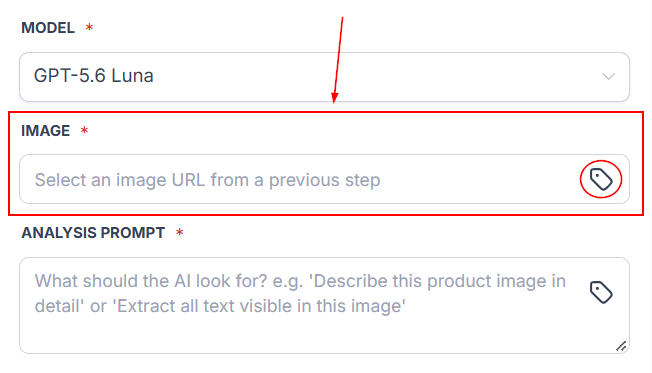
Add the Image URL
Enter the URL of the image you want to analyze. The image URL can come from a previous workflow step, such as an image generated by an AI Image Generation action, or from a custom value containing an image URL.
Note that the image URL must be publicly accessible and cannot require a login, password, authentication token, or permission to access it. It must also point directly to the image file rather than to a webpage containing the image.
You can test an image URL by opening it in a private or incognito browser window. If the image loads without requiring you to sign in, it should be accessible to the action.
Enter an Analysis Prompt
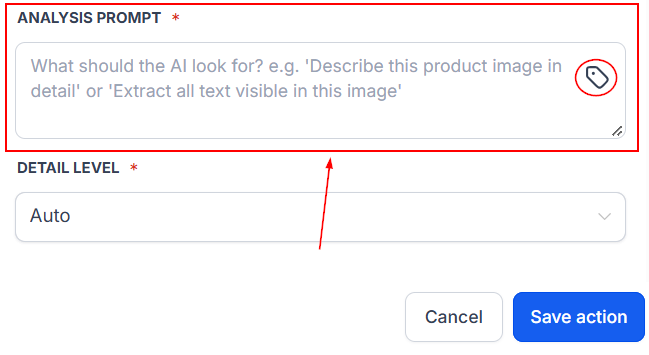
Use the Analysis Prompt field to tell the AI what to look for in the image and how to return the result.
For example, you can ask the AI to describe a product image, extract text from a document, identify the items shown in a photo, or return a specific value from a receipt.
The prompt can also use custom values, allowing you to create dynamic instructions using information from contact fields, webhook data, or previous workflow actions.
Set the Detail Level
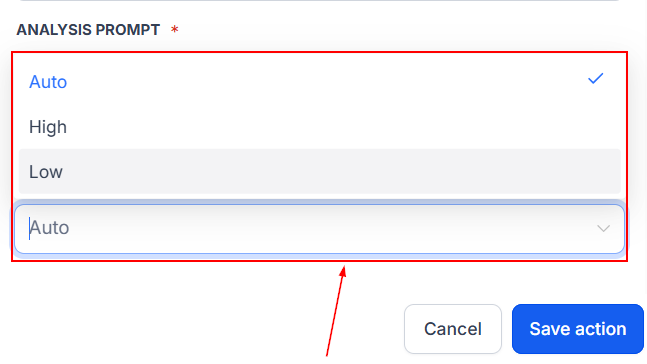
Choose how thoroughly the image should be analyzed. The default setting is Auto, which allows the system to determine the appropriate level of analysis. You can also select High for images containing small text or fine details, or Low when a faster, broader analysis is sufficient.
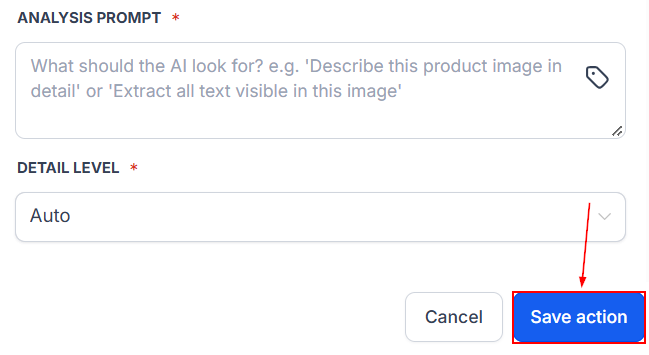
Once the action is configured, save it. When the workflow runs, the AI's response will be available as a text value for subsequent actions.
This response can be accessed through the custom value picker under AI Analyze Image in subsequent workflow actions. Because the result is returned as text, it can be used anywhere a text value is accepted. For example, you can save extracted information to a contact custom field, include the result in an email or SMS, send it through an outbound webhook, or pass it to another AI action for additional processing.
There you have it! Check out the other articles in this section to learn more about premium workflow actions.
Practical Examples and Use Cases
- For customer-submitted receipts, invoices, screenshots, or documents, the action can extract the visible text and save the result for review or follow-up. It can also be used after an AI Image Generation action to analyze or verify an image before it is sent to a customer.
- For images received through a webhook, the action can generate descriptions or identify details such as color, material, and style, then pass that information to another system through an outbound webhook.
- Other applications include generating alt text, tagging images with keywords, reading information from screenshots, and checking whether an uploaded image contains the requested content.
How to Get Better Results
- Use specific prompts that clearly define the information you want returned. If the output will be saved to a field or used by another workflow action, ask the AI to return the information in a consistent format.
- For small text, fine print, or dense documents, use the High detail level. For general image descriptions, Auto may be sufficient.
- Before publishing the workflow, verify that the image URL is publicly accessible and test the action with several real images to confirm that the output meets your requirements.
- Each AI Analyze Image action processes one image URL. If a workflow needs to analyze multiple images, add a separate AI Analyze Image action for each image.