
Event Checked In Trigger
The Event Checked In Trigger starts a workflow when an attendee or participant checks in to an event. When a participant finishes the check-in process, the platform recognizes that action and launches the workflow connected to the trigger. Once a check-in is recorded, you can automatically send communications, notify your team, or kick off additional follow-up tasks without requiring manual intervention.
How to Configure It
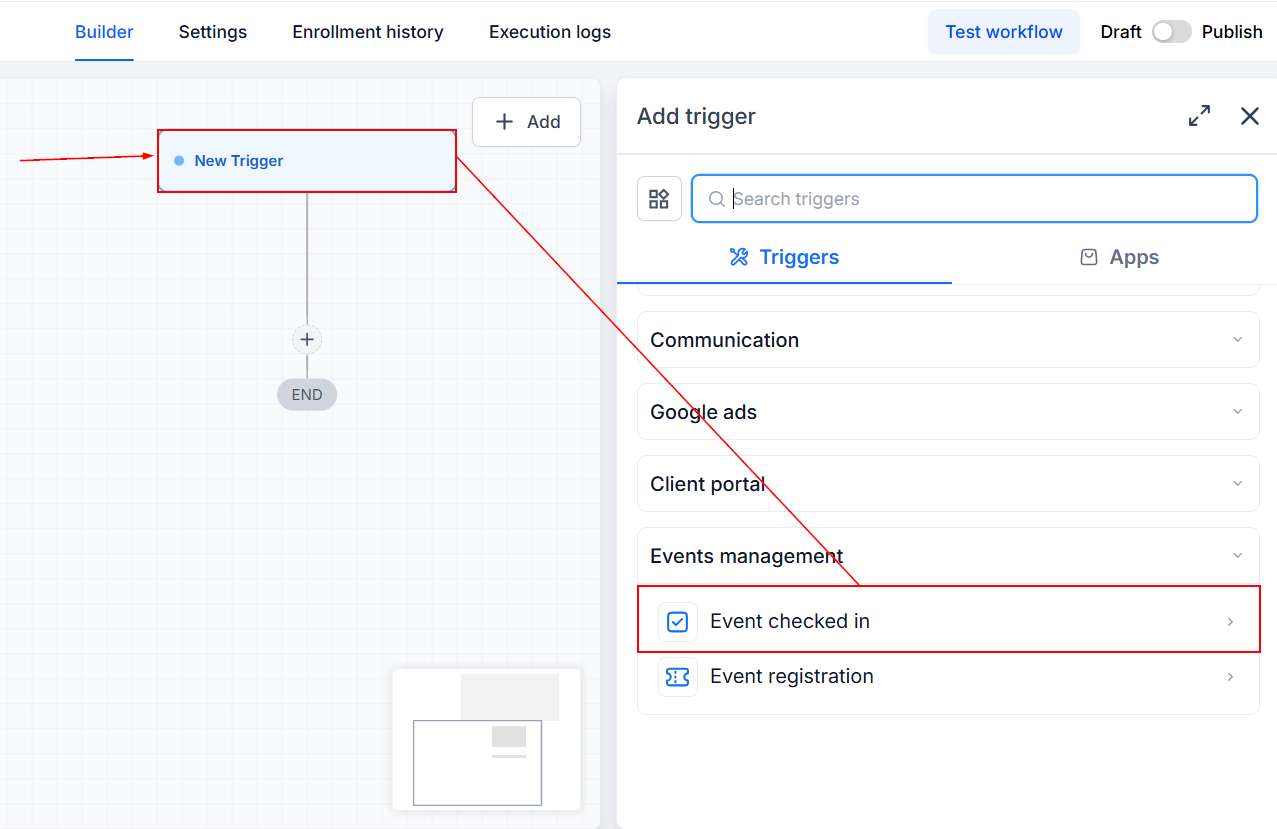
Start by navigating to the workflow where you want to add the check-in trigger, then choose Event Checked In from the available trigger options.
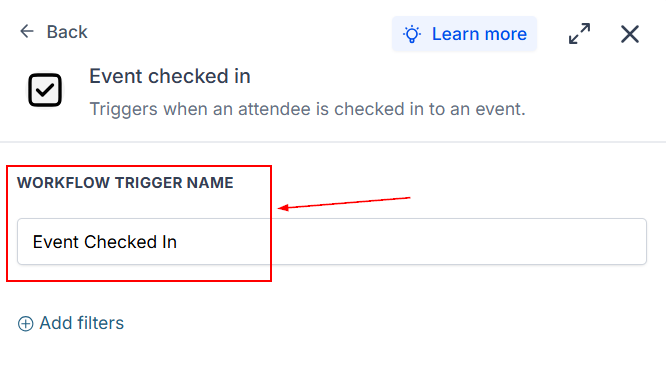
Adjust the workflow name to be more descriptive.
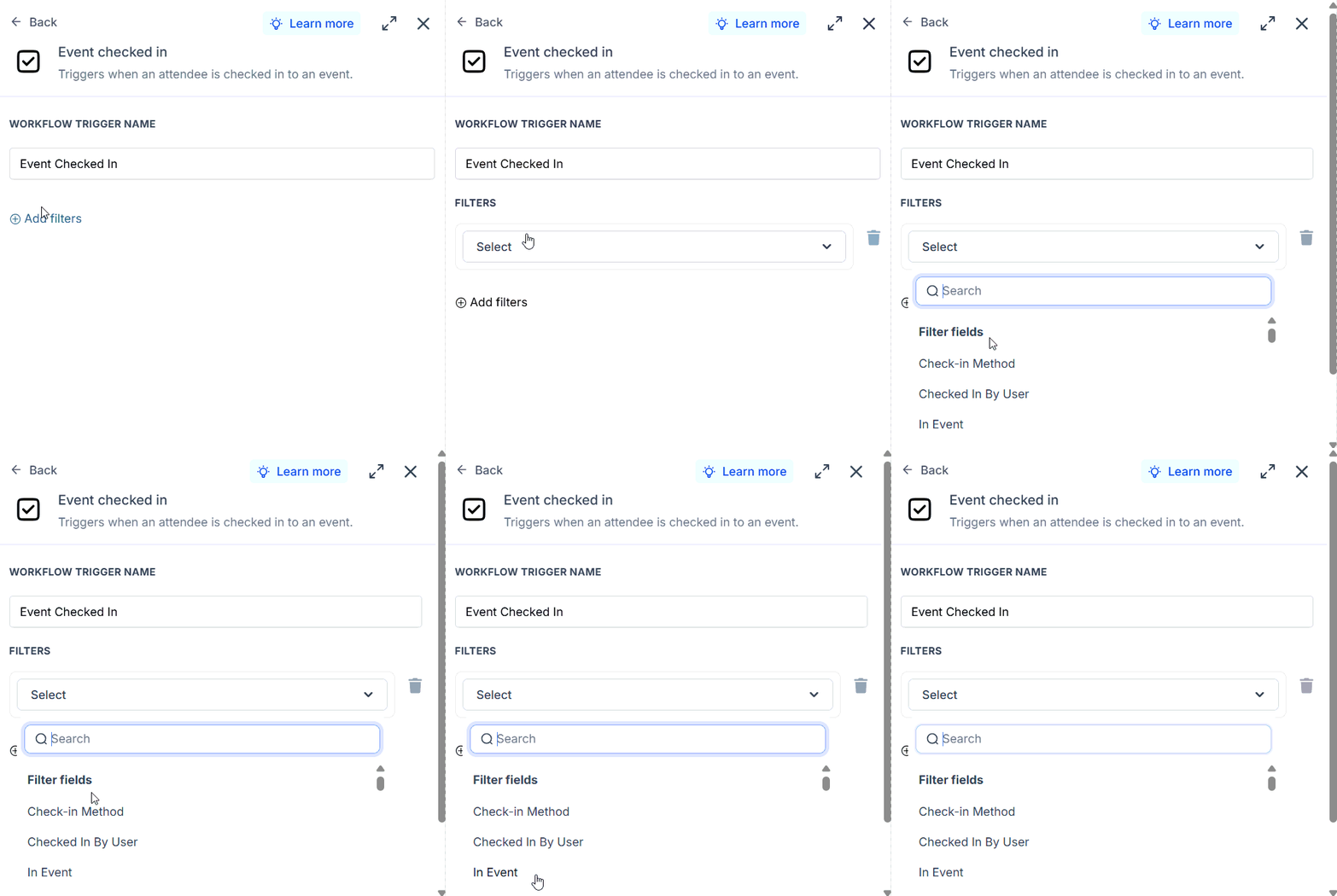
If needed, use filters to limit the workflow to certain events or attendees. Without additional filters, the trigger can respond to check-ins generally.
The available options include:
- Checked In Method: This allows you to specify the channel the attendee registered with.
- Checked In By User: Choose particular user(s) that assisted with the participant check-in.
- In Event: Specify the event you want to track check-ins for.
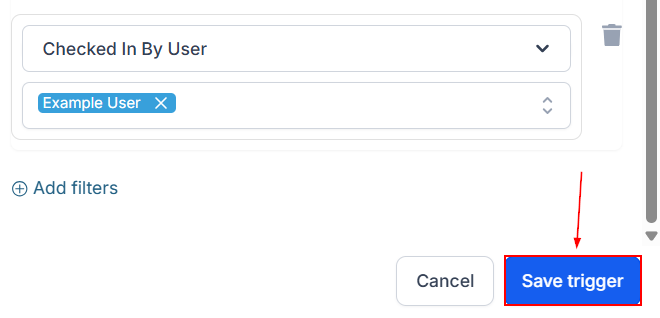
Finally, save the trigger, then add relevant actions to the workflow to handle next steps automatically.
The Event Checked In trigger gives your event workflows a simple way to react to confirmed attendance in real time. By connecting check-in activity to automated messages, notifications, and follow-up tasks, you can reduce manual work and create a more responsive experience for both attendees and event teams.
Validations and Constraints
Keep the following behavior in mind when working with this trigger:
- Changes or updates that are unrelated to the check-in action will not activate the trigger.
- The event’s check-in functionality must be enabled and operating correctly for check-in activity to be detected.
These conditions help ensure that the workflow responds to actual attendance rather than unrelated changes to an event or participant record.
Practical Examples & Use Cases
Send a Welcome or Confirmation MessageAutomatically send a personalized email or message as soon as an attendee checks in. This can serve as a confirmation that their arrival has been recorded or provide them with useful next steps for the event.
Start a Follow-Up WorkflowChecking in can also be the first step in a longer automation. You could use the event check-in to schedule a post-event survey, assign a follow-up task, or send additional information to the attendee later.