
Requested to Join Group Trigger
As your communities grow, requests to join can quickly become overwhelming. Creating added work for your admin team to sort who is and isn’t added. Especially if your group has membership questions. So, let’s learn how to use the Requested to Join Group trigger to automate this process!
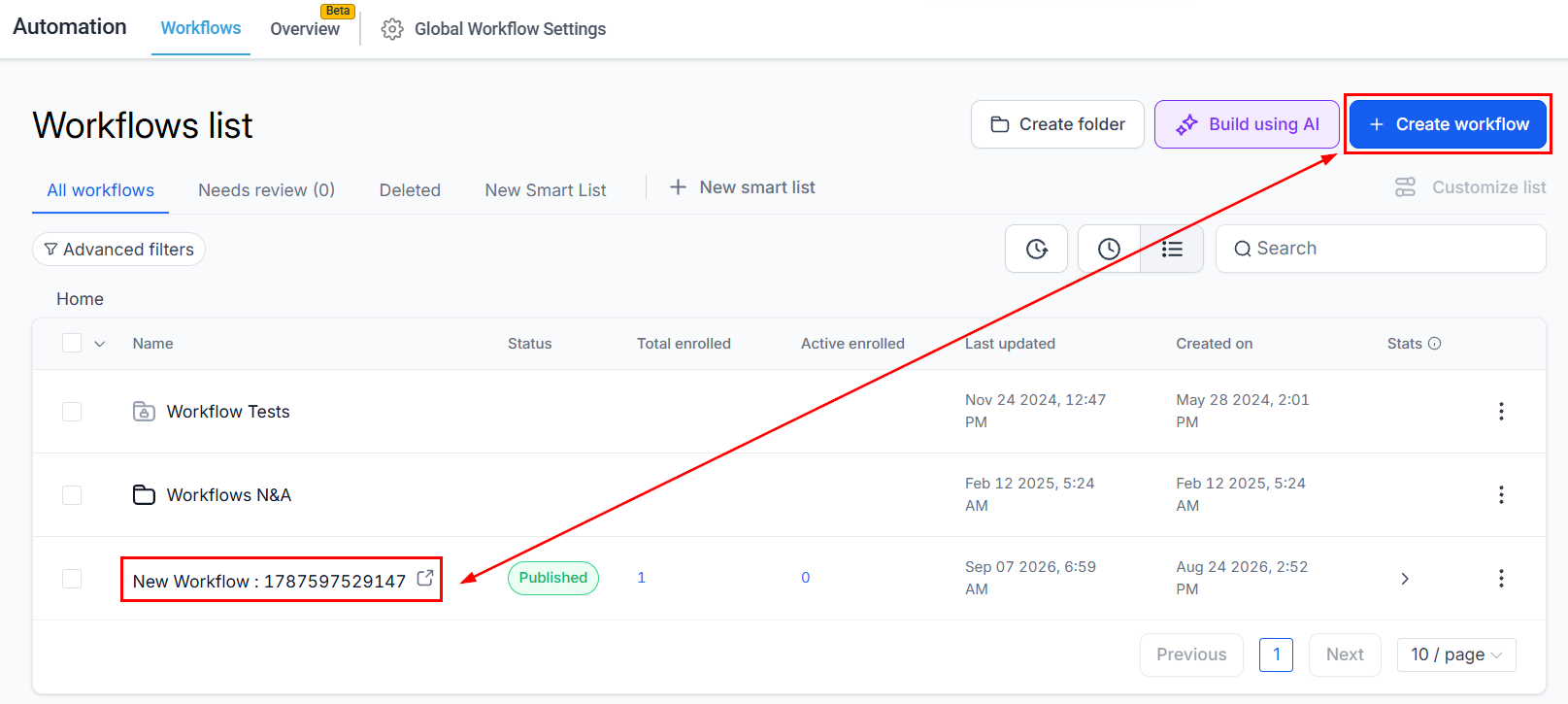
Go to the Workflows tab inside the Automation section and create or edit a new workflow.
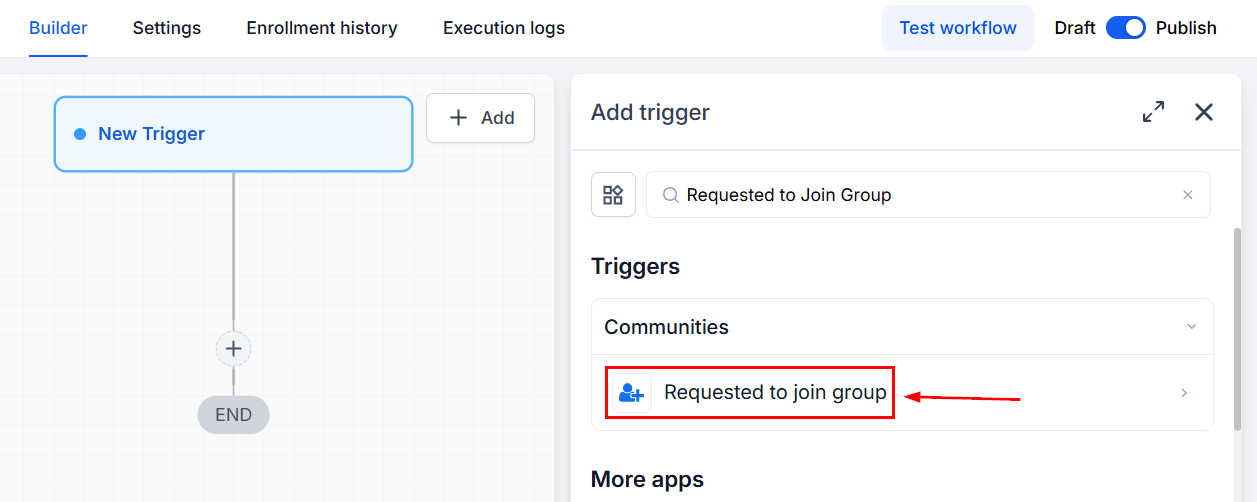
Add the “Requested to Join Group” trigger.
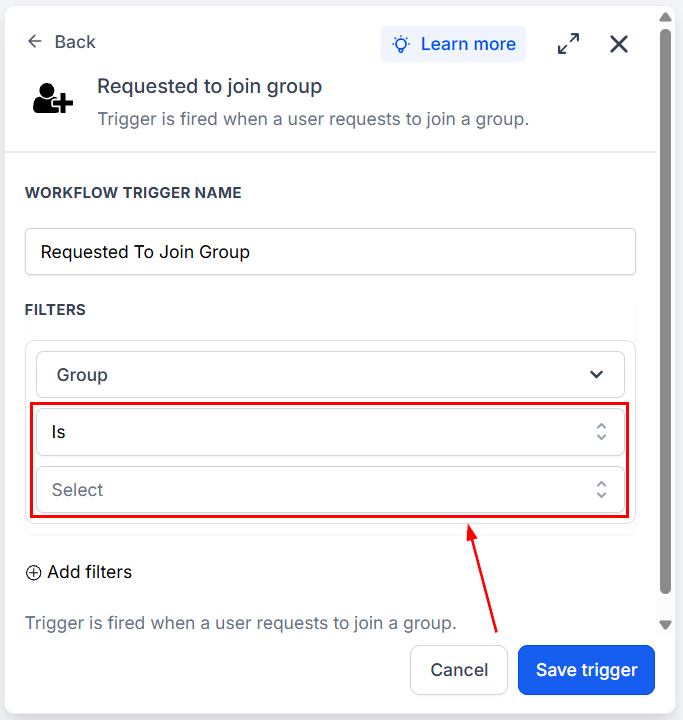
Select an operator, then choose the target group.
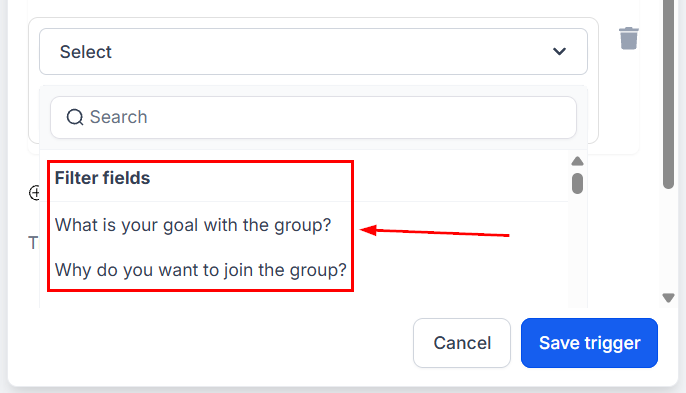
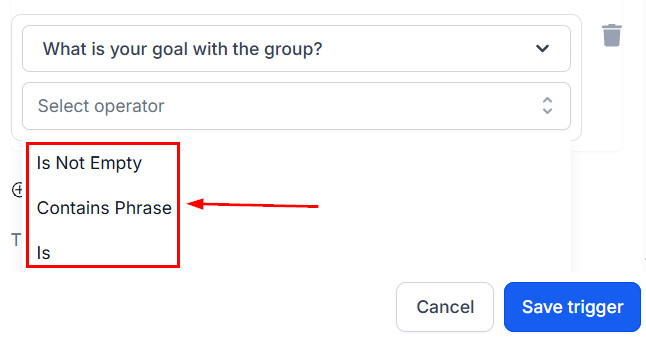
Membership questions configured for that group appear as Filter fields. Select the ones you wish to use to filter the trigger.
Select an operator, then enter an answer. If you will be using AI-Powered screening, we recommend selecting “Is not empty.”
Lastly, save your trigger and add any desired actions. This helps you manage Groups with request-based access enabled. No changes are needed on the member-facing side; the join request experience remains the same, and the automation happens behind the scenes. We hope you enjoy it!