
User Replied Trigger
Many automations need to react to your team's actions, not just customer activity. This trigger helps you build workflows that kick off the next step immediately after a team member responds, making it easier to follow up on their activity. Let’s learn how to use it!
Creating Your Workflow
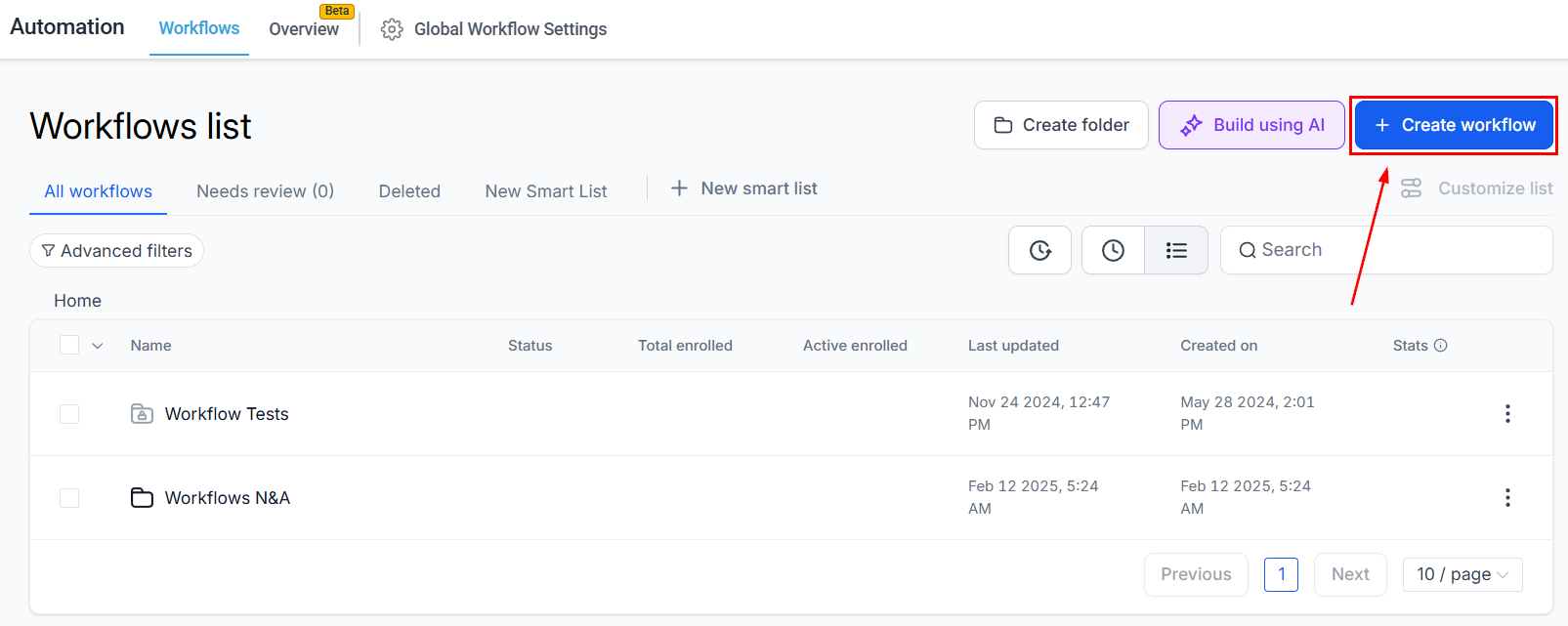
Navigate to the Workflows tab inside the Automation section and create a new workflow.
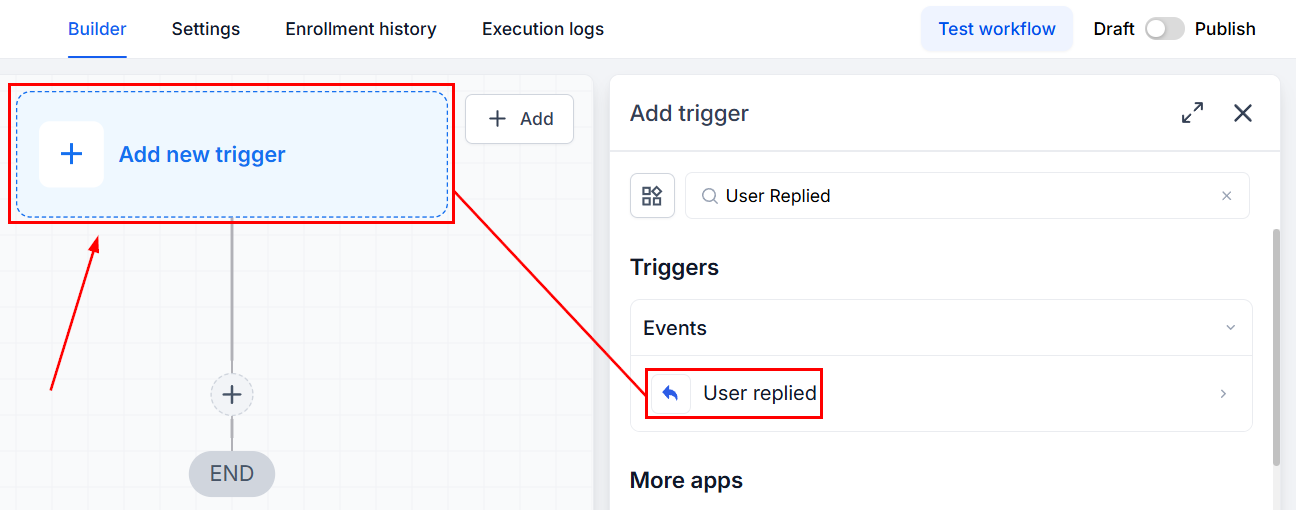
Add the trigger User Replied.
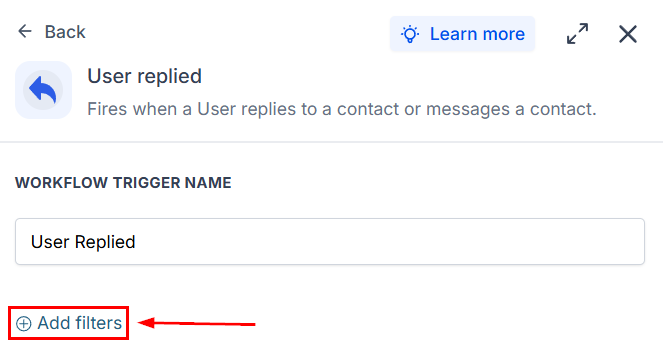
Click “+ Add Filter” to configure any requirements for your workflow.
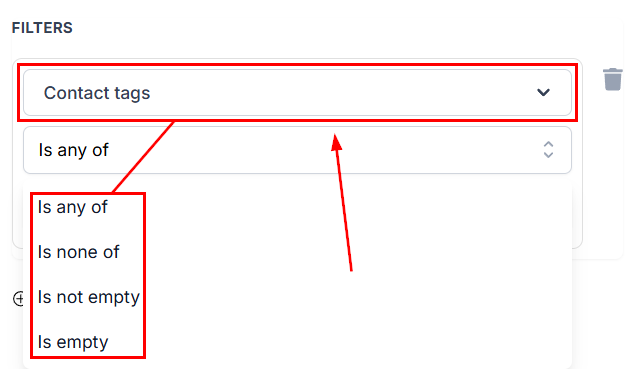
Contact tags
This lets you limit the triggering to responses to contacts with specific tags. To use it, select the operator, then pick your tags.
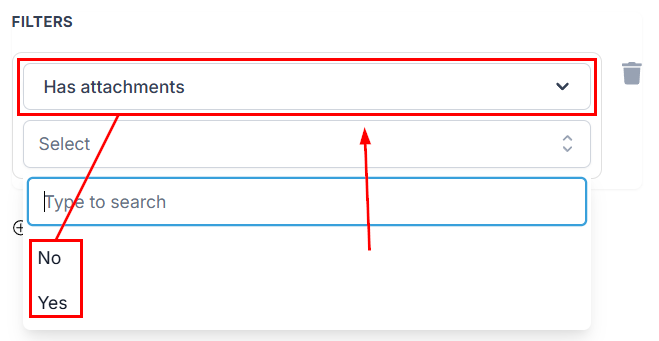
Has attachments
This lets you include or exclude responses containing attachments.
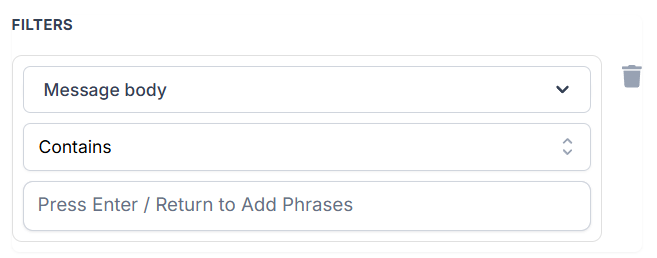
Message body
This lets you limit the triggering to responses to messages with specific content. To use it, select the operator, then enter your message.
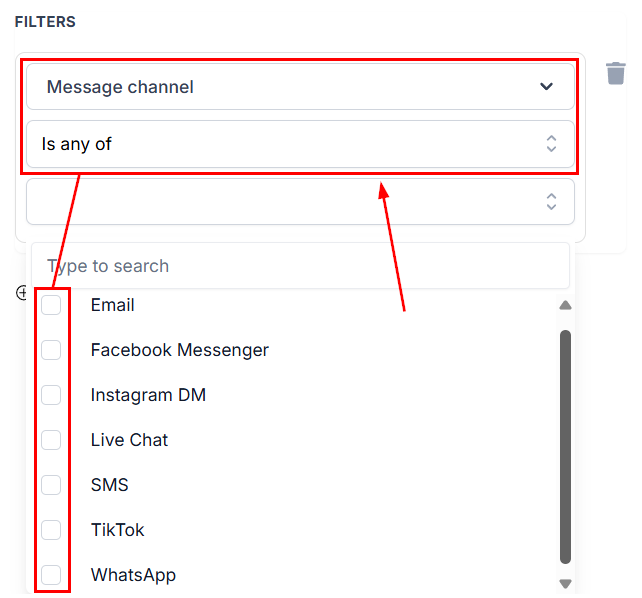
Message channel
This lets you limit the triggering to responses to specific messaging channels. To use it, select the operator, then check the box next to your desired channels.
Replied By
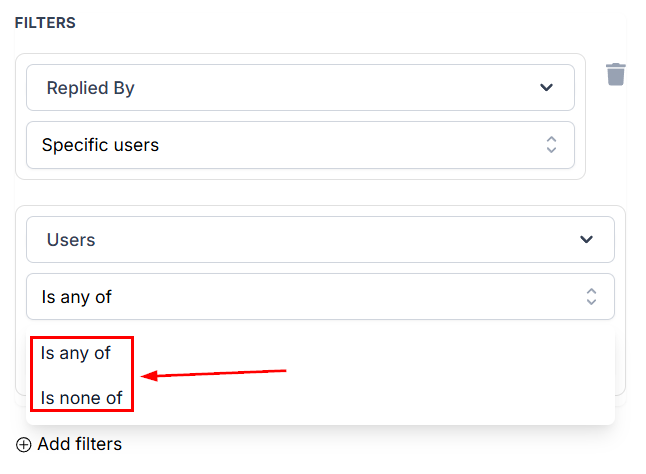
The replied-by filter allows you to specify which users must have responded. When using it, you can select between specific users or contact owners.
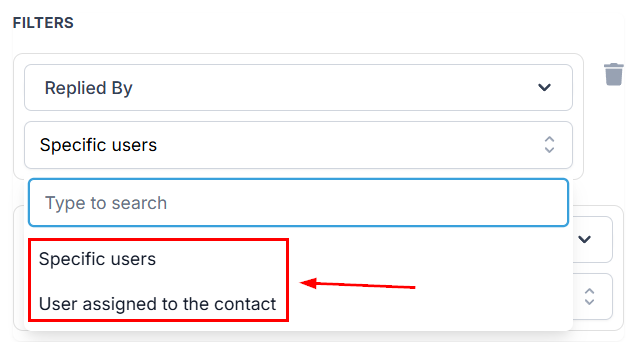
If selecting specific users, pick an operator, then select your team members.
Once a user replies to a contact through a supported conversation channel, the workflow runs automatically and can continue with actions such as notifications, tagging, assignments, or follow-up automations. We hope you enjoy it!