
Jotform Actions & Triggers in Workflows
Connecting Jotform with workflows allows you to automate tasks when someone submits a form or signs a document. You can also send information from a workflow directly into Jotform, reducing manual data entry and helping streamline your processes. This guide explains how to connect your Jotform account, configure workflow triggers and actions, and map form fields correctly.
How it Works
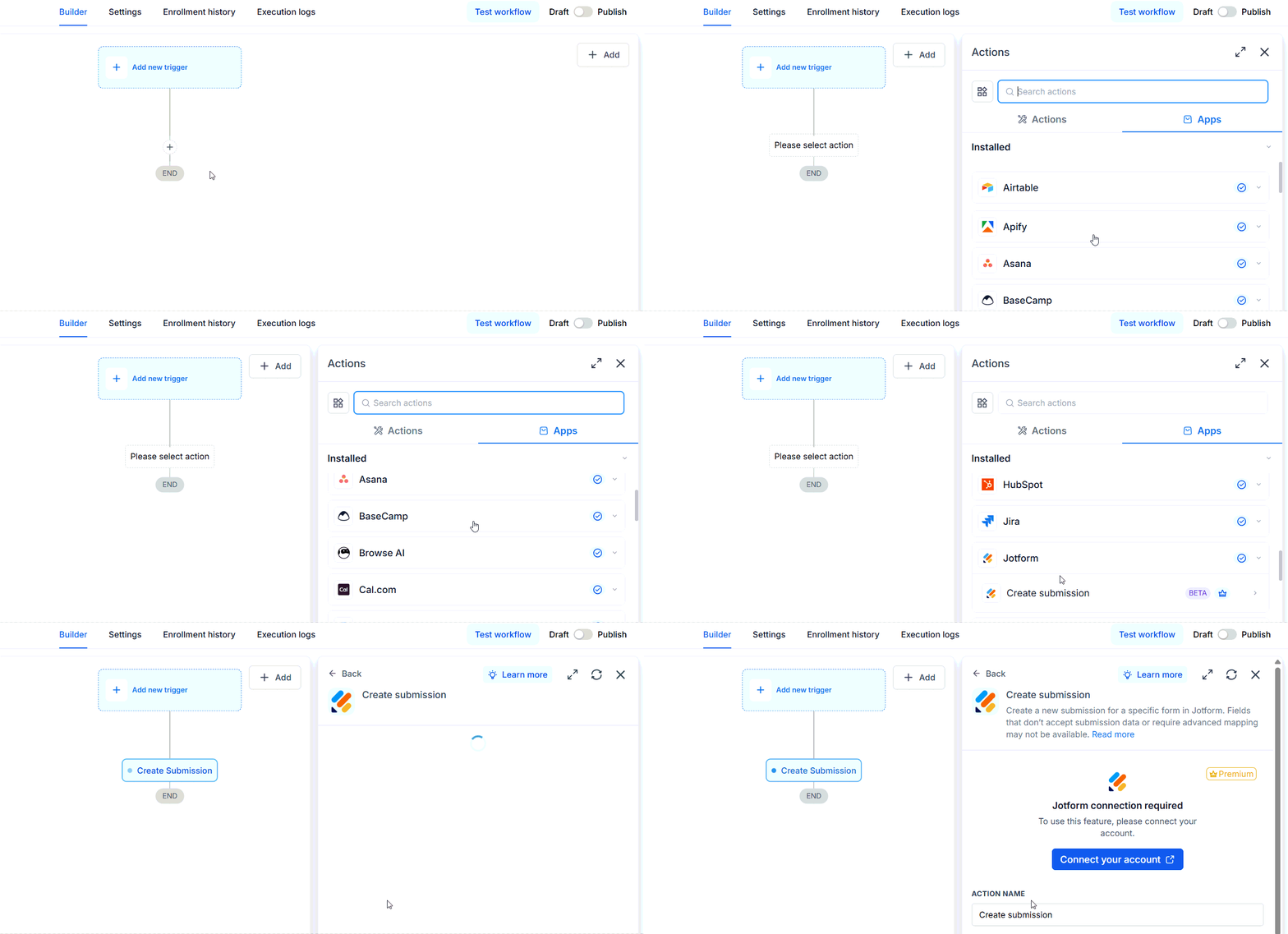
Start in the Automation → Workflows section of your account, and create a new workflow or open an existing one. Select Add New Trigger or click the + button to add an action, then search for Jotform and select the feature you need.
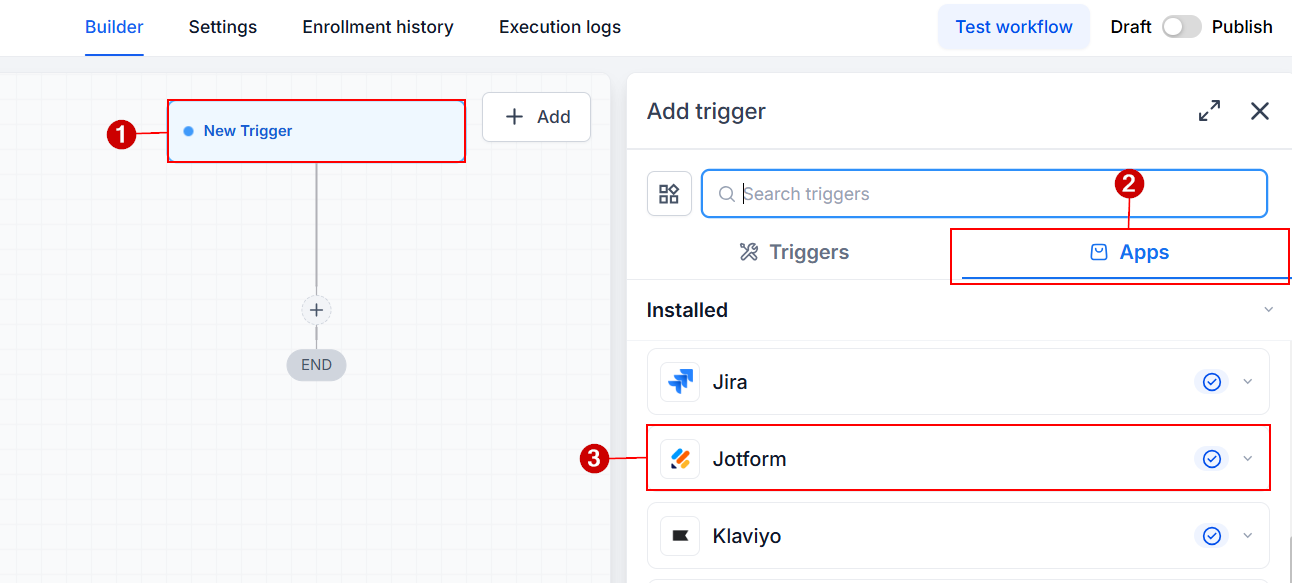
If you haven’t connected your account, click Connect your account and follow the instructions to provide your Jotform API key.
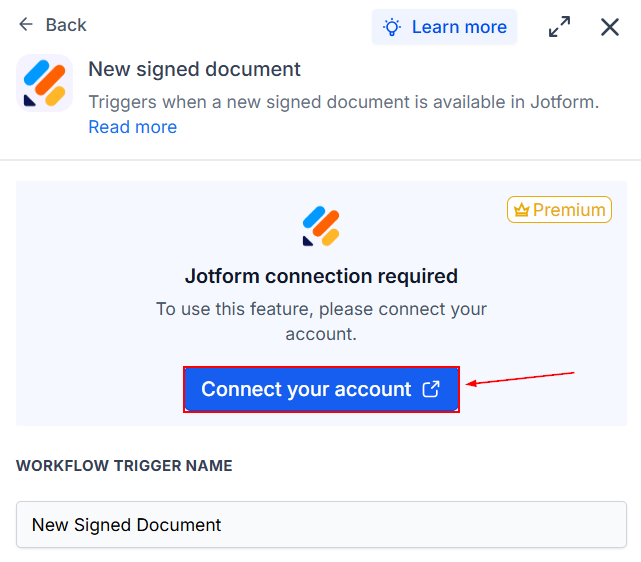
You can also connect your account beforehand through Settings → Integrations → Jotform.
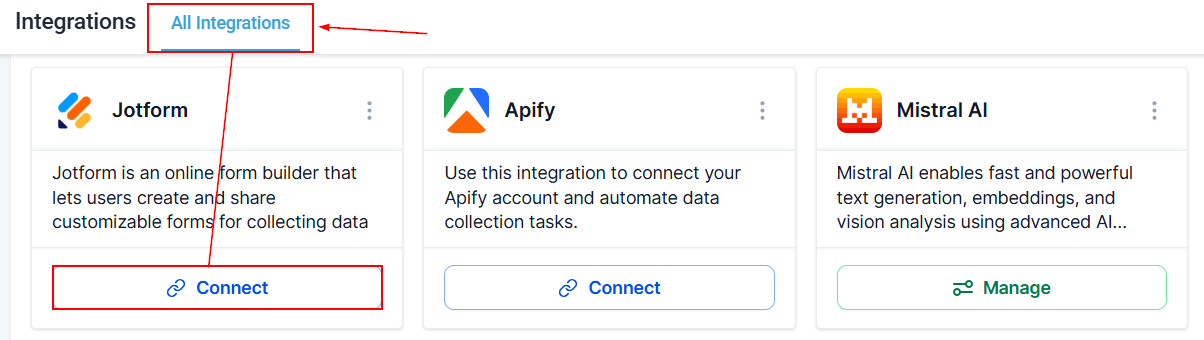
Understand Jotform Workflow Triggers
Triggers determine when a workflow starts. Jotform provides two triggers: New Submission and New Signed Document.
Trigger | How it works | Example |
|---|---|---|
New Submission | Starts a workflow when someone submits a response to a selected Jotform form. It uses webhook notifications to detect new submissions. | Send a follow-up email, apply a contact tag, or notify your team when a lead submits a form. |
New Signed Document | Starts a workflow when a Jotform document containing an e-signature field has been completed and signed. The trigger checks for signed documents approximately every five minutes. | Notify your team or begin client onboarding after an agreement is signed. |
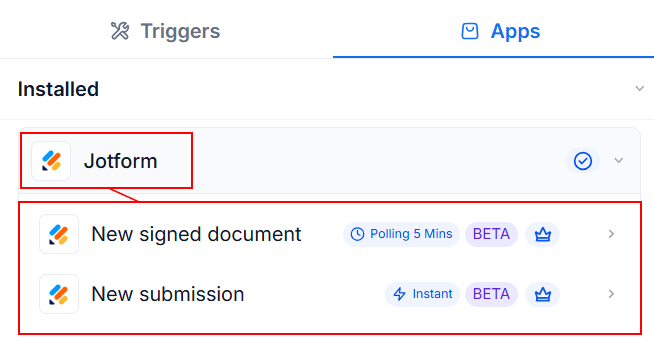
To configure either trigger, select the required form and configure any additional filters.
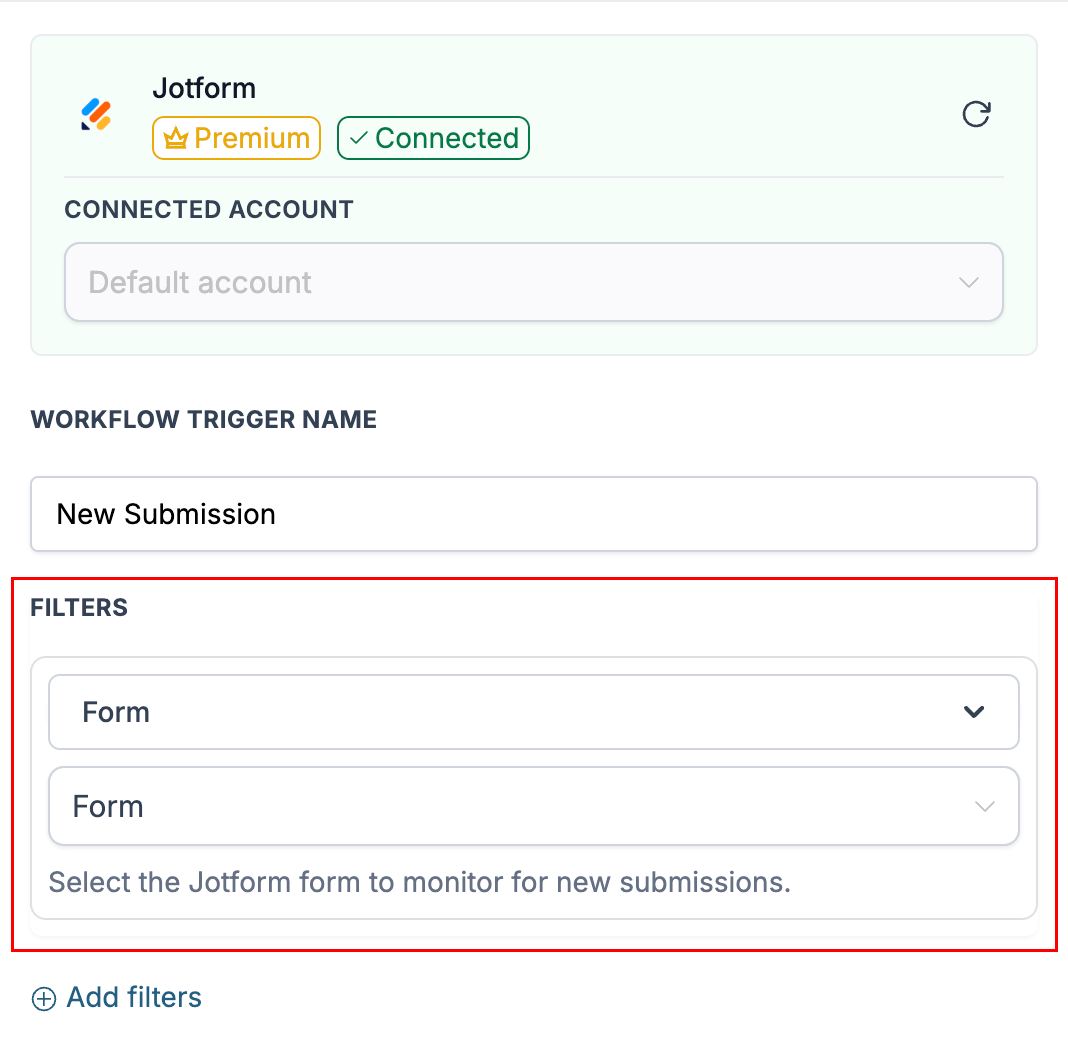
Click Test Trigger to retrieve sample data, then save the trigger and add the actions you want the workflow to perform.
Create Jotform Submissions from a Workflow
The Create Submission action sends information from a workflow into a selected Jotform form. For example, you could create an intake form submission using a client's details after they book a consultation.
To set this up, open your workflow and click the + button where you want the action to occur. Search for Jotform, select Create Submission, and connect your account if necessary.
Choose the form that should receive the information, then map each available form field to the appropriate workflow value or static text.
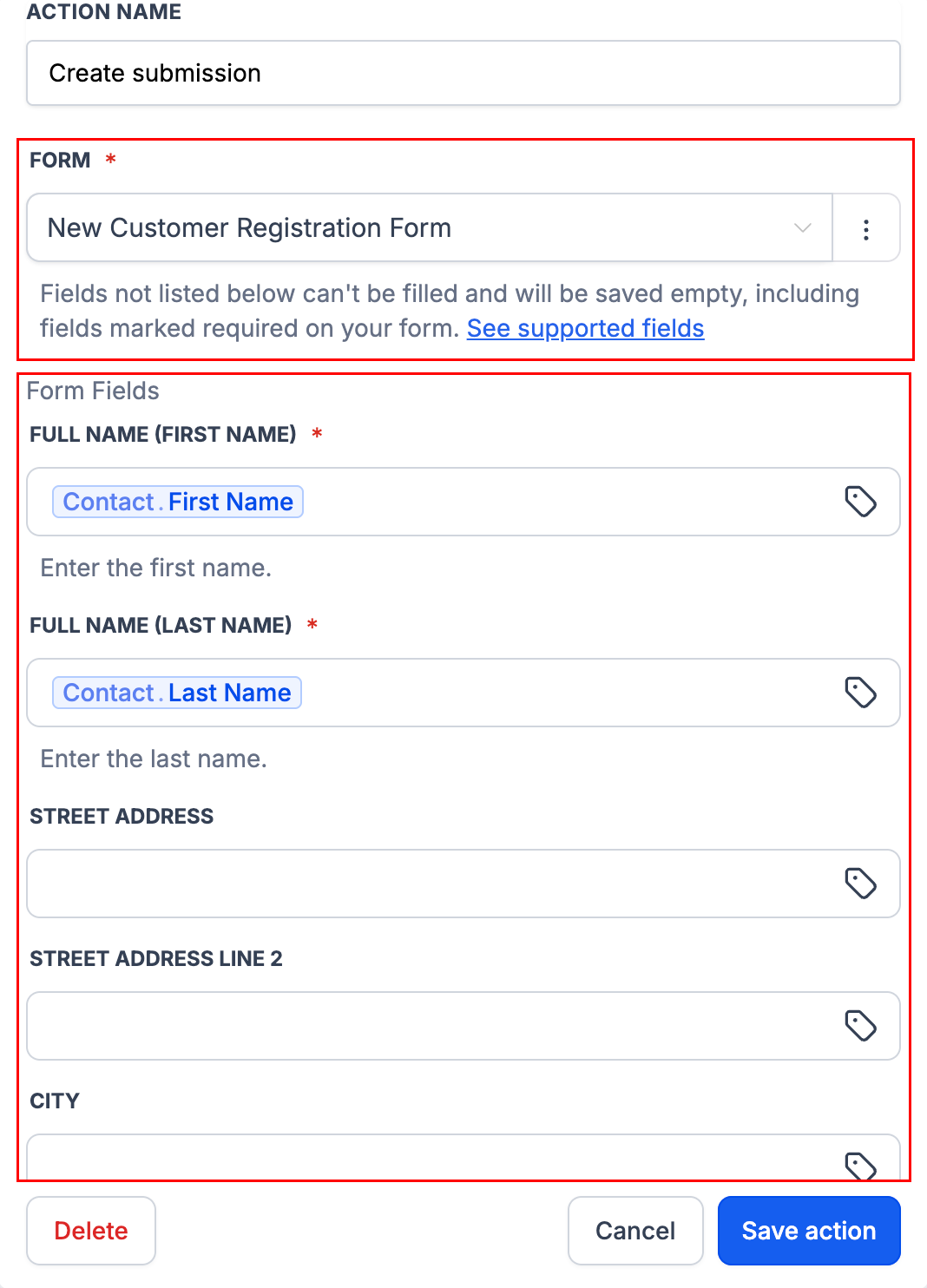
The Create Submission action supports common field types, including Full Name, Email, Address, Phone, Short Text, Long Text, Number, Dropdown, Single Choice, Multiple Choice, Yes/No, Star Rating, Scale Rating, Date Picker, and Time. For date and time fields, use the formats
YYYY-MM-DD
for dates and
HH:MM
for times.
Some specialized field types are not supported, including:
- file uploads
- signatures
- appointments
- payments
- product lists, and
- certain widgets
These fields will not appear in the mapping list and will remain empty in the created submission. A submission may still be created even if an unsupported field is marked as required in Jotform.
Utilize the Jotform workflow triggers and action today to automate form submissions, signed-document follow-ups, and data entry.
Important Notes
- Create Submission does not process payments, generate signatures, or reserve appointment slots.
- Creating a submission does not confirm that a payment was made.
- Although the New Signed Document trigger can detect completed signed documents, the Create Submission action cannot populate a signature field.
- Before publishing your workflow, review your form's field types and mappings to ensure the information you need can be transferred correctly.