
Browse AI Actions & Triggers in Workflows
Web scraping and content monitoring are easily automatable tasks that help you improve your AI's output. Browse AI helps you scrape, monitor, and integrate data from almost any website with no coding required. So if you're using Browse AI and want to connect it with your CRM, this guide is for you!
Getting Your API Keys
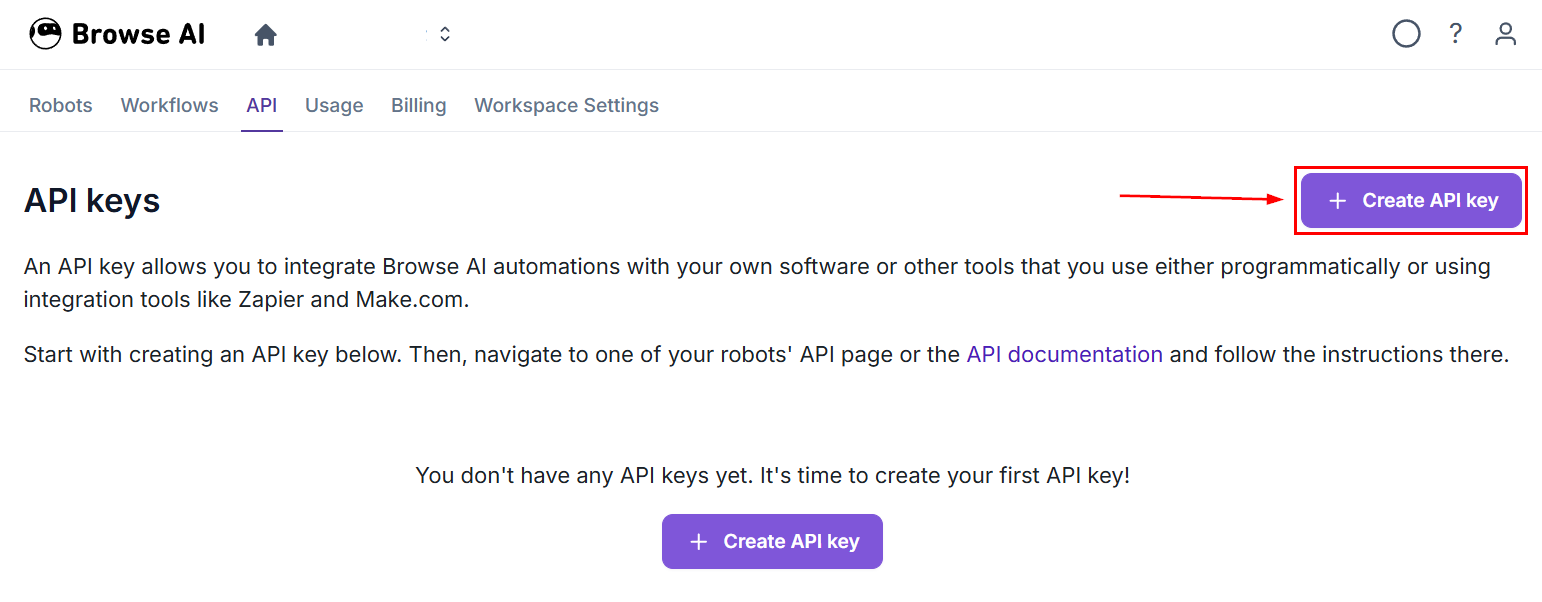
In your Browse AI account, head to the API Tab and click “+Create API Key.”
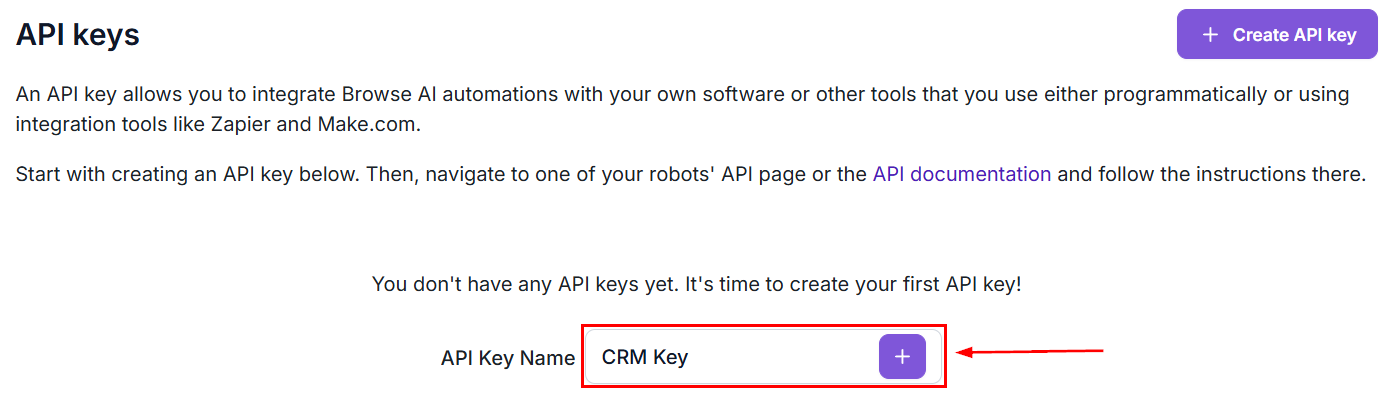
Enter a name for your API, then click the plus sign icon.
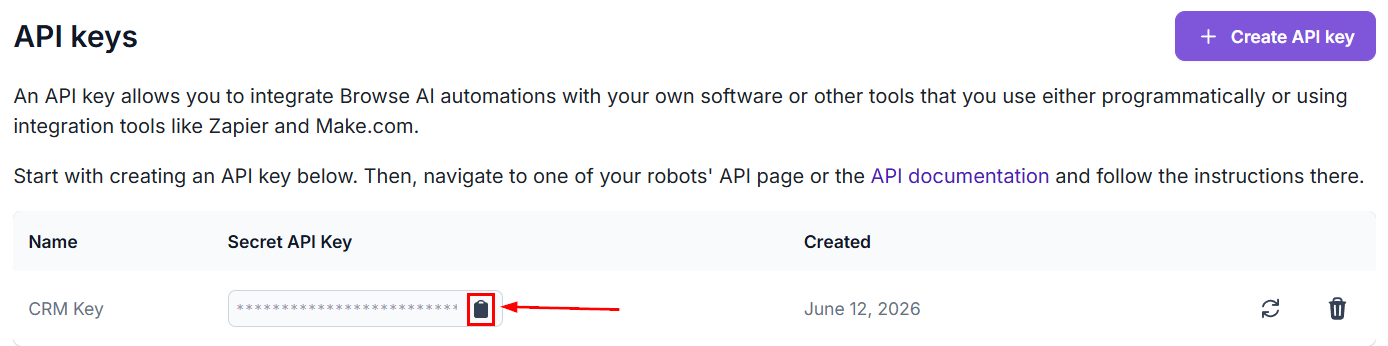
Click the clipboard icon to copy your API key.
Connecting Your Browse AI Account
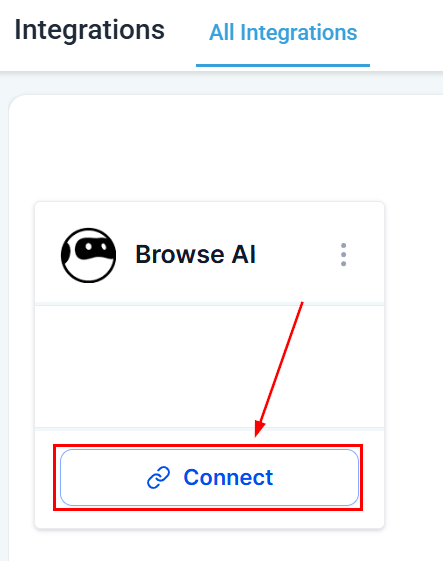
Head to the Integrations section in your account settings and click Connect under Browse AI.
Enter your API key, then click Save.
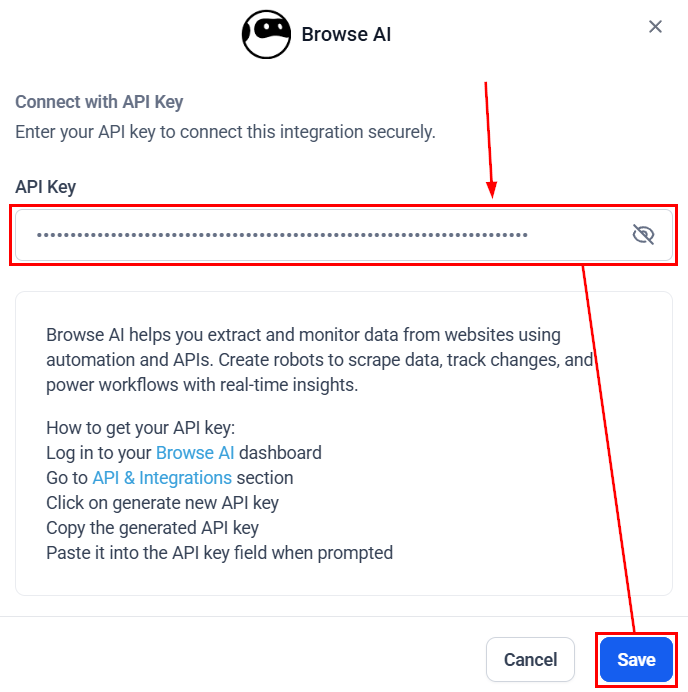
This integration allows you to trigger workflows based on Browse AI activity and perform task operations like running and getting tasks individually or in bulk. Let's review the available triggers and actions.
Trigger
New Completed Task
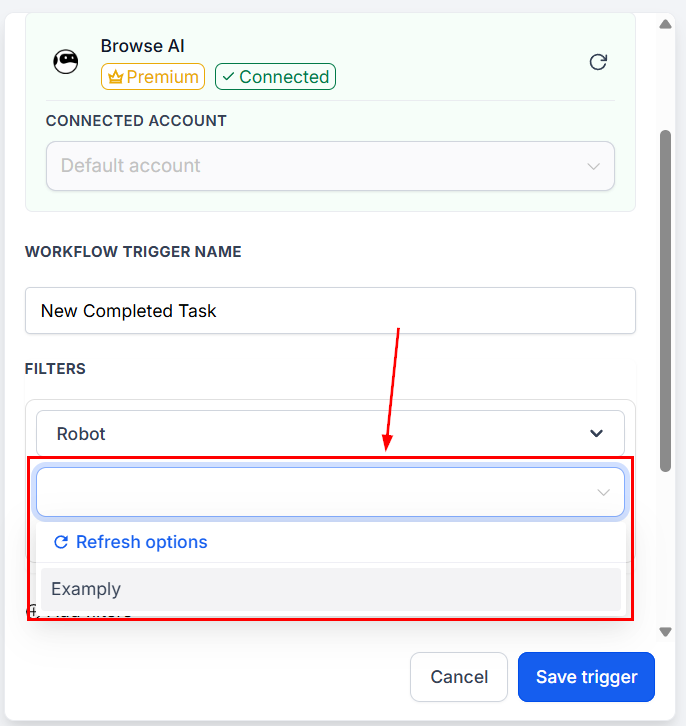
Triggers when a Browse AI robot task finishes according to your selected event. To use it, first select the robot you want to follow.
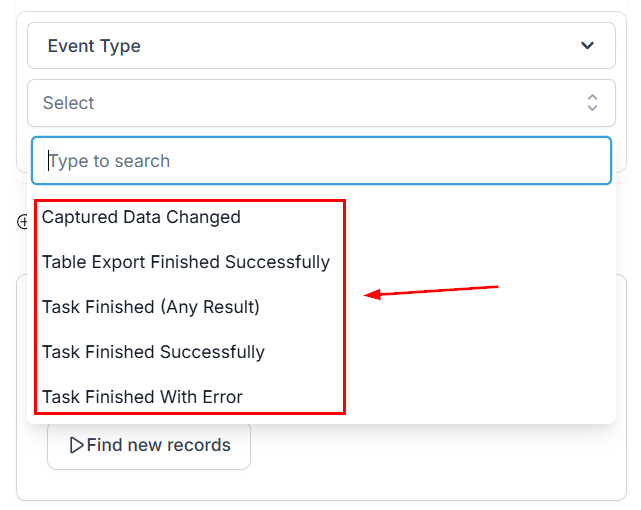
Select the event type to trigger the workflow.
Actions
Run Task
This allows you to run a data extraction task on your selected robot.
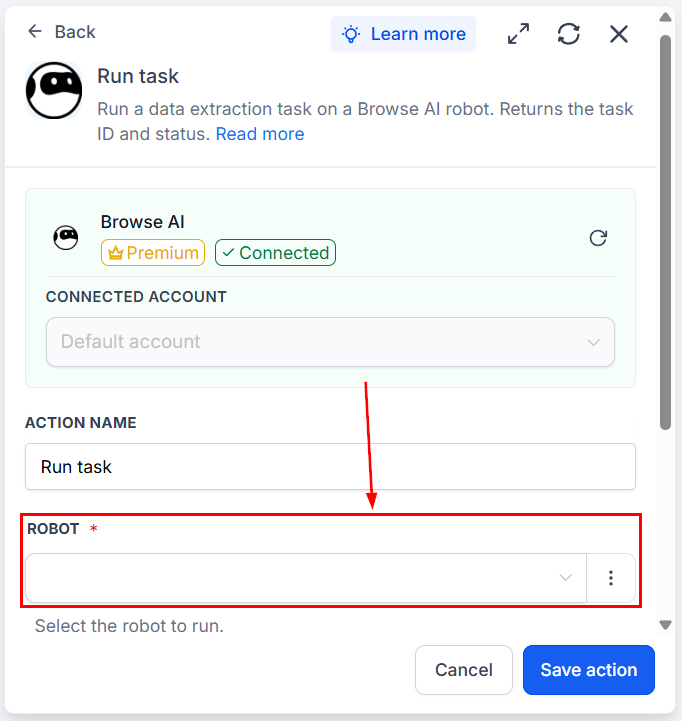
Additionally, you must enter your desired parameters for the task.
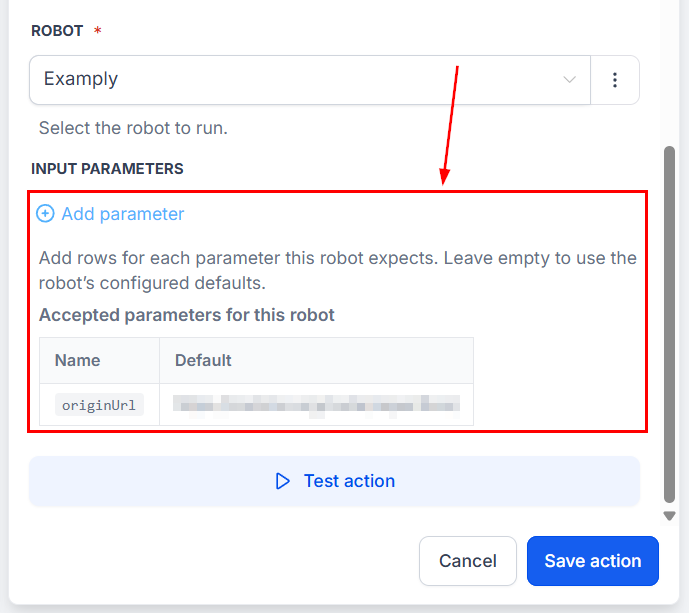
Upon execution, it will return the task ID and status.
Bulk Run Tasks
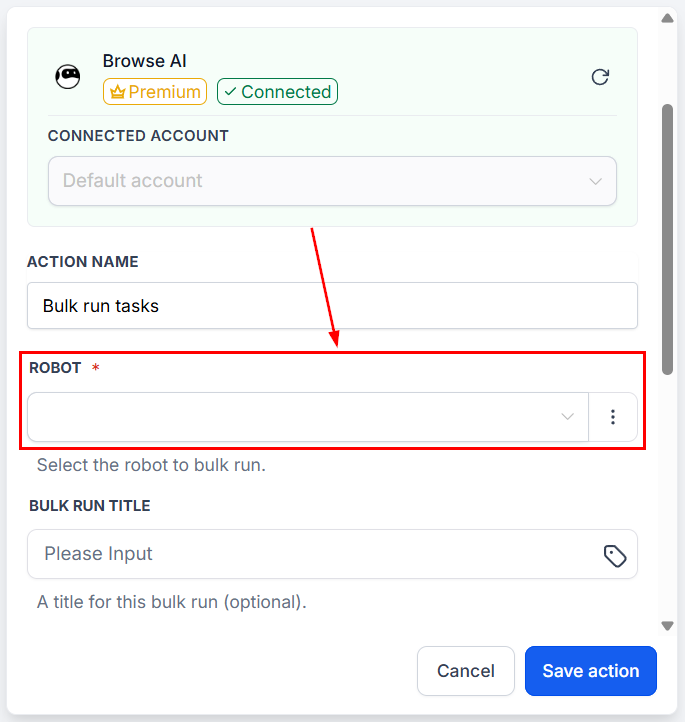
To use this action to run up to 50 thousand tasks per call, select a robot
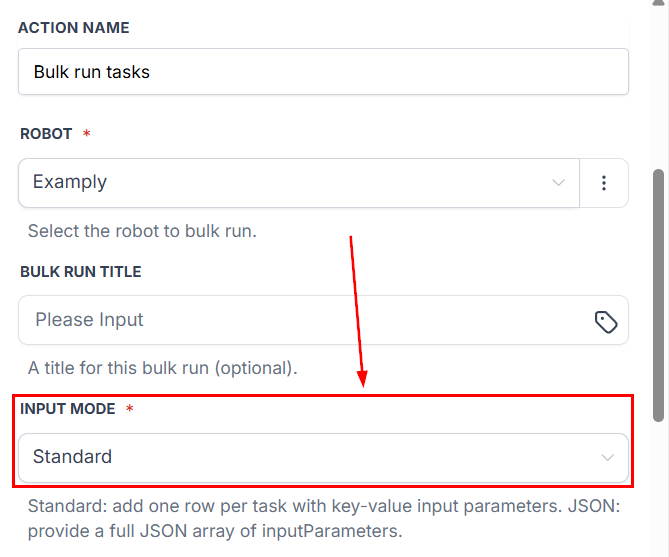
Select your desired input mode.
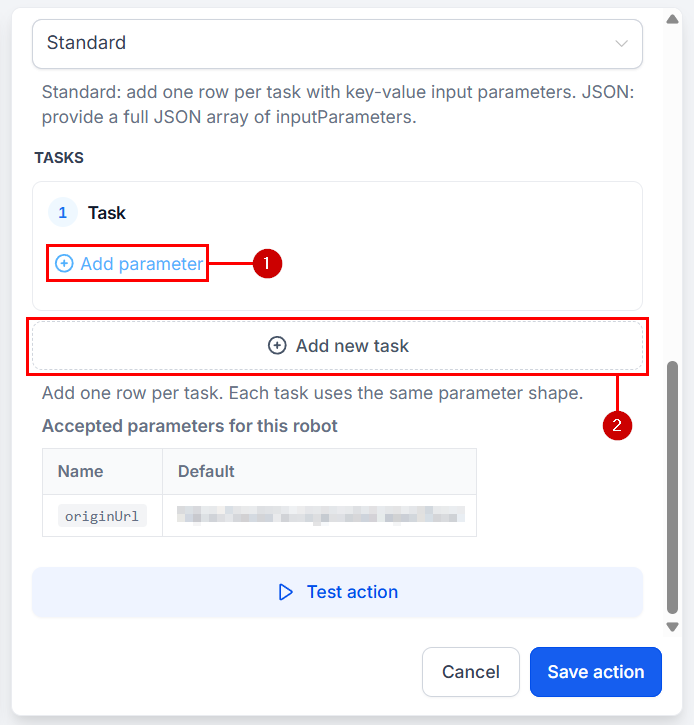
Add the parameters of your task (1) or click Add new task (2) to add more steps.
Get Task
This action fetches the latest state of a Browse AI task. To use it, select the robot that owns the task.
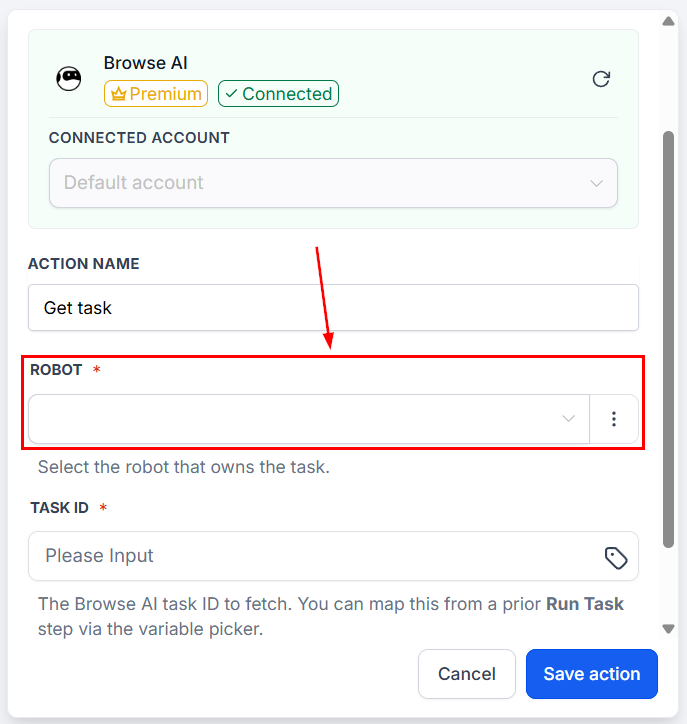
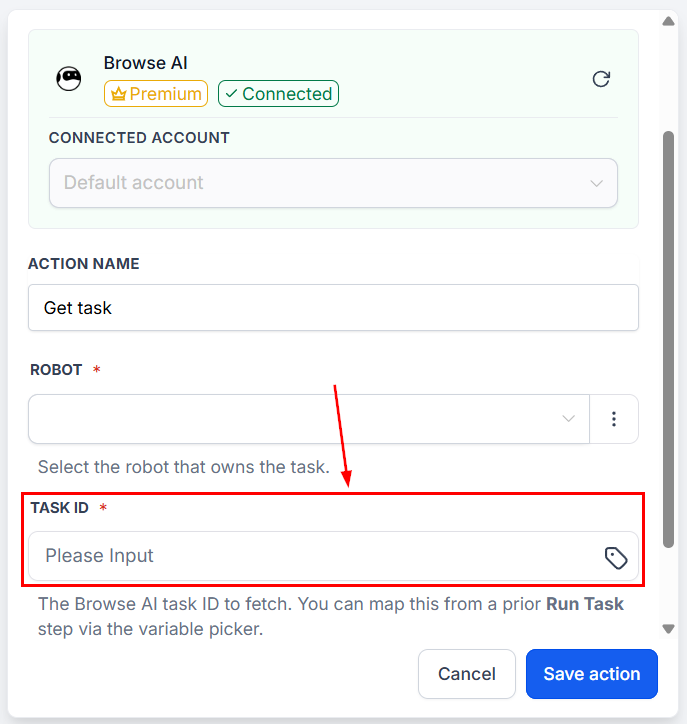
Then enter the task ID to fetch, which you can map from a prior Run Task step.
Get Bulk Run
This action fetches the latest state of a Browse AI bulk run. To use it, select the robot that owns the bulk run.
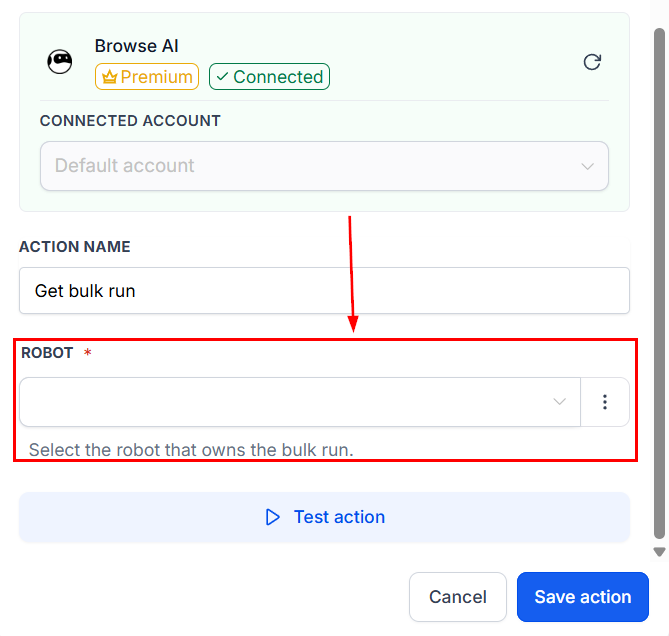
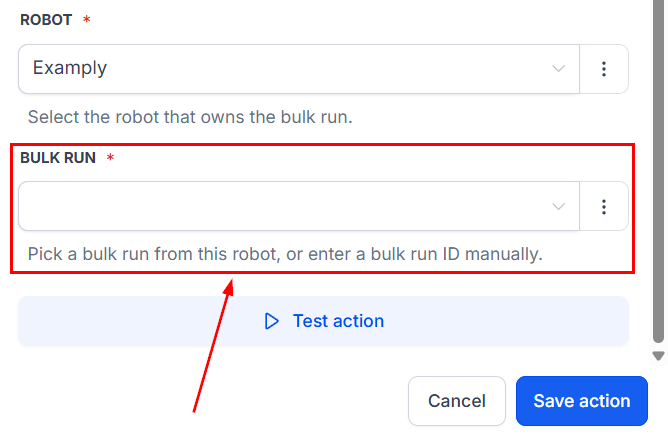
Then, pick a bulk run from the selected robot, or enter a bulk run ID manually.
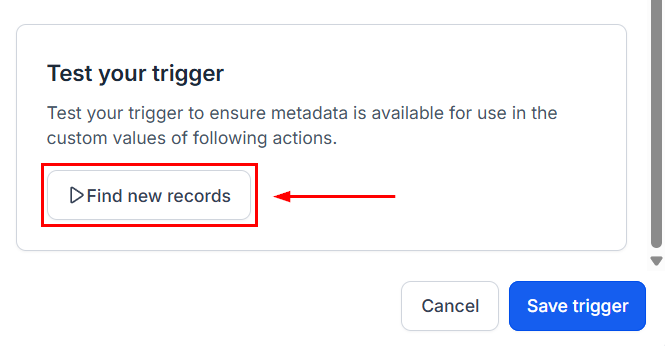
Once you've set your trigger or action, click the test option to validate your parameters.
And there you have it. Now you can create workflows that allow customer-submitted URLs to trigger an on-demand scrape, a daily competitor monitor pipe straight into an internal alert, and a CSV upload of any URLs to fire a bulk run with the captured data flowing back into the CRM. We hope you enjoy it!