
AI Image Generation Action
The AI Image Generation action allows you to create images automatically as part of a workflow. By providing a text prompt, you can generate visuals for marketing campaigns, product promotions, social media content, and other business needs without creating each image manually.
Note: AI Image Generation is a premium workflow action.
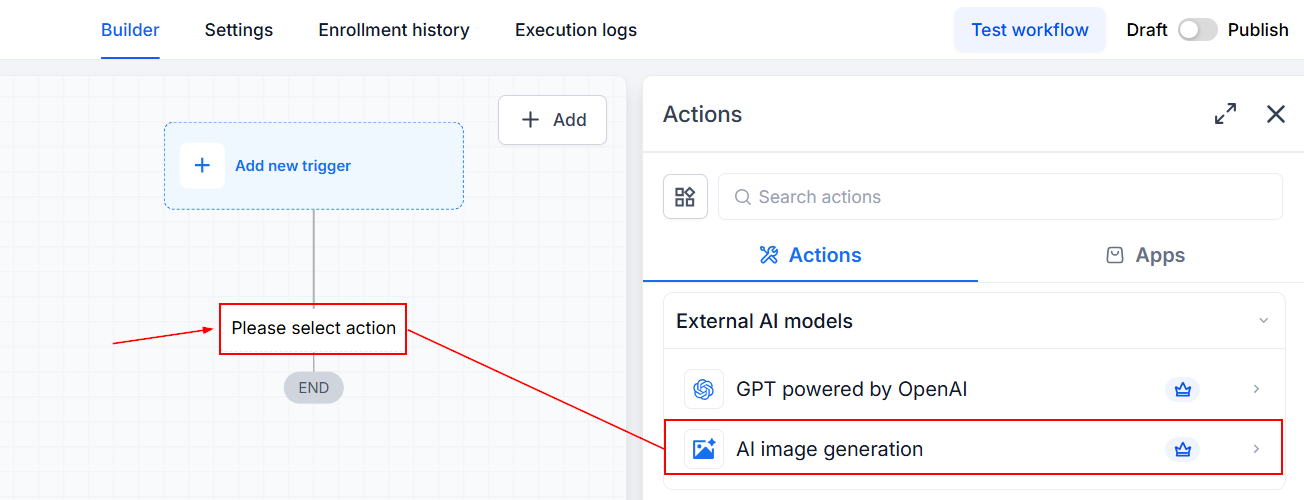
To get started, open the workflow where you want to generate an image. Click the + icon to add an action, search for AI Image Generation, and select it.
Choose an AI Model
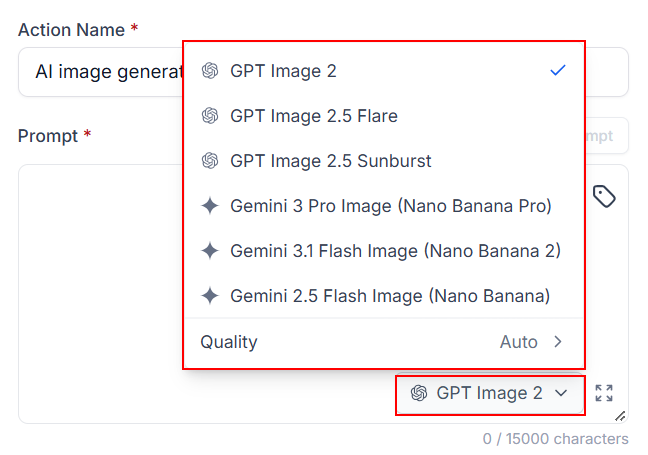
Select the AI model you want to use to generate the image. The available models offer different strengths in image quality, speed, and creative control.
For example, GPT Image 2.5 includes two variants:
- GPT Image 2.5 Flare: Suitable for general image creation, social media visuals, product images, and faster image generation.
- GPT Image 2.5 Sunburst: Suitable for polished campaign visuals and product imagery that require more control over edits.
Write an Image Prompt
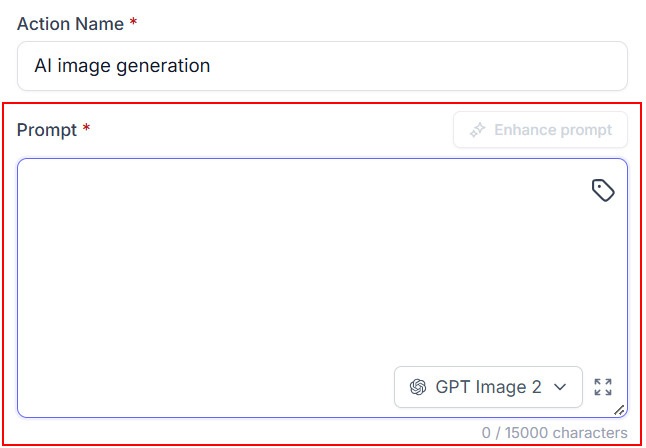
Enter your prompt in the prompt field. You can write the prompt manually or insert custom values so that information from a contact field, webhook payload, or earlier workflow action can be used during execution.
The prompt describes the image you want the AI to create. Clear instructions help the model understand the subject, setting, style, composition, and other details that should appear in the final image.
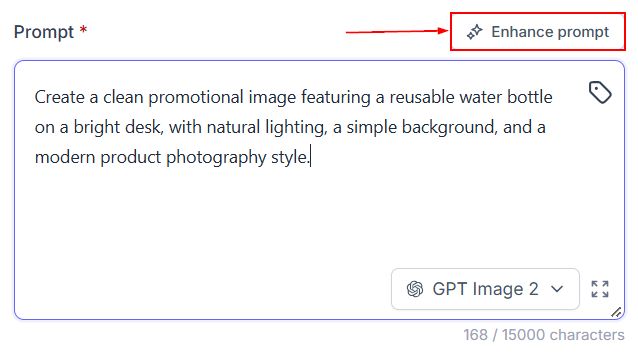
You can also use the Enhance Prompt option to expand a short description into a more detailed prompt.
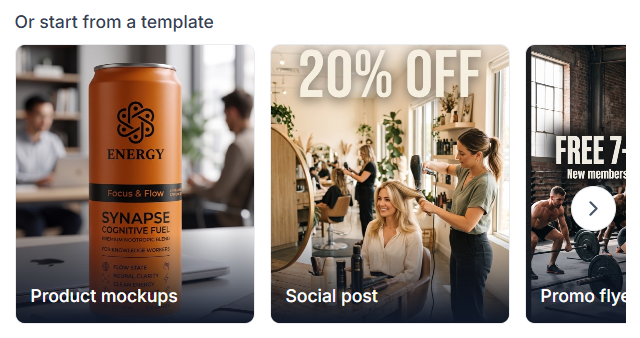
Use a Prompt Template
Templates provide a starting point when you need help creating a prompt. Select a template that matches the type of image you want to generate, then adjust the prompt to suit your needs. Templates are optional. You can write your own prompt if you prefer more control over the image.
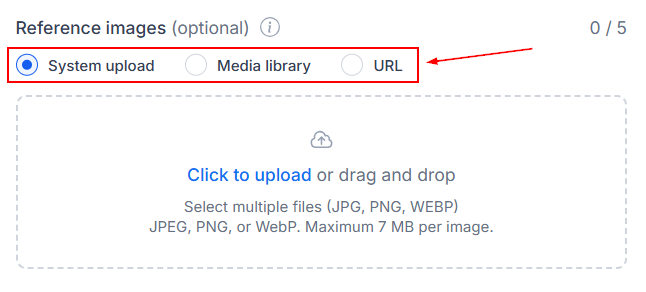
Add Reference Images
Reference images help guide the AI by providing visual examples alongside your text prompt. You can use them to help maintain a consistent subject, setting, product appearance, or brand identity. Choose how to add an image: upload it from your device, select it from the Media Library, or provide an image URL.
You can add up to five reference images to a single action, arrange them in the order you want the AI to use them, and update your prompt to explain how each image should guide the generated result. The order matters because the prompt can refer to each image by its position.
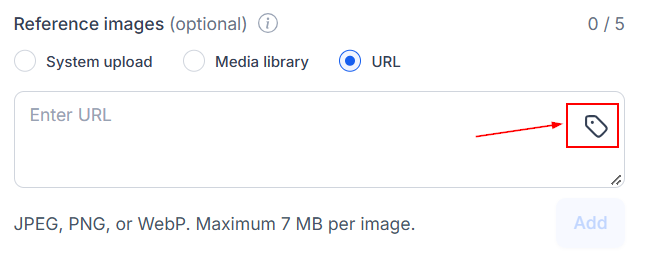
Reference image URLs can also use custom values, allowing different images to be supplied dynamically for different workflow executions.
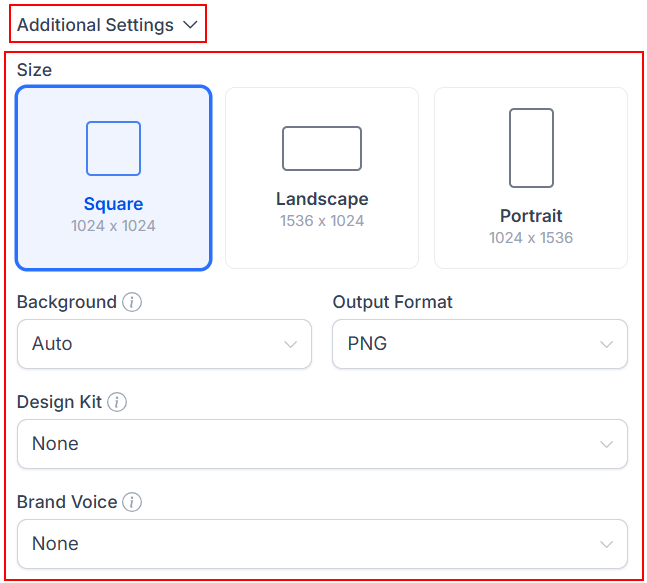
Additional Settings
The action includes settings that let you control the appearance and format of the generated image.
- Image Size: Choose the output dimensions or size that best fit the intended use, such as a social media graphic or a product visual.
- Background: Choose whether the background should be transparent or opaque.
- Output Format: Select the output file format supported by the action that best suits your intended use.
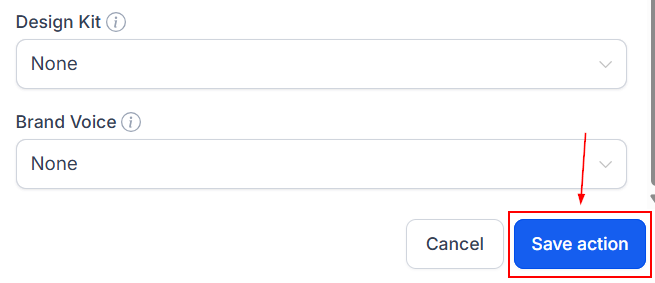
- Design Kit: Select a design kit to help the generated visual follow your established brand design
- Brand Voice: Choose a brand voice to provide additional brand context for the AI.
Save the Action
After configuring the model, prompt, reference images, and any additional settings, save the action.
When the workflow reaches this action during execution, the AI generates an image based on the configuration. The generated image is saved to Media Storage, and the action returns an Image URL that can be used by subsequent workflow actions.
Use the Generated Image in Later Workflow Actions
The generated Image URL allows you to connect image creation with other automated tasks.
For example, you can:
- Include the image URL in an email or SMS.
- Save the URL to a contact's custom field.
- Pass the image URL to a webhook or another integrated service.
- Use contact details or other workflow data to generate personalized images.
To use the output, add the next action to your workflow and insert the Image URL variable from the AI Image Generation action into the appropriate field.
Keep in mind that the generated image is stored at a public URL. Anyone with the link can access it without logging in, so avoid including sensitive customer information in prompts or generating images that expose private data.
The AI Generate Image action makes it easier to create images automatically within workflows. By combining clear prompts, reference images, and the available customization settings, you can generate visuals that match your needs and use them in other workflow actions.