
Event Registration Trigger
The Event Registration trigger activates when someone registers for a designated group event. Once a new registration matches the conditions you’ve configured, the workflow starts automatically. With this trigger, you can automatically respond to event registrations by sending confirmation messages, notifying event hosts, tagging contacts, or starting follow-up campaigns. Instead of managing these actions manually, you can build them directly into your workflow.
It’s important to note that the trigger responds only to new registrations. Updating an existing registration will not cause the workflow to run again, and registrations made before the workflow was enabled are not processed retroactively.
How to Configure the Trigger
Setting up the Event Registration trigger involves a few key steps:
Choose the Trigger
In the workflow builder, select Event Registration as the trigger that starts your automation.
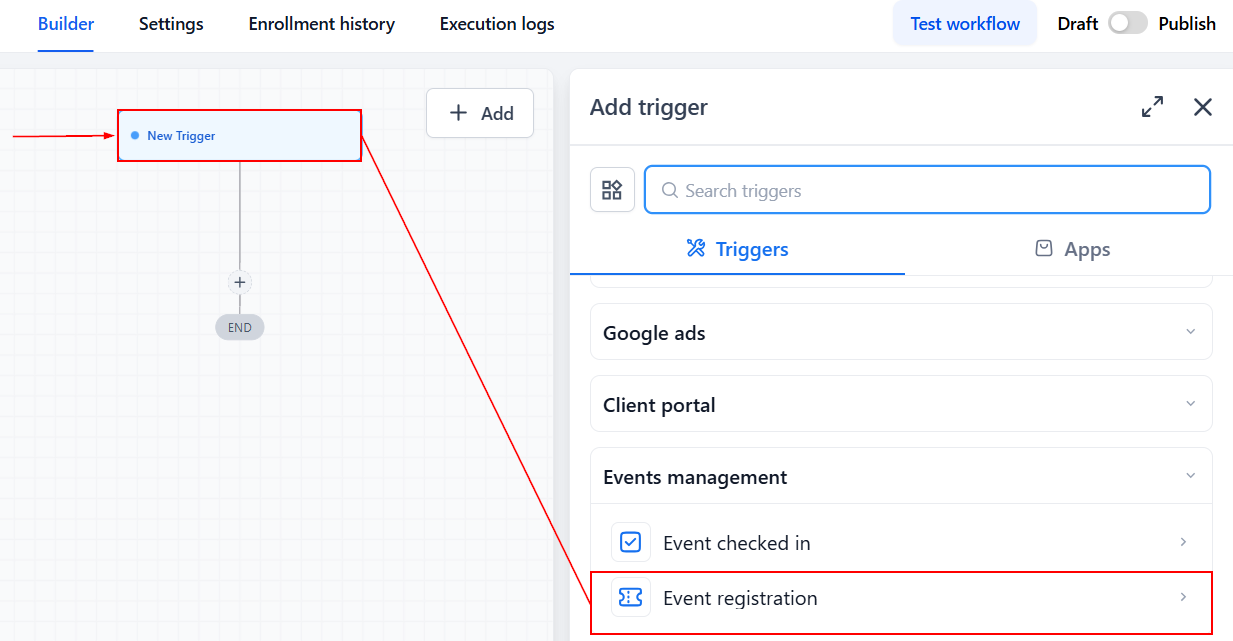
Select the Registration Status
Use the Registration Status field to determine which events should activate the workflow. The Status field is required, so a status must be selected before the trigger can be configured.
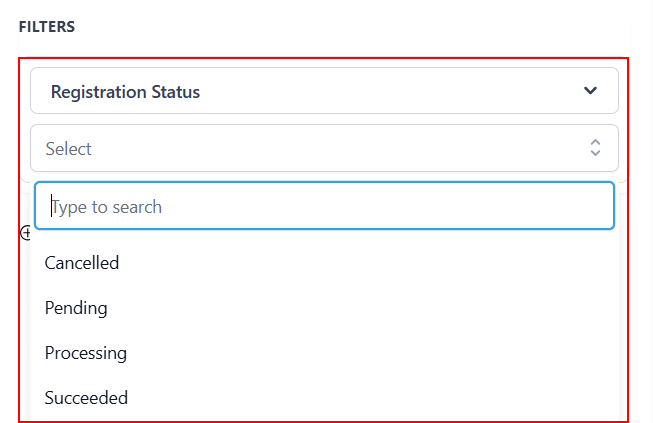
Add Additional Filters
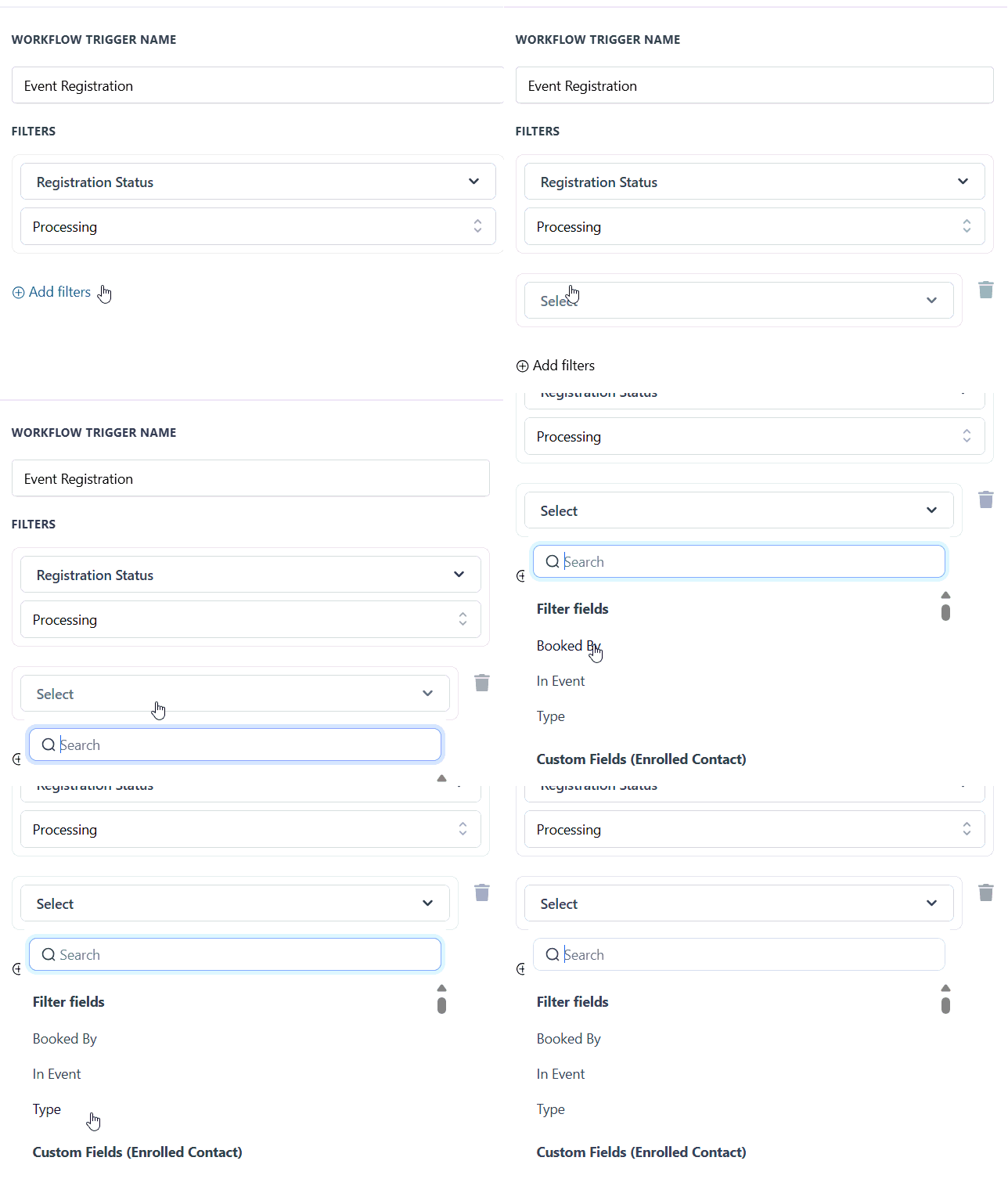
Configure available filters to make the trigger more specific. This can help ensure that the workflow only runs for the registrations you want to target. Here are the options:
- Booked By: This filter targets event registrations booked by either the customer or an account user.
- In Event: This filter allows you to choose a specific event to track.
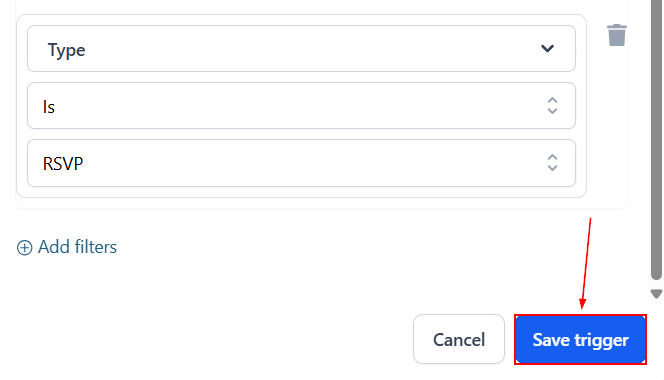
- Type: From this dropdown, you can choose either ticketed or RSVP events.
Save and Activate
Once the trigger is configured, save your settings and activate the workflow. From that point forward, qualifying new registrations will trigger the automation.
By selecting the right group, defining your target events, and adding appropriate filters, you can create workflows that respond automatically whenever someone registers.
Practical Examples and Use Cases
Send Registration Confirmations
- Automatically send a confirmation email after someone registers. The message could include calendar links, event details, preparation materials, or other helpful information.
Start a Follow-Up Campaign
- Add registrants to a campaign that continues after the event. For example, you could send event replays, additional resources, or relevant offers based on the event they attended.
Notify Event Hosts
- Alert event hosts for successful or cancelled registrations.
Tag Contacts by Event
- Automatically apply a tag based on the event someone registered for. For example: Webinar – Product Demo Attendee. This makes it easier to organize contacts and create targeted follow-up workflows later.