
How to Embed an Event within Sites
Embedding an event directly into your website makes it easier for visitors to learn about an event and register without leaving your site. Instead of sending attendees to a separate event page, you can display the event details, schedule, and registration form directly within a page on your website. This creates a more seamless registration experience while keeping visitors within your existing website environment. It is especially useful for landing pages, marketing pages, blog posts, and other areas where you want to promote an event and collect registrations.
In this guide, you'll learn how to generate an event embed code, add it to your website, and understand how embedded events work.
How to Embed an Event
Open the Event
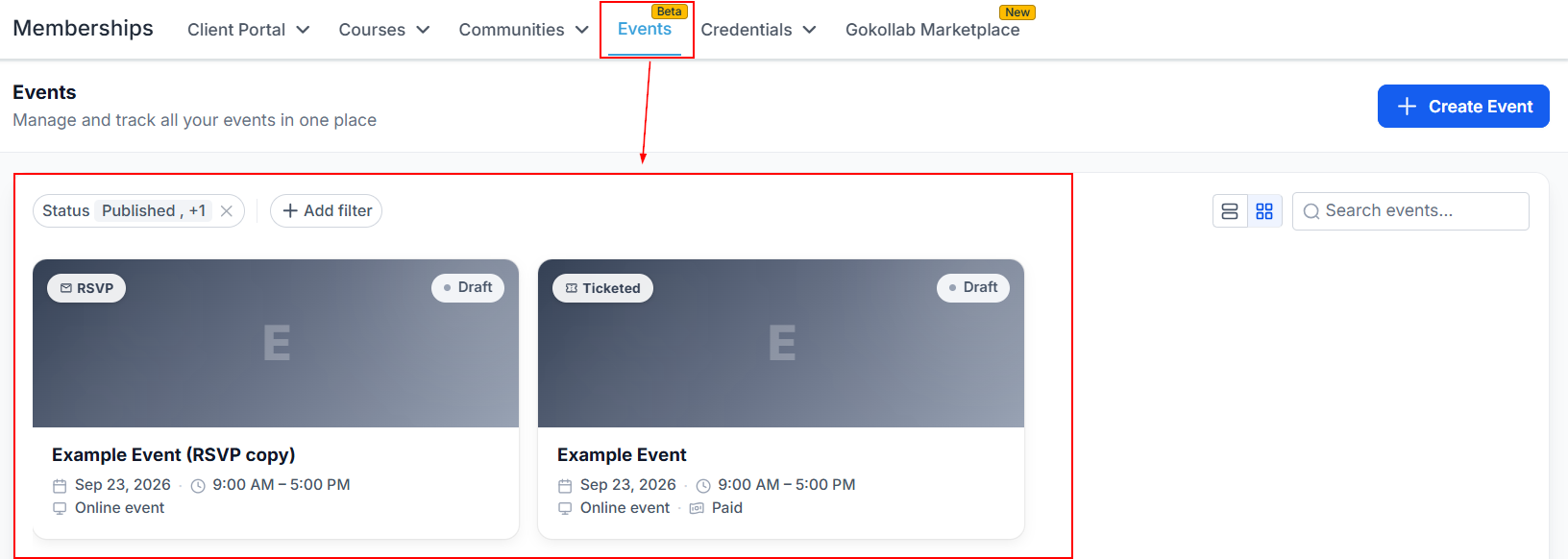
Navigate to the Events section and select the public event you want to embed.
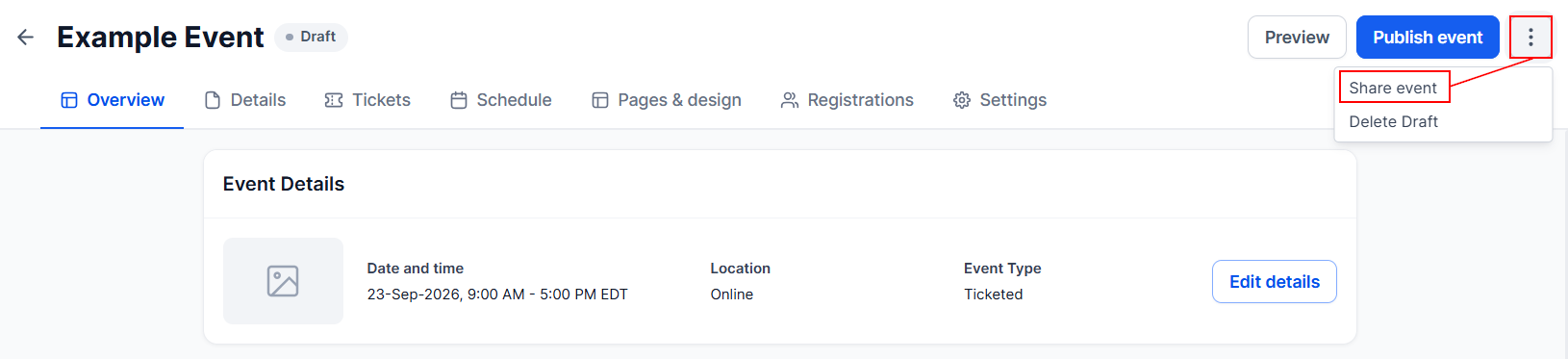
Select Share Event to open the event's sharing options.
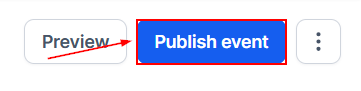
Note: If the event is drafted, proceed with publishing it at this time.
Copy the Embed Code
Within the sharing options, select Embed Code.
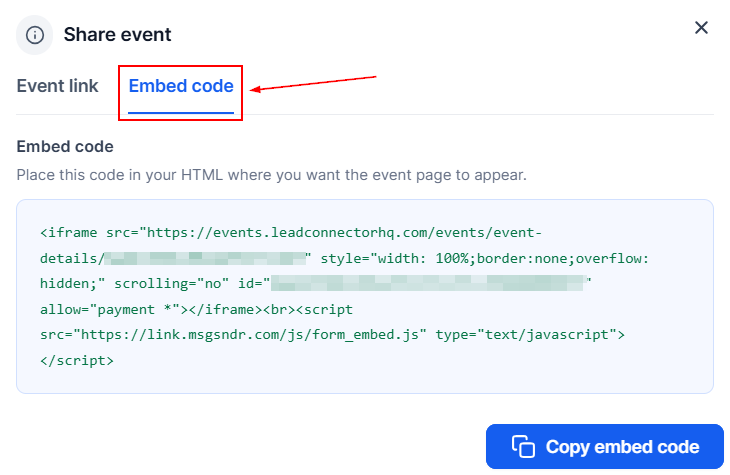
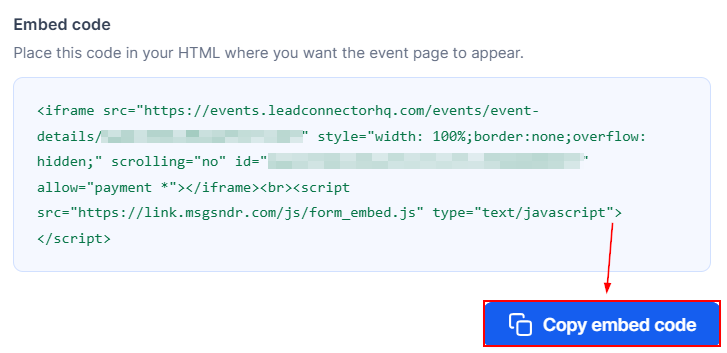
An iframe-based embed code will be generated for the event. Select Copy to copy the code to your clipboard.
Add the Code to Your Website
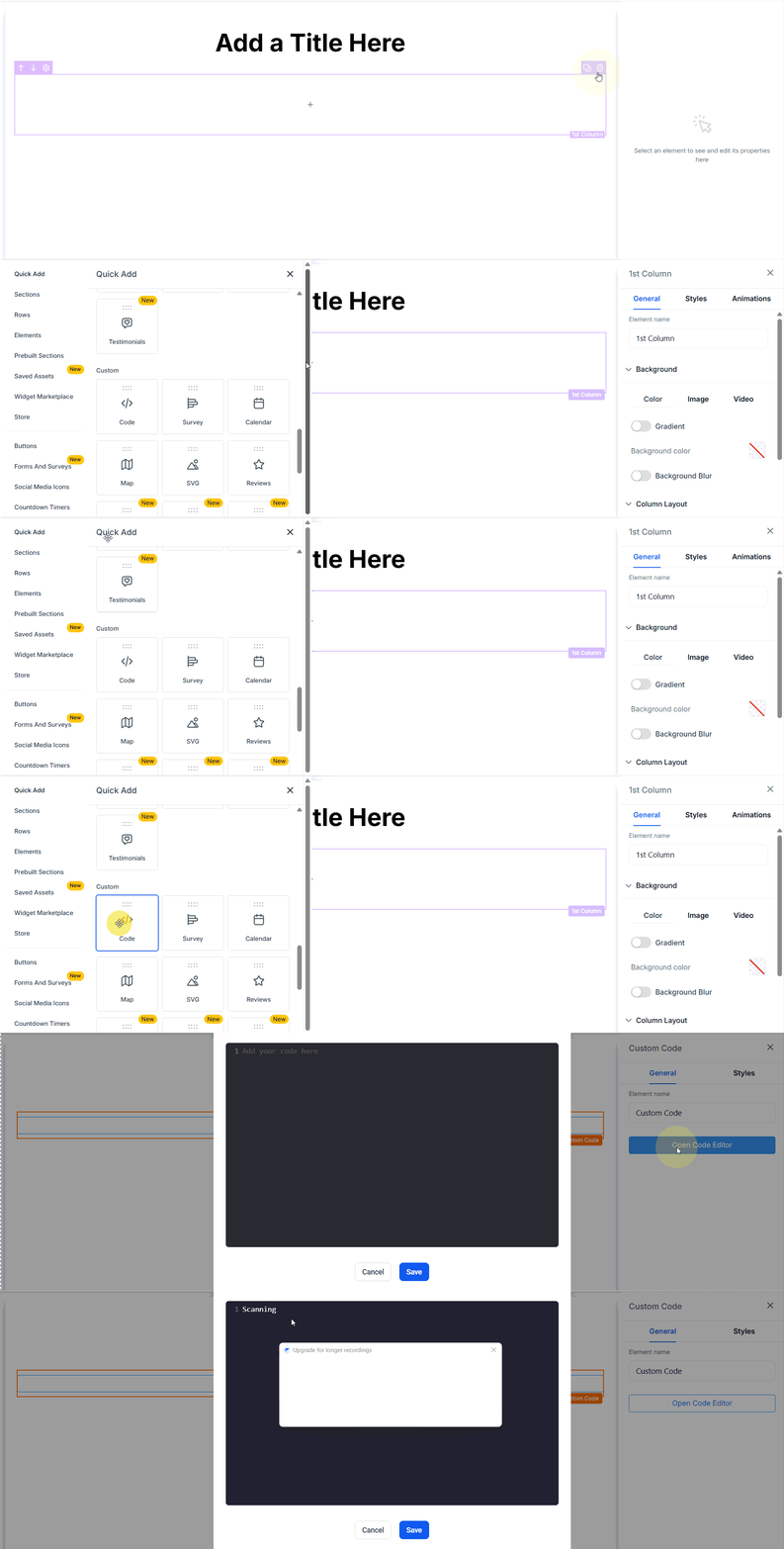
Add the custom code element to the section of the website page where you want the event to appear. Next, paste the code into the editor, then save and publish your changes.
Once published, the event page will appear directly within your website, allowing visitors to register without leaving the page.
Where Can You Embed an Event?
You can embed an event anywhere custom HTML or iframe elements are supported. This includes websites, funnel pages, landing pages, blog posts, and content pages. You can also use the embed code with external website builders that support custom HTML.
Important Things to Know
- The embed code is intended for public events. Make sure the event is available to the visitors who will access the page where it is embedded.
- The embedded event includes the event information and registration process, allowing visitors to complete their registration directly from the page where the event is displayed.
- The event's configured design and branding settings are reflected in the embedded experience. If you need to make changes to the event, update its settings before sharing or embedding it.
- The embedded event is designed to work across different screen sizes, allowing visitors to access it from desktop, tablet, and mobile devices.
- If you update the event after embedding it, the updated event information will be reflected without requiring you to replace the code.