
How to Manage Members Inside Groups
Communities help you and your audience create a space for everyone to express, learn, and grow together. However, to keep that space safe and productive, you need to establish rules and regulations to ensure everything runs smoothly.
Understanding Member Roles
Think of a community group as a team. In this team, there are four important roles:
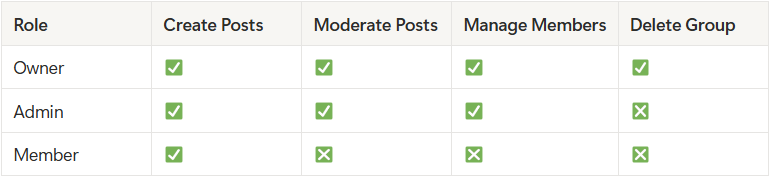
- Owner: This role will be assigned to the Group creator and is the highest permission level; only the Owner can deactivate or delete the group.
- Admin: They can add or remove team members and assign Admin status to other members, effectively recruiting more help within the group.
- Member: These are the team players who talk, share, and learn together. They can post stuff and show they're active.
Role Permissions
The permission level goes from Owner to Member.
Inviting Members to the Group
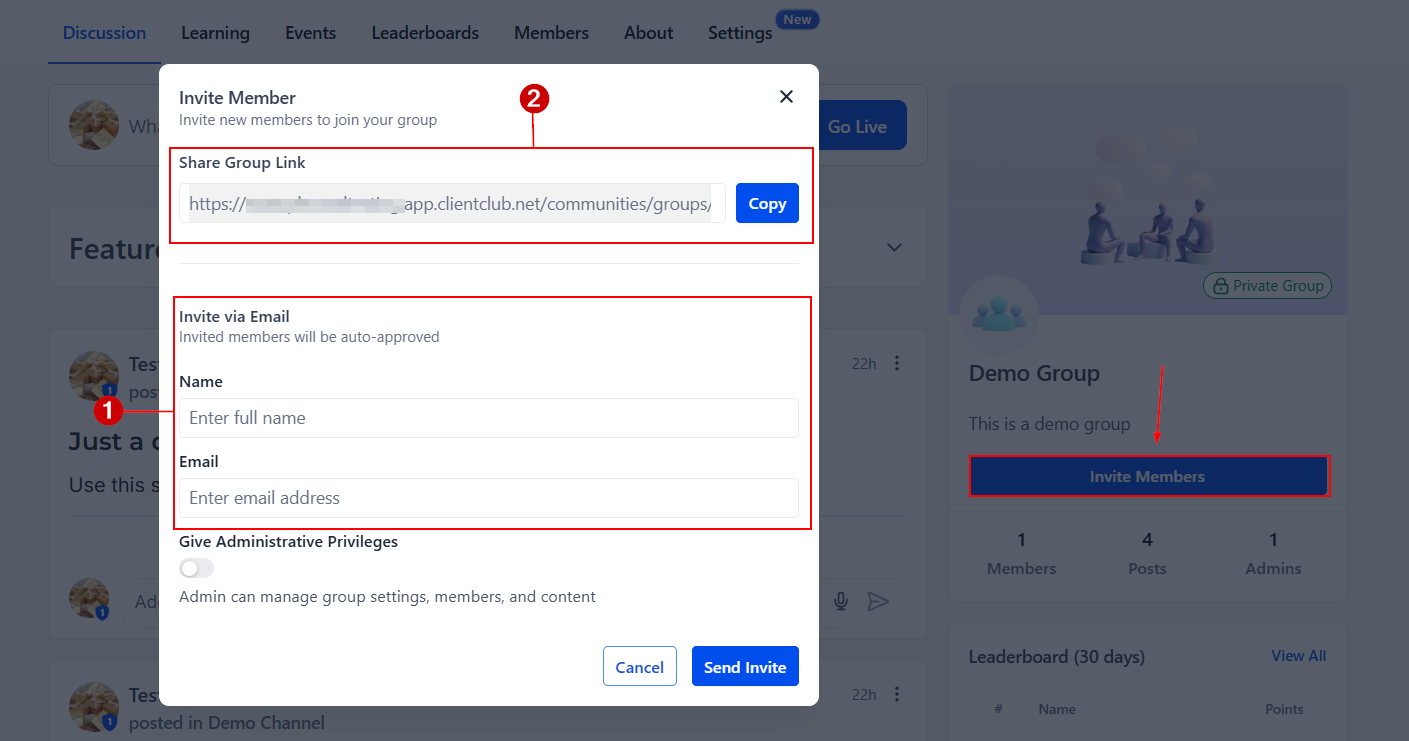
To get people to join your group, you can invite them by adding their information inside the “Invite via Email” (1) section in your communities platform, or by copying the special link and sending it to them in an SMS/Email (2).
Modifying Member Roles and Access Control
Owners and Admins can decide who can do what in the group. If you want to change someone's job, follow these steps:
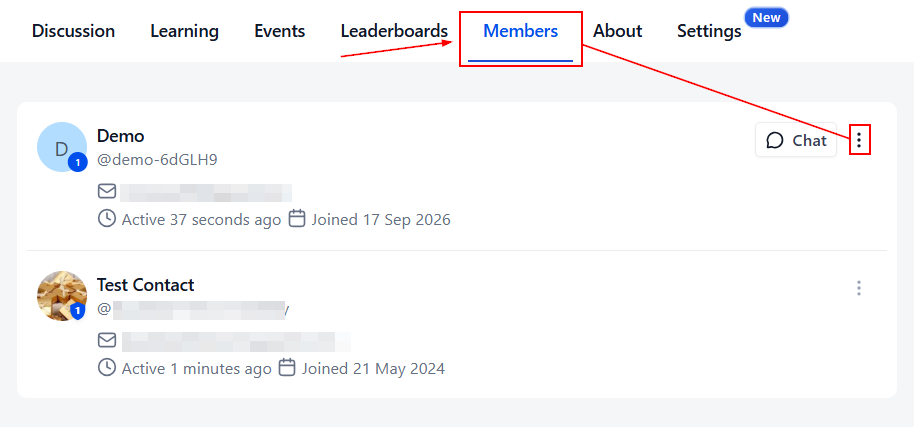
Go to the "Members" section in the group, find the person you want to change, and click on the three dots next to their name.
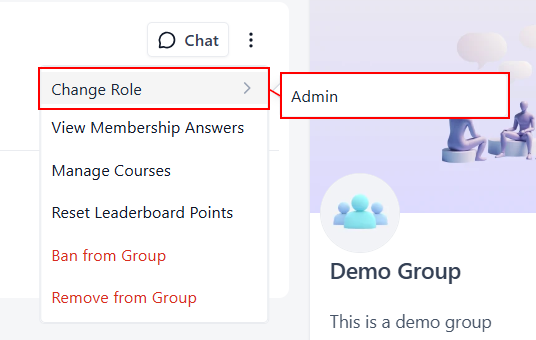
Select Change Role and pick the new job you want them to have.
Managing Courses
If you need to remove/grant access to a Course within the Group, click “Manage Courses” to open the list.
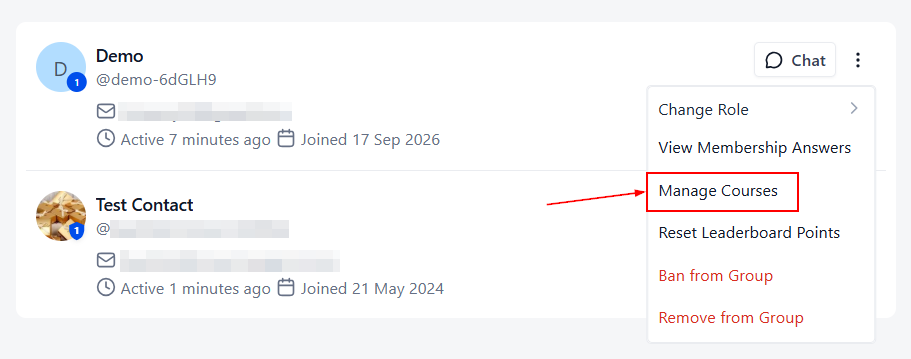
To remove access from a Course, click the x icon.
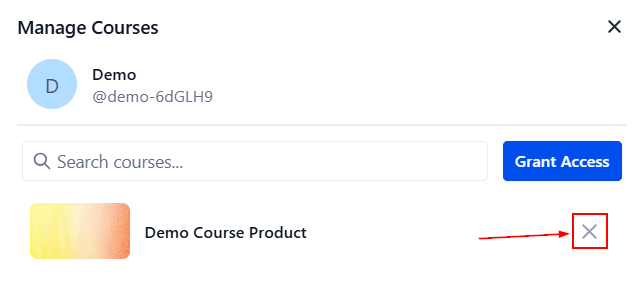
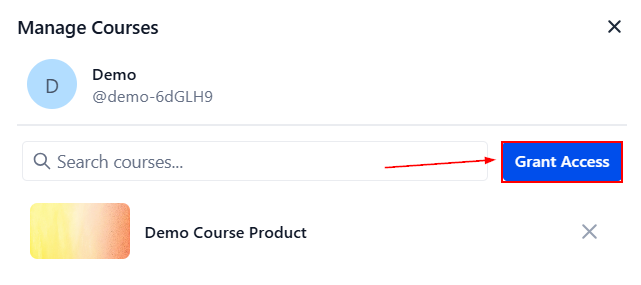
Click Grant Courses to give access.
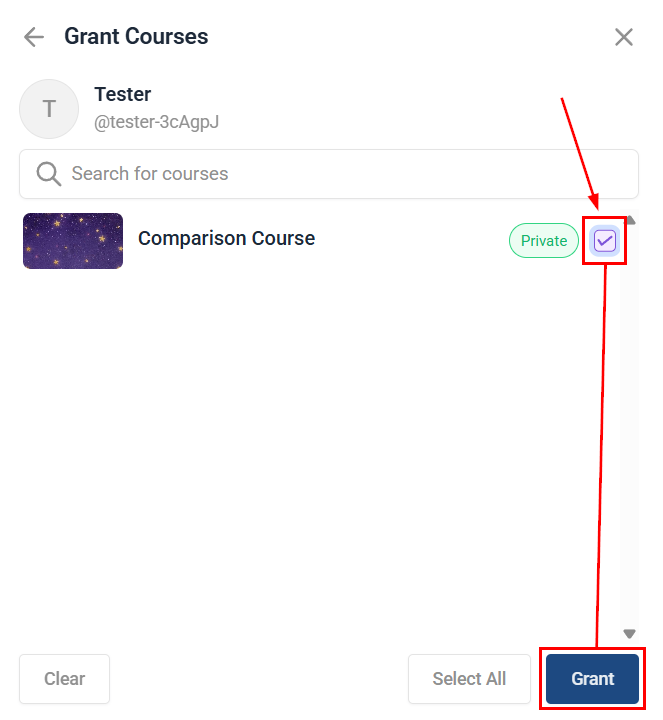
Check the box next to the Courses you want to include, then click Grant to save your changes.
Reset Leaderboard Points
Admins and Owners can encourage member participation by using weekly, monthly, or custom-schedule leaderboards. Once a leaderboard period ends, you can reset a member’s points so everyone starts the next round on a clean slate.
To reset a member’s points, click the three dots next to their name and select the option to reset their points.
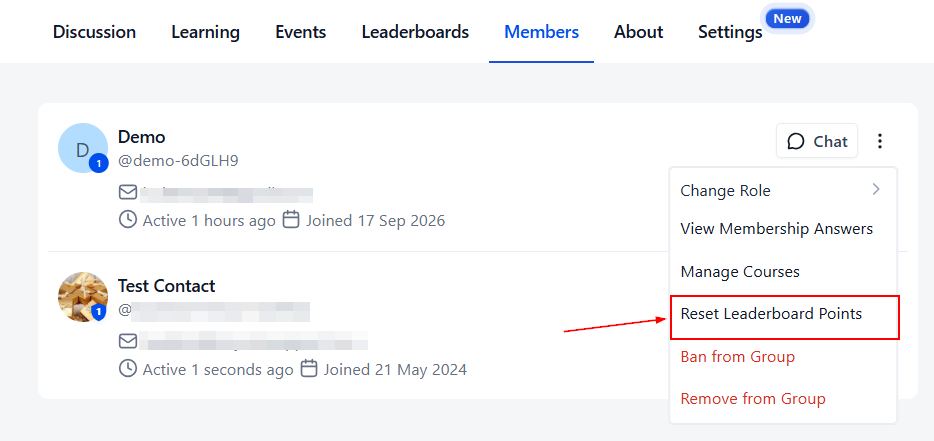
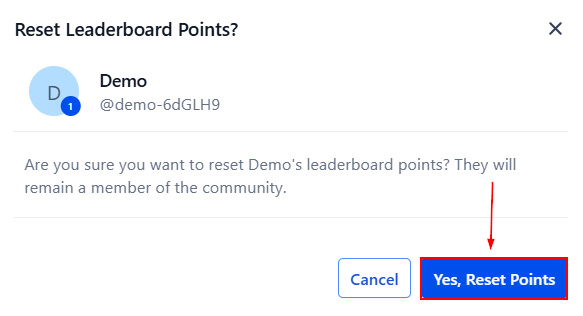
Confirm the action by clicking “Yes, Reset Points”. Note that this action will not affect their access to the group.
Removing and Banning Members
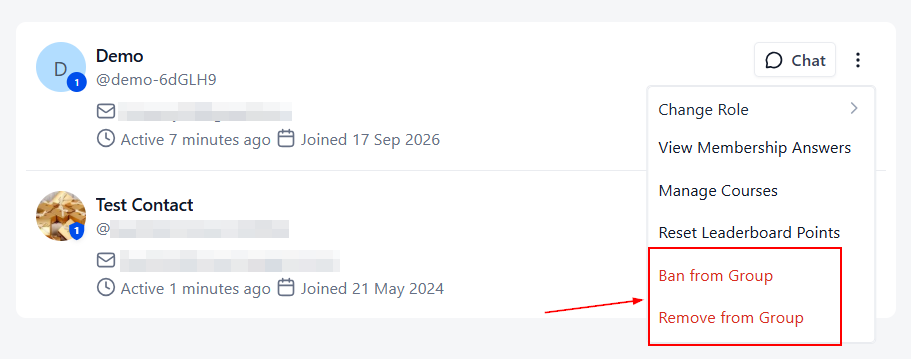
As your group is growing, you may encounter undesired guests. If this happens, Owners and Admins can kick someone out of the group if needed. Removing someone revokes their member status, but they can join the group again in the future. Banning someone is a permanent solution since they will not be able to join the group again. To do so:
Go to the "Members" section in the group. Find the person you want to remove and click on the three dots next to their name.
Choose “Remove” or “Ban” from the group.
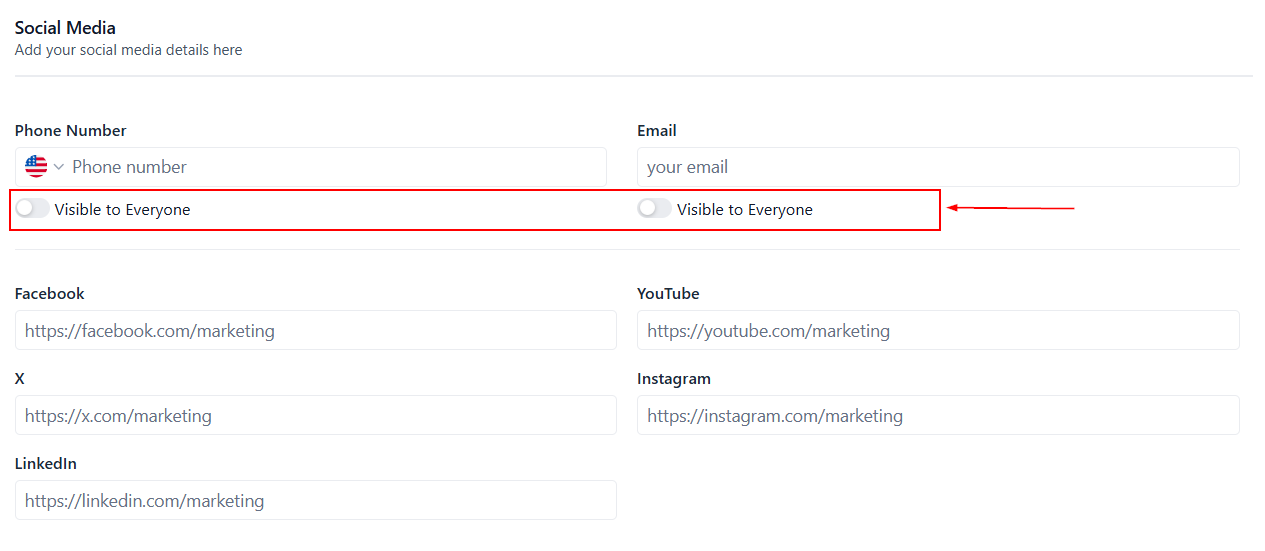
Changing Member Email/Phone Visibility
Members can click on their profile picture on the top right to access their View or Edit Profile area.
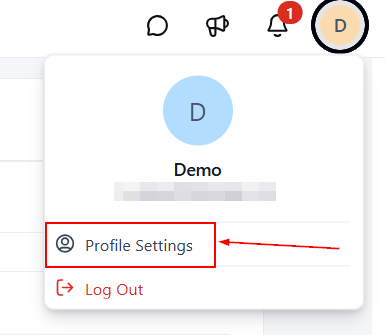
From here, they can access the Social Media tab to choose whether or not they wish their Email/Phone to be visible.
And that’s it! You now know how to manage members in your community. With the right permissions and clear guidelines in place, you can create a safe, organized, and welcoming space where your community can connect, learn, and grow together.
Frequently Asked Questions
Q: I have a large list of potential members. Is there a way to invite them all at once?
A: You can invite multiple members at once by sending out a bulk email or SMS with the group URL included.
Q: Can I personalize the invitation sent to potential members?
A: When inviting someone to join directly from the Communities platform, the message can't be modified. However, if you invite someone to join via SMS or email, you can personalize the invitation, just make sure to keep the group URL in the message.
Q: What happens when an invited member tries to join the group?
A: When an invited member clicks on the group URL, they are directed to the group where they can request to join. For Public Groups, they are admitted automatically upon signing up. For Private Groups, admins may accept their request to join in the “Members” section.