
Course Announcements
Course announcements are an easy way to keep your learners informed without interrupting their learning experience. You can use announcements to share things like important course updates, new lessons or content, reminders, and other messages your learners need to know about. Announcements appear directly inside the course experience, and you can also choose to send them to learners by email. Let’s get into it.
Creating a Course Announcement
Open the Announcements Area
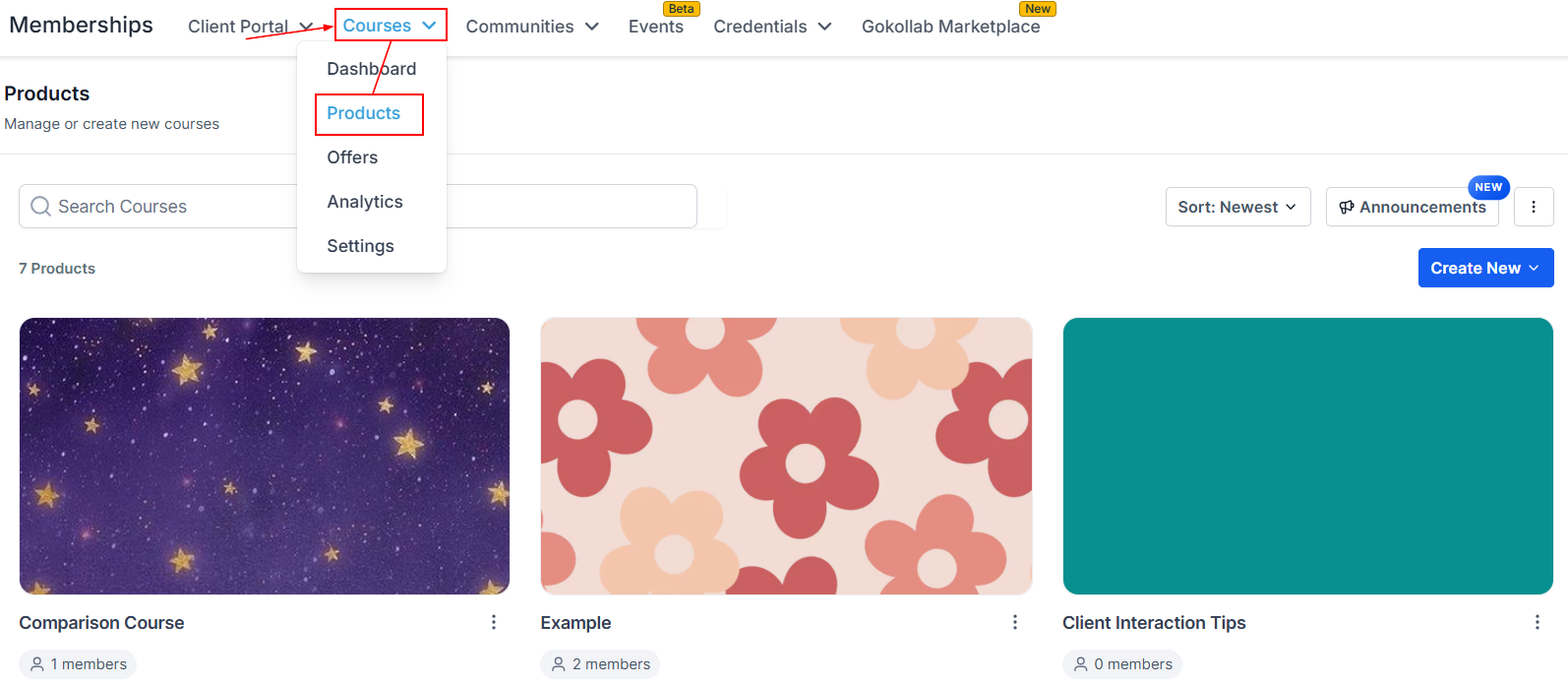
From your account Dashboard, go to Memberships → Courses → Products.
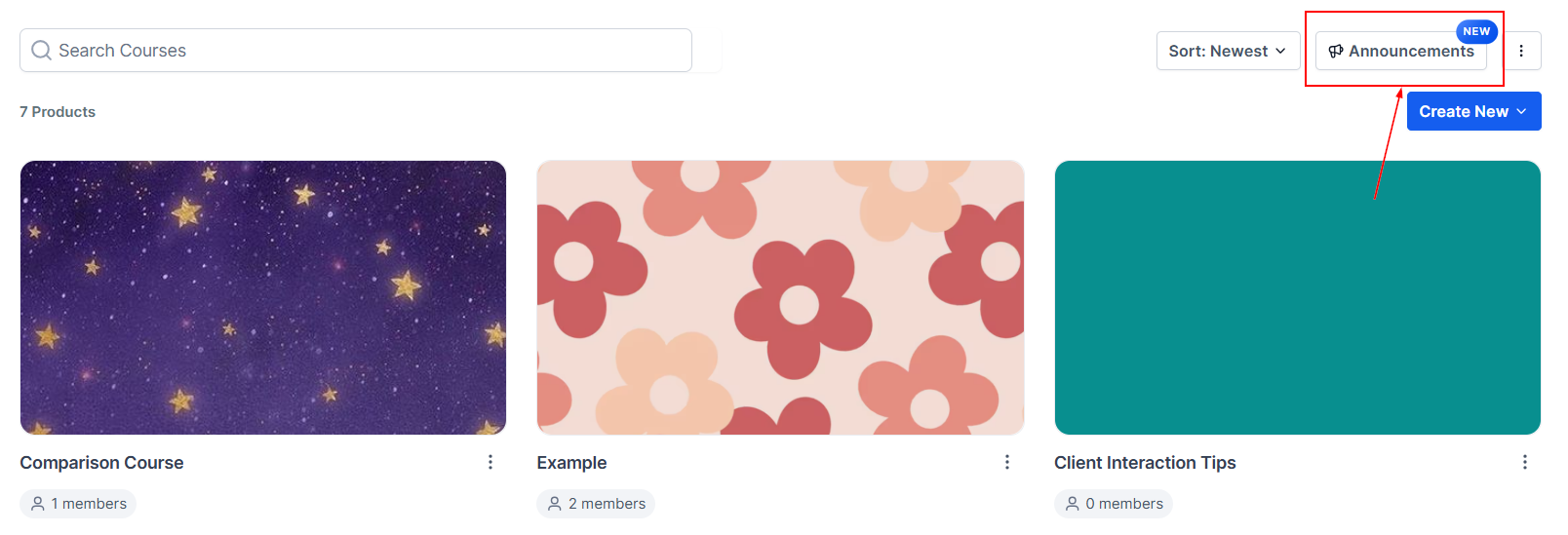
Click Announcements in the top-right corner of the page. This will open your announcements area, where you can create and manage your updates.
Create a New Announcement
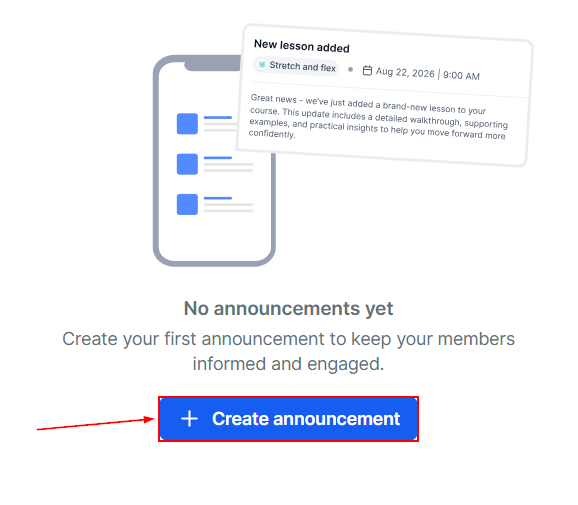
On the Announcements page, click + Create announcement.
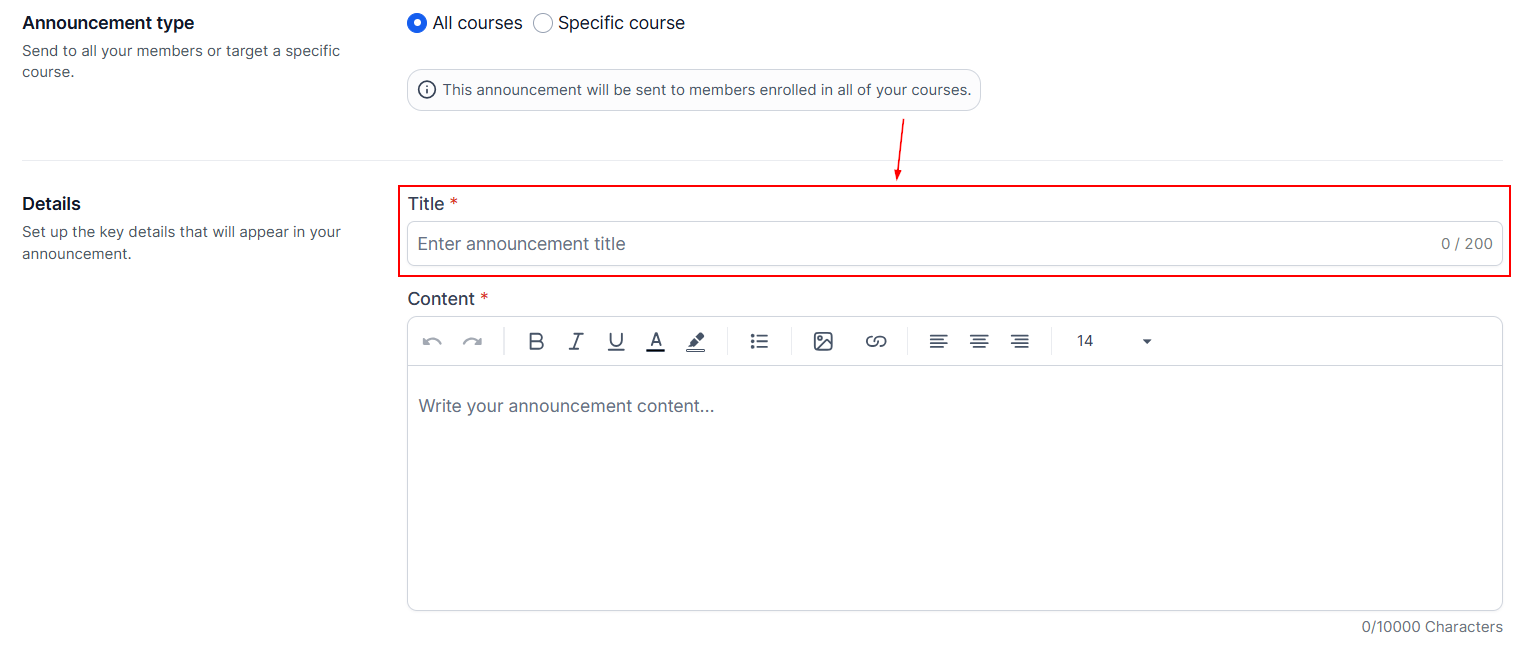
Enter a clear and easy-to-understand Title. Try to make your title specific so learners immediately understand what the announcement is about.
For example:
- New Lesson Available
- Important Course Update
- Live Session Reminder
- New Downloadable Resources
A clear title makes it easier for learners to understand the message at a glance.
Write Your Announcement
Next, add the main content. You can use the editor to add formatted text, images, and links. Keep your message simple and easy to scan. If you're sharing an important update, put the most important information near the beginning.
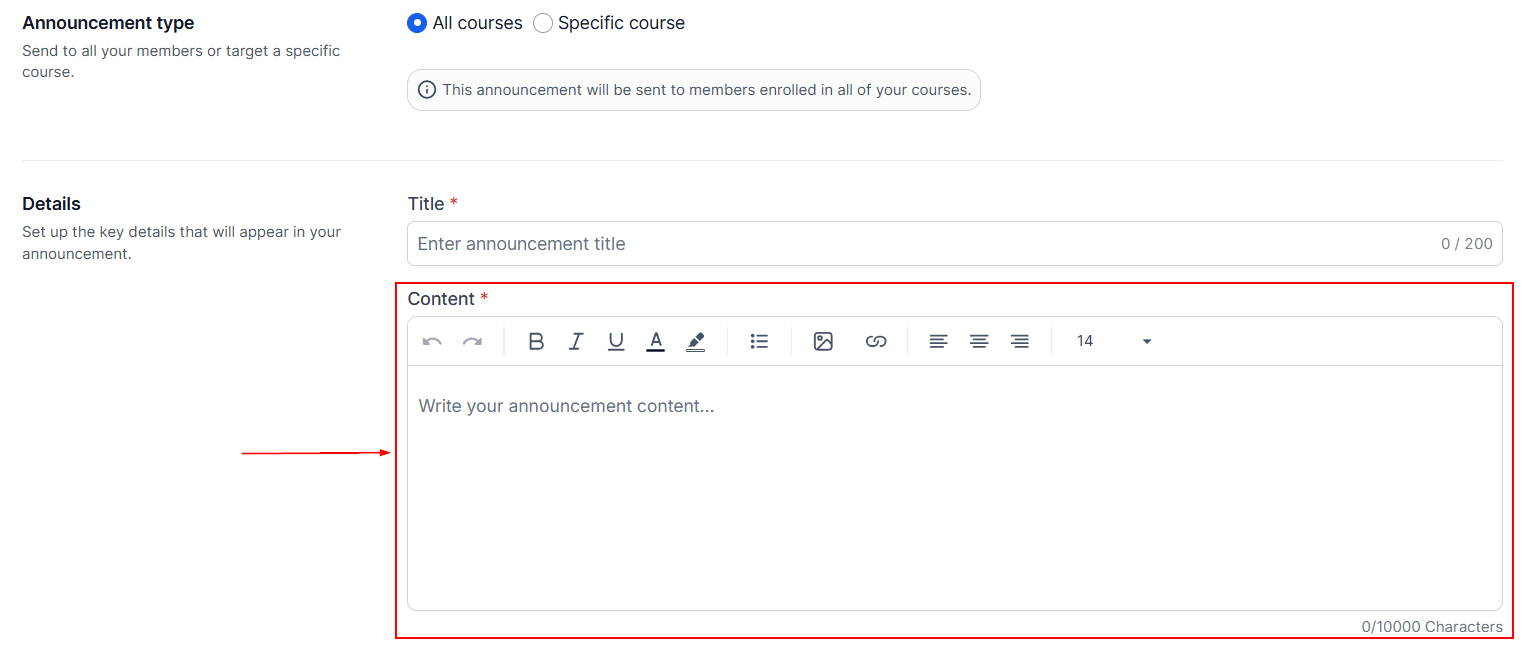
Choose Who Should Receive It
Decide which learners should see the announcement. You can send it to learners enrolled in a specific course or learners across all courses. If you choose to send the announcement to members in a specific course, you will be reqired to select the course from the dropdown.
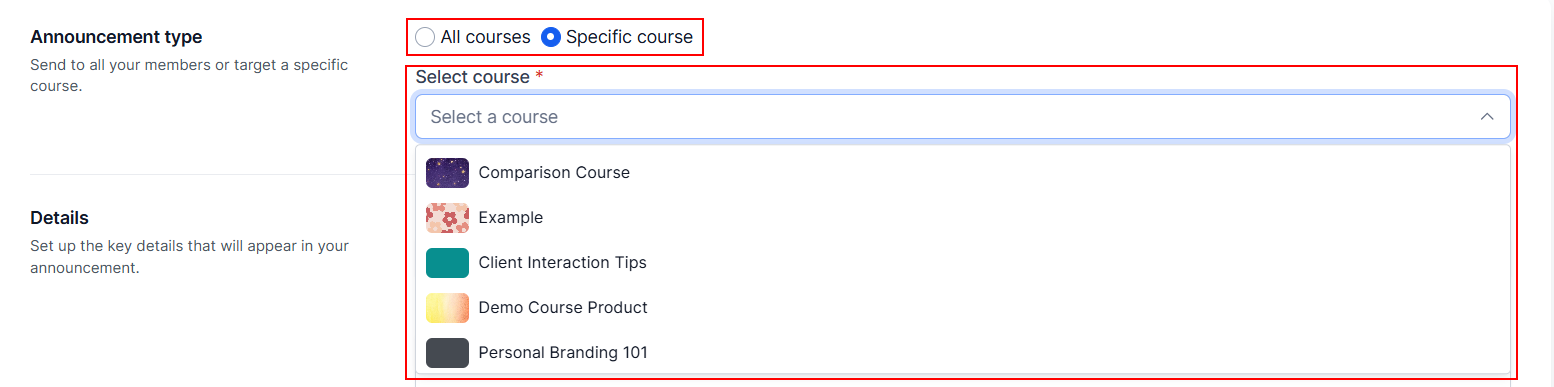
Decide Whether to Send an Email
Announcements are available inside the learner's course experience automatically, but you can enable the feature to send the announcement by email. Email notifications are optional, so only use them when an update needs additional attention.

Once you have finalized all the details, post the announcement.

What Learners See
Once you publish an announcement, learners can find it directly within their course experience. They may see an announcement banner, unread indicator, or an announcement icon in the top navigation
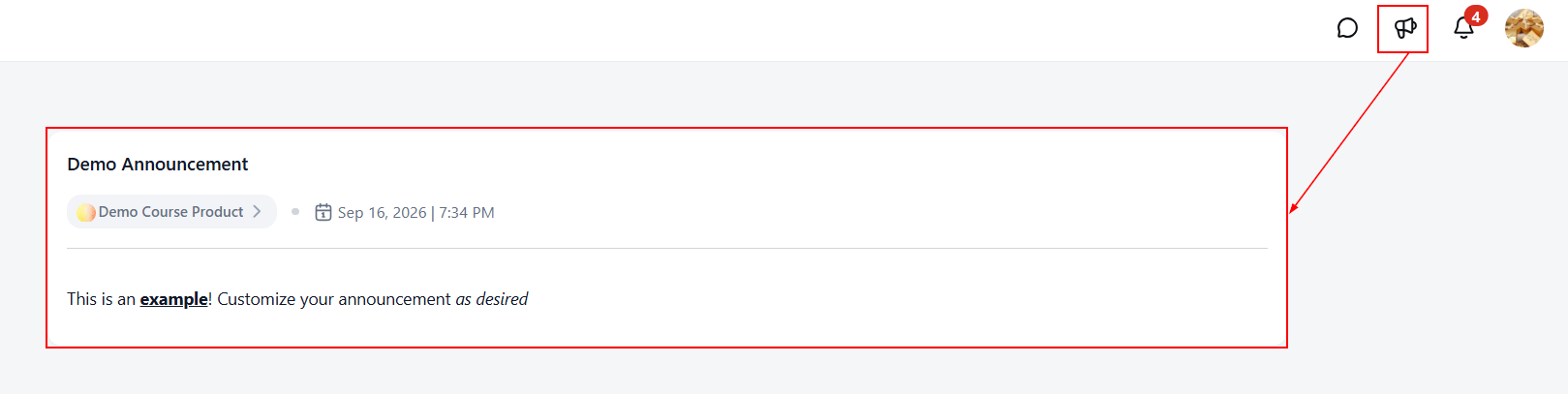
Managing Existing Announcements
After you've created announcements, you can manage them from the Announcements area.
You can view existing announcements, edit an announcement, clone an announcement to reuse it, or delete an announcement. If you have a lot of announcements, you can use the available filters to find what you're looking for. You can filter by Sent to or Date range, or use the search box.

And that's it! You now know how to create, publish, and manage course announcements. Use them to keep your learners up to date with important changes, new content, reminders, and other helpful information.
Frequently Asked Questions
Where do I create course announcements?
- Go to Memberships → Courses → Products, then select Announcements.
Can I send an announcement to more than one course?
- Yes. You can target a specific course or send an announcement across all courses.
Will learners receive an email for every announcement?
- No. Email notifications are optional. Announcements will appear inside the course experience even when email notifications are turned off.
Can I add images and links?
- Yes. You can use formatted text, images, and links within your announcement.