
How to Use Conversation Widgets on Your Dashboard
The Conversations Widget is essential for optimizing your business’s communication strategy. It provides unmatched visibility by instantly displaying metrics related to unread messages, ensuring that important communications are never missed. Additionally, the widget streamlines the tracking of unread messages, significantly enhancing time management and productivity within your team. This guide will walk you through the process of adding the Conversations Widgets to optimize your dashboard for better oversight and engagement.
Navigate to the Dashboard by selecting it from the left navigation menu.
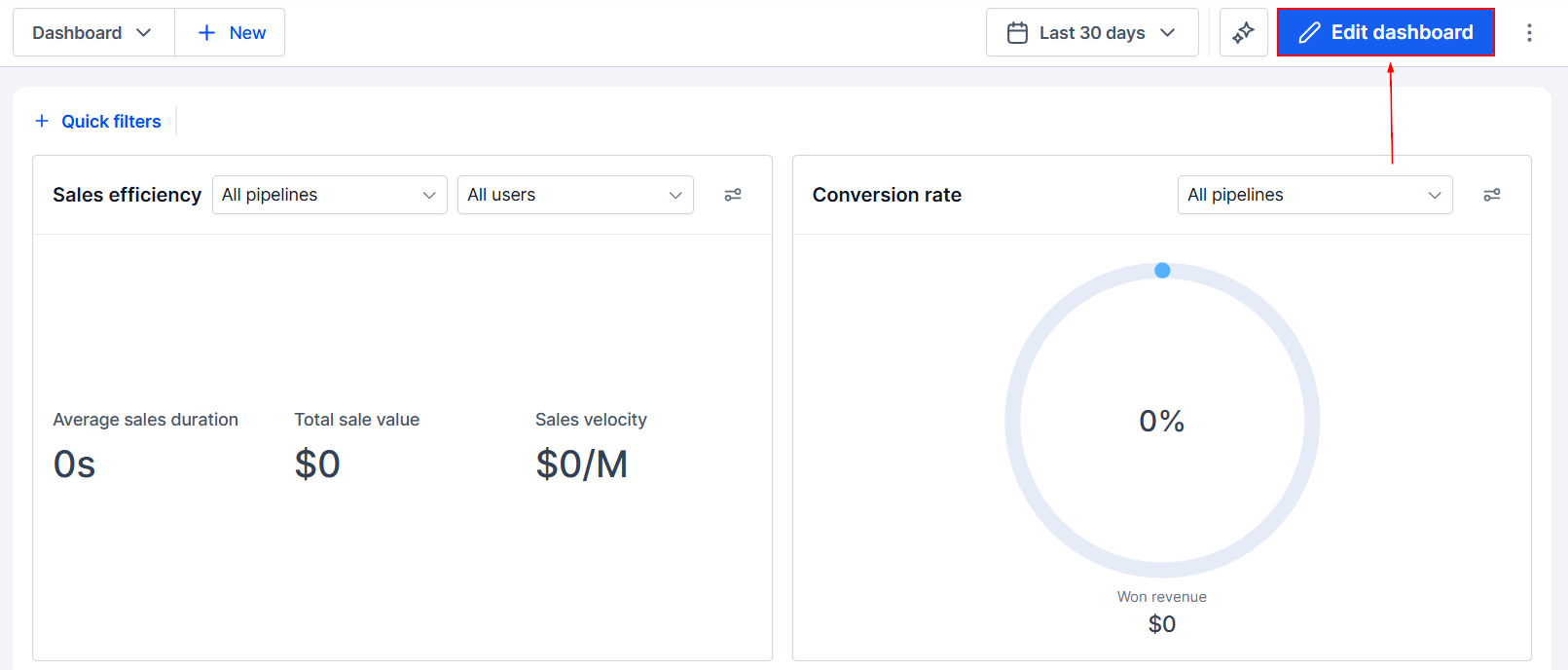
Edit Dashboard
Look for the Edit Dashboard icon and click on it to customize your dashboard view.
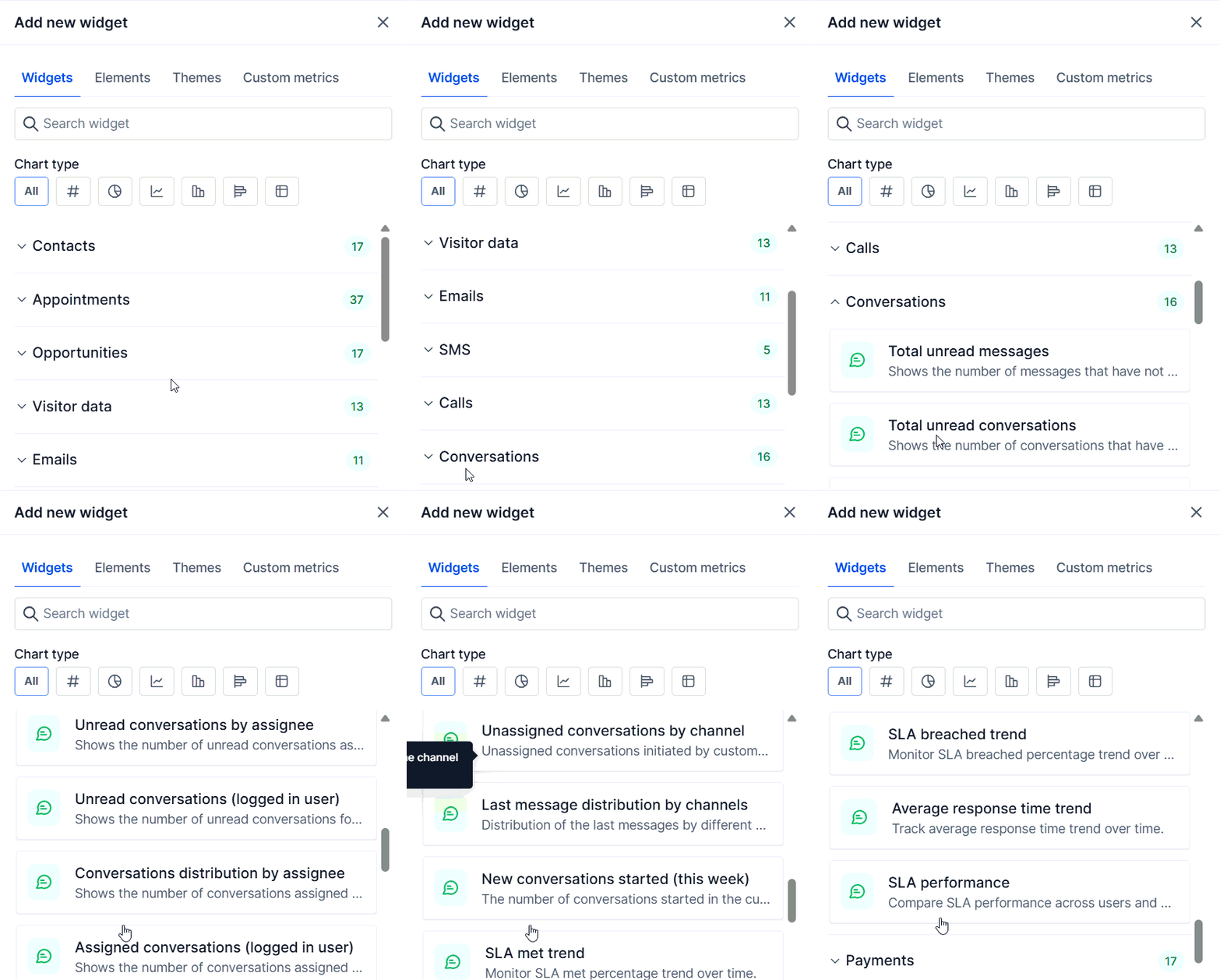
Select Conversations Widgets
From the list of options, choose the Conversations Widget you wish to add to your dashboard.
Customizing the Widget
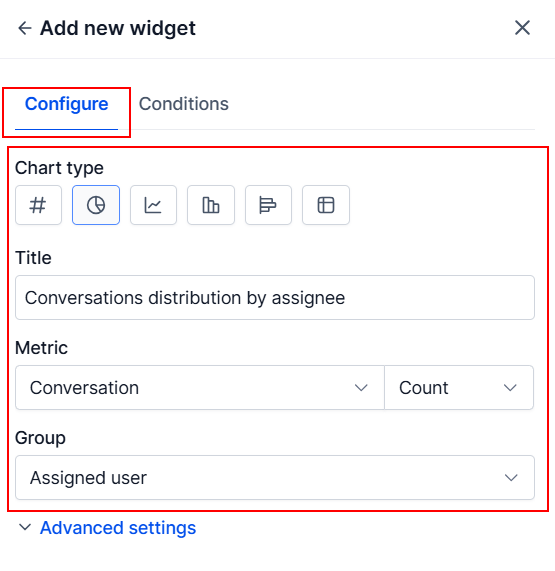
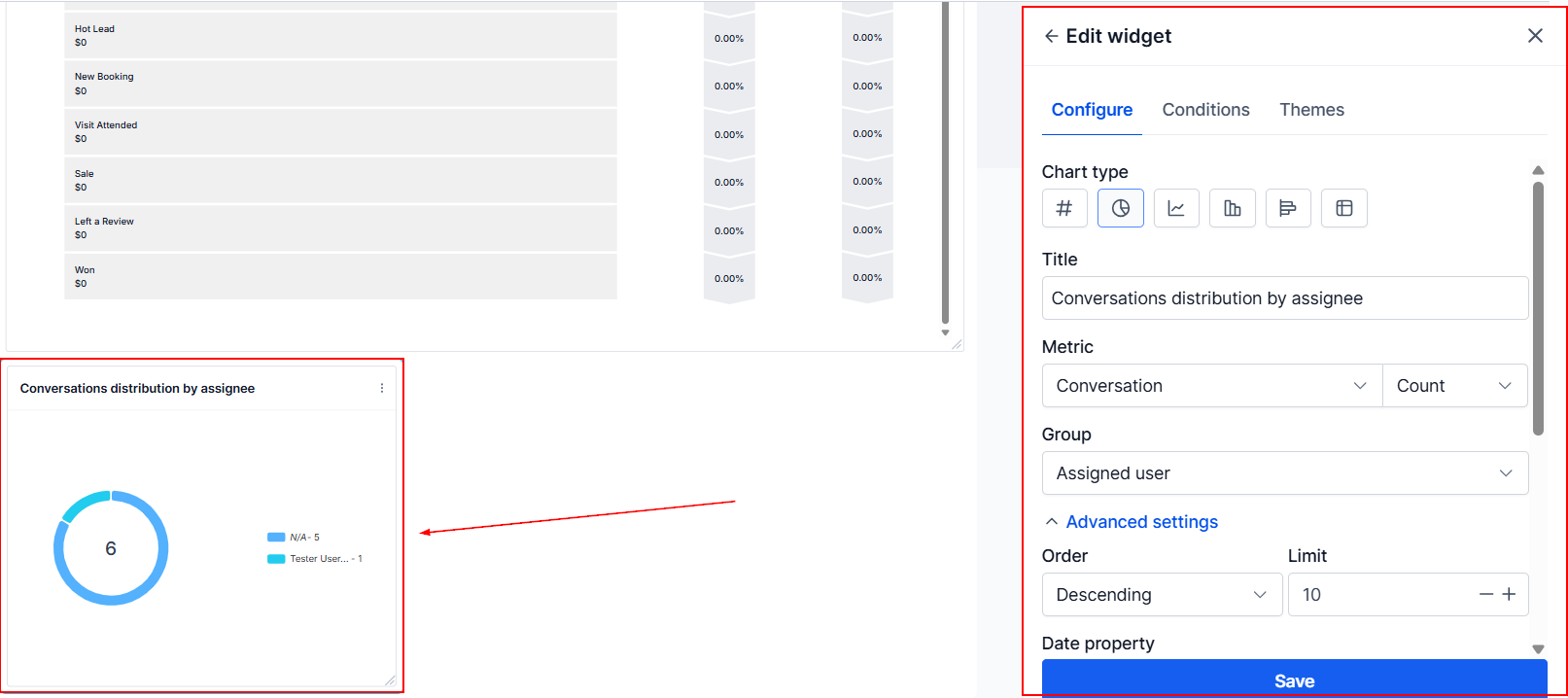
After choosing a widget, choose a chart type and complete the required fields within the Configure section. This includes:
- Title: Modify the widget's title for clarity and ease of understanding.
- Metric: Adjust the data points to match your specific requirements.
- Group: Define how results are grouped, particularly for Donut charts.
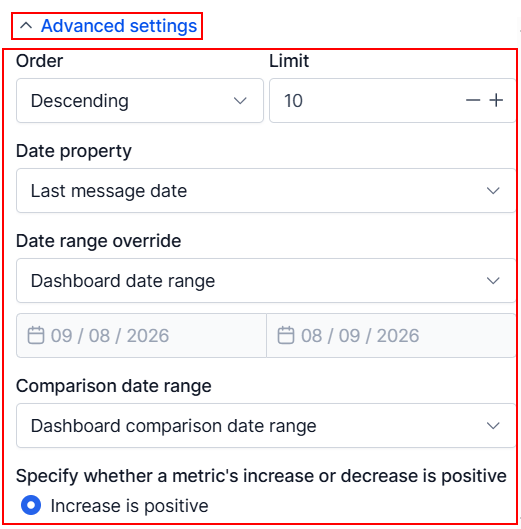
For advanced customization, select "Advanced Settings" and complete the relevant fields.
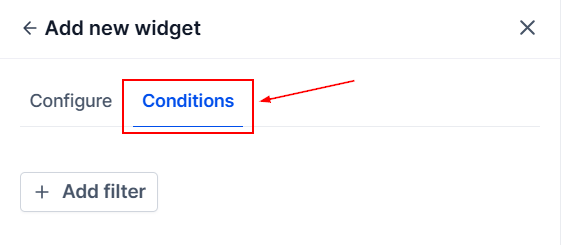
Use the "Conditions" tab to apply specific filters.
Click the Save button to apply the changes.
Customize Your View
Once added, you can see the widgets on your Dashboard, offering insights into your messages at a glance.
By integrating these widgets into your dashboard, you gain a comprehensive overview of your communication channels, enabling more efficient and effective client interactions.
Frequently Asked Questions
Q: What if the Conversations Widget does not display any data?
- Ensure you have active conversations that meet the filter requirements. If the issue persists, check your dashboard settings or contact support for assistance.
Q: Can I customize which messages appear in the Conversations Widget?
- Currently, the widget automatically displays all unread messages.
Q: How often is the data in the Conversations Widget updated?
- The widget updates in real-time, ensuring you have the most current information on unread messages.