
Adding a Widget to the Dashboard
Customizing your dashboard with widgets is a powerful way to visualize important data. Follow these steps to seamlessly add and personalize widgets, ensuring your dashboard reflects the metrics and insights most relevant to your workflow.
Access the Add Widget Option
Navigate to the Dashboard section and select the Edit Dashboard icon to enter edit mode.
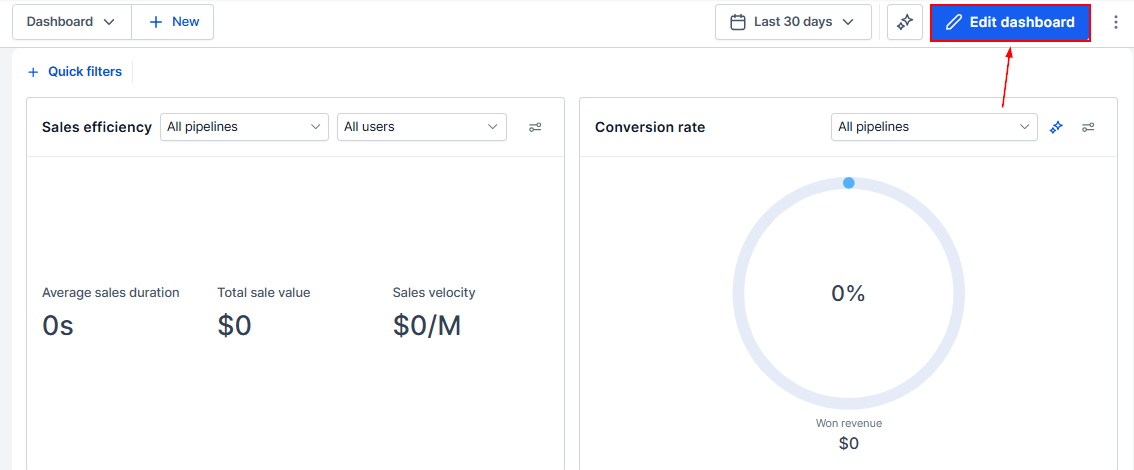
Clicking this button will open the "Add Widgets" section on the right, where you can begin selecting the widgets that fit your needs.
Select Your Widget
Browse through various widget options. You can search, explore categories, or filter by chart types to find the ideal fit. Each widget comes with a default chart type, but you can easily adjust it to suit your preferences.
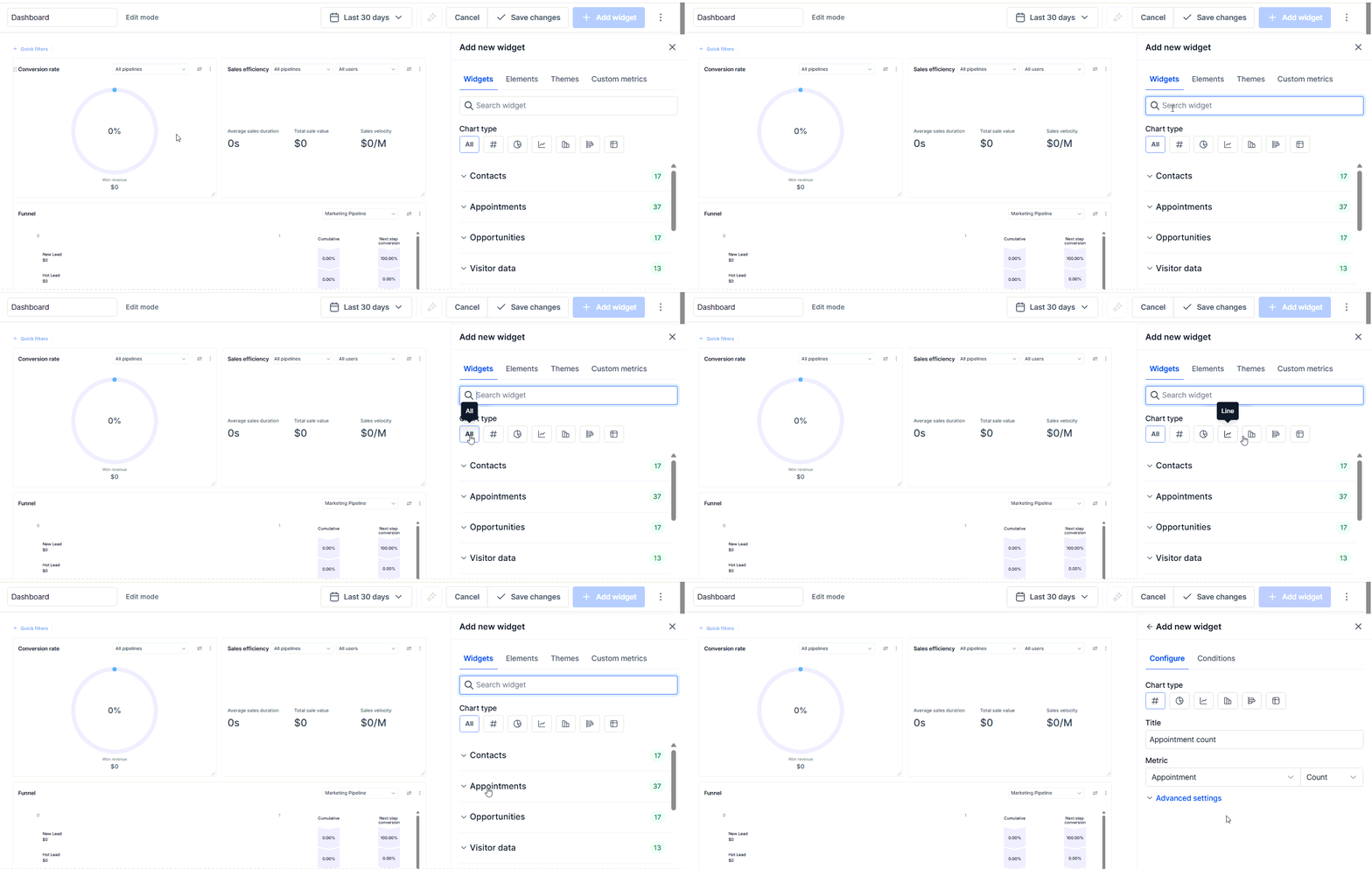
Customize Your Widget
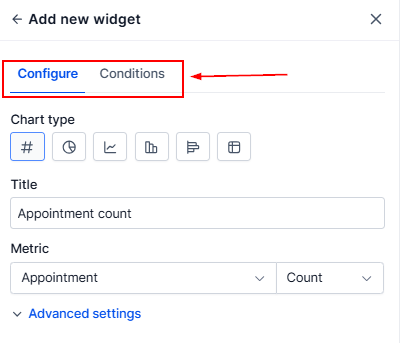
Once you’ve found the widget that meets your needs, you can customize its title and refine your preferences in the “Configure” and “Conditions” modals.
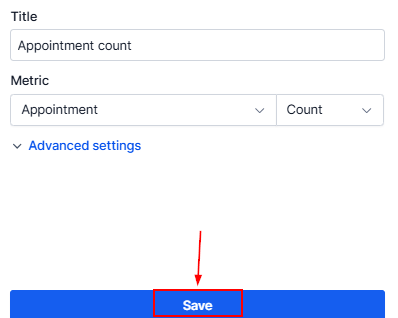
After making any desired changes, click the "Save" button to add the widget to your dashboard.
Finalize and Save Changes
Your new widget will now appear on your dashboard. You can resize or reposition it to align with your layout preferences. You can also edit the widget’s theme using the tab in the right side bar.
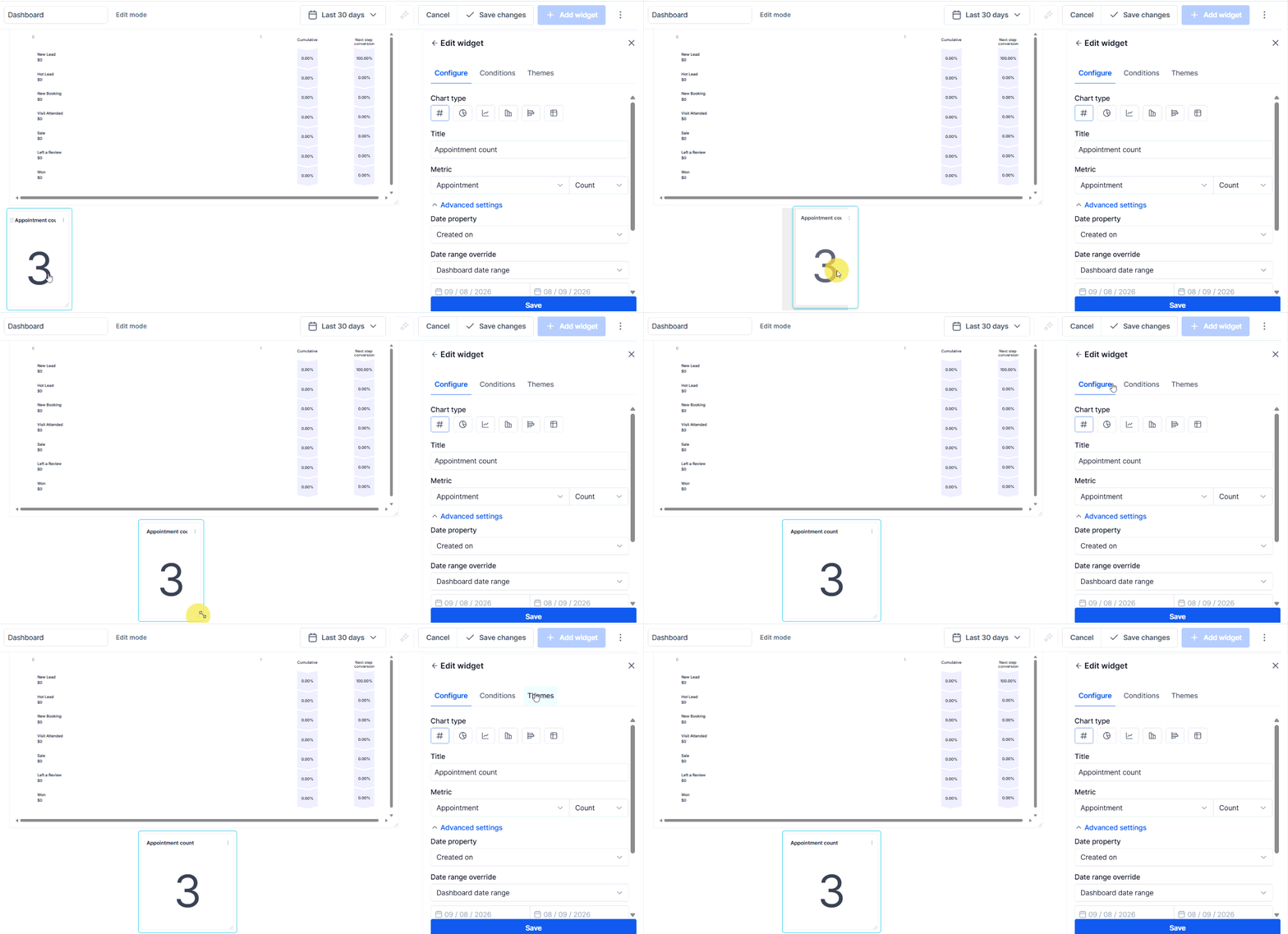
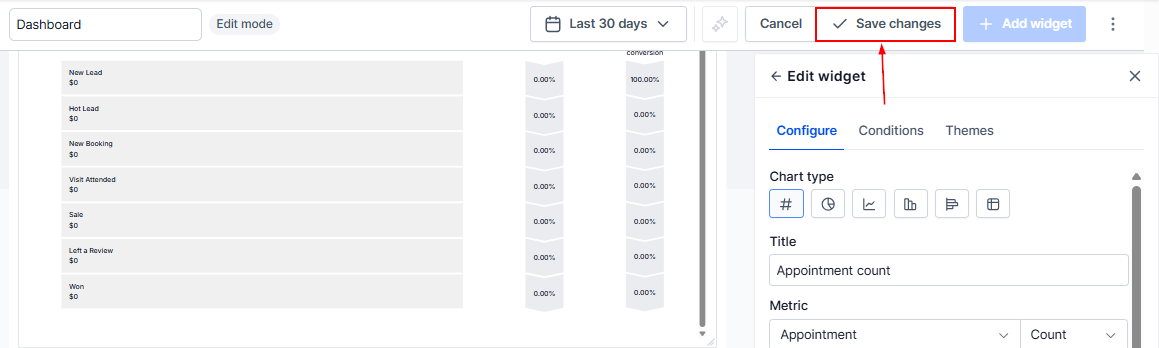
When you're satisfied with the placement, click "Save Changes" to confirm the new setup for your dashboard.
By following these steps, you’ll create a tailored, efficient dashboard that lets you track key metrics and improve your data-driven decision-making.