
How to Use Contact and Opportunity Custom Fields as Custom Metrics
Custom fields allow you to capture business-specific information about contacts and opportunities beyond standard CRM fields. When these fields contain numeric or monetary values, you can use them as custom metrics to measure performance, track key business figures, and gain more meaningful insights from your data. Instead of manually calculating totals or exporting information to spreadsheets, you can aggregate custom field values directly within dashboards, custom reports, and the Custom Metric module. This makes it easier to monitor the numbers that matter most to your business.
Create or Identify a Custom Field
Before using a custom field as a metric, ensure that an eligible field exists for the correct record type.
Navigate to Settings > Custom Fields and select the appropriate object: Contact or Opportunity.
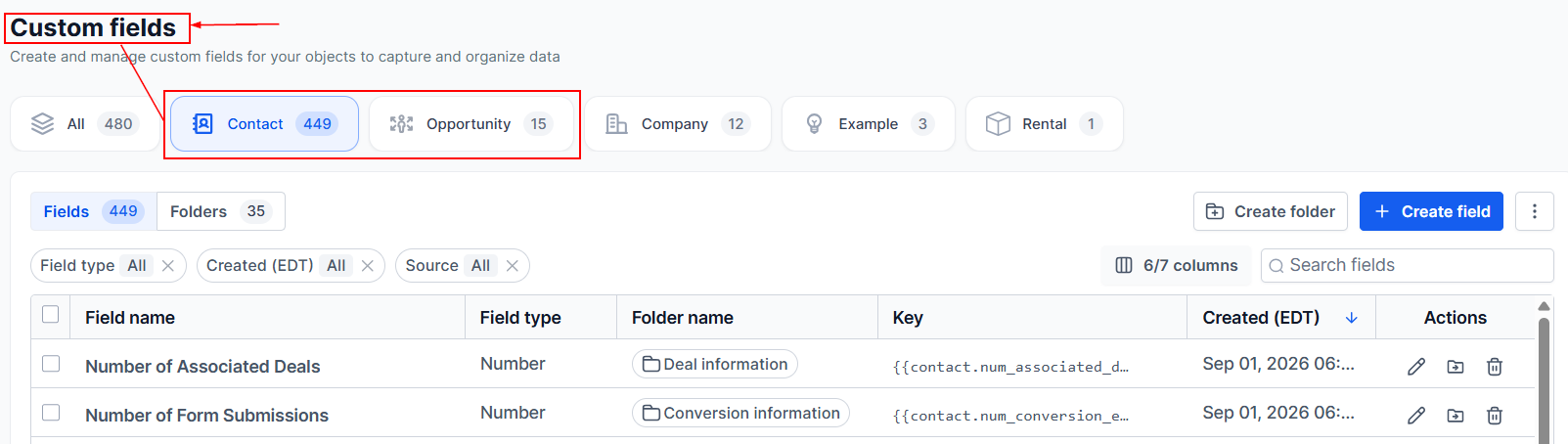
Create a new custom field or locate an existing one.
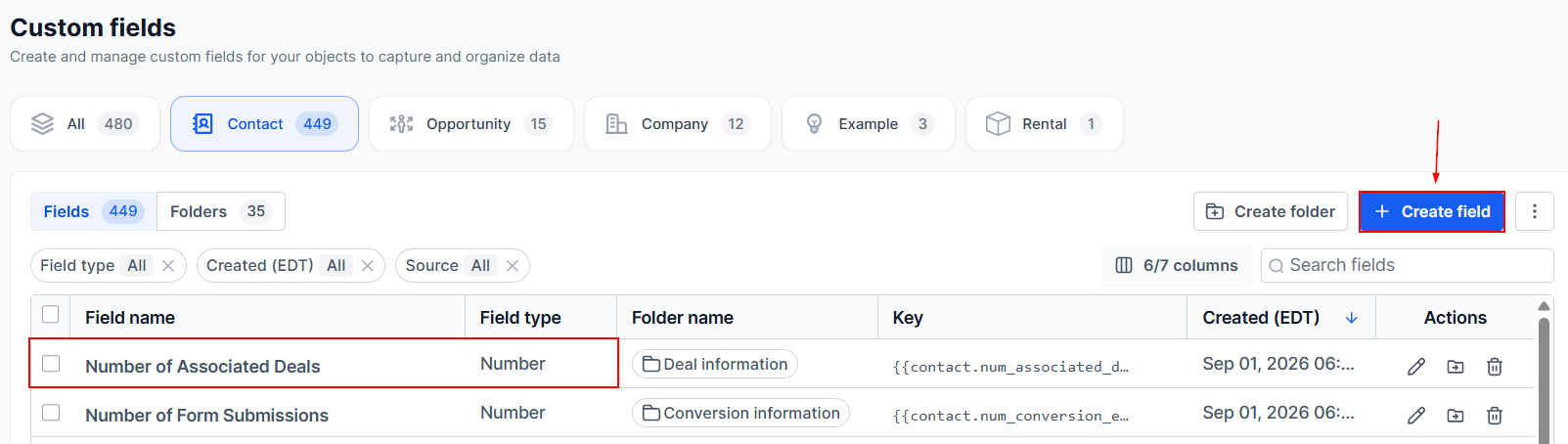
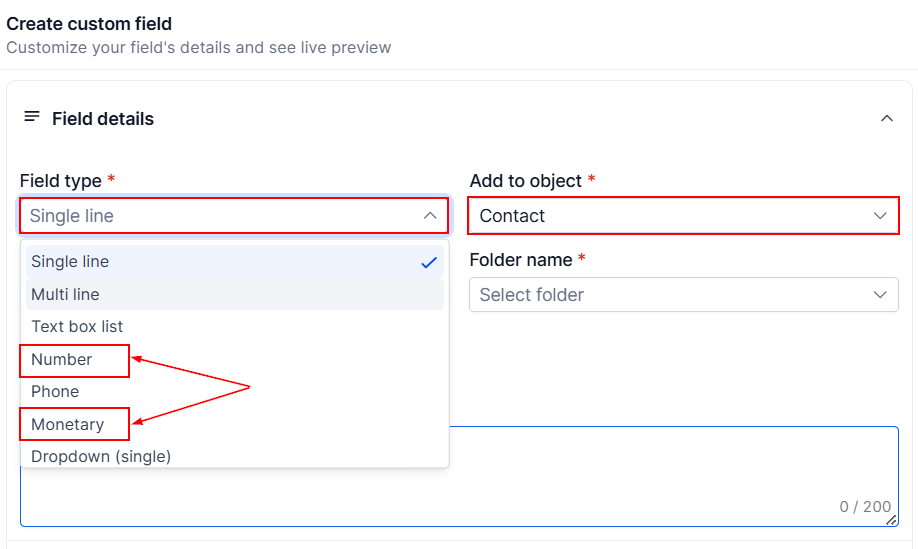
If creating a new field, choose either the Number or Monetary field type.
- Number: For numerical values such as quantities, scores, or estimated costs.
- Monetary: For currency-based values such as property values, treatment costs, or projected revenue.
Enter the field name and configure the required details, then save it.
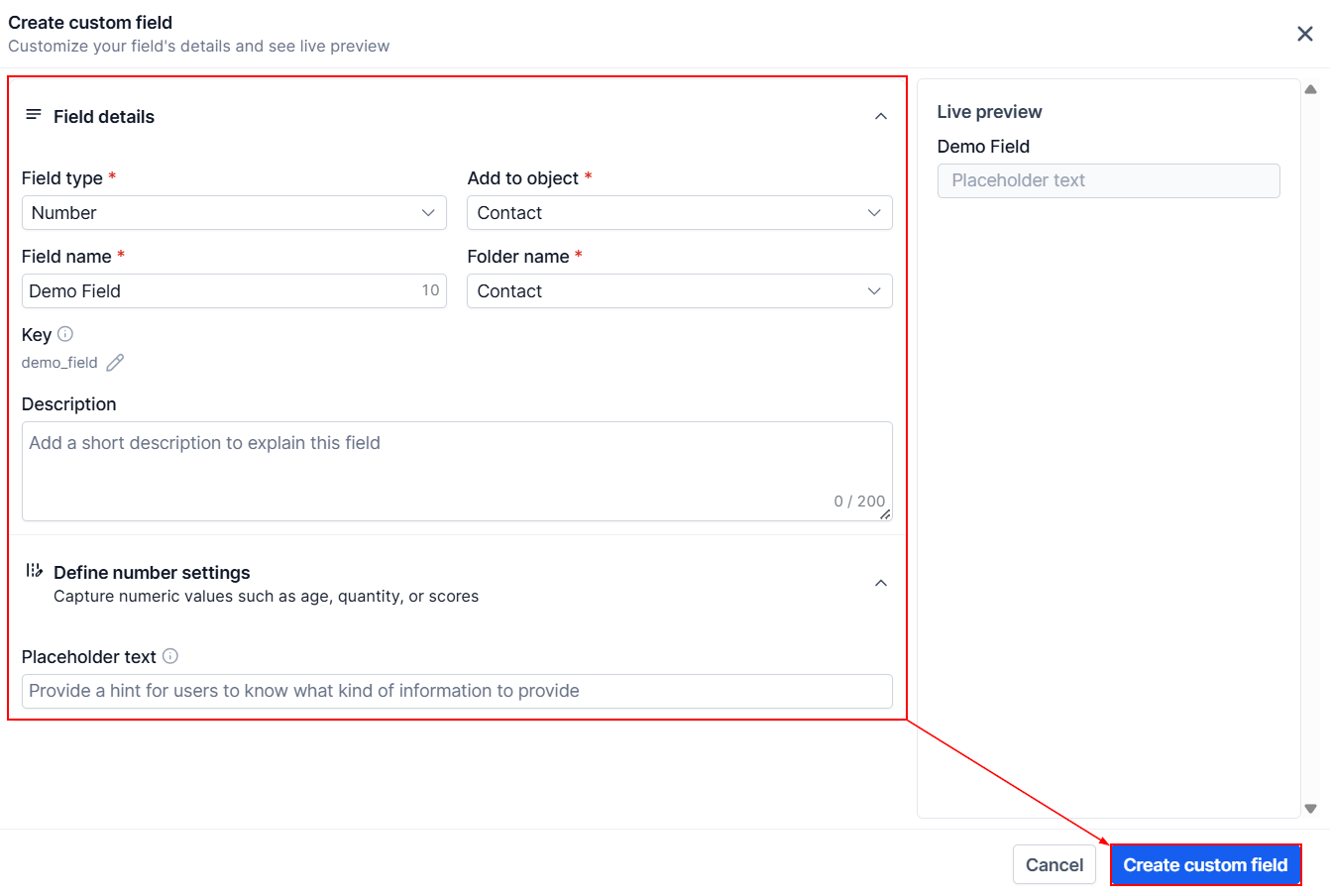
Choose the object carefully when creating the field. Contact custom fields store information associated with a person, while Opportunity custom fields store information associated with a specific deal. The object assigned to a custom field cannot be changed after creation, so you'll need to create a new field if the wrong object was selected.
Add a Custom Field as a Metric in a Dashboard or Custom Report
Once your custom field is available, you can use it in supported dashboard widgets and custom report widgets.
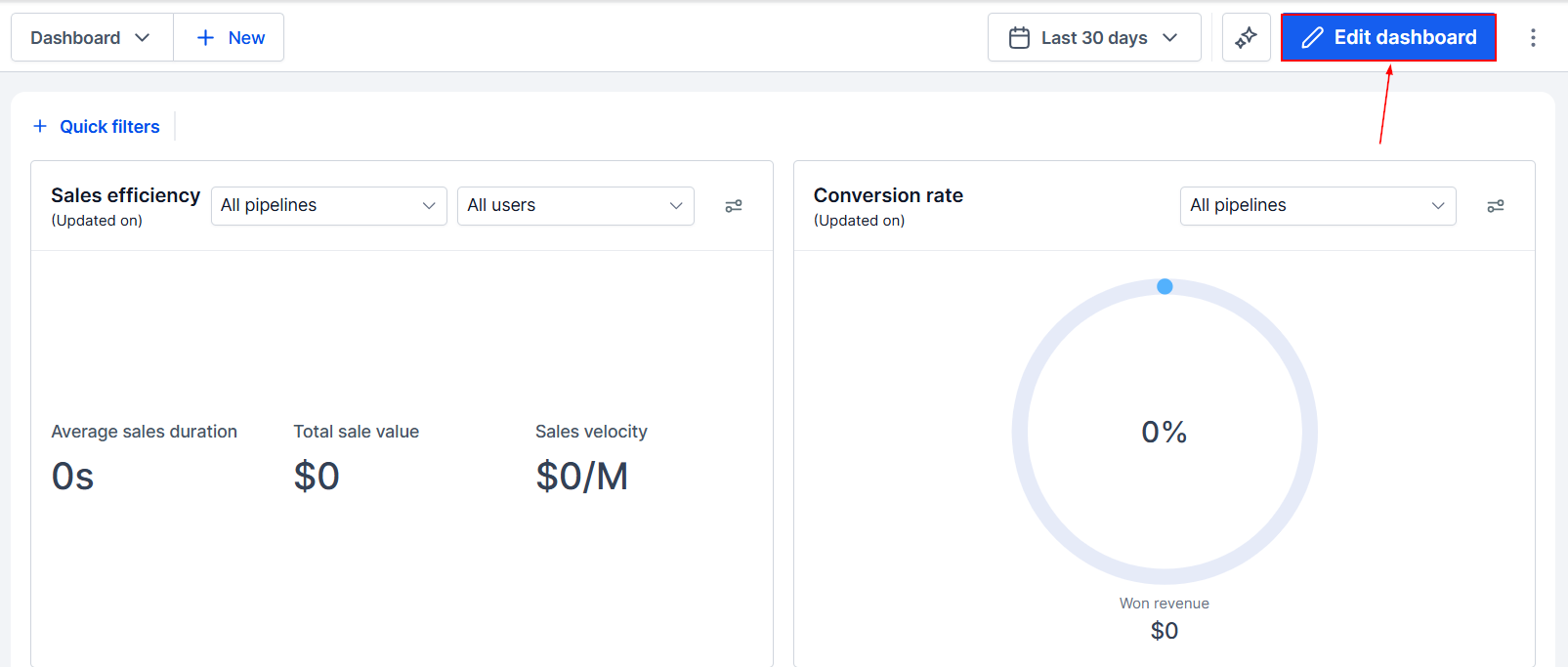
Open the dashboard or custom report you want to update, then enter edit mode.
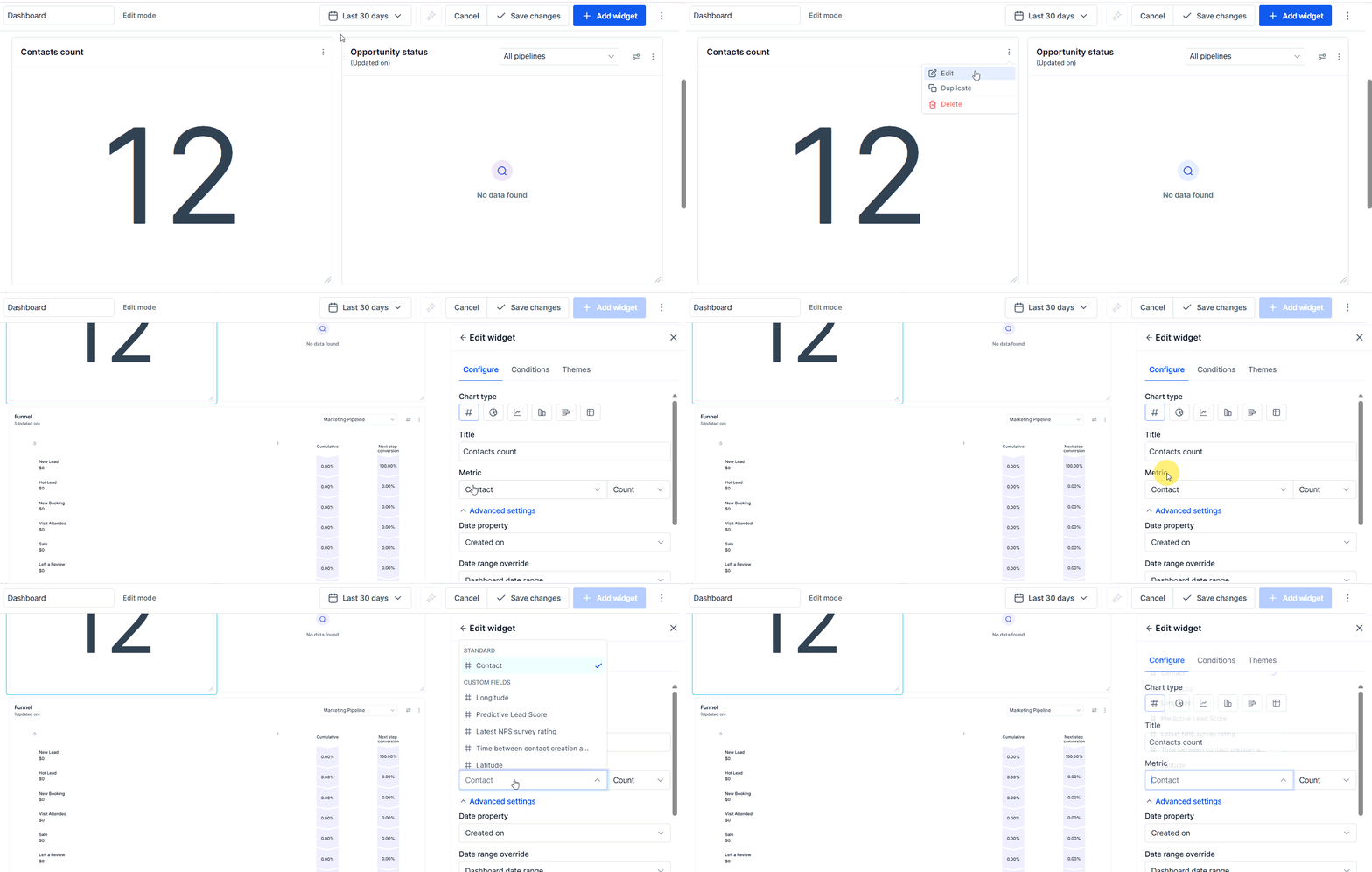
Add a widget or edit an existing widget that supports metric configuration.
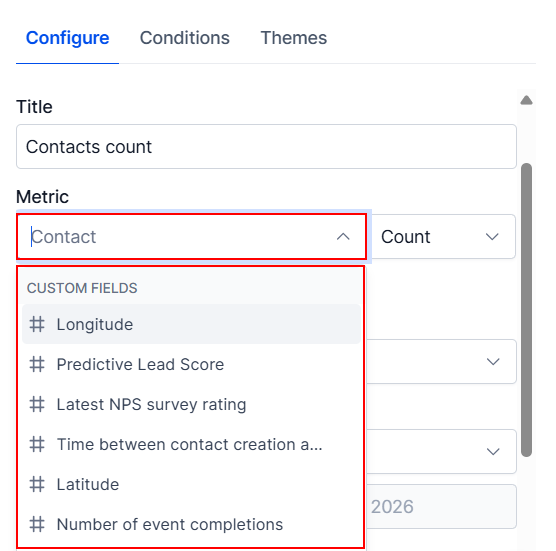
In the Field dropdown, select the eligible Contact or Opportunity custom field you want to measure.
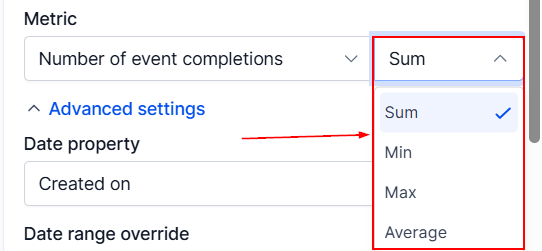
In the Aggregation dropdown, select the calculation you want to apply: Sum, Min, Max, or Average.
Configure any applicable filters or grouping options to refine the results.
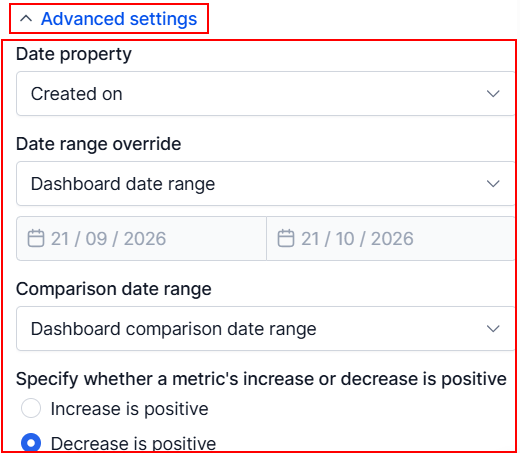
Save your changes to display the calculated value in the widget or report.
Choose the Right Aggregation for Your Reporting Needs
You can apply four types of aggregations to these fields:
Aggregation | Description | Example use case |
|---|---|---|
Sum | Calculates the total of all applicable values. | Calculate the total estimated value of properties across opportunities. |
Minimum | Identifies the lowest value. | Identify the lowest recorded treatment cost. |
Maximum | Identifies the highest value. | Find the highest projected deal value. |
Average | Calculates the average across applicable values. | Calculate the average budget recorded across opportunities. |
The aggregation you select determines what the metric tells you. The same custom field can provide different insights depending on the calculation applied.
Choose the calculation that aligns with the question you want your report to answer. You can also use supported filters and grouping options to narrow the results to a specific pipeline, opportunity status, or other relevant criteria.
Use Custom Fields in the Custom Metric Module
Custom field metrics can also be used in the Custom Metric module to build more advanced calculations. Open the Custom Metric module within the dashboard or custom report editor and create a new custom metric or edit an existing one.
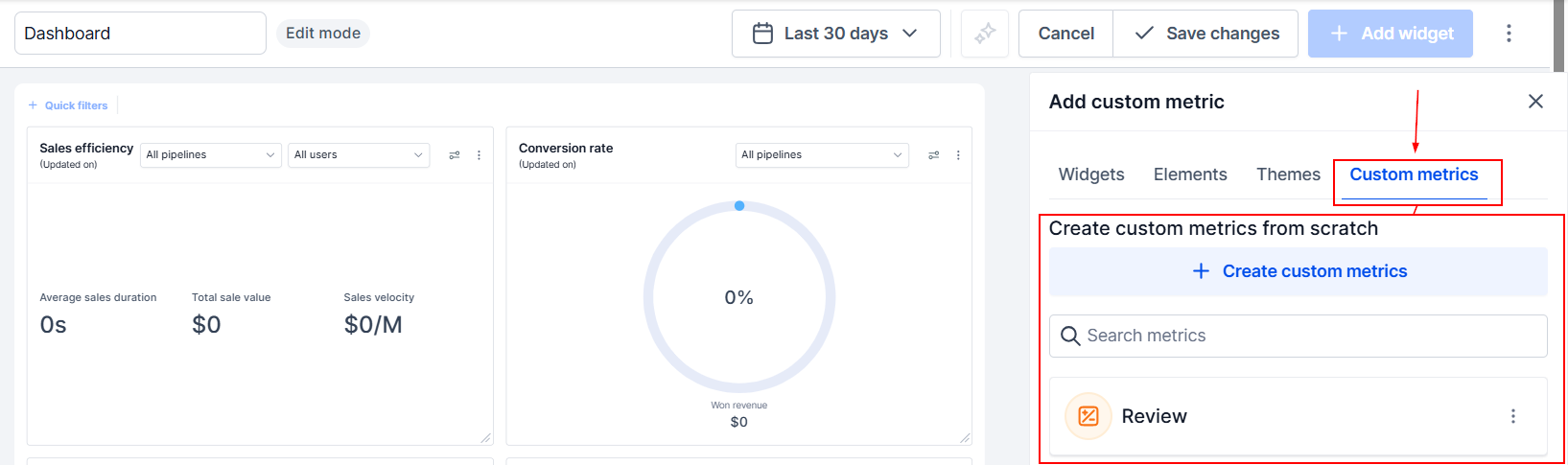
Add the eligible Contact or Opportunity custom field as a metric in the formula builder. Select the appropriate aggregation for the field and combine it with other supported metrics or calculations as needed.
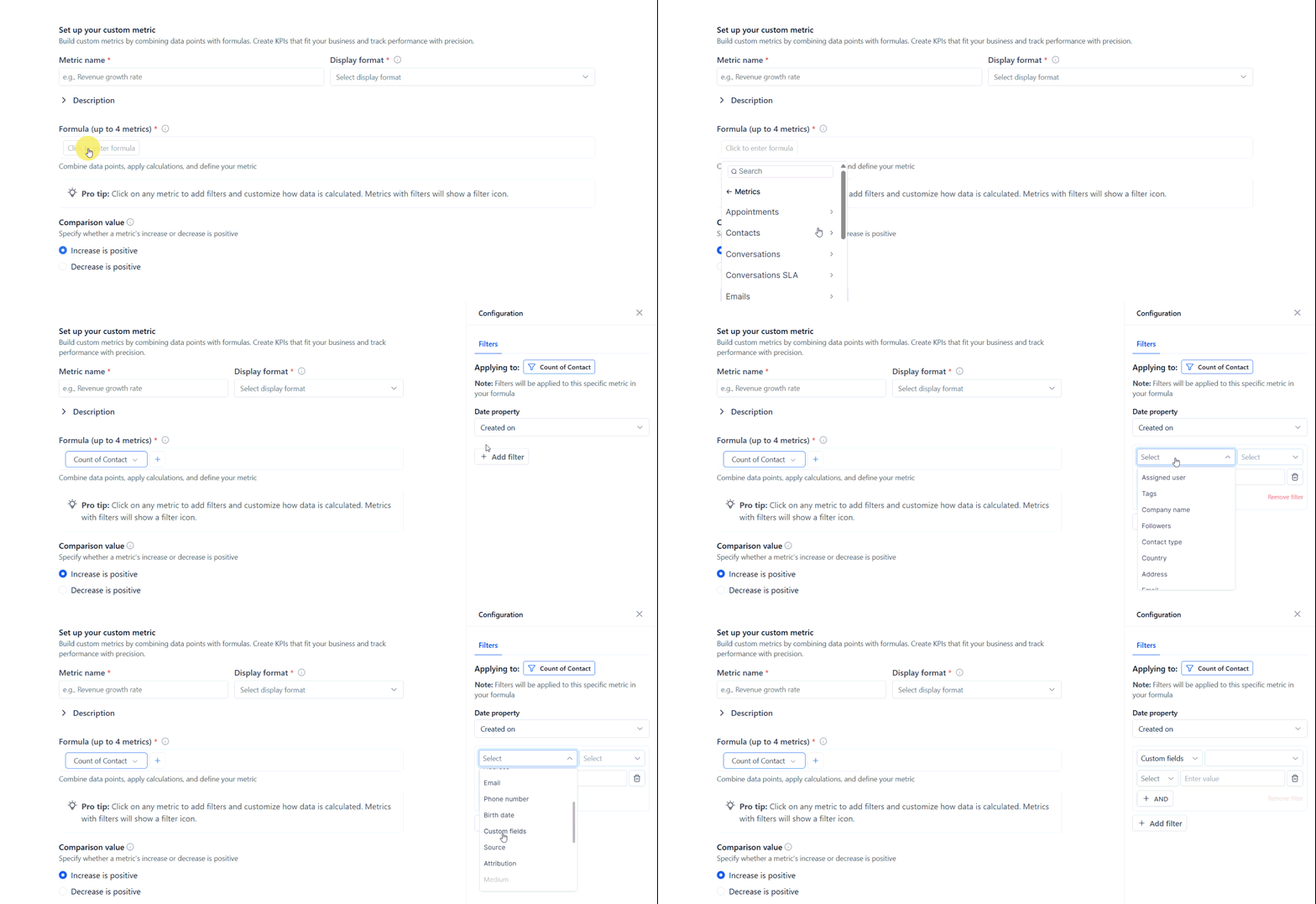
Configure the desired output and save the custom metric.
Using Contact and Opportunity custom fields as metrics allows you to measure the business-specific data that standard reporting may not fully capture. By applying Sum, Min, Max, or Average to eligible fields, you can build more relevant dashboards, create insightful reports, and track the KPIs that matter to your business.
With these metrics available across supported reporting tools, you can reduce manual calculations, improve visibility into important business figures, and make more informed decisions using the data already stored in your records.
Important Considerations
- Use eligible field types: Only Number and Monetary custom fields on Contacts and Opportunities can be used for these custom field metrics.
- Select the correct object: Contact and Opportunity custom fields are distinct and cannot be converted from one object type to the other.