
How to Add SMS Widgets to the Dashboard
SMS widgets help you see all channel activity without switching tools or filtering through Conversations, making your monitoring more efficient and showing KPIs, such as delivery rate or inbound volume, to make changes to your SMS marketing immediately. Let’s learn how to use them!
How To Add An SMS Widget
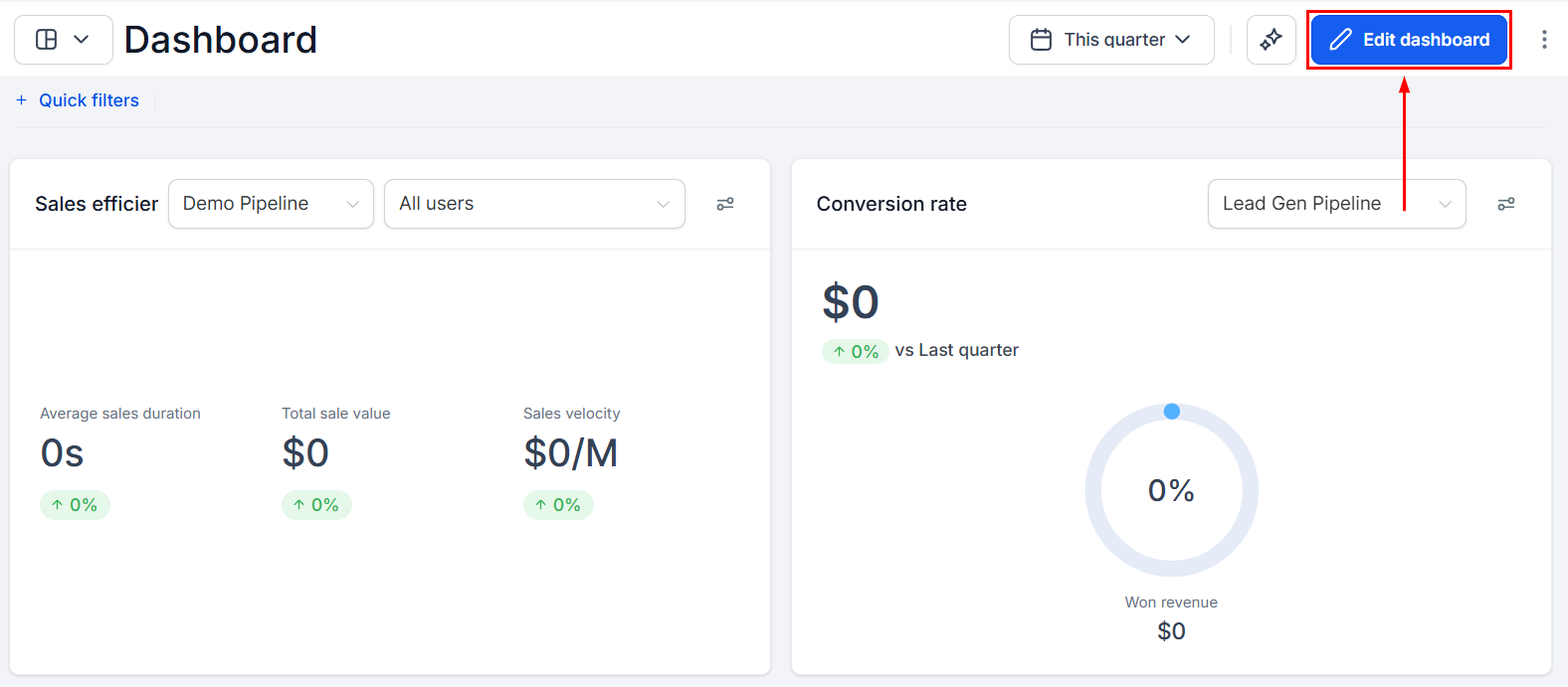
Open any dashboard and click Edit Dashboard.
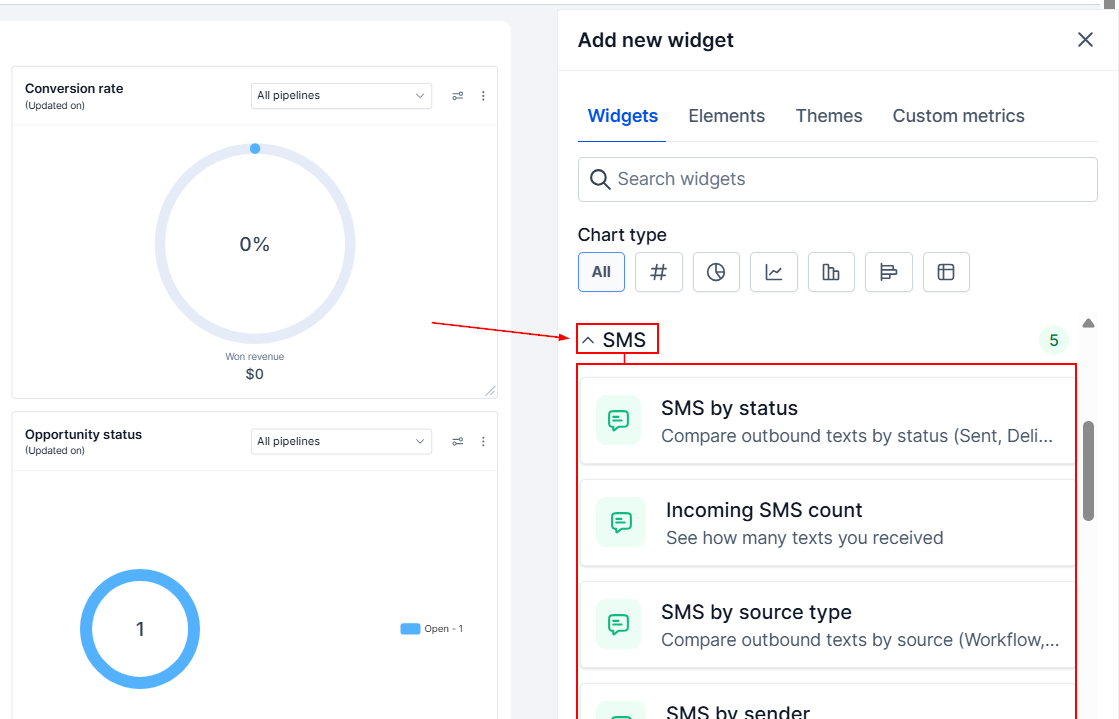
Scroll to the SMS section and pick a widget. You can choose from any of the following options:
- SMS By Status: This widget showcases the distribution of outbound SMS by status (Sent, Delivered, Failed, Pending) or message direction.
- Incoming SMS Count: This widget helps you keep track of the count of inbound SMS received.
- SMS By Source Type: Outbound SMS split by source type (Workflow, Campaign, Bulk action, Other).
- SMS By Sender: Outbound SMS volume per team member.
- SMS Volume Over Time: Trend of SMS sent over time by day, week, or month.
Configure
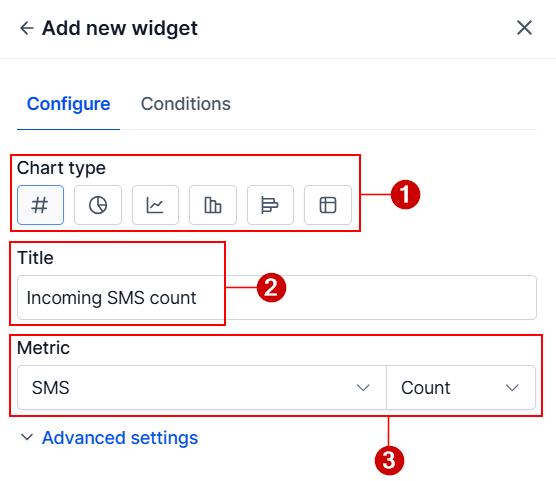
After selecting a widget, the Configure tab will open. In this area, you can select the type of chart to be displayed on the dashboard (1), enter an appropriate title (2), and set the metrics to be tracked (3).
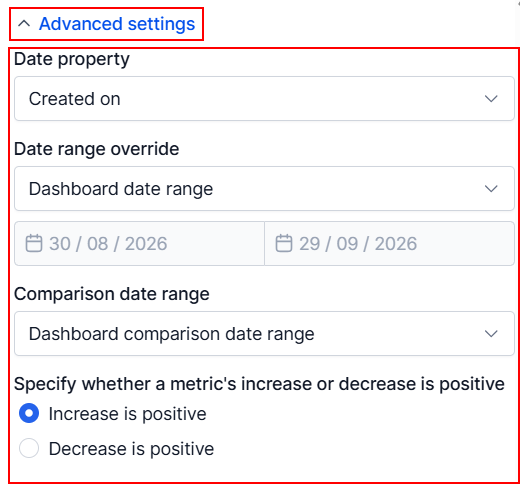
Expand the Advanced Settings for enhanced customization settings. These settings will differ based on the widget you’ve selected.
Conditions
For each widget, you can also apply filters in the Conditions tab using AND/OR operators.
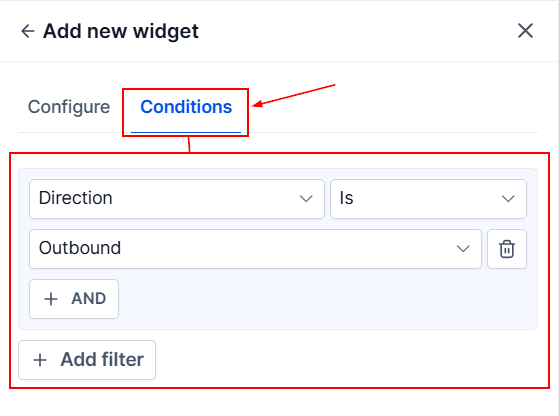
This helps you easily gain Delivery Health Insights that can be broken down by source or sender, providing you with proper volume identification and two-way visibility to improve performance. We hope you enjoy it!