
How to Customize a Widget
Customizing your dashboard widgets improves your data visualization and tracking capabilities, giving you complete control over how your key metrics are presented. Follow this guide to seamlessly customize a widget, adjusting its settings, filters, and display to suit your specific needs.
From your Dashboard, select the Edit Dashboard button to begin.
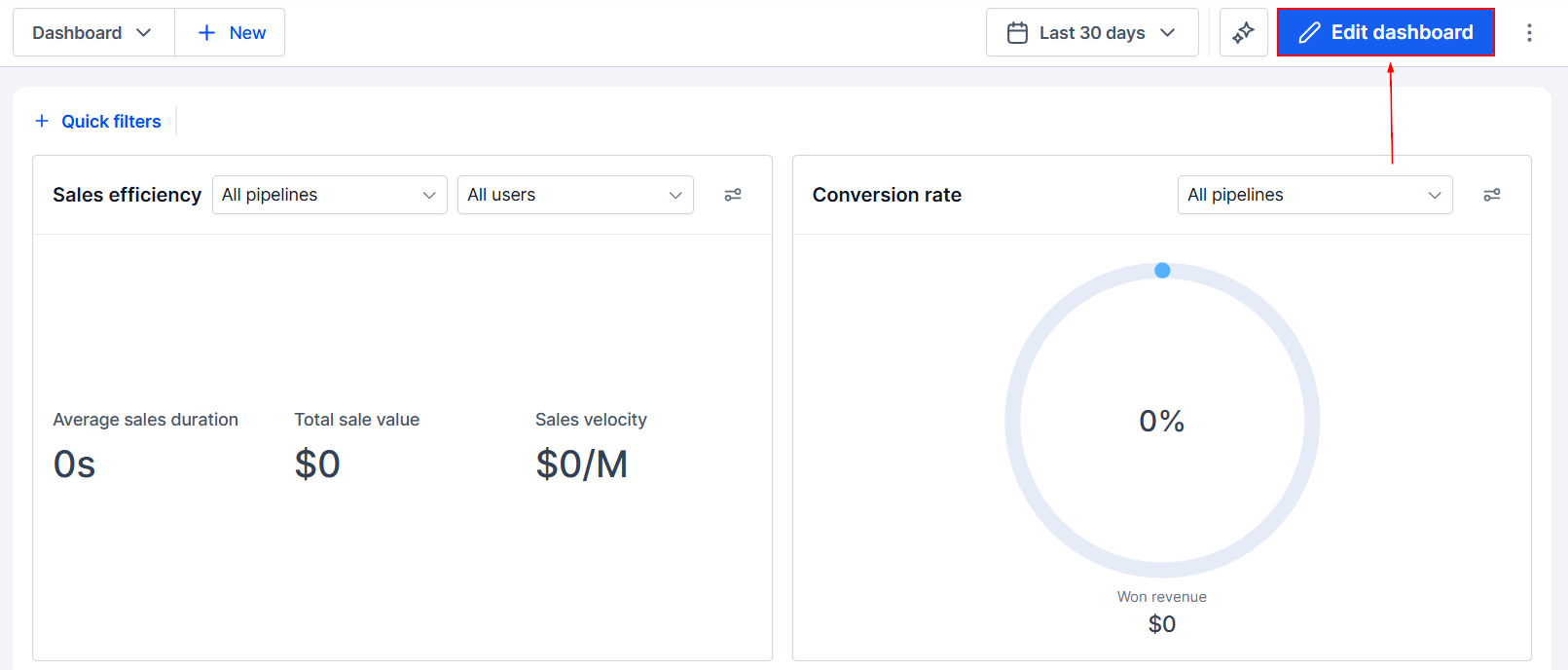
This enables you to either add new widgets or select an existing one for customization. Please note that all widgets, except General widgets, support customization. In this guide, we will proceed to add a new widget.
Selecting a Widget
Expand the folders to review the widget list and identify the option that best aligns with your specific needs. Once you have identified a suitable widget, click it to begin customization.
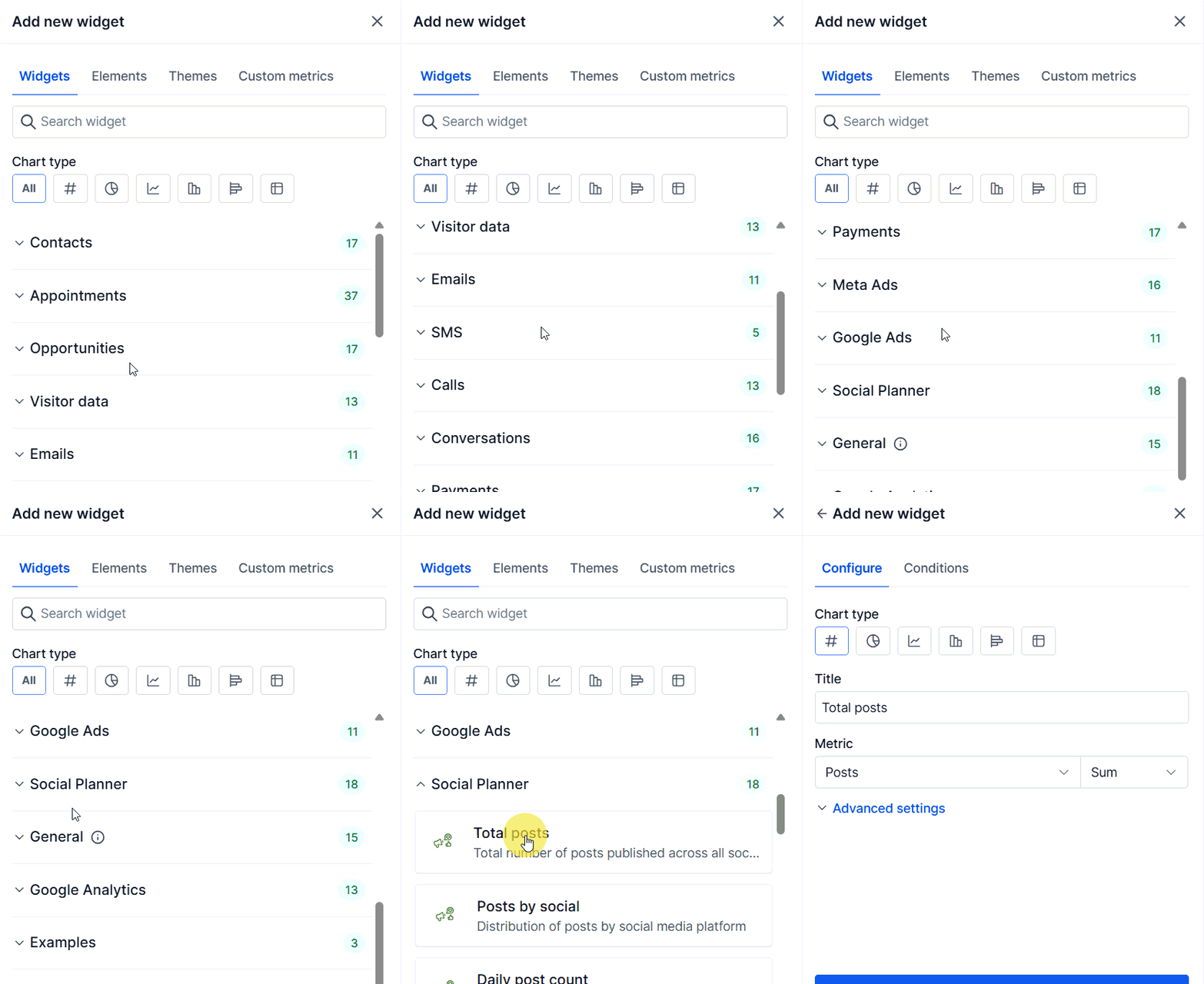
The default chart type is automatically selected for each widget. To change the chart type, simply click the chart icon.
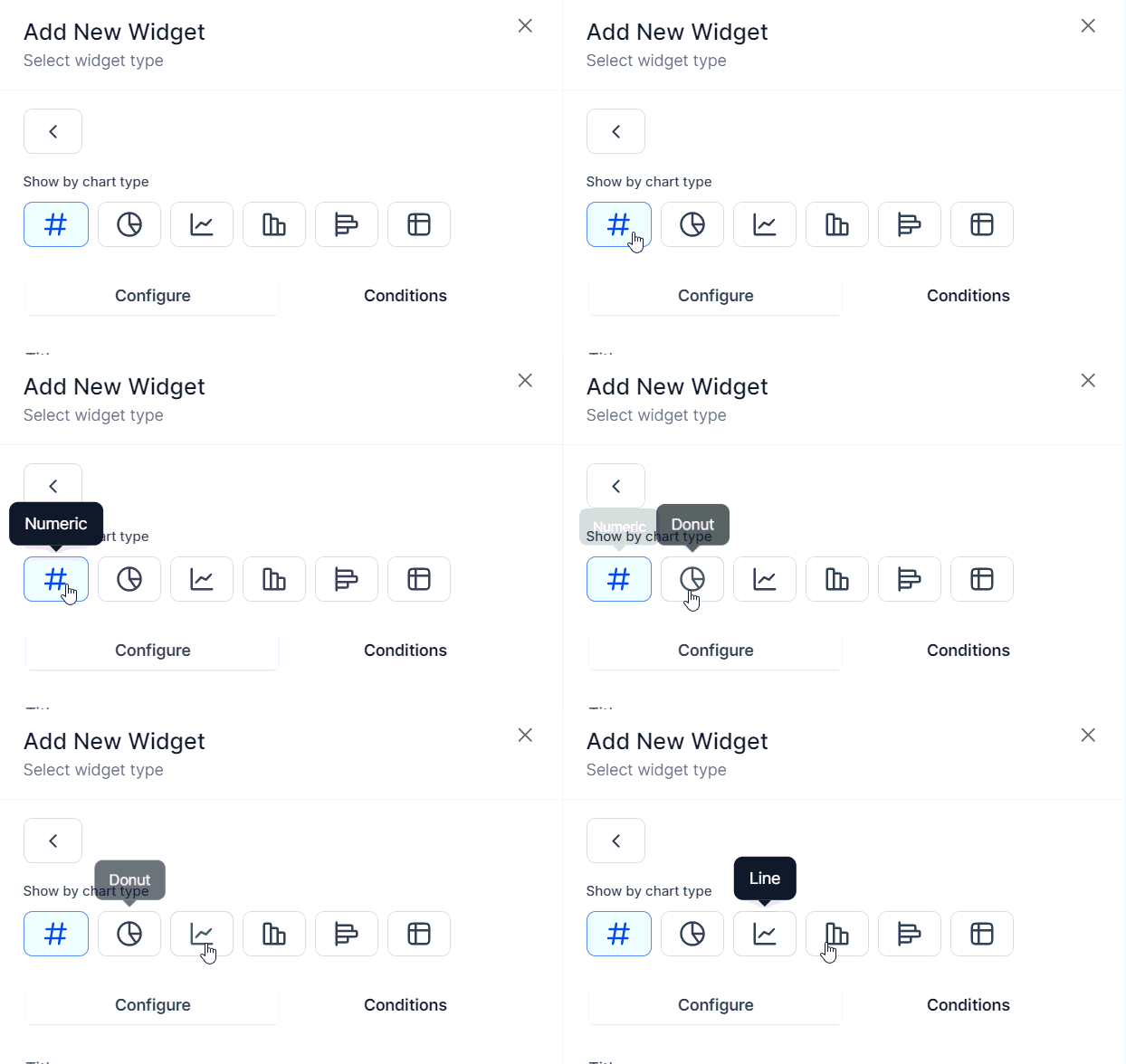
Widget Configuration
Navigate to the "Configure" tab to personalize your widget settings:
- Title: Modify the widget's title for clarity and ease of understanding.
- Metrics: Adjust the data points to match your specific requirements.
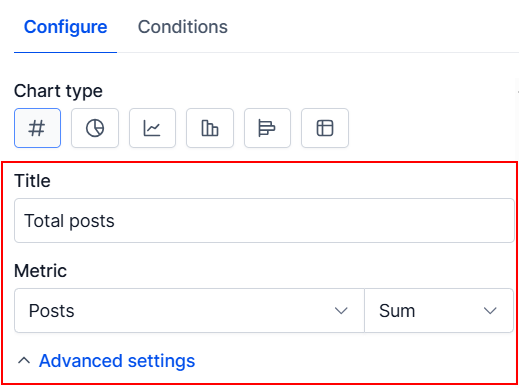
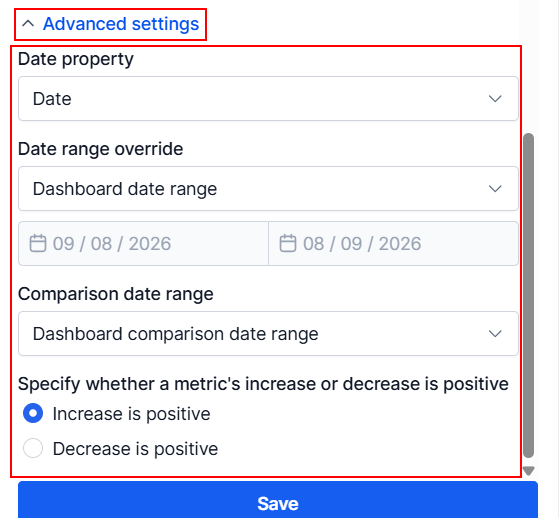
For further personalization, you can explore additional advanced settings, though they are optional.
- Date Property: Select the date property (e.g., Created Date or Updated Date) for result generation.
- Date Range Override: Override the global date range, if needed.
- Comparison Date Range: Compare data over a selected date range.
- Metric Intent: Choose whether an increase or decrease is considered positive for the metric. Select “Increase is positive” when higher numbers are better, or “Decrease is positive” when lower numbers are better,
NOTE: The available fields will differ depending on the selected widget type.
Applying Conditions
To add precision to your widget, head to the "Conditions" tab.
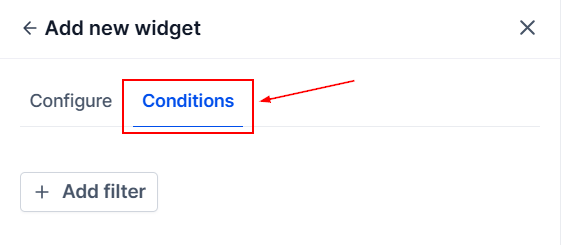
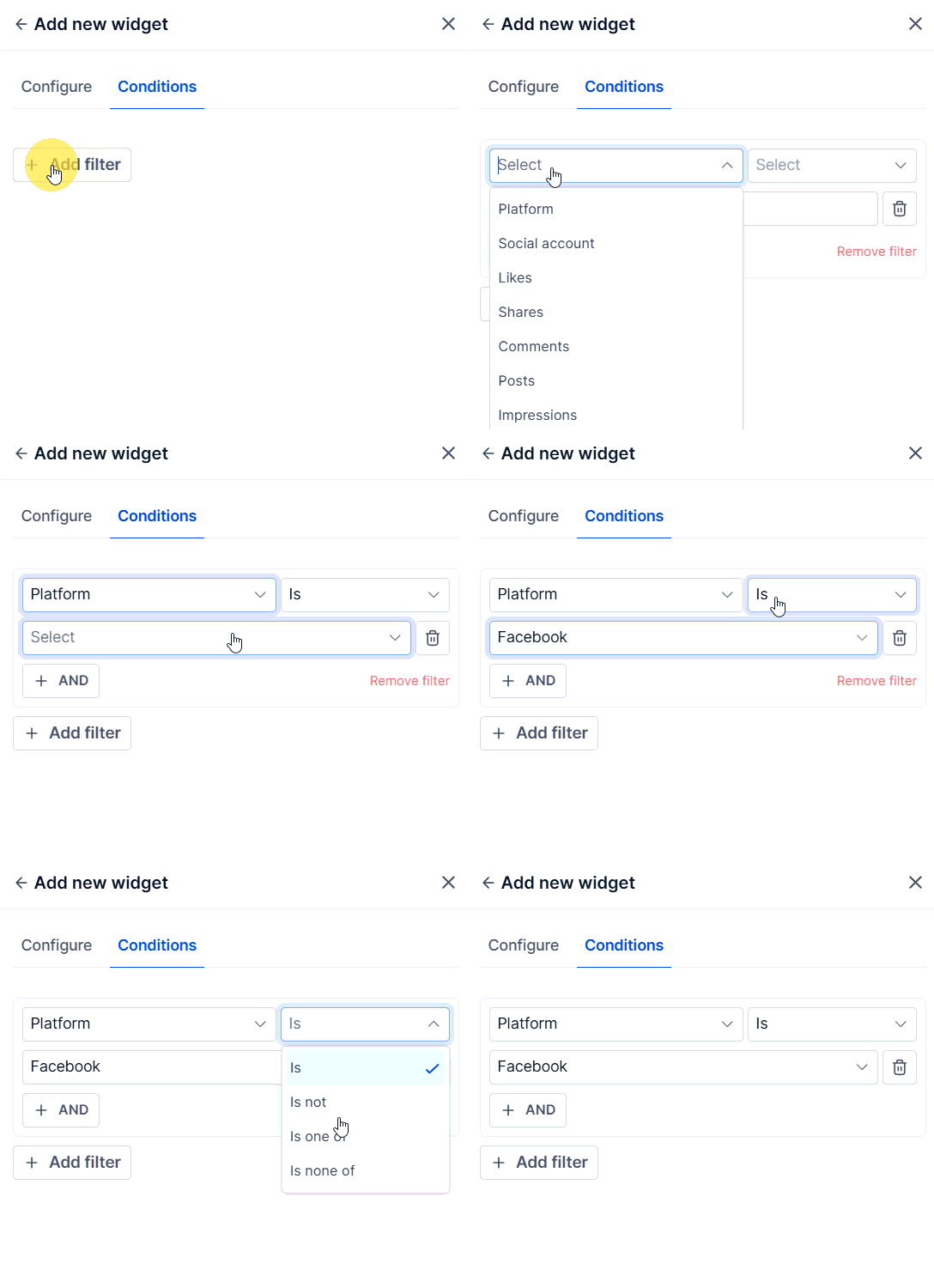
- Add Filter: Click "Add Filter" and select the desired filter from the dropdown. Set the operator and parameter for each filter. You can add or remove conditions as needed.
NOTE: If no data is found for a filter, the widget cannot be saved until the filter is adjusted or deleted.
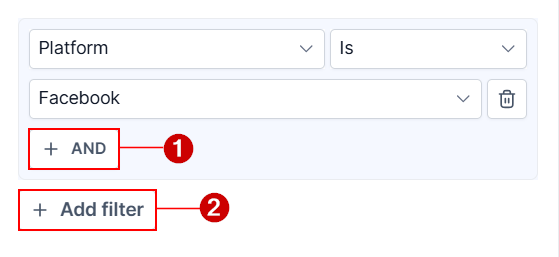
Apply other filters using AND(1)/OR(2) conditions.
Saving Your Widget
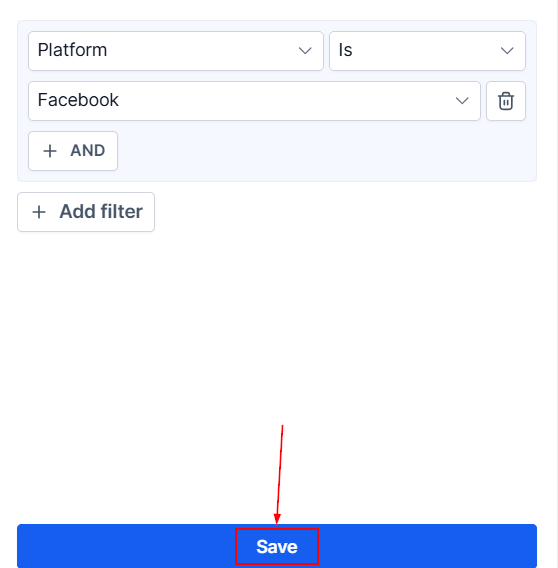
After customizing your widget, click "Save" to apply the changes. The widget will now appear on your dashboard.
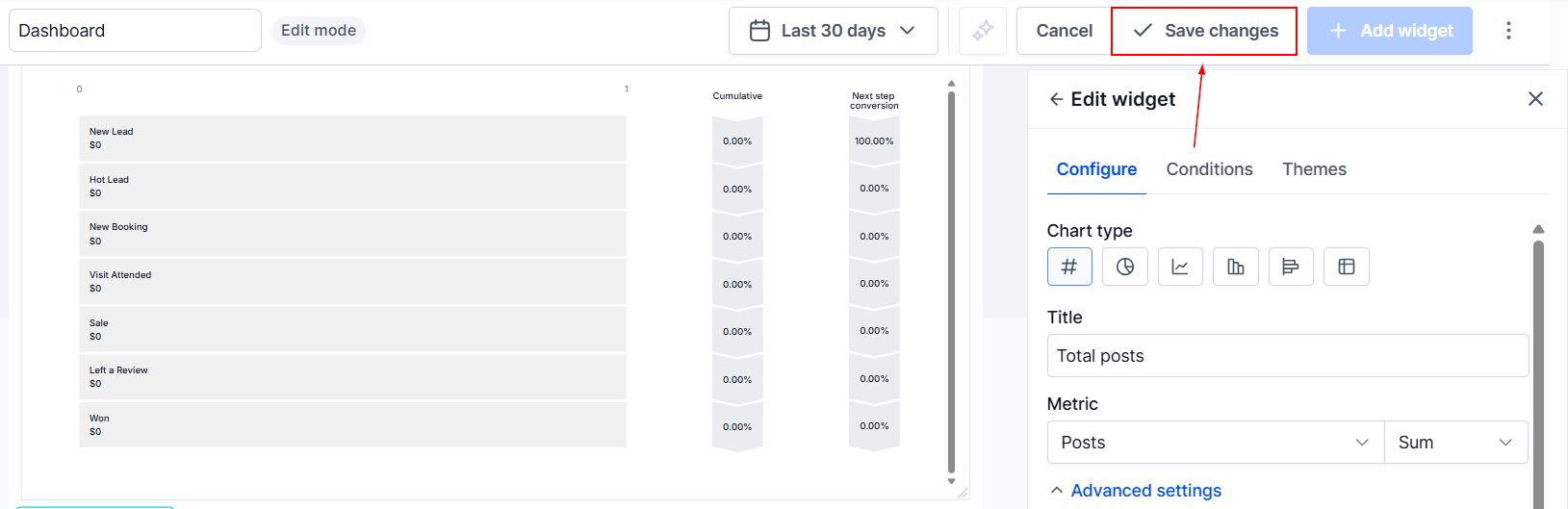
Resize and reposition it as necessary, then click "Save Changes" to finalize your dashboard layout.
By following these steps, you can ensure your widgets present the most relevant data, making your dashboard a valuable tool for informed decision-making.