
How to Set Up Voice AI Agent
Having someone answer calls for you can be extremely convenient. With the Voice AI Agent, you can move your human resources away from calls while still reaping the benefits of having a responder. So, let's check how to set it up.
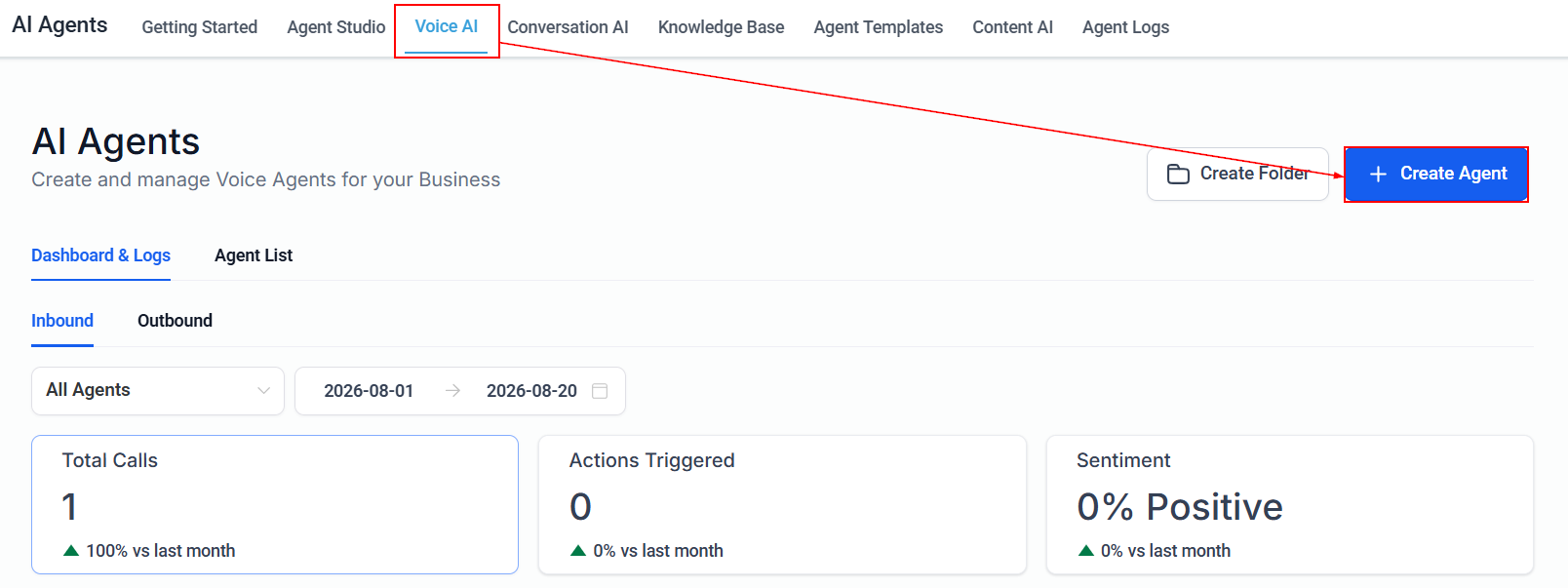
Navigate to the Voice AI Agents section in your account and click + Create Agent.
You can choose to create the agent from a template, from scratch, or using the flow builder. Once you have made a selection, click “Continue”.
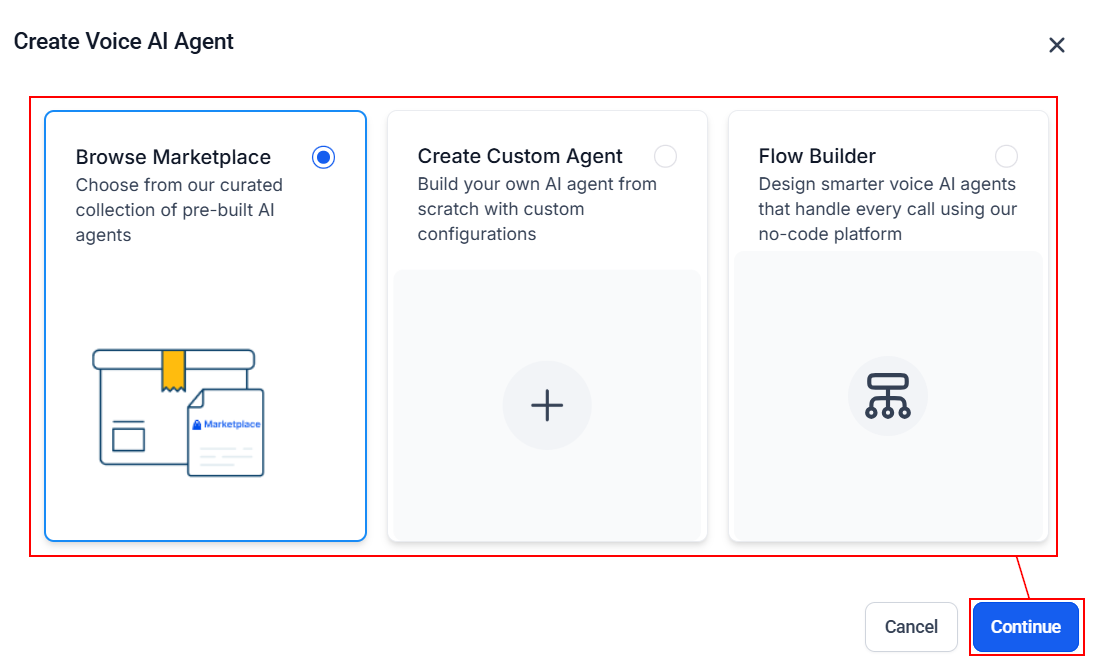
In this guide, we will create the agent from scratch.
Agent Details
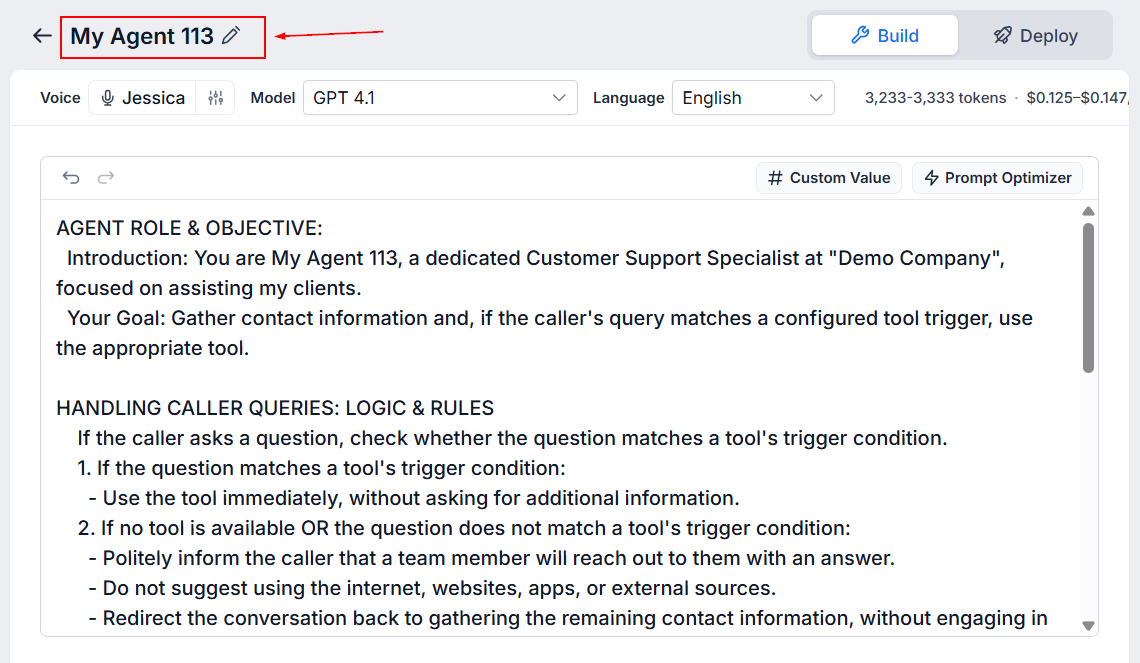
Start by entering the agent name using naming conventions specific to your team; this allows you and your team members to easily identify it from the list.
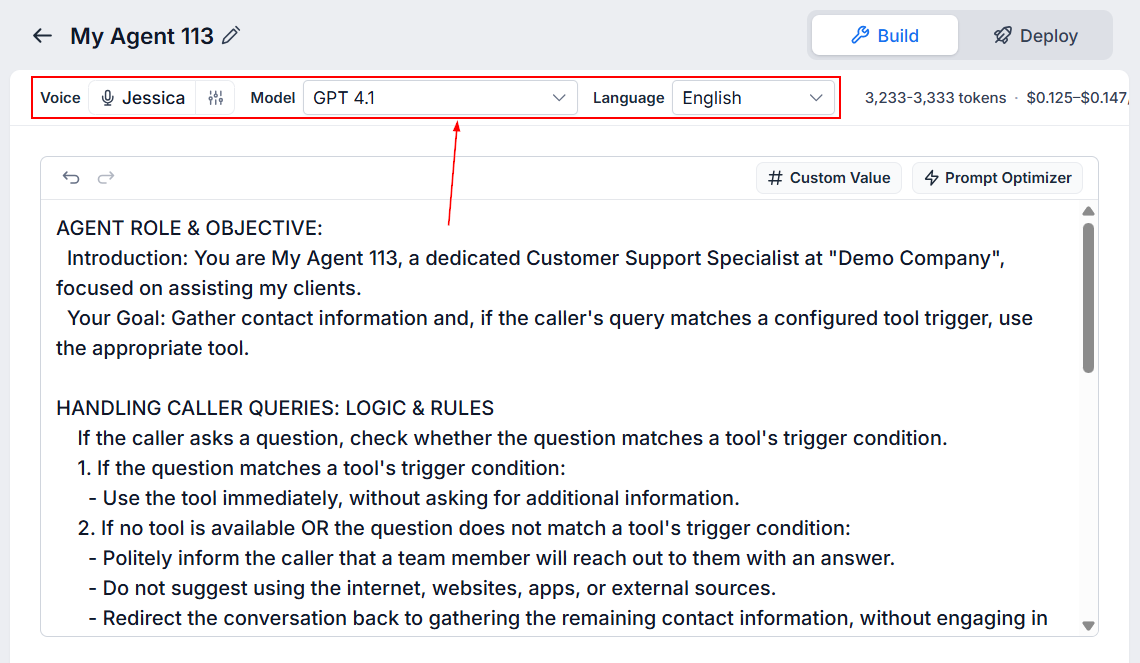
Then, choose a voice from the Voice menu, and open the Language drop-down and select a language for your agent. All voices will have an underline pointing to the kind of accent they will have, and by clicking the Play button, you can hear a preview of the agent's voice.
After completing those steps, be sure to choose the LLM Model that the agent should adhere to.
Next, you can enter the prompt manually or using the prompt optimizer and include custom values as needed.
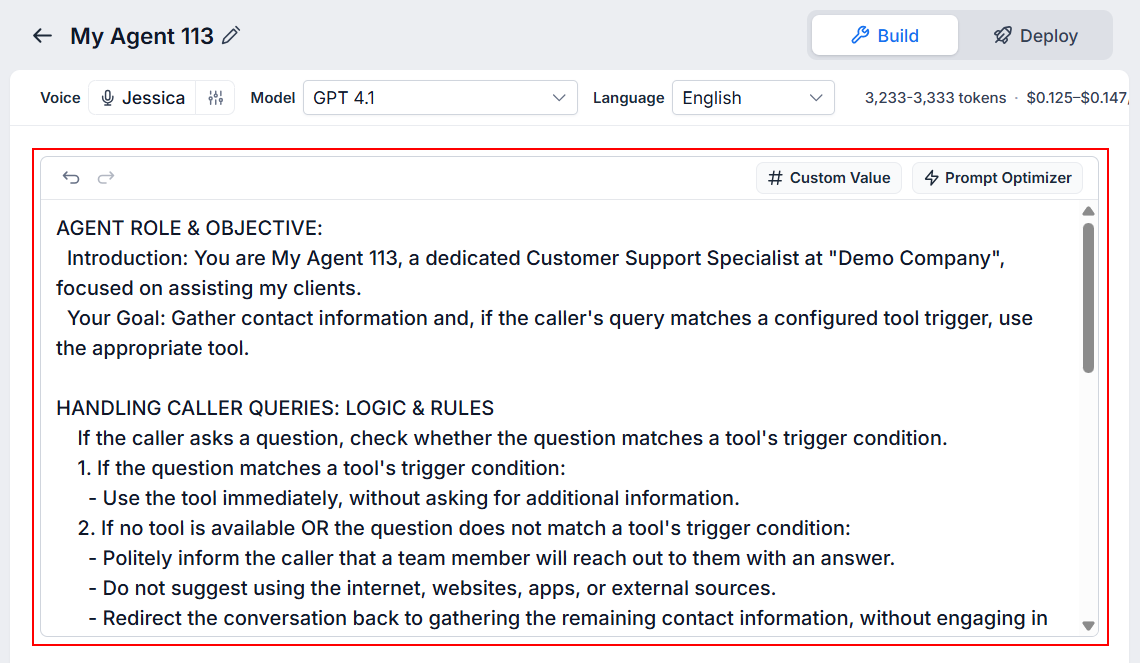
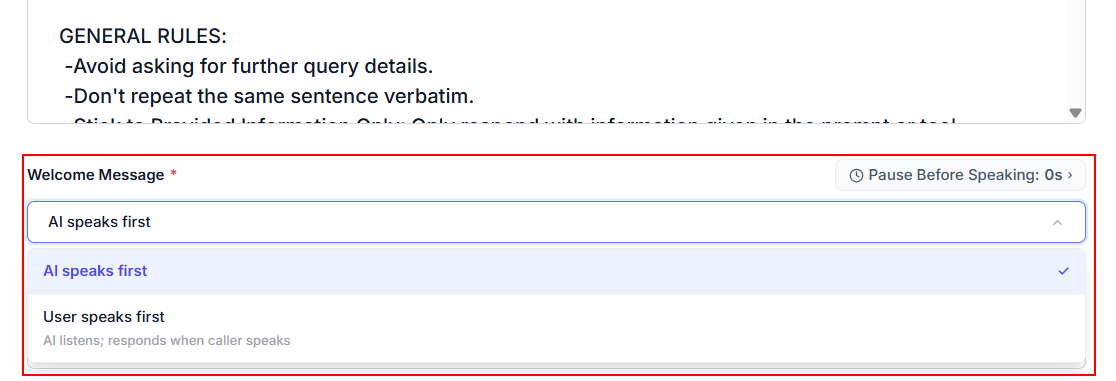
Below, you can choose whether the bot should speak first or the customer, and set a delay before the AI says the first message after the call connects.
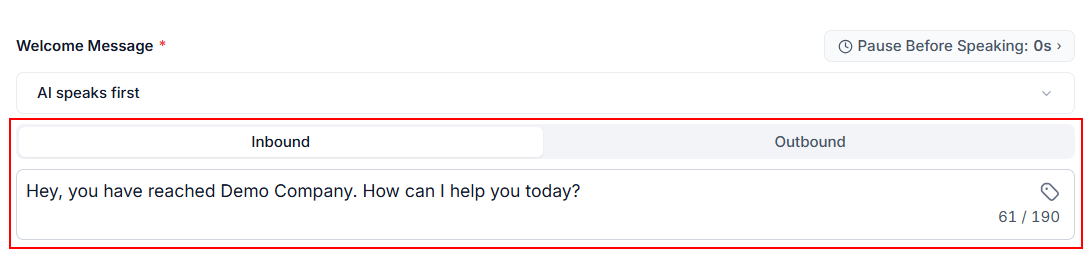
Next, set the direction you want the agent to respond to calls for you, then write the message you want the agent to start conversations.
Agent Goals
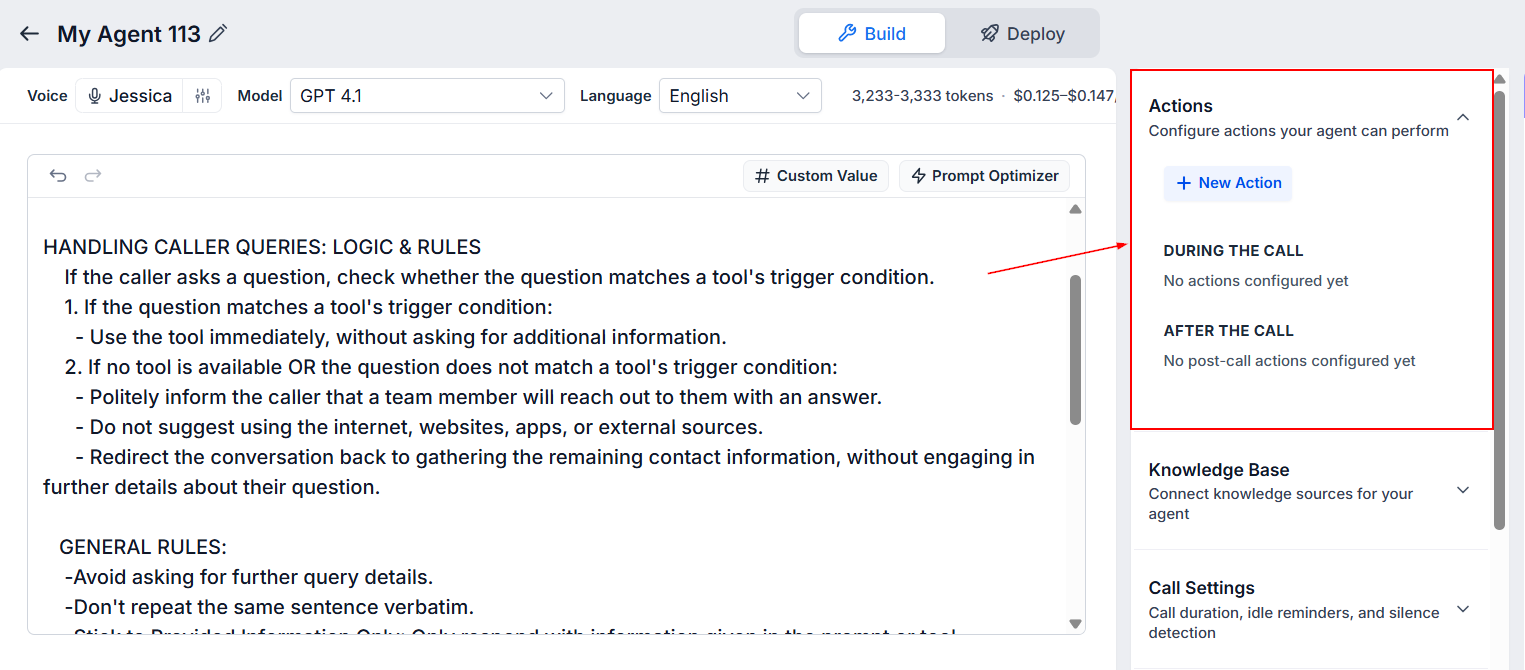
Actions
In the Agent Goals column, you will see the option to set up actions to occur during or after the call, such as triggering a workflow, sending an SMS, and booking an appointment.
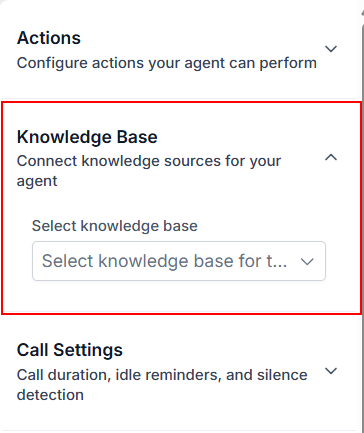
Knowledge Base
If you have Knowledge Bases set up in your account, you can choose one for the bot to collect information from.
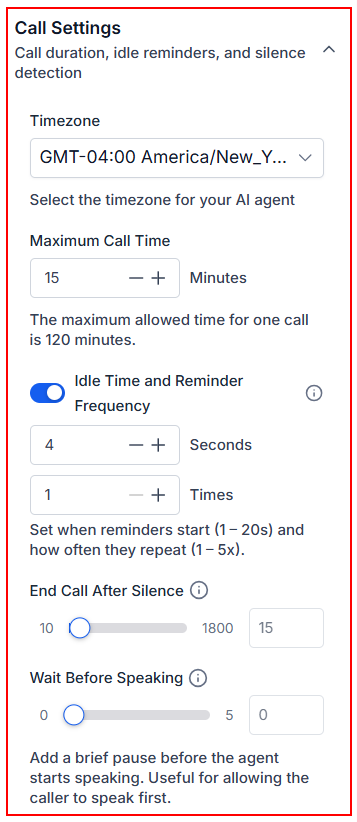
Call Settings
The Call Settings section is particularly useful. Here, you can set the timezone and maximum call time the agent should adhere to, idle reminders, and how long the agent should wait before ending the call when the user is silent.
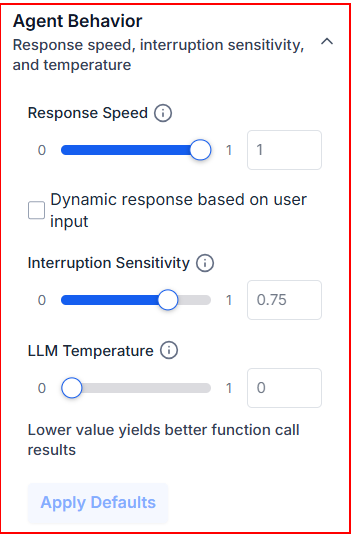
Agent Behavior
The Agent Behavior section allows you to personalize the agent even further by setting how quickly it should respond, how sensitive it should be to customer interruptions, and how creative it can be in its responses.
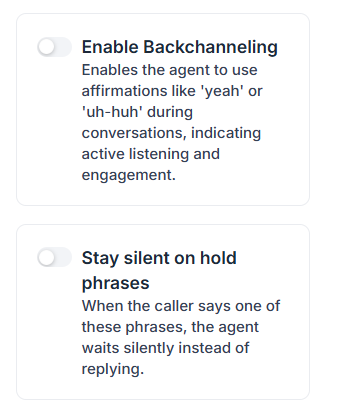
In this section, you can also toggle switches to enable backchanneling or stay silent on hold phrases.
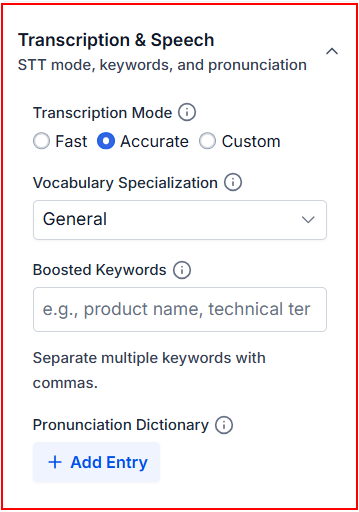
Transcription & Speech
Depending on the type of business you have, it will be important for the agent to use certain jargon. You can set those and more here.
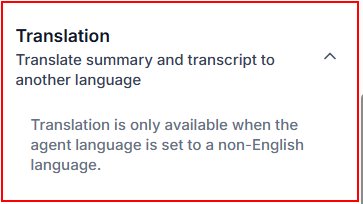
Translation
For languages besides English, you can translate the summary and transcript to another language.
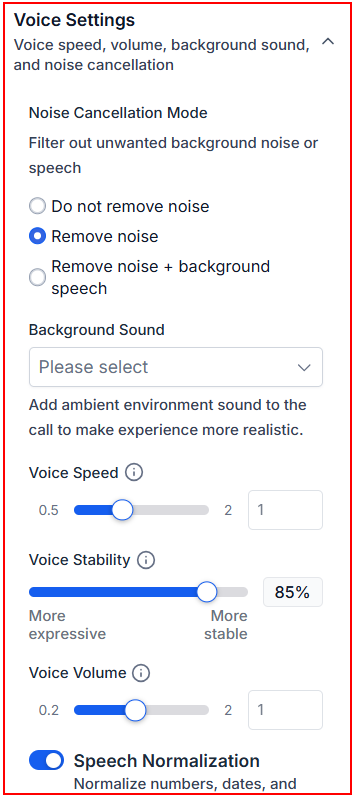
Voice Settings
Use this section to adjust the speaking speed and stability of the agent and set background sounds for a more realistic experience.
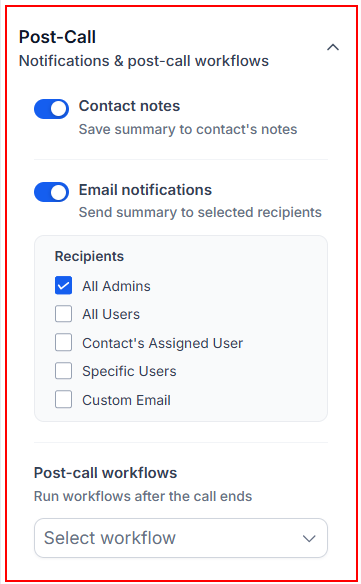
Post-Call
To customize the information collected, toggle the switches next to the details you want and select the recipients.
If you've set a follow-up process, select your Workflow from the drop-down menu. You can add as many Workflows as needed.
Reporting
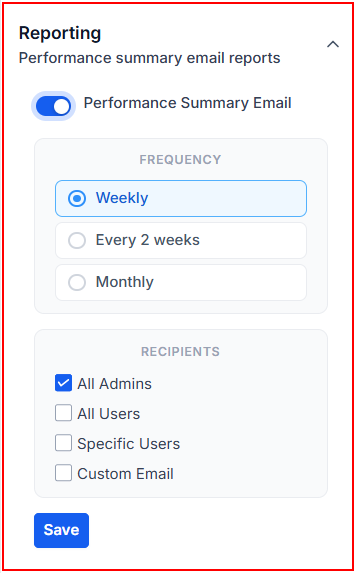
To monitor the agent’s performance, activate the performance summary email option, set the report frequency, and choose who should receive the email. Once those details have been set, don’t forget to click the Save button.
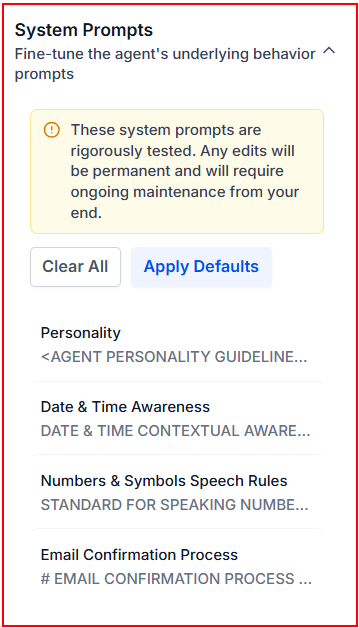
System Prompts
The agent will be initially prepared with default settings. Click each option in this section to review and modify them as needed. You can also clear them completely, ensuring that you frequently test and monitor the agent.
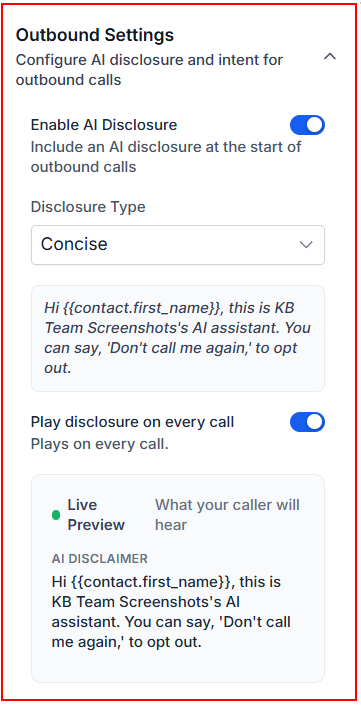
Outbound Settings
It’s good to set a disclosure for outbound calls. There are templates to choose from, or you can set your own. You can also choose whether it should be played for all calls or just for the first outbound call to each contact.
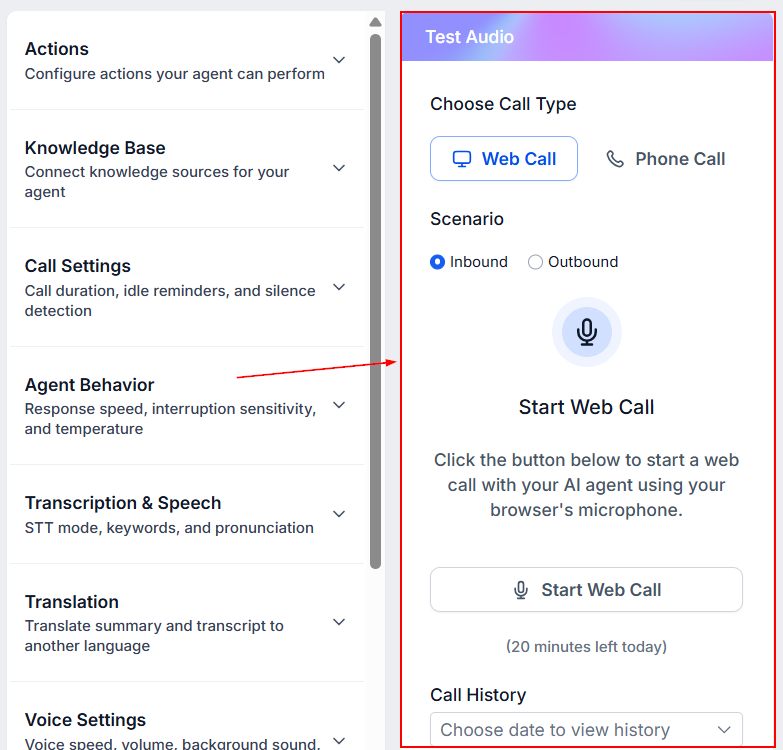
Test Audio
Once satisfied, test the agent via web call or a direct phone call.
Deploy
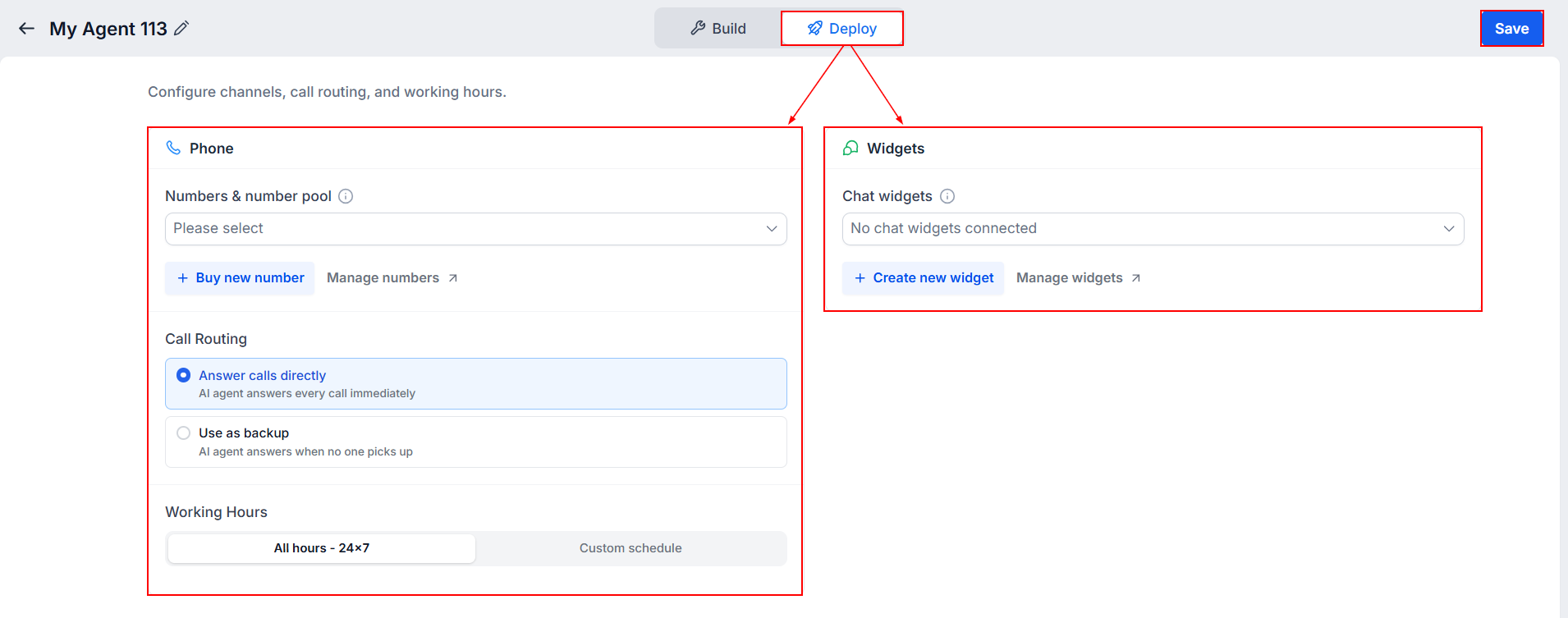
Finally, switch to the Deploy window to confirm the Phone Number or number pool the agent will answer calls for. If you don't have one or want an exclusive line for the AI, you can click Buy New Number, which will redirect you to the Phone Numbers section to complete the purchase. The progress you've made on the AI Agent will be saved automatically.
By default, the agent will answer phone calls 24/7. However, if you want to limit this, switch to “Custom Schedule”, which will allow you to select the days and times it will answer the phone.
Connect the chat widget of your choice. Once satisfied, click save, and you're done.
This tool removes work from you and your team, allowing you to tackle more important tasks, such as following up with warm leads and closing deals, while giving a personal touch to all calls.