
Voice AI - Dashboard & Logs
Tracking the calls your Voice AI agents make gives you valuable insights into their performance. And the Call Logs are where you gain that visibility, helping you manage review performance, understand customer interactions, or ensure quality control. Let’s check how to view them.
How to Access Call Logs
Head to the Voice AI tab inside the AI Agents section and select Dashboards & Logs.
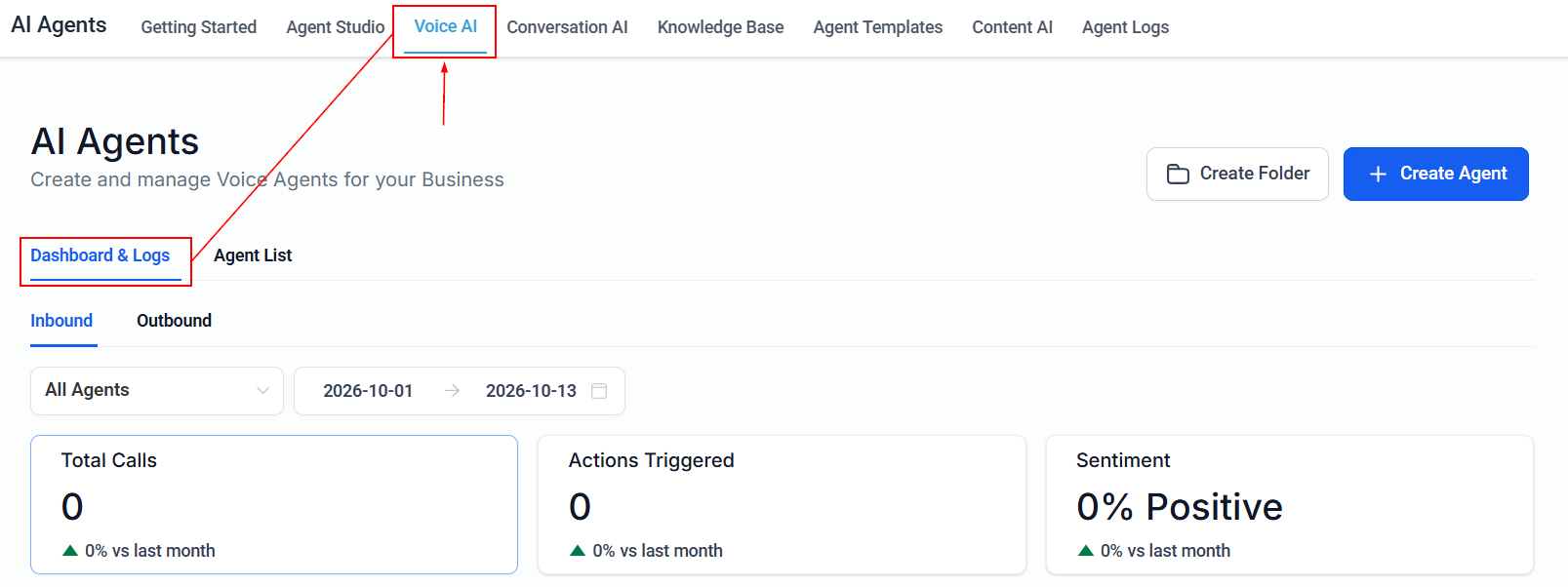
Here, you can choose to view stats for inbound or outbound agents. Let’s go through the Inbound section first.
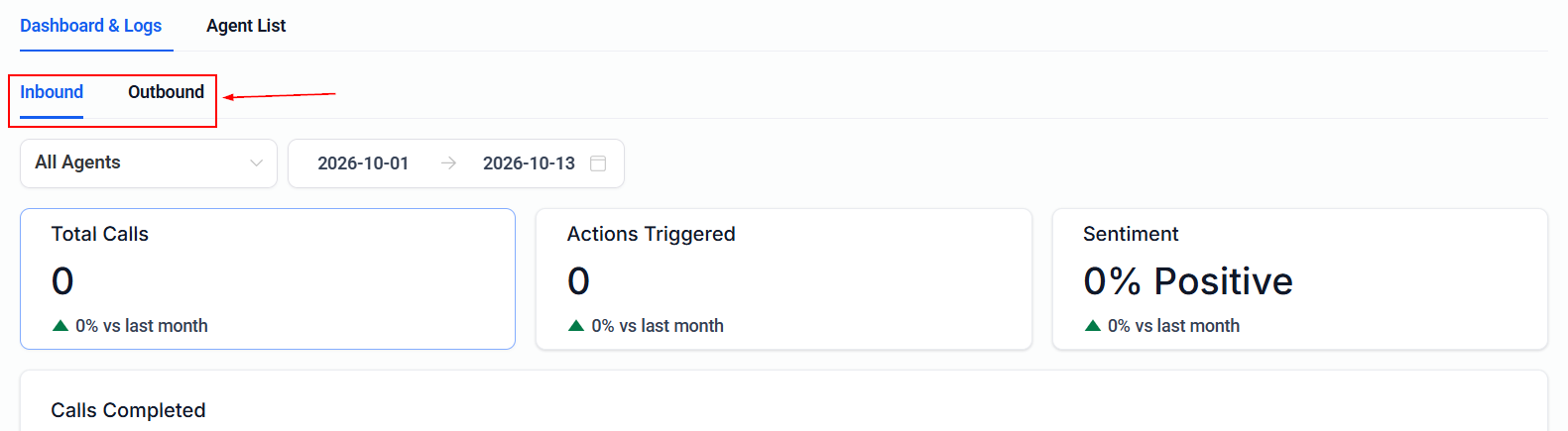
Inbound
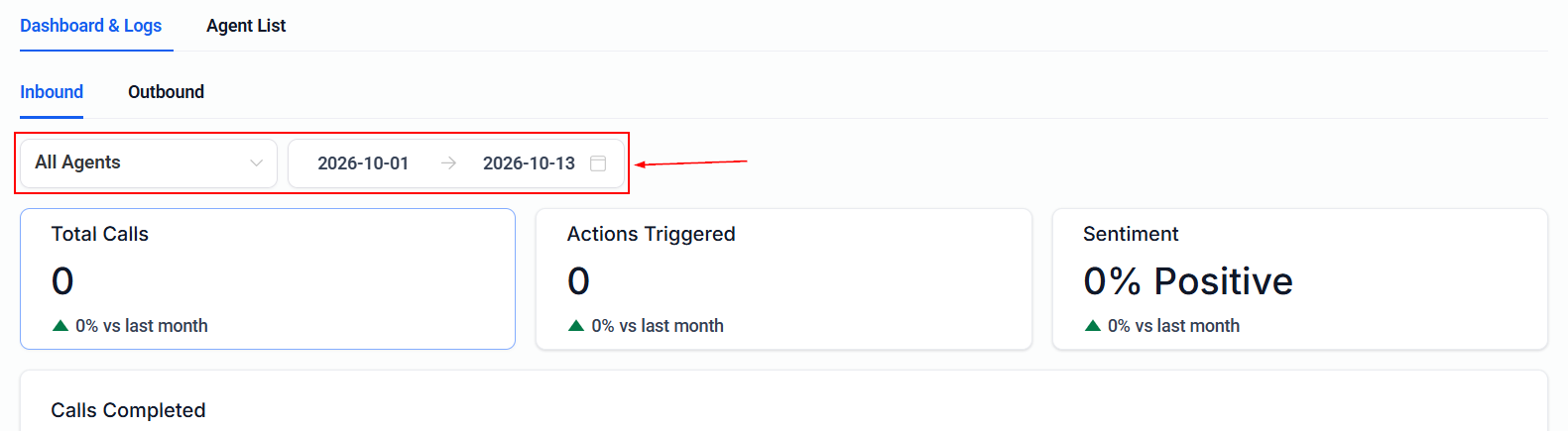
This section will open by default. Start by filtering the list by agent (deleted or active) and by date range.
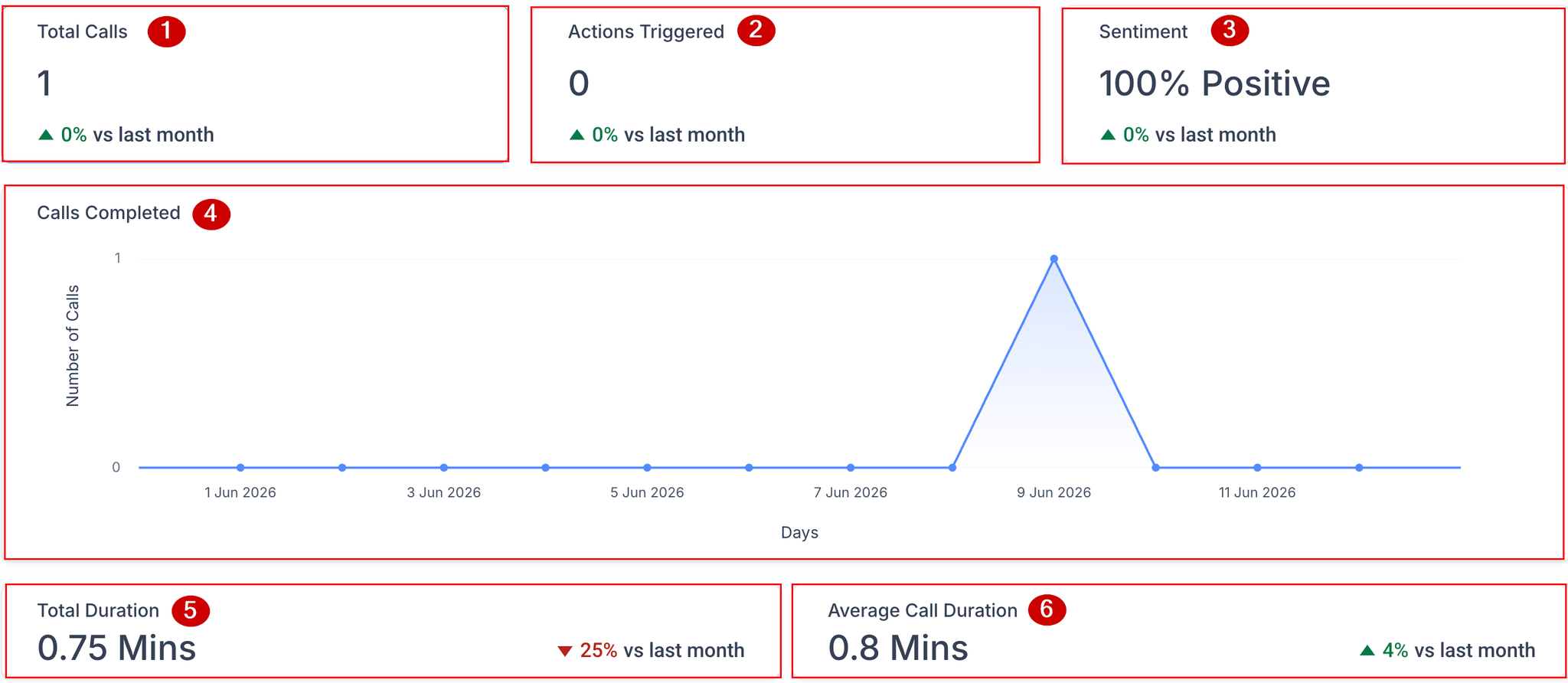
Once you have applied any needed filters, you will see the number of total calls (1), the number of actions the agent triggered (2), the average sentiment or rating from customers (3), the number of calls completed by the agent (4), total call duration (5), and the average duration of each call (6).
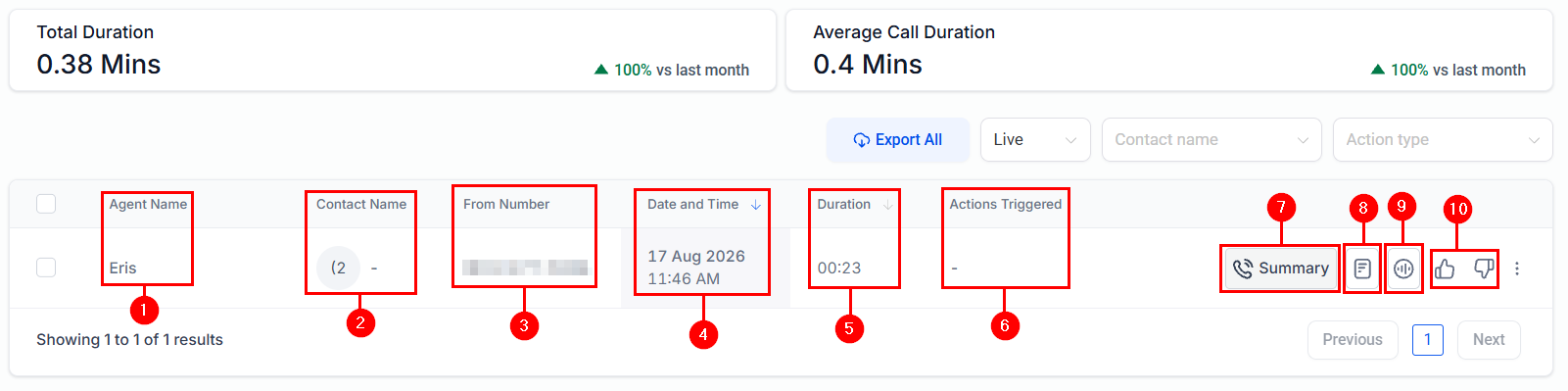
For each call, the call log table will show details such as Agent Name (1), Contact Name (2), From Number (3), Date and Time (4), Duration (5), Actions Triggered (6), Summary (7), Transcript (8), Call Recording (9), and Feedback options (10).
Reviewing Call Summaries
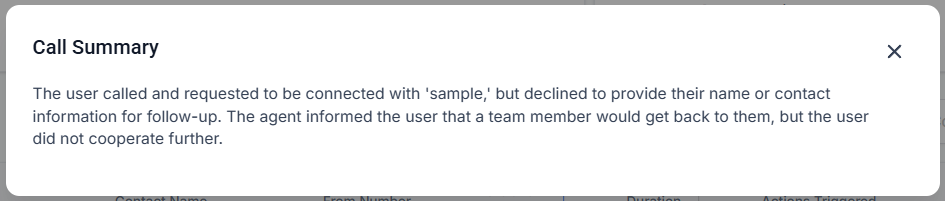
The Summary option helps you quickly understand the purpose and outcome of the conversation without reading the full transcript or listening to the recording.
Viewing Transcripts
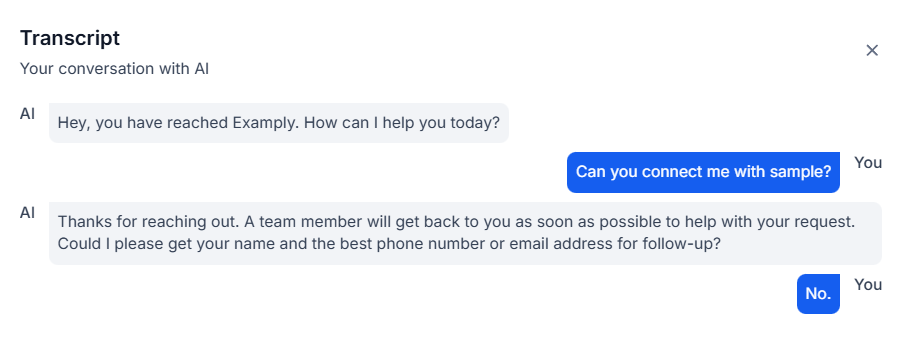
The Transcript option shows the full text of the conversation, helping you review exactly what the caller said, how the Voice AI agent responded, and whether the conversation followed the intended flow.
Listening to Recordings
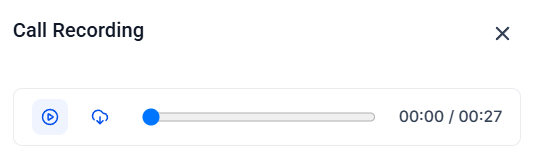
The Call Recording option lets you listen to the call’s audio when a recording is available, providing additional context, such as tone, pacing, and caller intent.
Exporting Call Logs
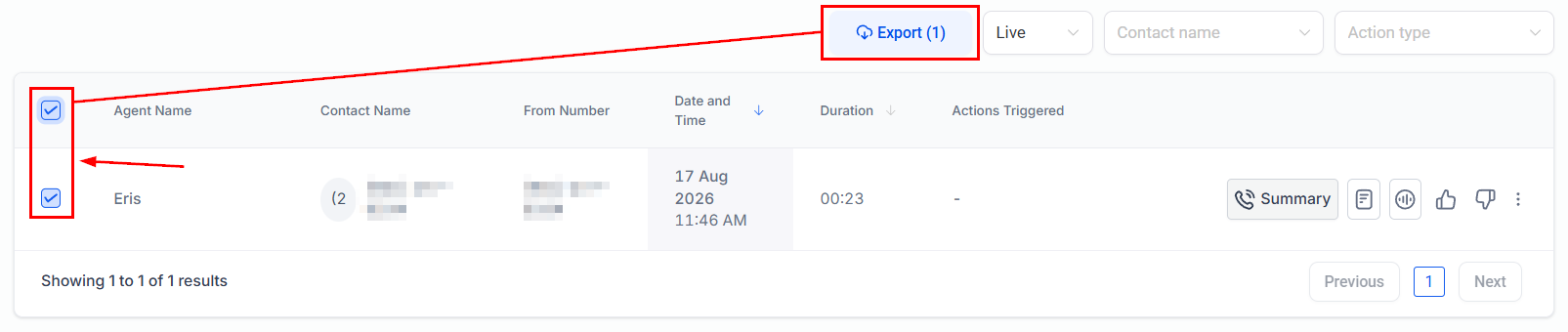
You can extract Voice AI call logs as a CSV file by clicking the box next to your desired records, or the one at the top to select them all, then clicking Export at the top. Exports respect your active filters, so only matching call logs are included in the file.
Outbound
Similar to the Inbound section, once you are in the Outbound view, begin by applying any needed filters.
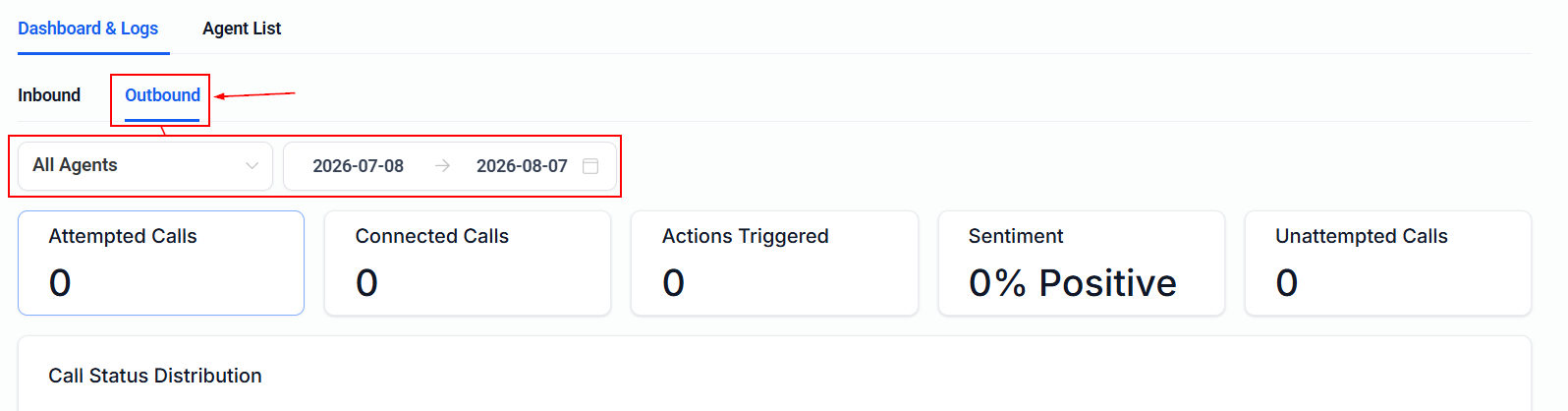
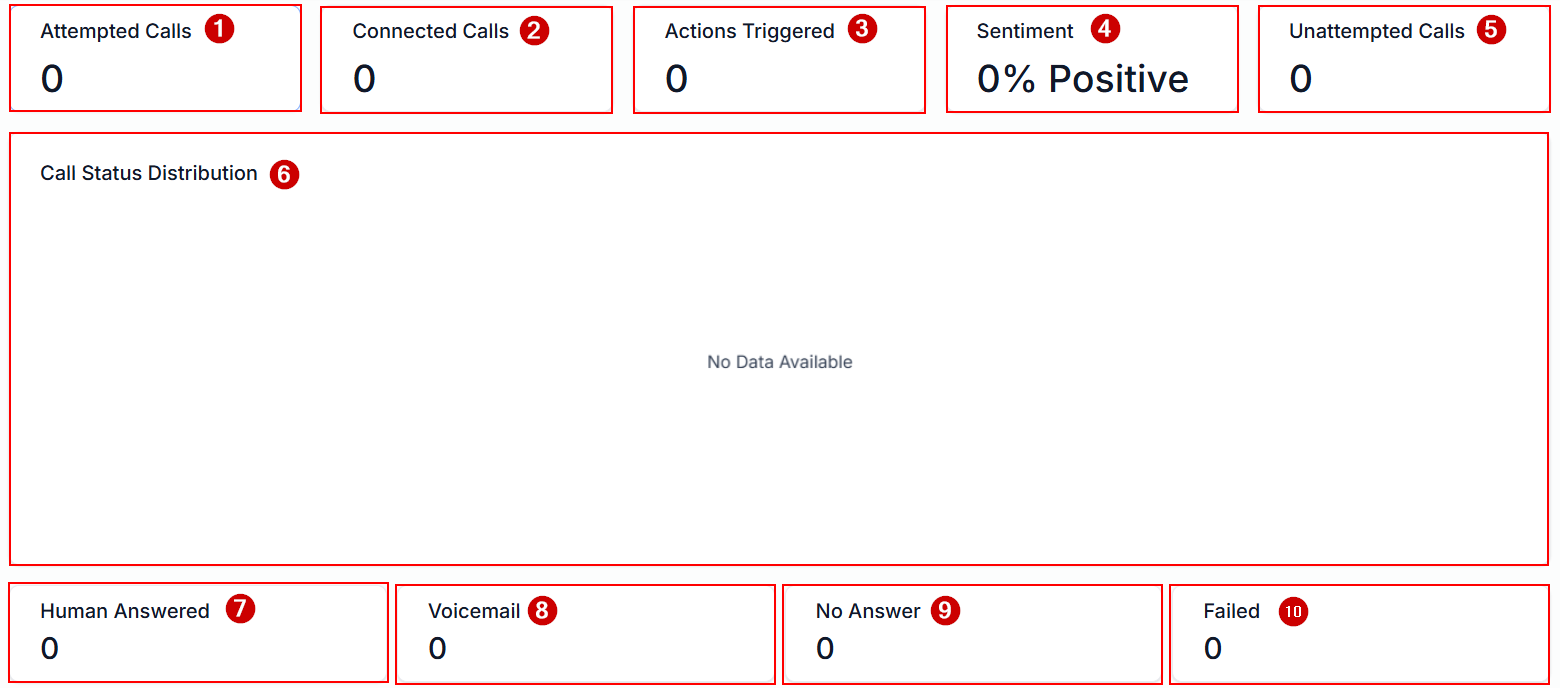
Next, view the:
- Number of calls the agent attempted
- Number of calls that were successfully connected
- Number of actions triggered by the agent
- Customer rating of the calls
- Number of calls the agent attempted
- Distribution of calls by status
- Number of calls answered by a human
- Number of calls that were routed to voicemail
- Number of calls that were unanswered; and
- Number of calls that failed
Similar to the Inbound section, the call log table will show details such as Agent Name (1), Contact Name (2), From Number (3), Date and Time (4), Duration (5), Actions Triggered (6), Summary (7), Transcript (8), Call Recording (9), and Feedback options (10).

Voice AI Call Logs provide a detailed history of calls handled by your Voice AI agents. These logs help you understand what happened during each call, how the agent responded, which actions were triggered, and where improvements may be needed.