
How to Create a Custom Action for Voice AI
In the world of AI-powered conversations, real-time integrations can dramatically enhance customer experience and workflow automation. With Voice AI’s Custom Actions, you can trigger webhook calls to external systems, fetch live data, and update third-party platforms—all during an active call.
This guide will walk you through the step-by-step process of creating a Custom Action for Voice AI using webhook integrations, dynamic parameters, and real-time testing.
What Is a Custom Action?
A Custom Action in Voice AI allows you to trigger an external Webhook call during a conversation. These calls can be configured with authentication, custom headers, and dynamic values captured from the conversation in real time.
Custom Actions enable seamless integration with external systems, such as order management platforms, scheduling tools, and more, directly from the AI call flow.
Why Use Custom Actions?
- Live Data Fetching: Fetch customer-specific data (e.g., contact records, appointments) while the call is ongoing.
- Enhanced Automation: Automate repetitive tasks, such as lookups or order verifications.
- Zapier & API Integration: Trigger Zapier automations or push updates to any system with an open API.
Creating a Custom Action
Before you can create a custom action, you must first determine when and why your AI agent should trigger an external process. Common examples include:
- Checking a customer’s order status
- Verifying appointment details
- Updating a contact record
- Triggering a downstream Zapier workflow
Set Up a Conversation Trigger
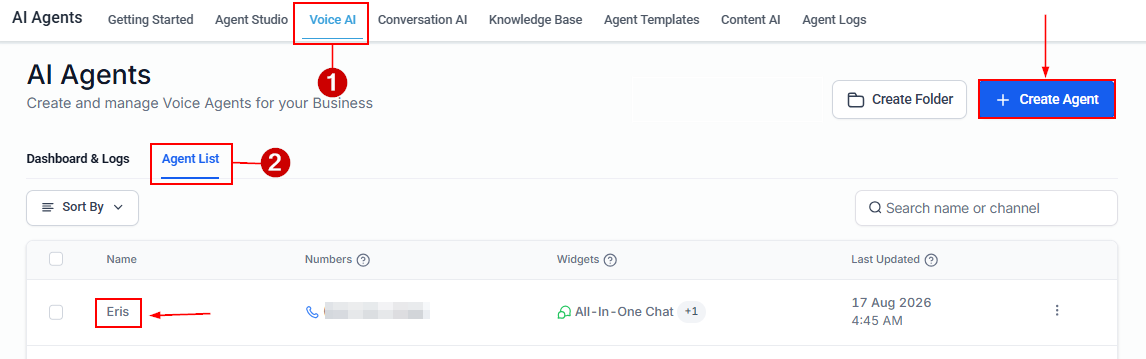
After identifying your use case, head to the Voice AI Agents settings and create a new agent or open an agent from the list.
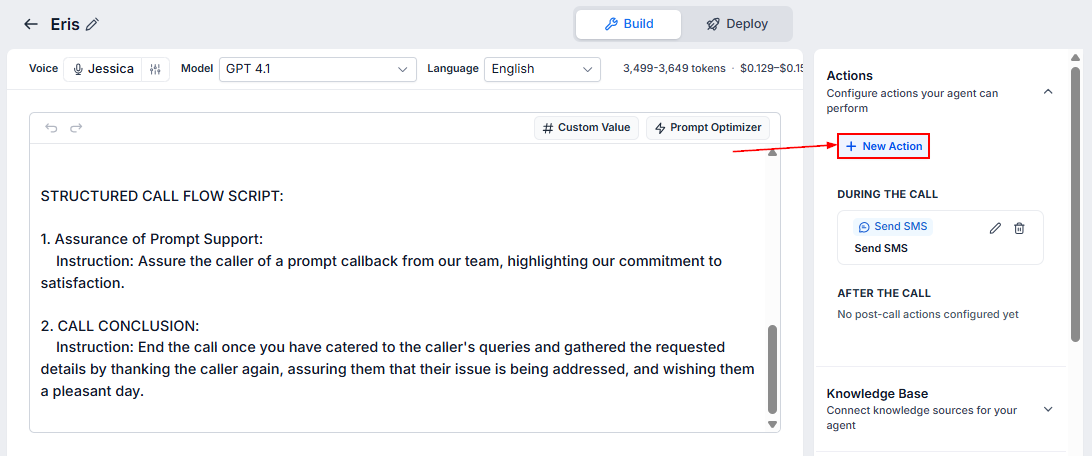
You can now set up your action to occur during or after the call by clicking the “+ New Action” button.
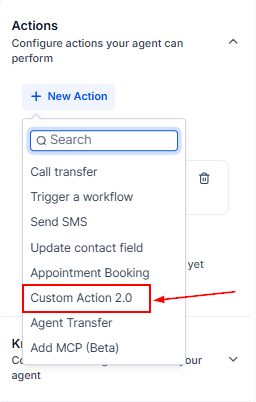
From the available items, click the Custom Action tool.
Connect to API
A new window will open where you can choose the method, then paste the destination API endpoint you want to interact with.
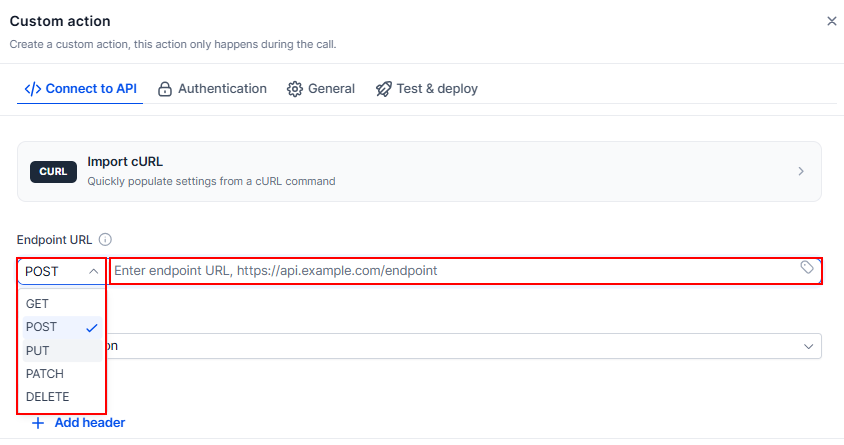
Set up the HTTP headers required for your API request.
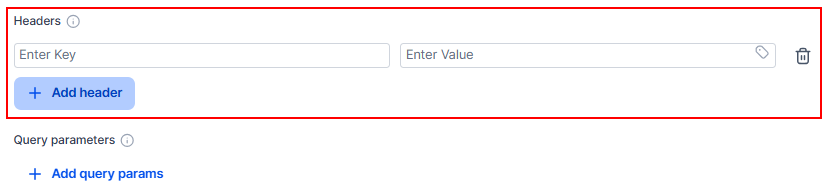
Next, click “Add query params” to append static values or system variables to the URL.

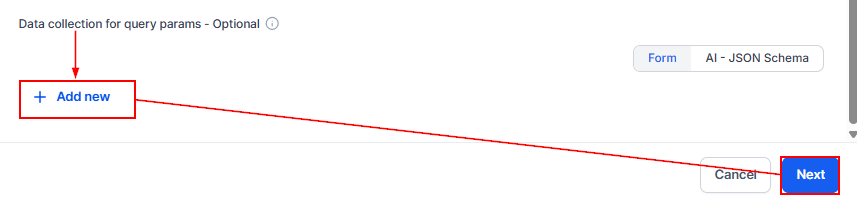
Once these are added, define the query parameters AI should collect from the user before calling the API and proceed to the next step.
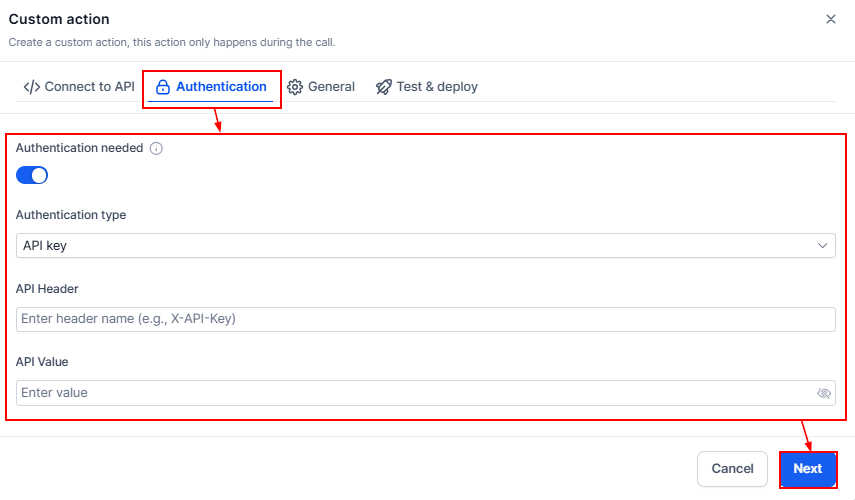
Authentication
Enable Enter authentication details if required, such as a Bearer token or Basic Auth.
General
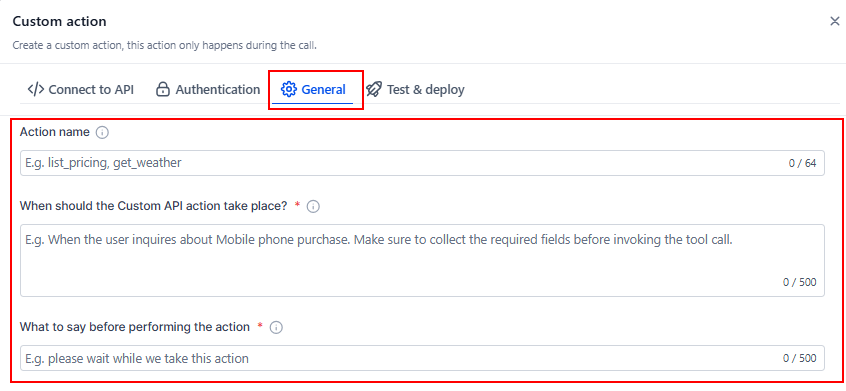
In the General section, you can assign a name to the action, then define the trigger condition. This could be a keyword, phrase, or structured input detected during a call. When the condition is met, the Custom Action will execute automatically.
Once these are added, enter the phrase you want the agent to say before executing the action.
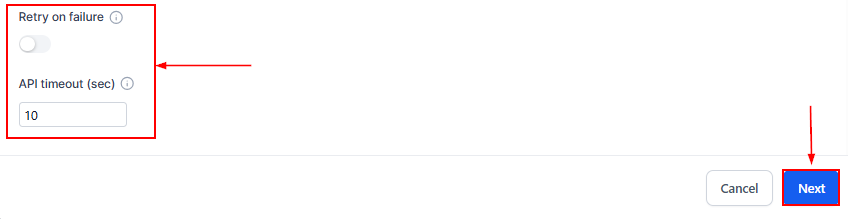
Optionally, enable the Retry on failure feature and set an API timeout. Click Next once you are satisfied.
Test & Deploy
Use the testing interface to verify your webhook works as expected. This involves simulating the conversation trigger, reviewing request/response details, and ensuring the external system is receiving and processing the data correctly.
This step is critical to prevent errors once the automation goes live.
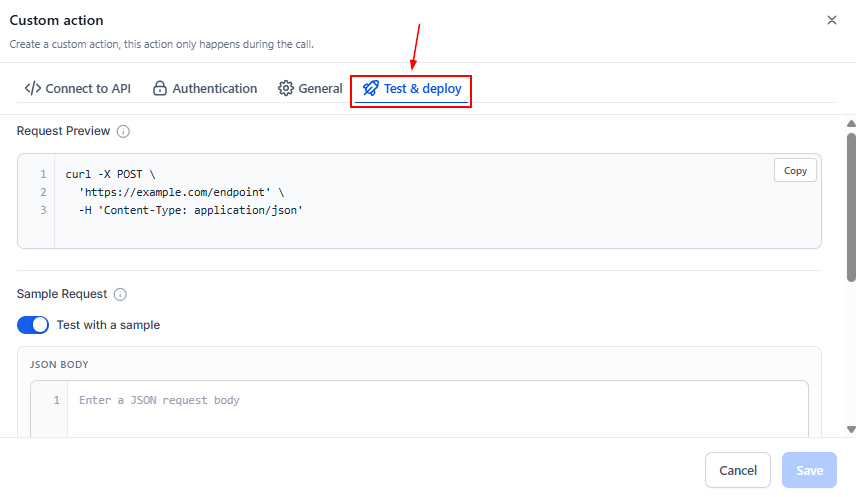
After successful testing, save the custom action, and monitor its performance during live calls using activity logs or external system responses.
Whether you're triggering updates to external platforms, fetching live data, or launching workflows, Custom Actions ensure your AI conversations are intelligent, contextual, and action-driven.