
WhatsApp Calling
WhatsApp Calling lets businesses move seamlessly from messaging to voice conversations without asking customers to switch apps or use a separate phone system. Calls stay connected to the existing WhatsApp conversation, making it easier for teams to maintain context, respond quickly, and keep communication organized.
Before You Begin
Before setting up WhatsApp Calling, make sure the following requirements are met:
- The WhatsApp phone number is connected and has an active Connected status.
- The associated WhatsApp Business Account has a messaging limit of at least 2,000 business-initiated conversations within a rolling 24-hour period.
- The phone number is not using WhatsApp Coexistence.
- Users have permission to access the connected WhatsApp number.
- For mobile calling, the LeadConnector Mobile App must be version 4.18 or later.
WhatsApp Calling is currently available in beta and may not be available to all users. Business-initiated calls are also unavailable in the United States, Canada, Turkey, Egypt, Vietnam, and Nigeria.
How to Set Up WhatsApp Calling
To configure WhatsApp Calling, go to Settings and open WhatsApp. Select Calling.
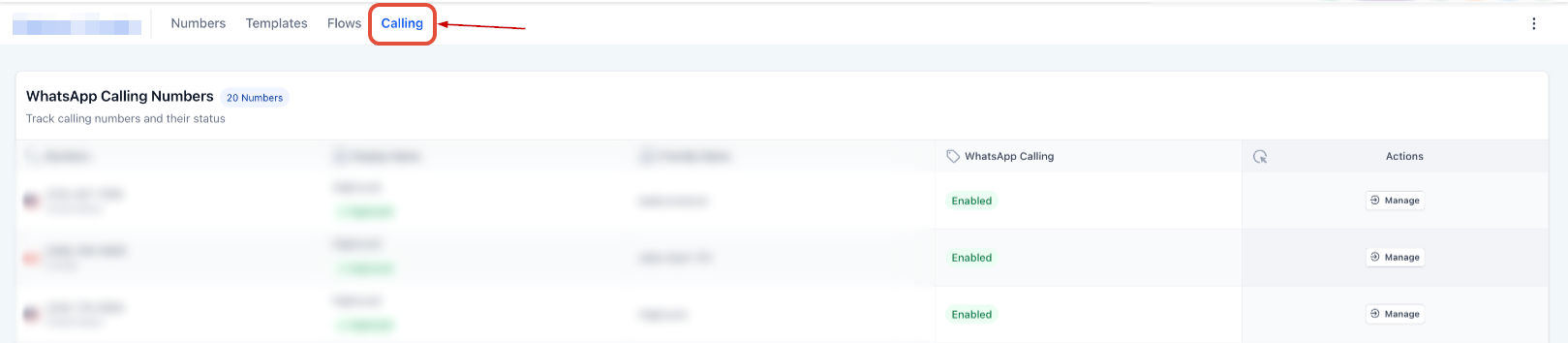
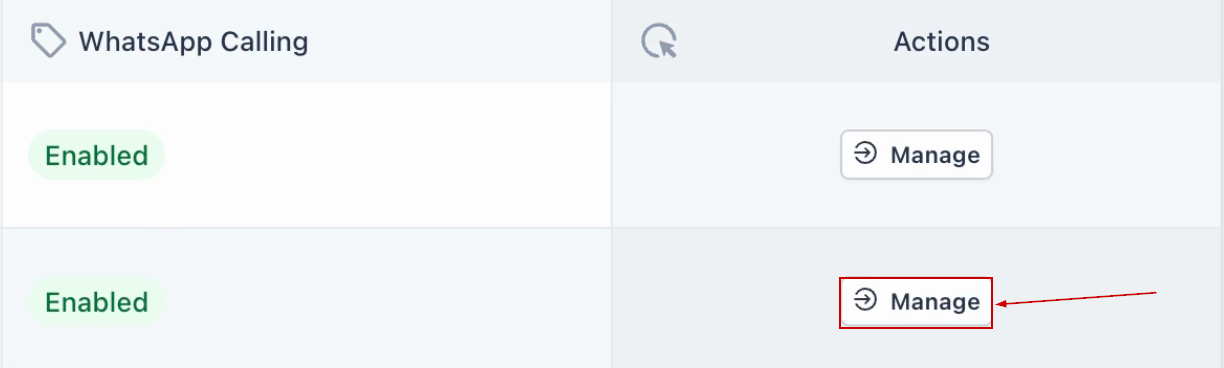
Select “Manage” under the Actions Menu of the connected WhatsApp phone number you want to configure.
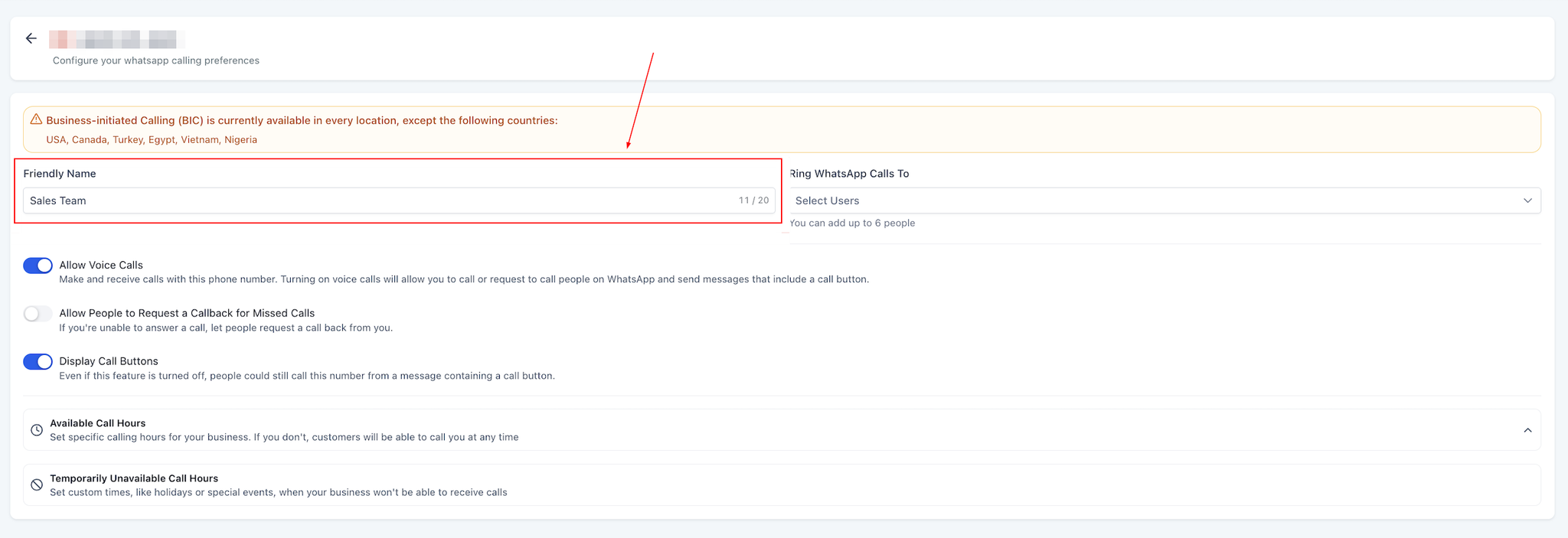
Add a recognizable name for the number in the Friendly Name field.
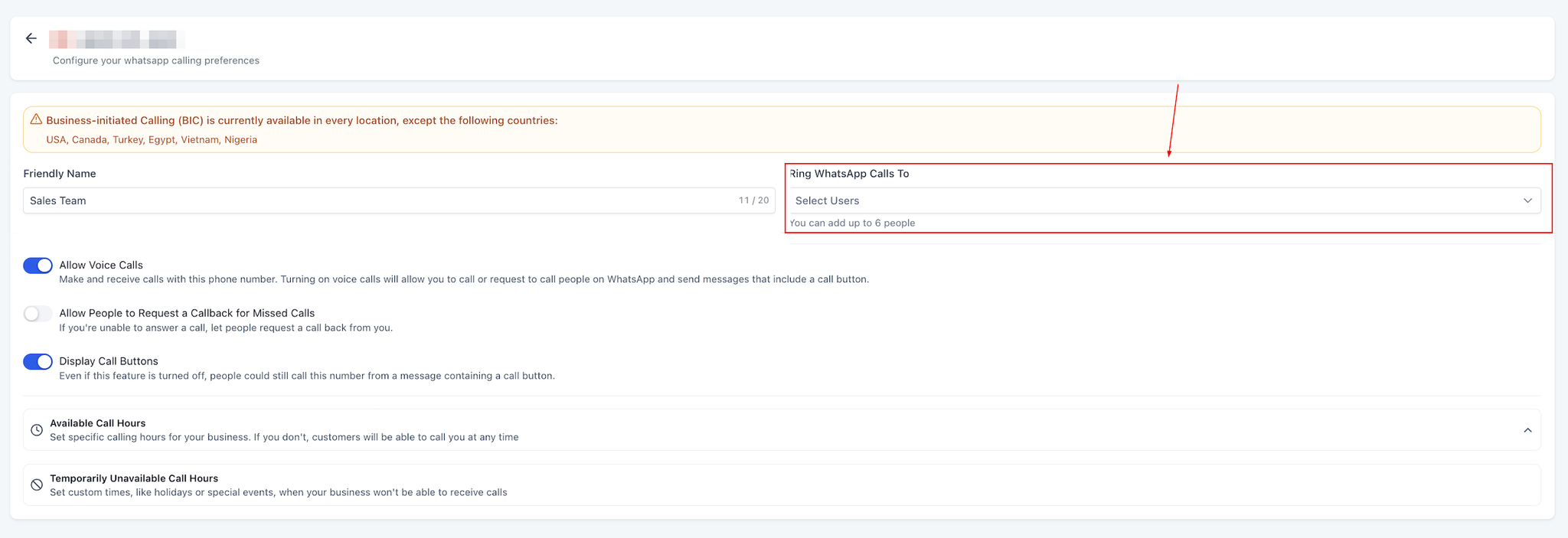
Under Ring WhatsApp Calls To, select the users who should receive incoming calls. Set a primary user and add additional users as backups if needed.
Turn on Allow Voice Calls to activate WhatsApp voice calling for the selected number. Once enabled, the assigned users can receive inbound WhatsApp calls and, where supported and permitted by the customer, place outbound calls directly from the conversation.
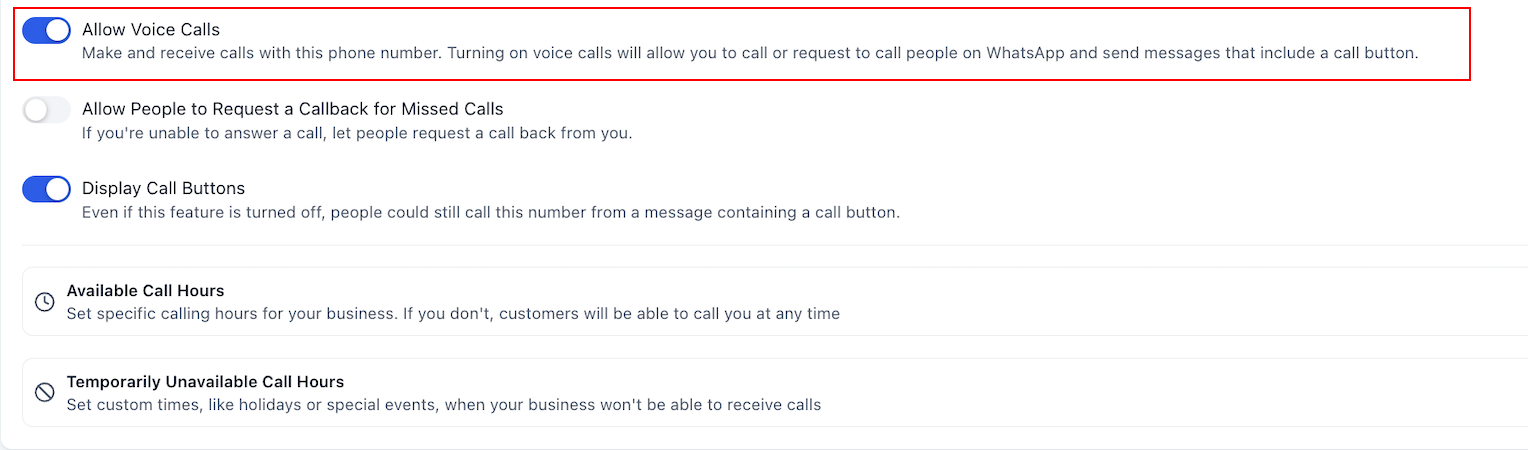
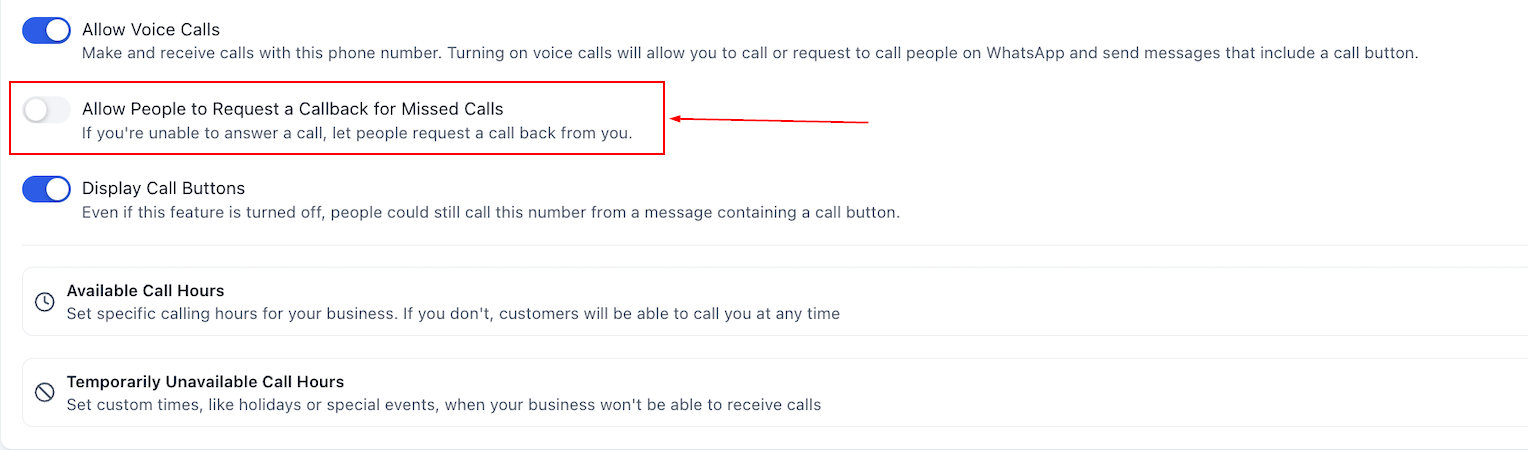
Enable Allow People to Request Callback for Missed Calls if you want customers to have the option to request a callback when their call goes unanswered. This provides a way for customers to signal that they still want to speak with someone rather than simply leaving the interaction as a missed call. The missed call is also recorded in the customer's conversation.
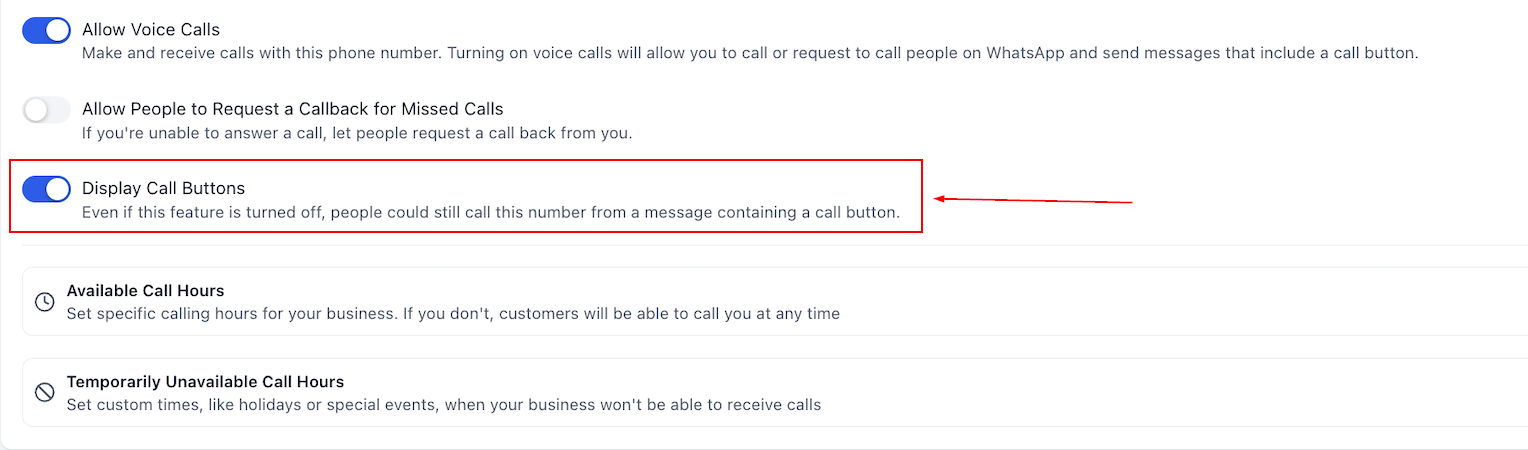
Enable Display Call Button if you want customers to see a call option on the WhatsApp Business Profile.
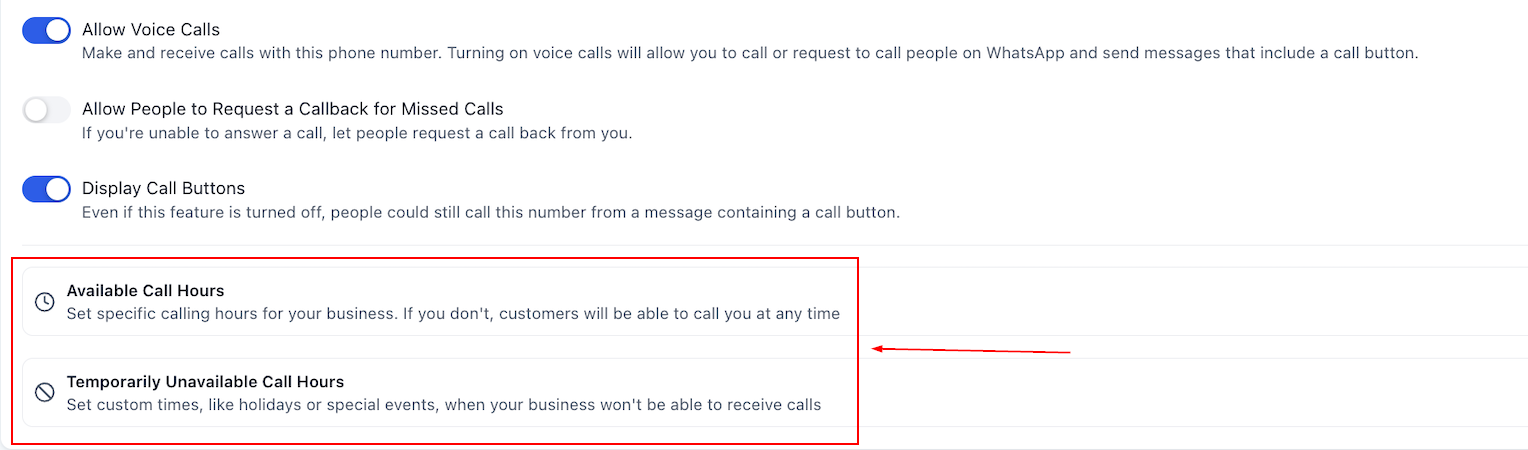
Configure Available Callers and Temporarily Unavailable Callers according to your team's schedule. This helps determine which users are available to handle incoming calls at a given time and prevents calls from being routed to team members who are temporarily unavailable.
Request Call Permission
Before placing a business-initiated call, customers must grant permission. To request permission, go to Settings > WhatsApp Templates.
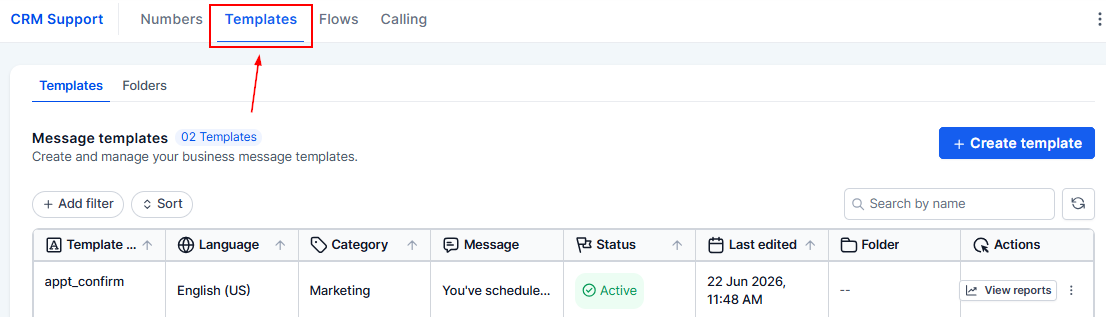
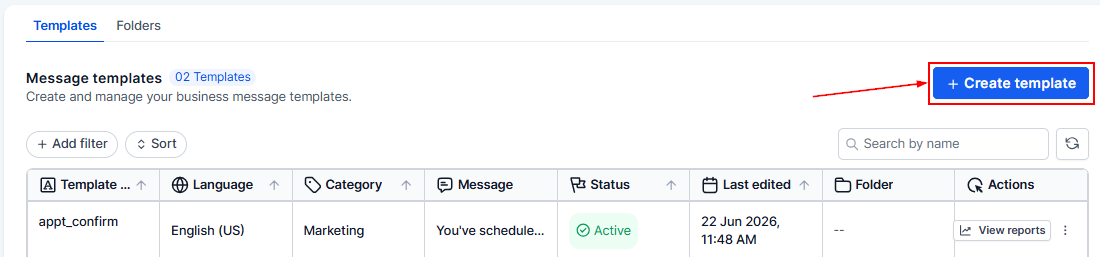
Create a template requesting permission to call.
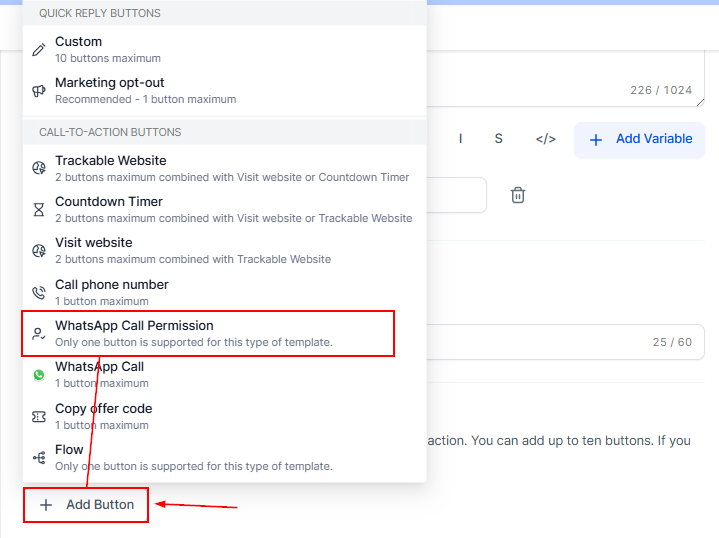
Add the WhatsApp Call Permissions call-to-action button.
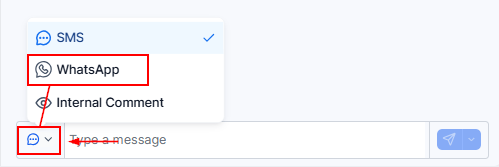
Send the request to the customer.
Once the customer approves the request, their call permission status will indicate whether permission is temporary or permanent.
When possible, include a clear reason for the call in the message. This gives customers context and makes it clear why the business is requesting permission.
Make or Receive a Call
To make an outbound call, open the customer's conversation and select WhatsApp as the messaging channel. Confirm that the customer has active call permission, then initiate the call.
For inbound calls, customers can select the call option from the WhatsApp Business Profile. The call will be routed to the users configured in the calling settings.
After the conversation ends, apply the appropriate call disposition to keep the interaction record accurate and make subsequent follow-up easier.
Configure the Call Channel for Staff
Each staff member can choose where WhatsApp calls should be received:
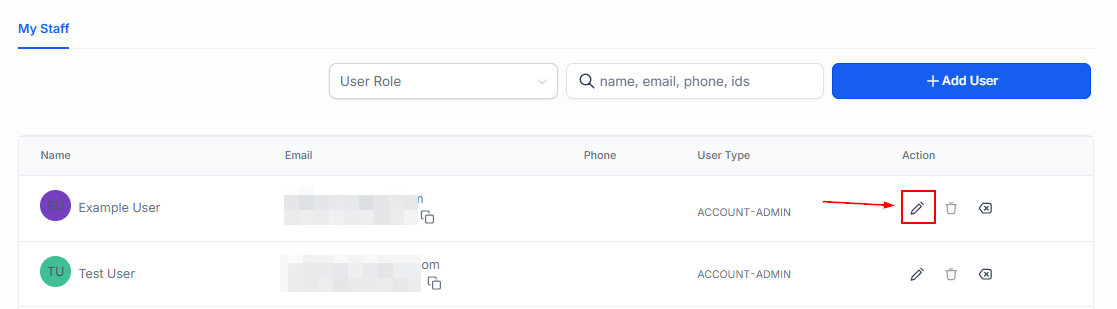
Go to Settings > My Staff. Locate the staff member and select Edit.
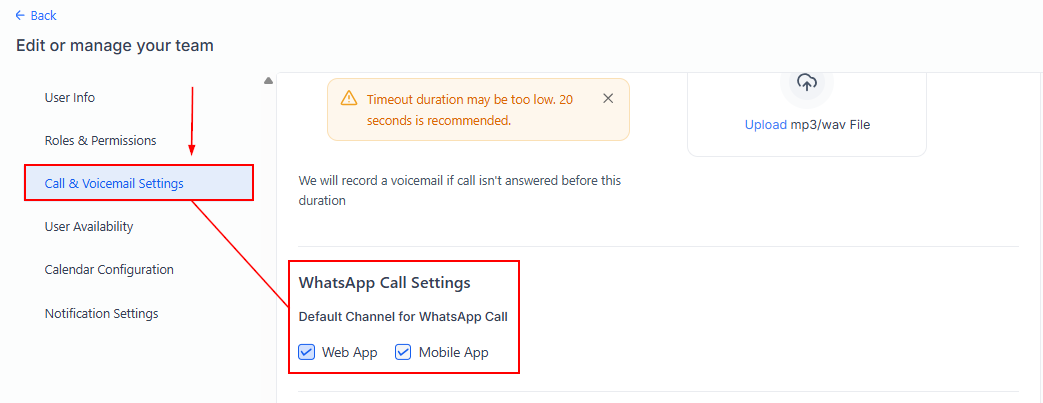
Open the Calling & Voicemail tab.
Set the default WhatsApp call channel to either Mobile App or Web App, or both.
The Mobile App option routes calls to the staff member's mobile device, while the Web App option allows calls to ring through the browser.
WhatsApp Calling brings voice and messaging together so teams can move from text to live conversations without losing customer context. By configuring calling availability, managing customer permissions, and recording call outcomes consistently, businesses can create a more responsive and organized communication experience.