
How to Create Tags
Tags are essential for contact organization; they let you see details at a glance, make targeted marketing easier to manage, and report their status in your workflows or pipelines. So, let’s learn how to create and manage them!
Creating A Tag
Go to the Tags section in your account settings and click New Tag.
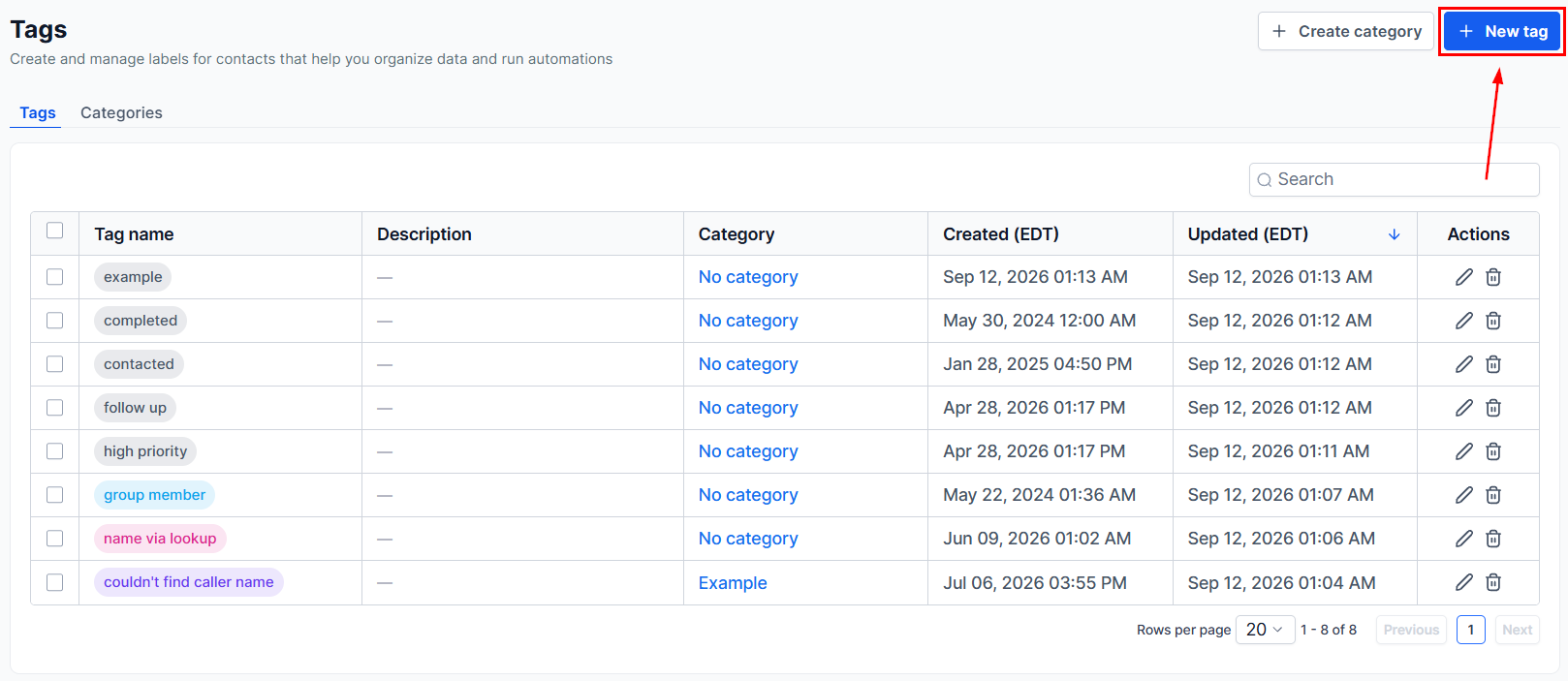
Enter a short, descriptive name for your tag.
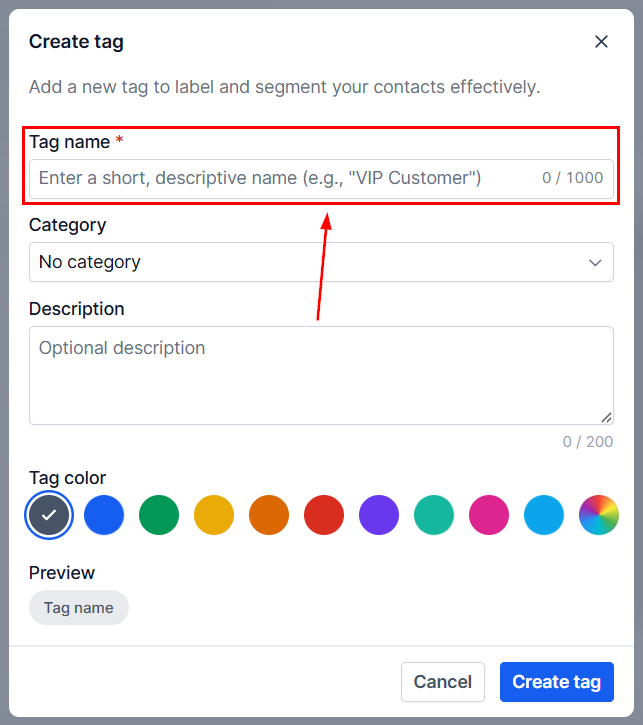
Select the category you want to include it in.
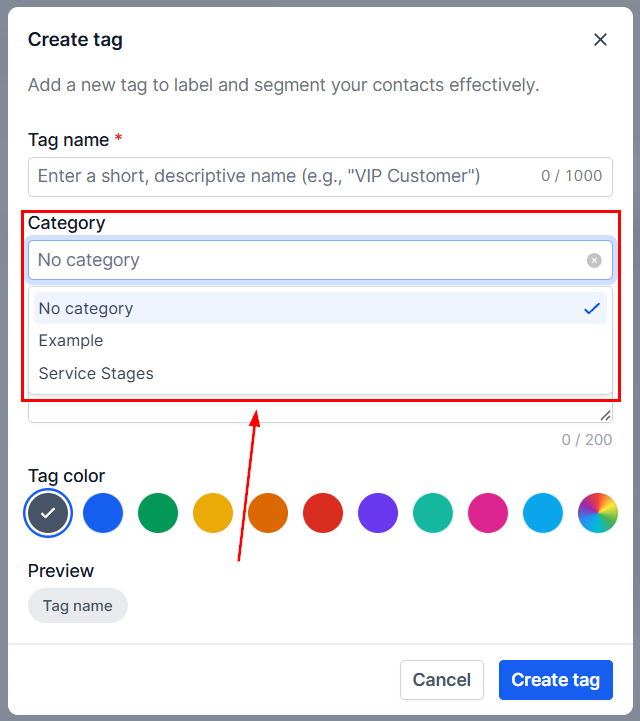
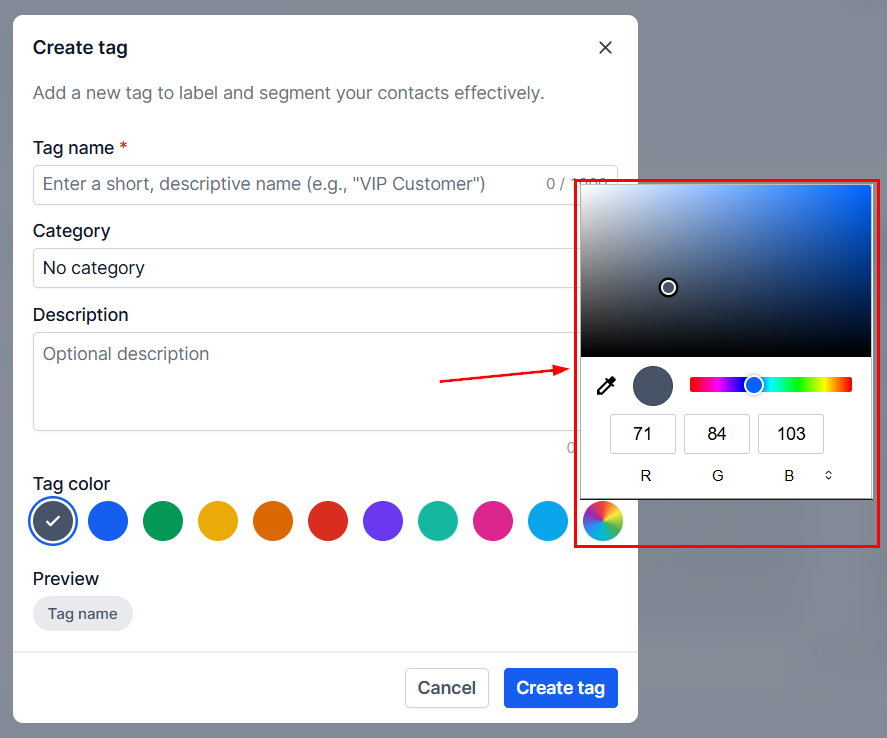
Optionally, add a description to explain what the tag represents (1) and an identifying color (2).
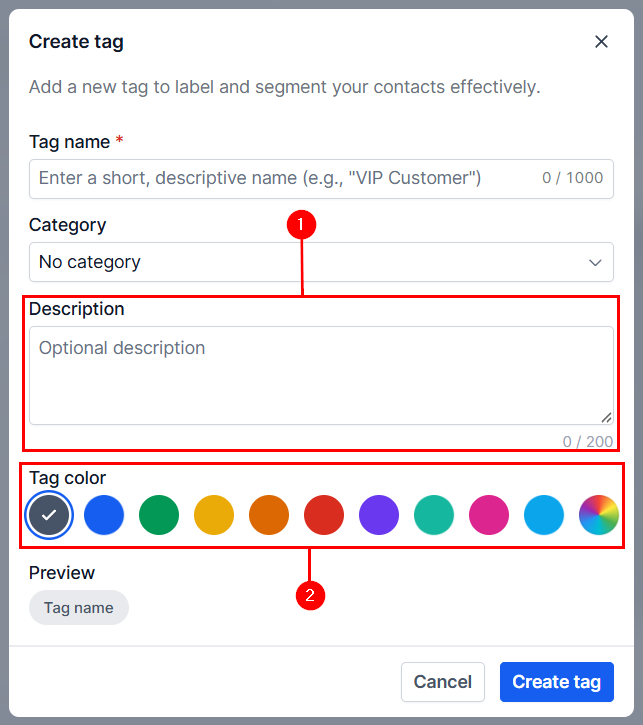
To select a custom color, click the color wheel, then set your desired color.
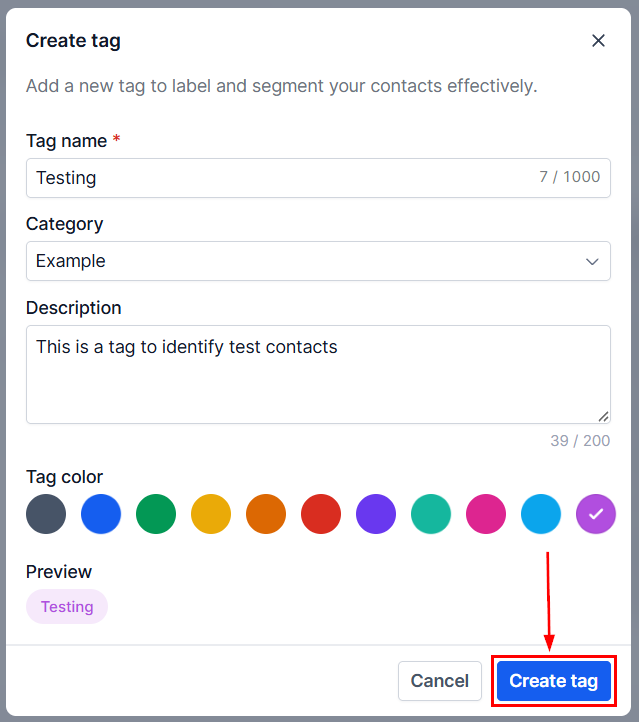
Click Create Tag to save it.
Updating Tags
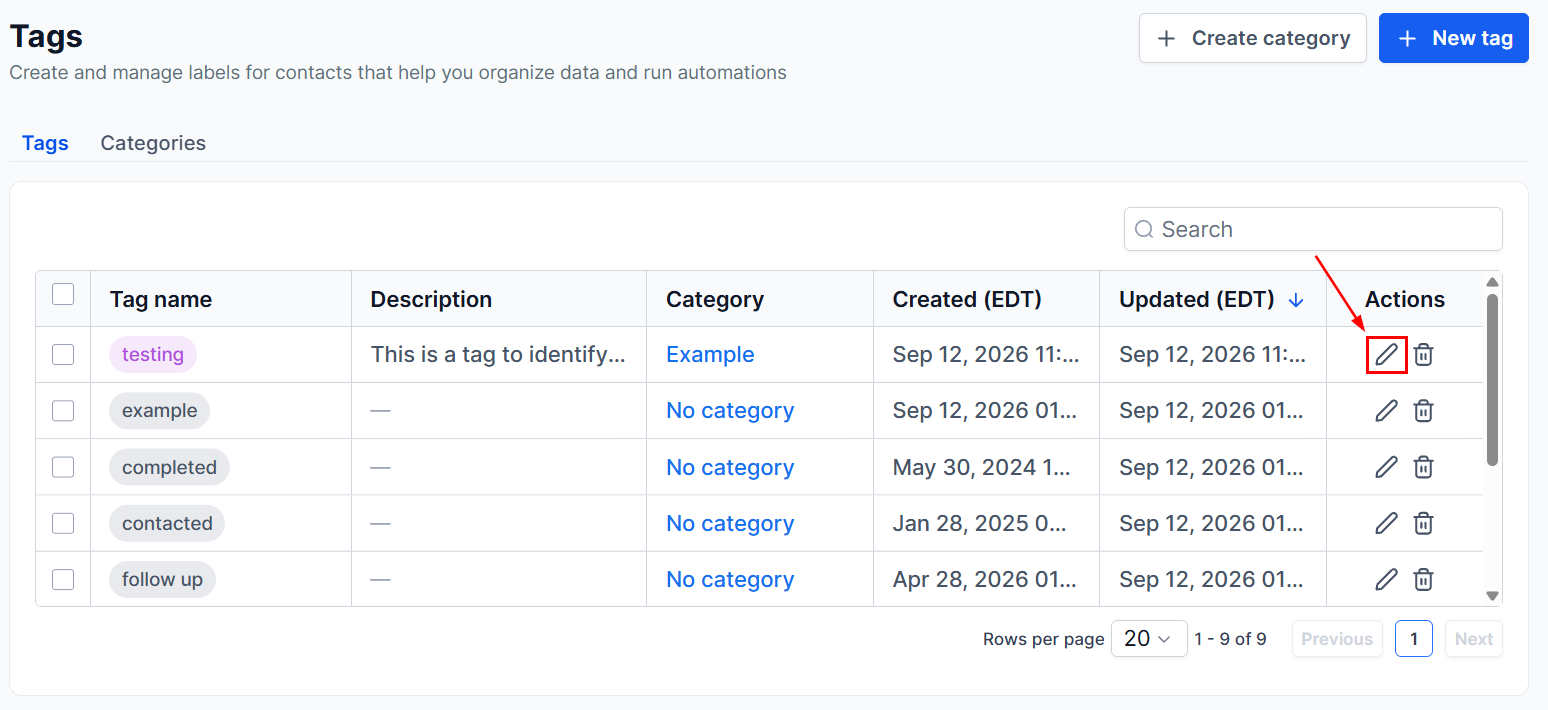
Once a tag has been saved, you can click the pencil icon next to it to edit it.
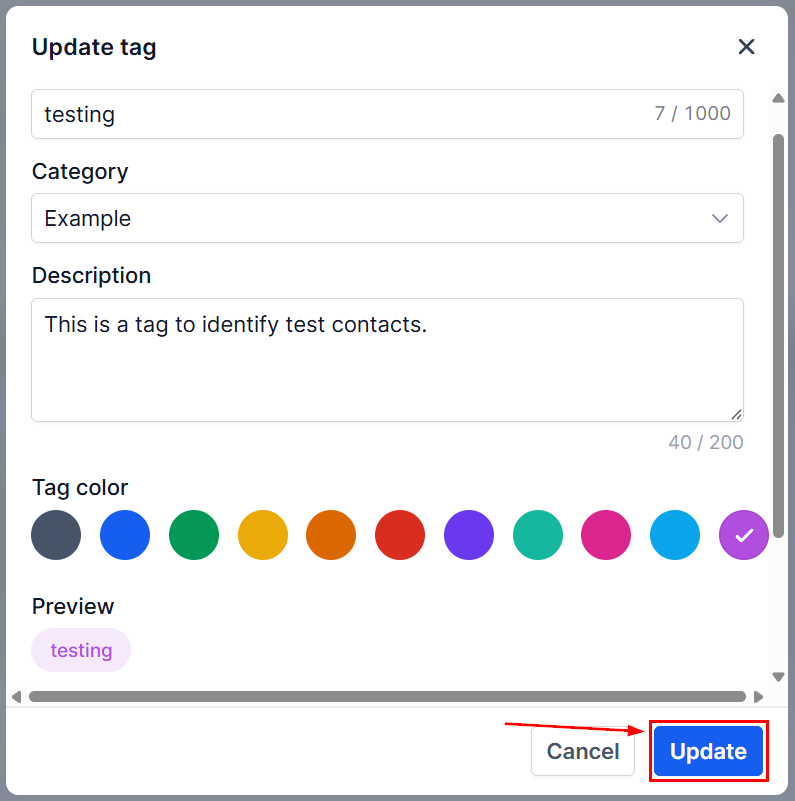
This will open a module like the one for creation, with the small difference that to save your changes you must click Update.
Note: If you change a tag’s name, you must update workflow triggers and actions, filters, and smart lists with the new name.
The added organization will help you keep your contacts and opportunities organized, providing more information at a glance, simplifying marketing, and making widespread campaigns easier to trigger. We hope you enjoy it.