
How to Integrate Facebook
Integrating your Facebook account enhances your social media management and improves your ability to track and engage with leads effectively. This process ensures that your accounts are synchronized and fully connected, allowing for seamless interaction and efficient data management.
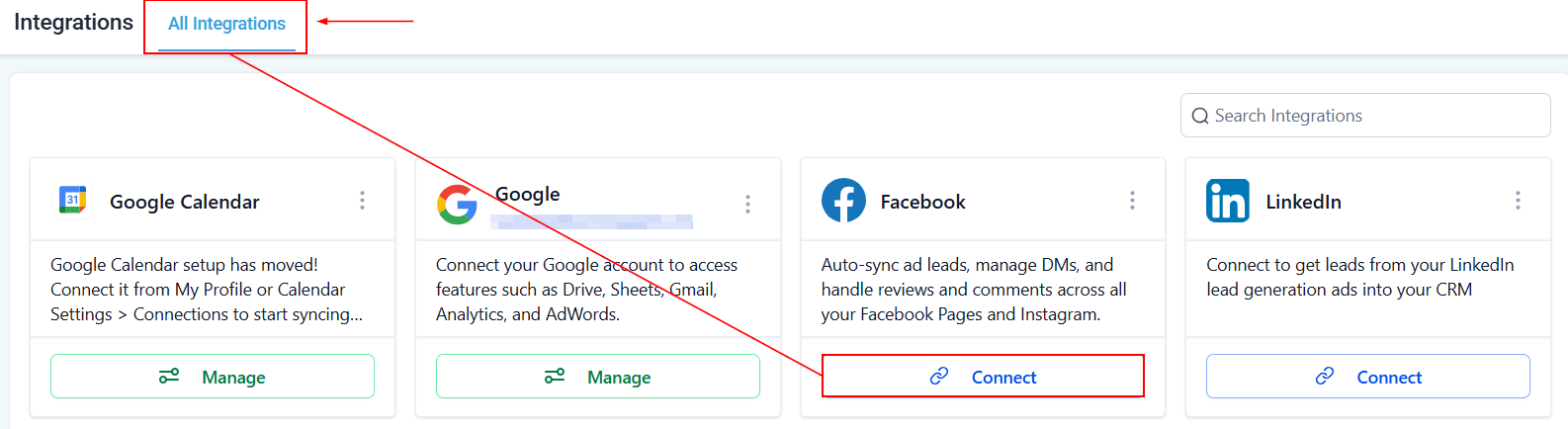
To initiate the connection, navigate to the Integrations section within your account settings. Next, click the Connect button associated with Facebook, and follow the guided steps to complete the process efficiently.
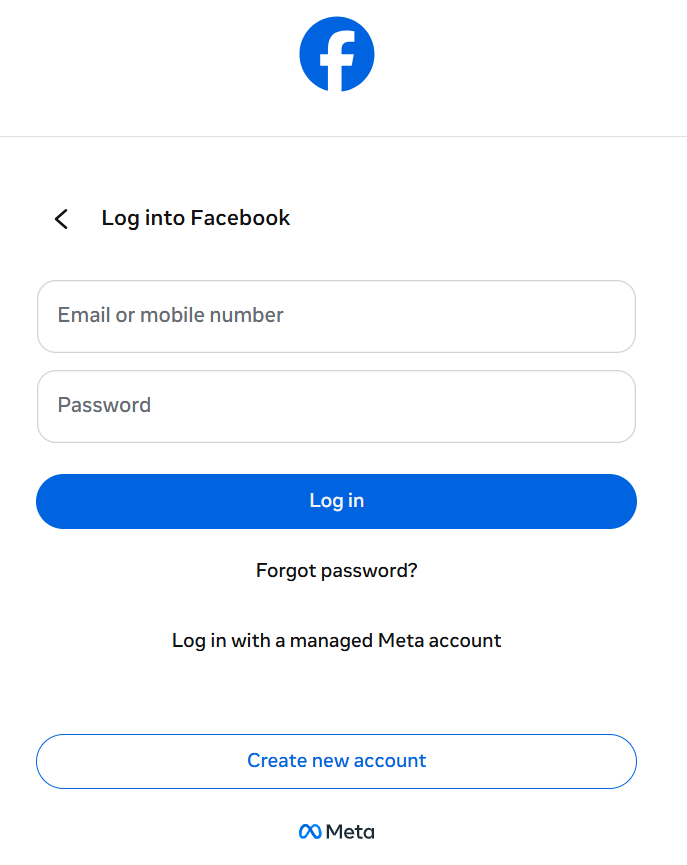
Facebook Login Page
Log into your Facebook by entering your email and password.
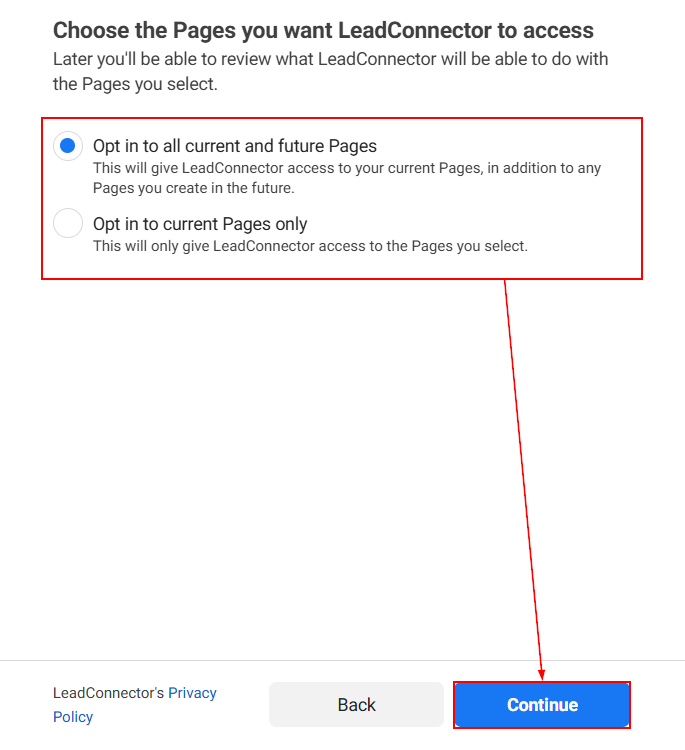
After logging in, you will be presented with a sequence of features you can give current or full access to: Pages, Businesses, and Instagram accounts.
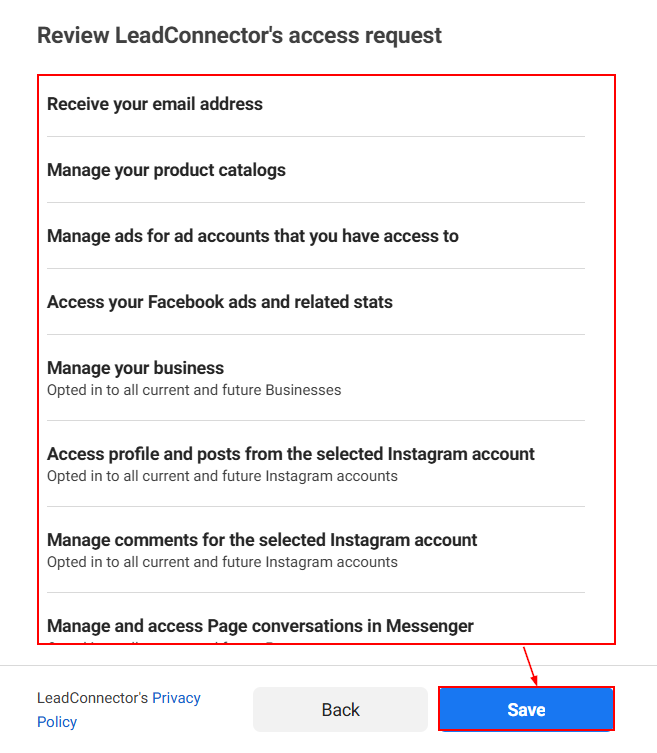
Once you have configured those features, review the access request and privacy policy. Select the “Save” button to proceed to the next steps.
Choosing your Facebook Page
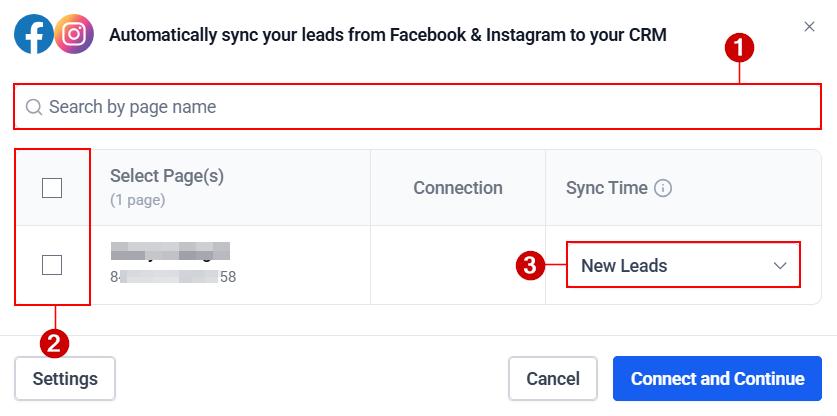
If you have many pages connected to your account, use the search bar to quickly locate the one you are looking for (1). Once you have located it, check the box next to it (2), then choose whether to sync leads up to 90 days before enabling the integration or the ones that are received after the integration is enabled (3).
Finalizing the Integration
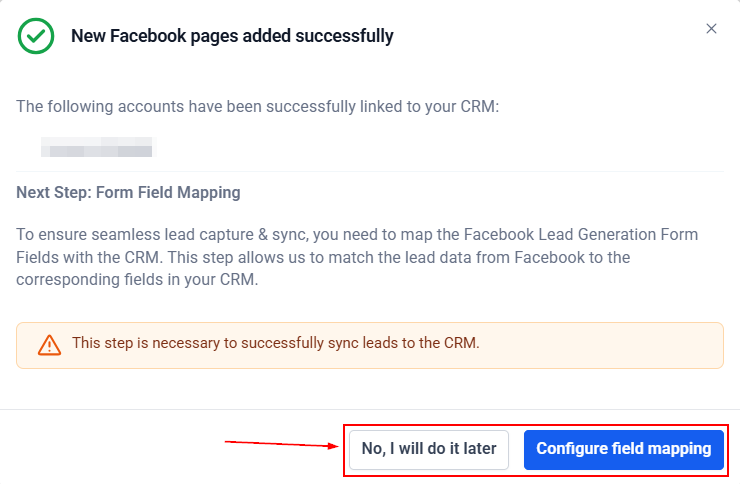
If you have any Facebook Forms, you can map them directly within the connection window or configure them at another time.
For detailed guidance on mapping Facebook Form Fields, check out the “Mapping Facebook Form Fields” article in this section.
Manage Facebook Pages
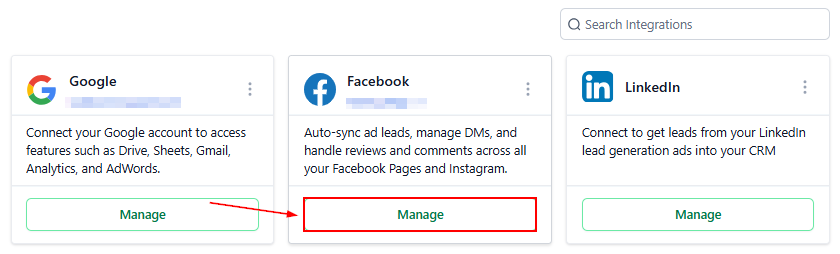
To connect additional pages, click on Manage.
Settings
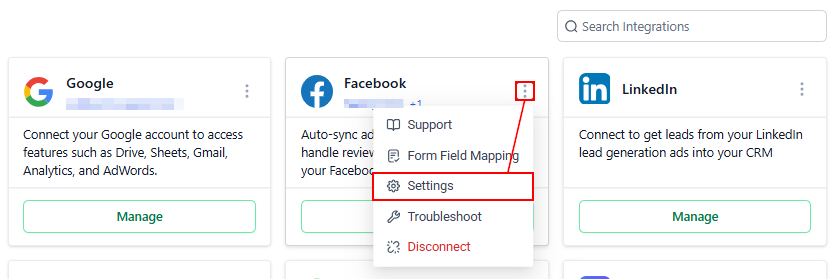
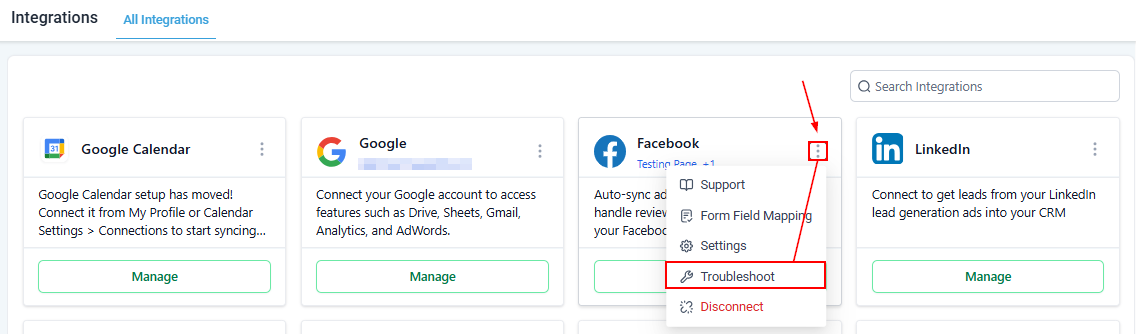
To manage Messenger, shops, or your ad account, click Settings from the actions dropdown.
Troubleshoot Facebook Pages
Click the Troubleshoot option to diagnose and resolve missing permissions and other issues related to Facebook integration.
Removing the Connection
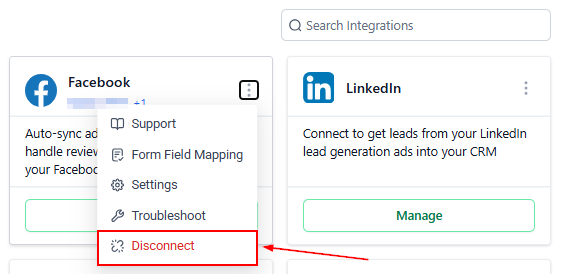
From the actions dropdown, click the “Disconnect” button to remove your Facebook account from the platform.
✍️Important Notes
- If you have manually imported missing leads using a CSV exported from Facebook Ads Manager, please disable the "Allow duplicate contacts" option to prevent the creation of duplicate records during synchronization.
- Workflows triggered by contact creation or Facebook Lead form submissions will activate for each new contact created while existing contacts generated through Facebook Leads will remain unaffected.
- The timestamp for new contacts will reflect the current time, and the synchronization process may take up to one hour to complete, depending on the volume of leads to be synced.
By following these steps, you ensure that your Facebook and Instagram accounts are seamlessly integrated, optimizing your social media management and lead synchronization. Regularly monitor and adjust your settings to maintain an efficient and updated connection between your platforms.