
How to Integrate Slack
Slack is where many teams communicate throughout the day, while a CRM is where customer information, leads, opportunities, and follow-ups are managed. Connecting the two can make it easier to keep your team informed without constantly switching between applications. For example, your sales team can receive a notification in Slack when a new lead comes in, a deal changes stages, or an important customer update occurs. It’s a simple way to keep everyone in the loop without asking them to keep one eye glued to the CRM all day.
The good news? Getting the connection set up is pretty straightforward. Let’s walk through it step by step.
Find Slack in Integrations
Start by heading to the Integrations section of your account. From there, scroll through the available integrations until you find the Slack tile. Once you spot it, click Connect.
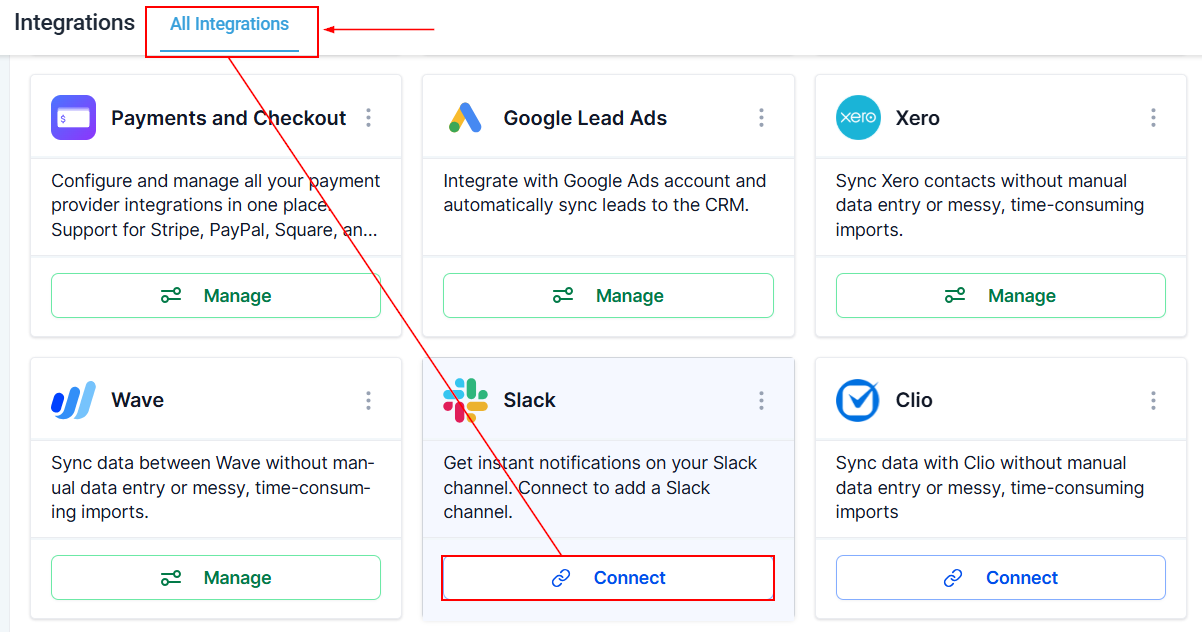
Connect to Slack
You’ll see a confirmation screen asking you to connect your account to Slack. Click Connect to Slack to continue. This will initiate the authorization process and take you over to Slack for the next part.
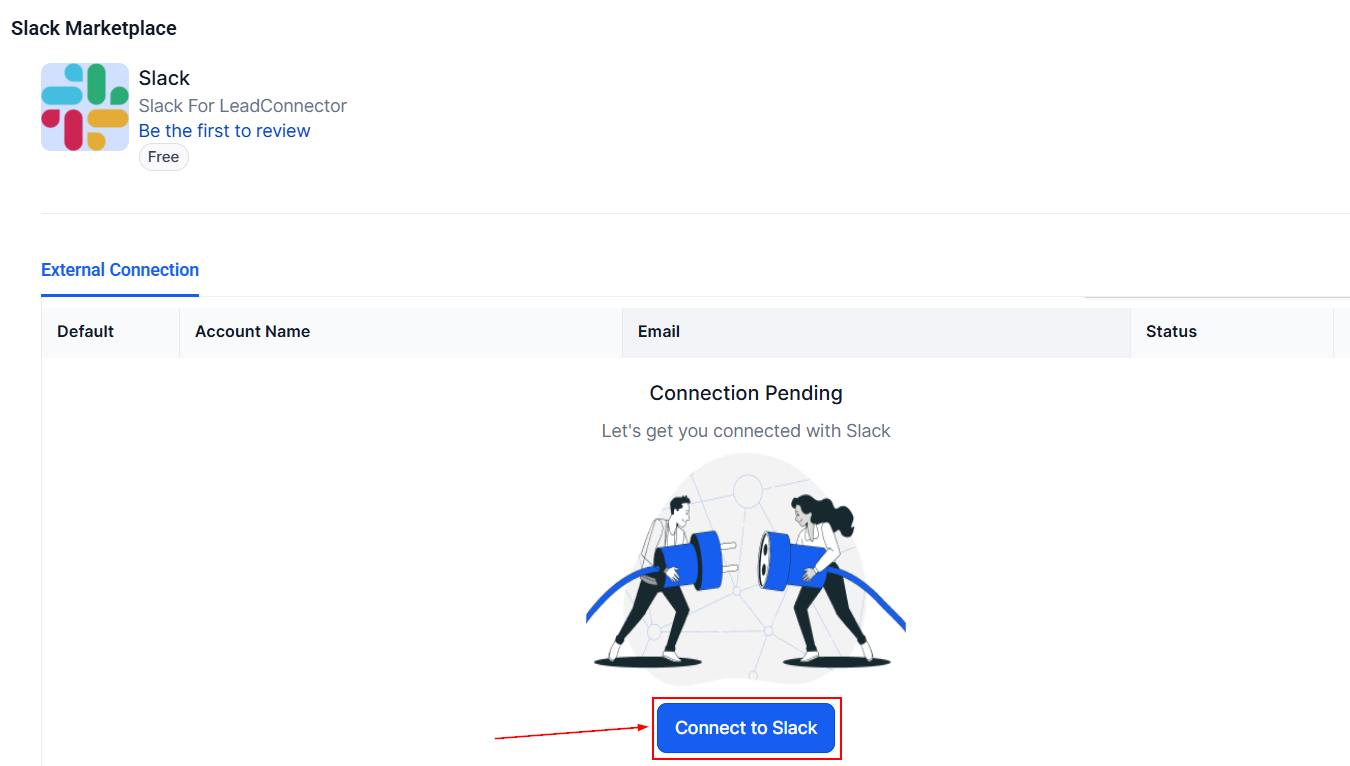
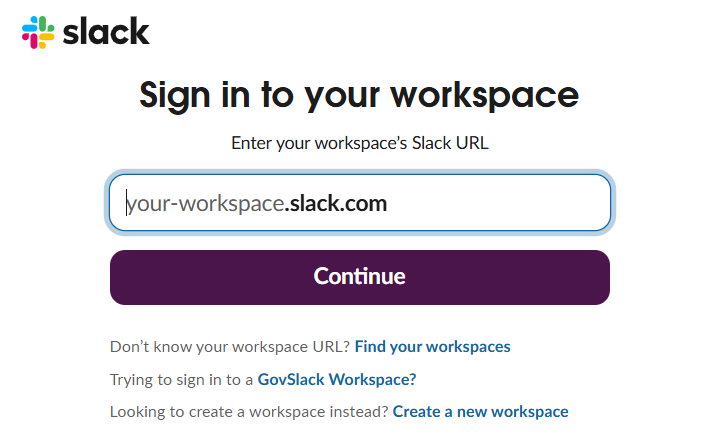
Enter Your Slack Workspace URL
A new window will open, asking you to enter your Slack workspace URL. Enter the URL for the workspace you want to connect, then continue with the authorization process.
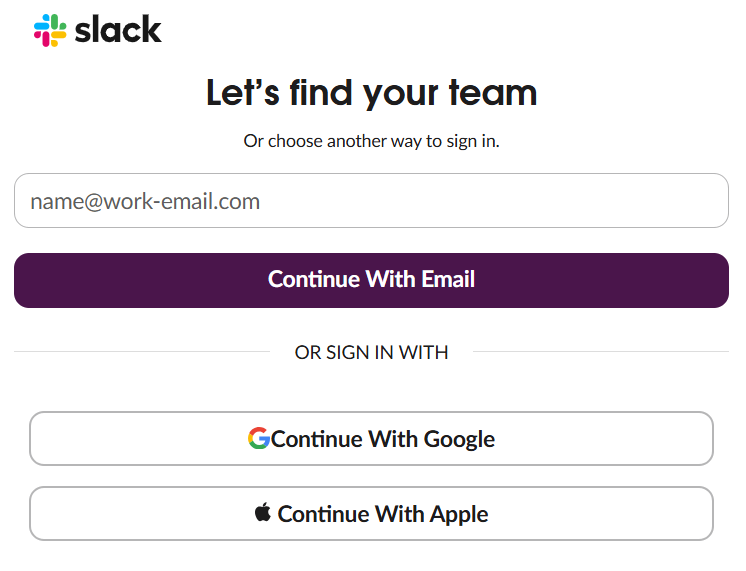
Not sure what your workspace URL is? No problem.
Click Find Your Workspaces and Slack will give you the option to find your workspace by signing in with your email address, Google account, or Apple account.
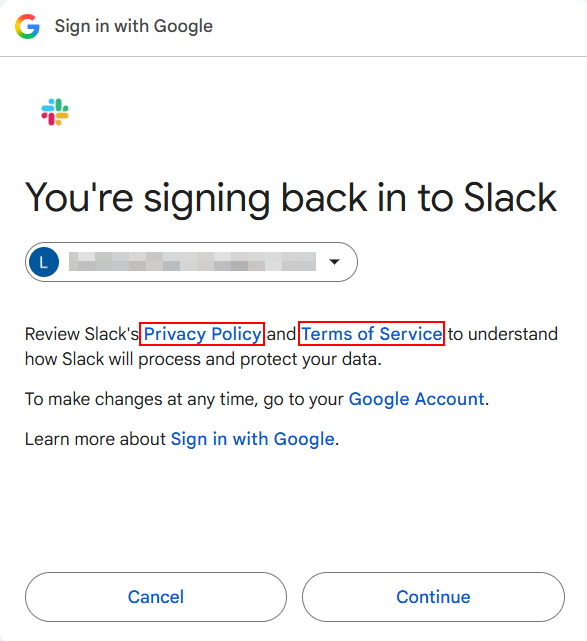
Review Slack’s Policies
Before continuing, you’ll have the opportunity to review Slack’s Privacy Policy and Terms of Service. Take a moment to read through them so you understand how the connection works and what you’re agreeing to. Once you're comfortable with the terms, continue to the next step.
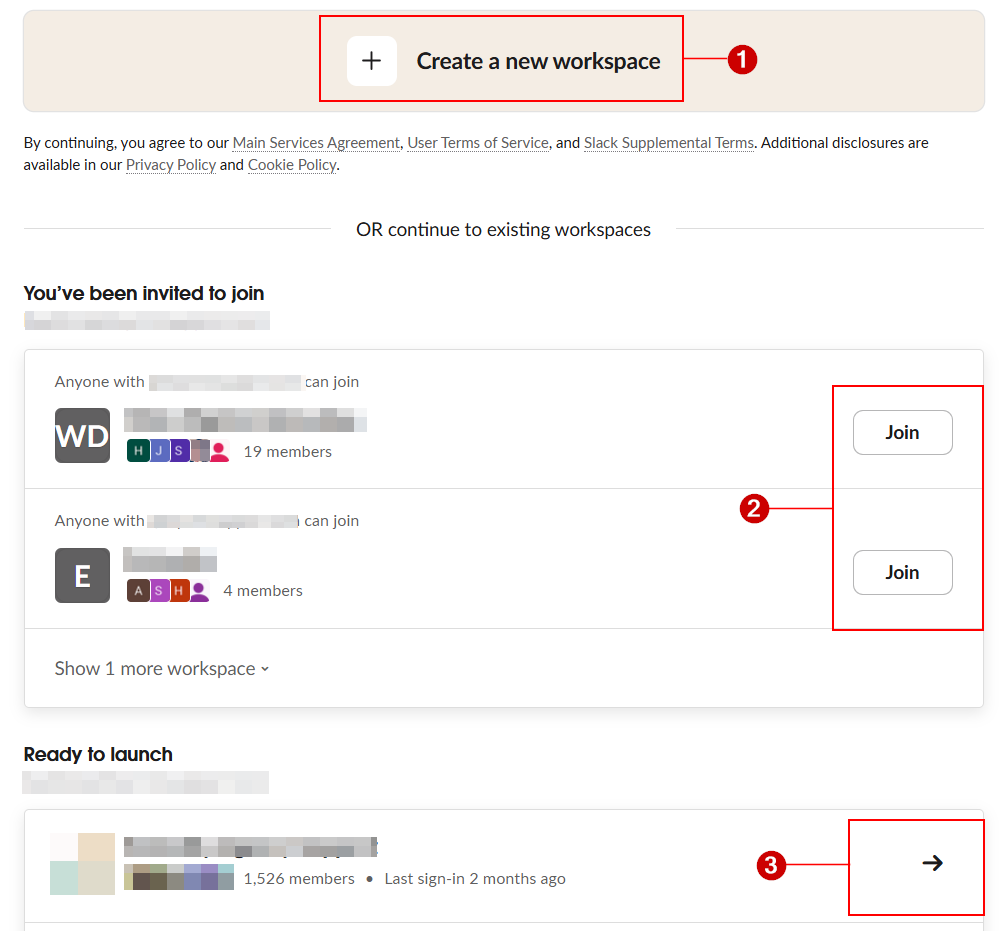
Select Your Workspace
Slack will then give you a few options for connecting your workspace.
You can:
- Create a new workspace
- Join an available team
- Connect a workspace you’ve already joined
If you already have a Slack workspace set up for your team, choose the workspace you want to connect and continue.
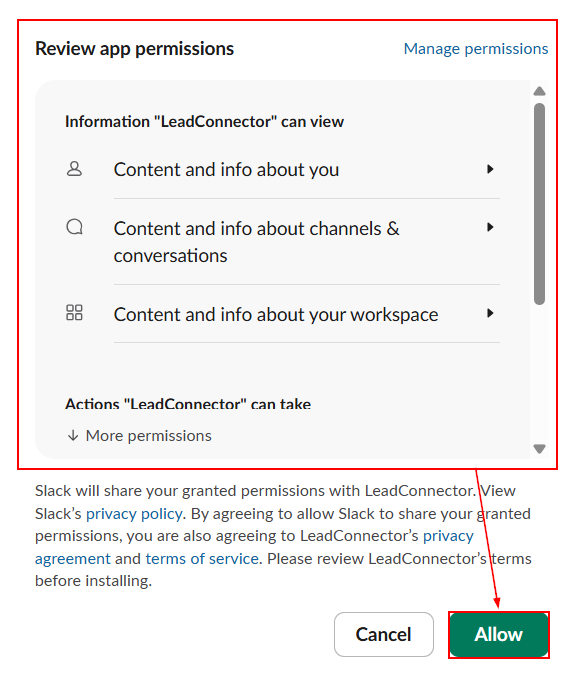
Review App Permissions
Next comes an important step: reviewing the permissions requested by the app. Before clicking Allow, take a moment to look through the permissions and make sure they match how you intend to use the integration.
Once you’ve reviewed everything and are happy with the permissions, click Allow.
Confirm the Connection
After Slack has been authorized successfully, your Slack account will appear in the list of connected accounts.
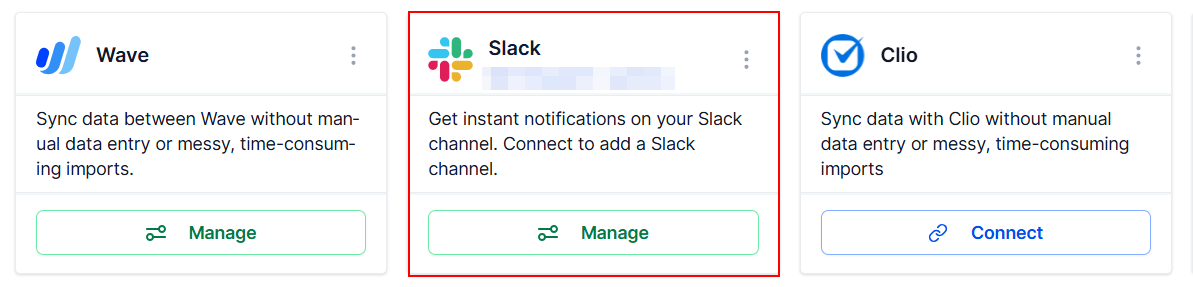
Manage Your Slack Connection
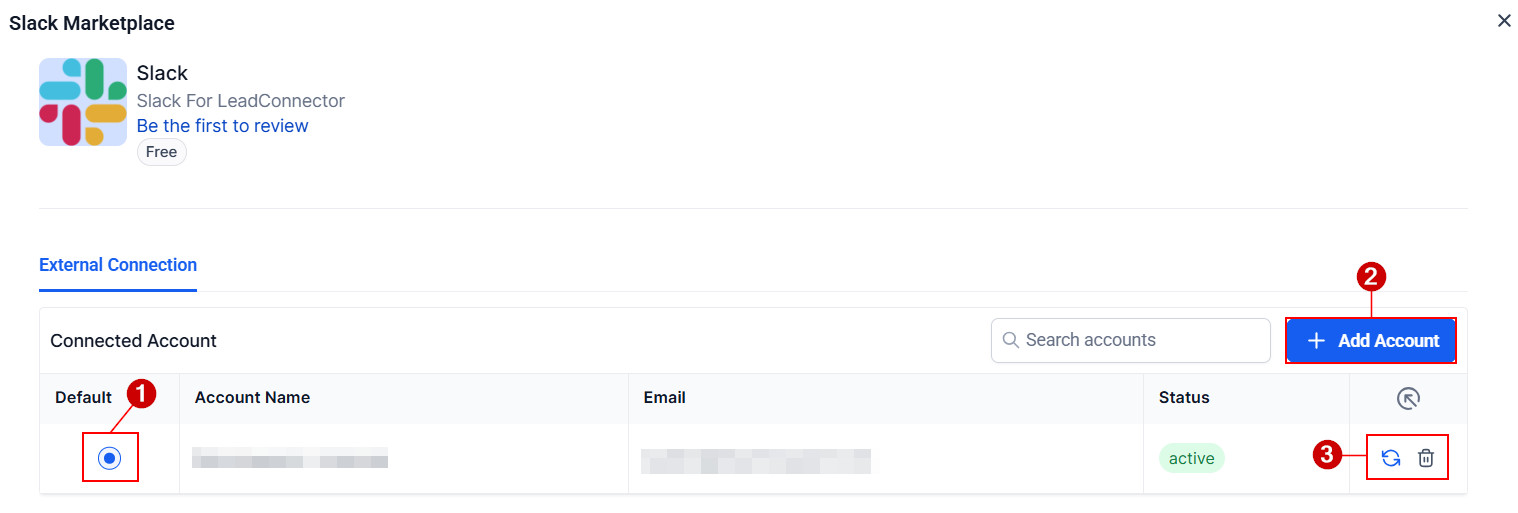
Click Manage next to the connected Slack account to view your available options.
From here, you can:
- Choose a default account — Select which connected Slack account should be used by default.
- Connect multiple workspaces — If you work with more than one Slack workspace, you can connect additional accounts.
- Refresh or remove the connection — Update the connection when needed or disconnect it if you no longer want to use it.
Having these options in one place makes it easier to keep your Slack connections organized, especially if you manage multiple workspaces.
Once your account is connected, your CRM and Slack can work together to help your team stay on top of customer activity and important updates—all without constantly bouncing between platforms.