
How Prospecting Creates Contacts
When you save a prospect, Prospecting can automatically create contacts. You can control how contacts are created and whether additional contact information is added by adjusting two settings: Contact Creation and Contact Enrichment.
Contact Creation
Contact Creation is enabled by default and can be found under Marketing → Prospecting → Settings → Contacts.
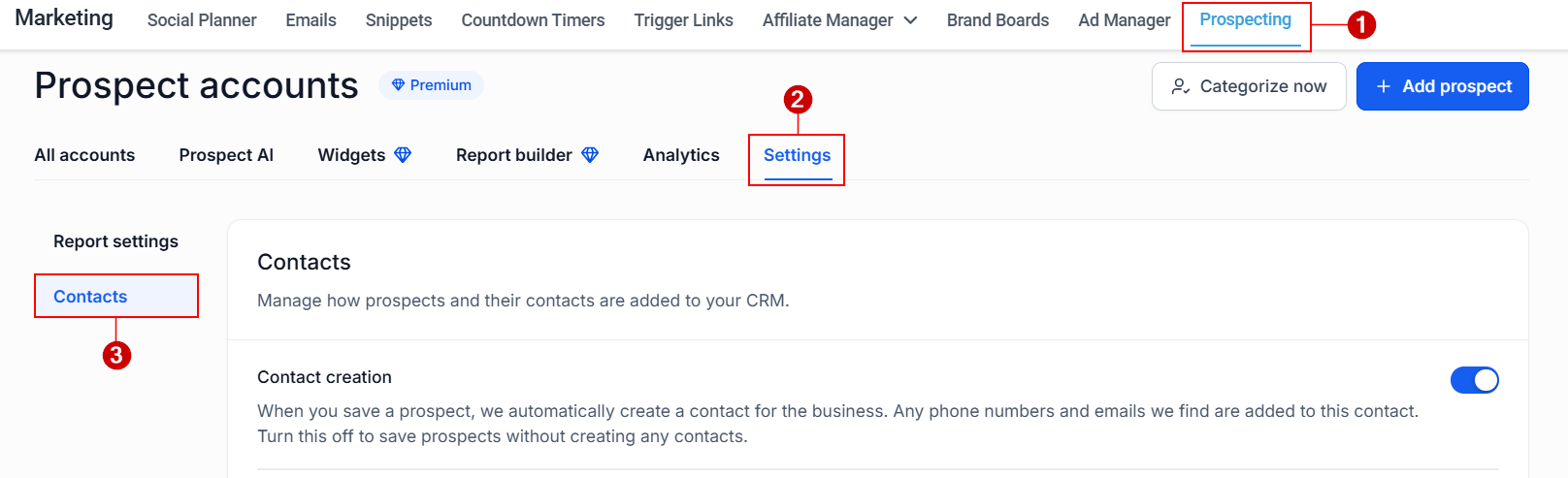
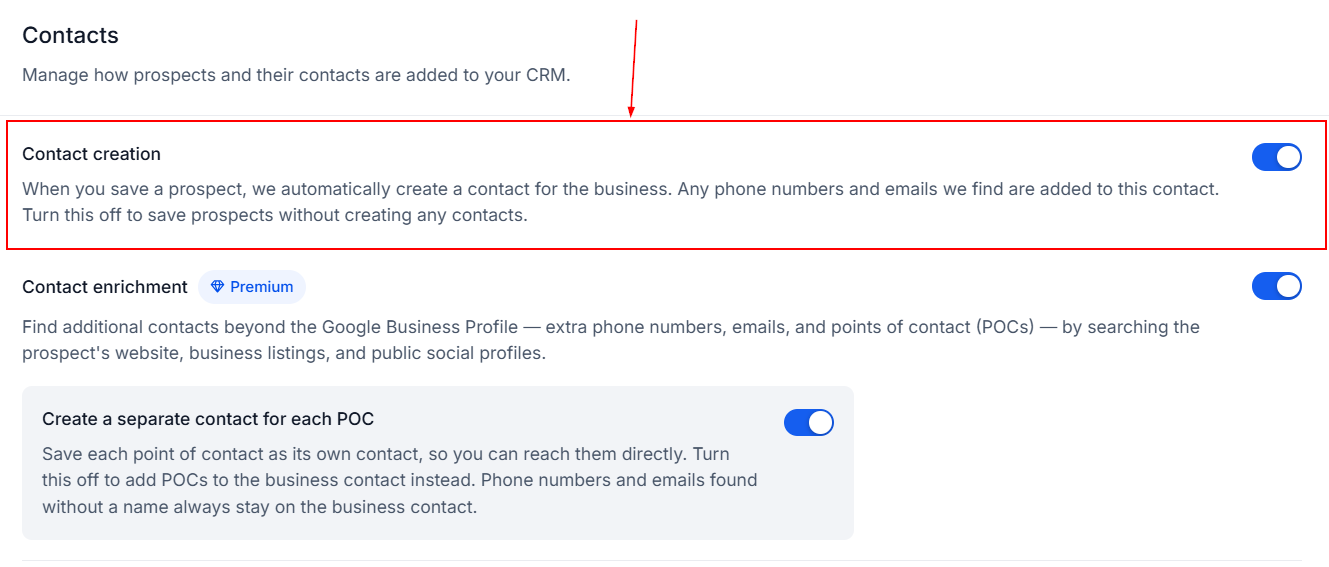
When Contact Creation is turned on, saving a prospect automatically creates one business contact in your CRM using the information available at the time. This information can include:
- Details from the prospect's Google Business Profile (such as phone number, address, and website)
- Information submitted through forms
- Data captured by website prospecting widgets
- Information entered manually
Any additional phone numbers or email addresses that are found are added to the same business contact, helping keep a single record for each business.
If you turn Contact Creation off, prospects can still be saved, but no CRM contact will be created.
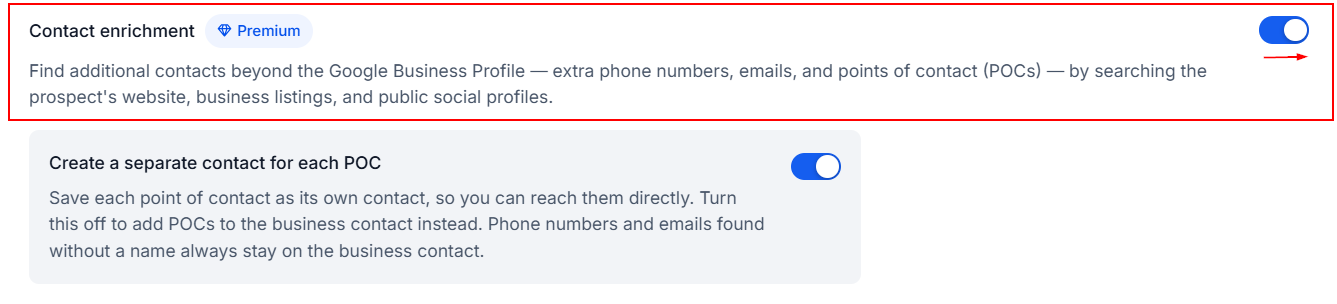
Contact Enrichment
When Contact Enrichment is enabled, Prospecting searches for additional information beyond the Google Business Profile, including:
- Additional phone numbers from websites and business listings
- Additional email addresses from websites and business listings
- Points of Contact (POCs), such as owners or managers, found through data partners
Prospecting gathers this information by searching the prospect's website, business listings, and public social profiles.
Choose How Points of Contact Are Saved
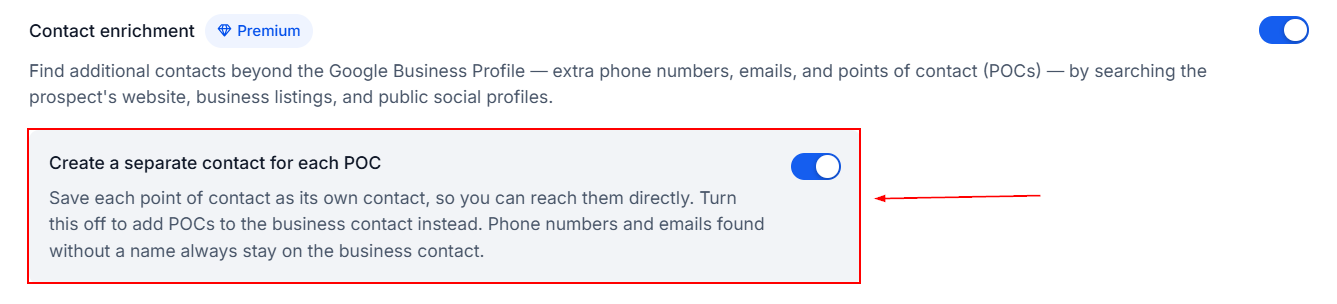
When Contact Enrichment is enabled, you can control how named Points of Contact (POCs) are stored.
By default:
- Named POCs are created as separate CRM contacts.
- Unnamed phone numbers and email addresses remain attached to the main business contact.
If you disable the Create a separate contact for each POC option, named contacts are added to the main business contact instead of being created as separate records.
For example, if Prospecting finds one business and two named contacts:
- With the setting enabled, your CRM will contain:
- 1 business contact
- 2 separate POC contacts
- With the setting disabled, the named contacts are added to the business contact instead.
Contact Field Mapping
When a business contact is created, Prospecting automatically maps available information to standard CRM fields, including:
- Phone Number
- Additional Phone Numbers (when available)
- Email Address
- Contact Source (set to Prospecting Tool)
- City
- State
- Country
- Postal Code
- Website URL
By configuring Contact Creation and Contact Enrichment, you can control how Prospecting adds and organizes contacts in your CRM. These settings help ensure business information, additional contact details, and Points of Contact are stored in a way that aligns with your team's workflow, making it easier to manage and engage with your prospects.