
How to Create an Email Sequence
Email Sequences help you create automated threaded email conversations with delays, conditions, and smart scheduling.
Creating a Sequence
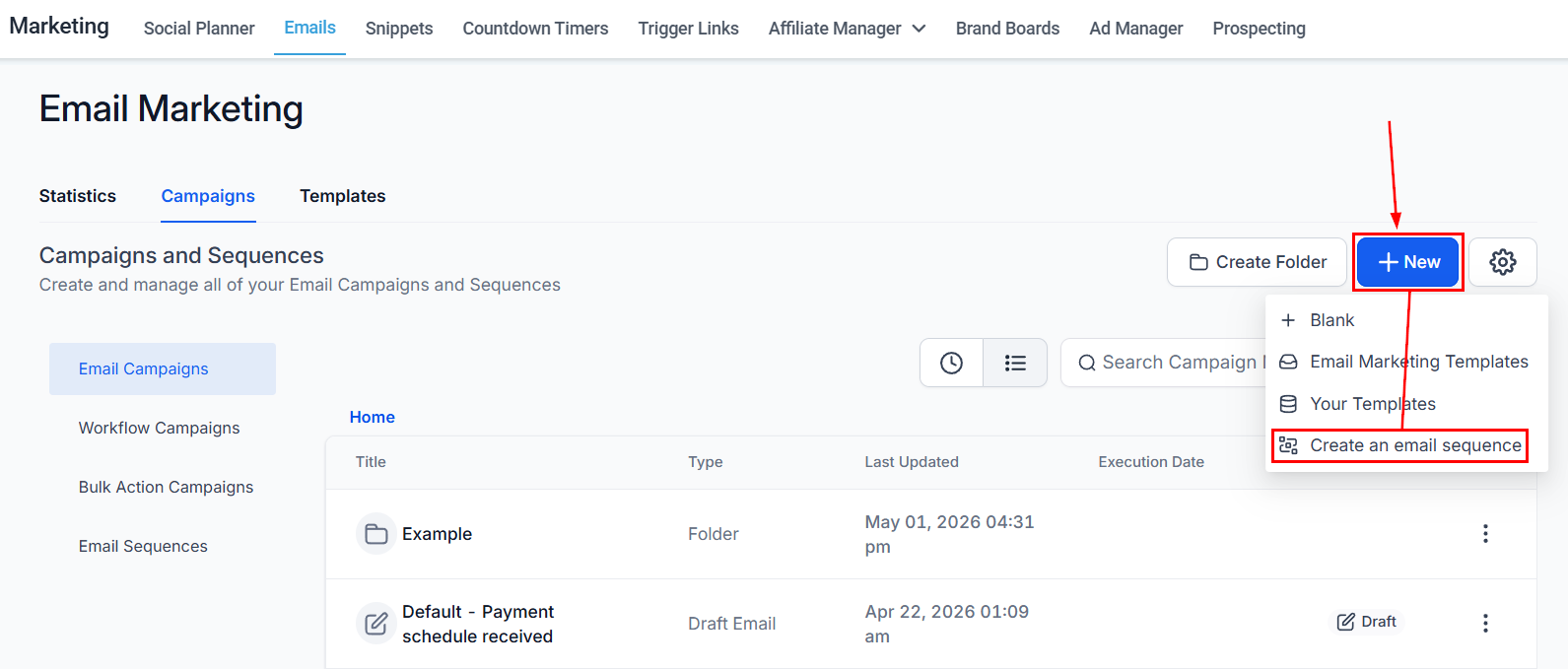
Inside the Email tab of the Marketing section, click “+ New,” then select “Create an email sequence” to get started.
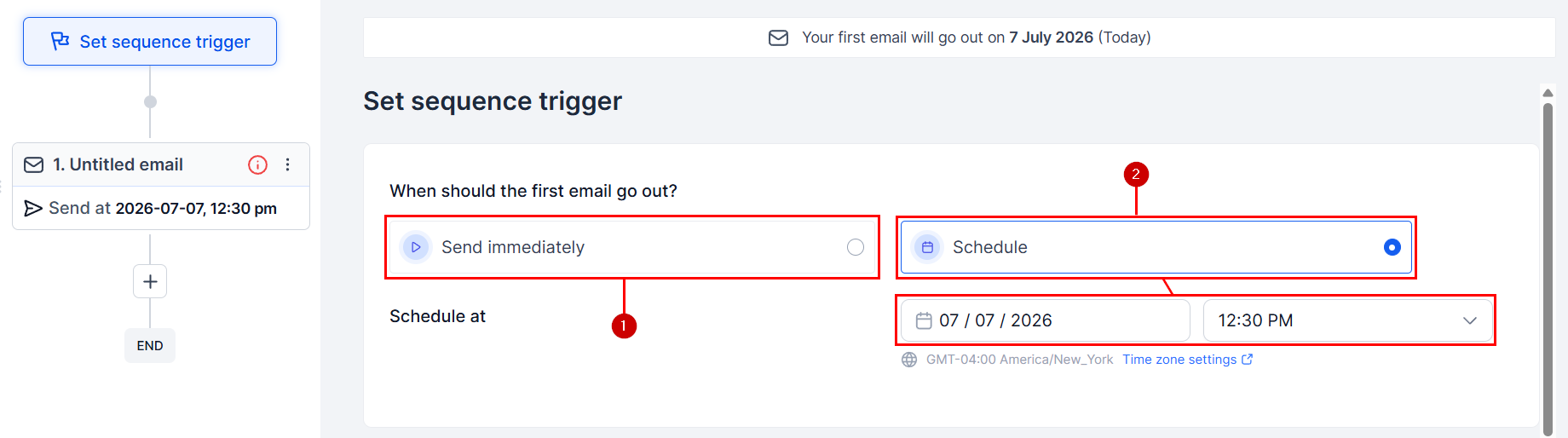
Configure whether the first email should be sent right away (1) or set a date for future sending (2).
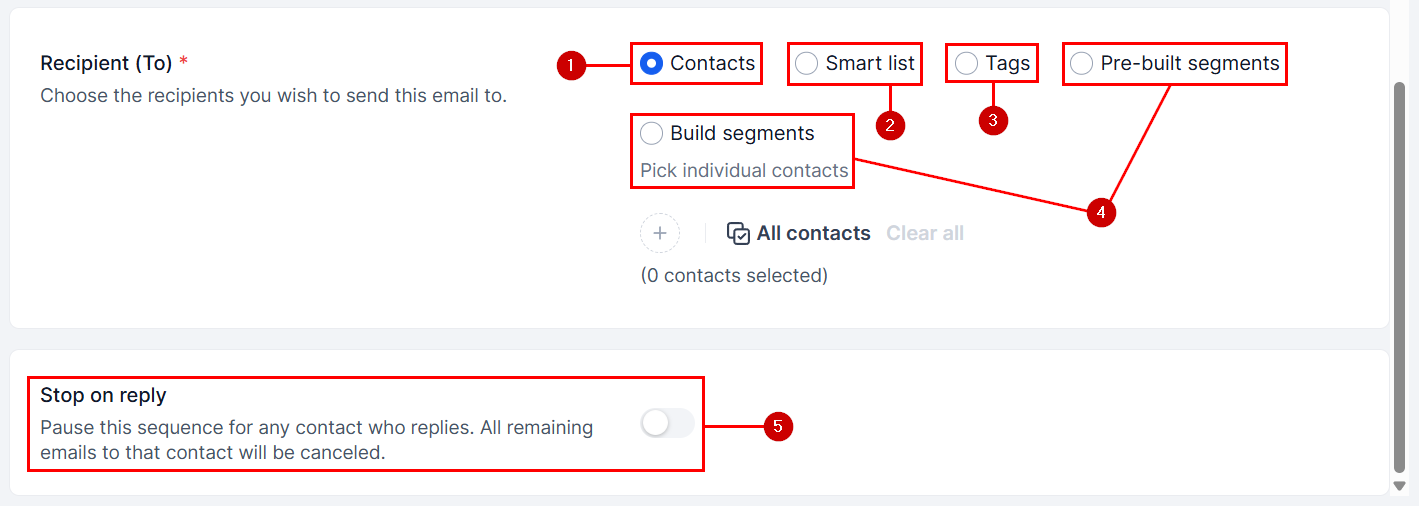
Select the recipients you want to include in the sequence. You can pick individual contacts (1), members of a smart list (2), contacts with a specific tag (3), or segments (4). And, if desired, enable Stop on reply to auto-pause the sequence for responders (5).
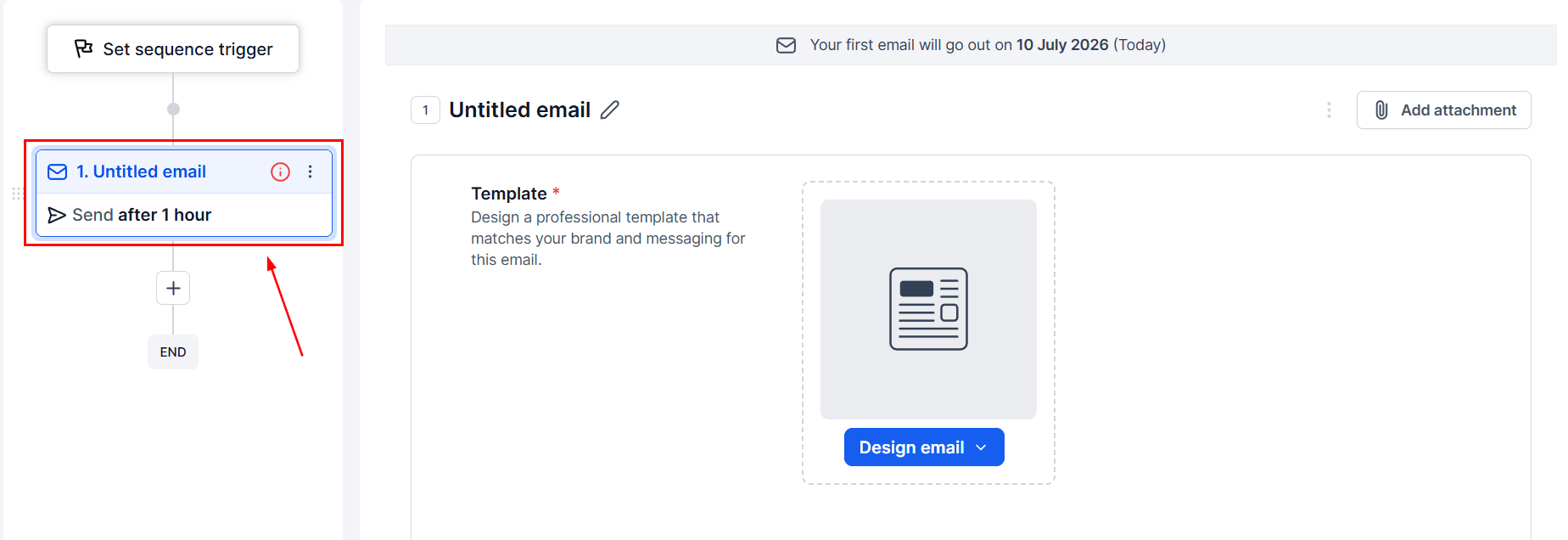
Click the email step to configure your template and sending details. This will be the same process as when creating a regular email template.
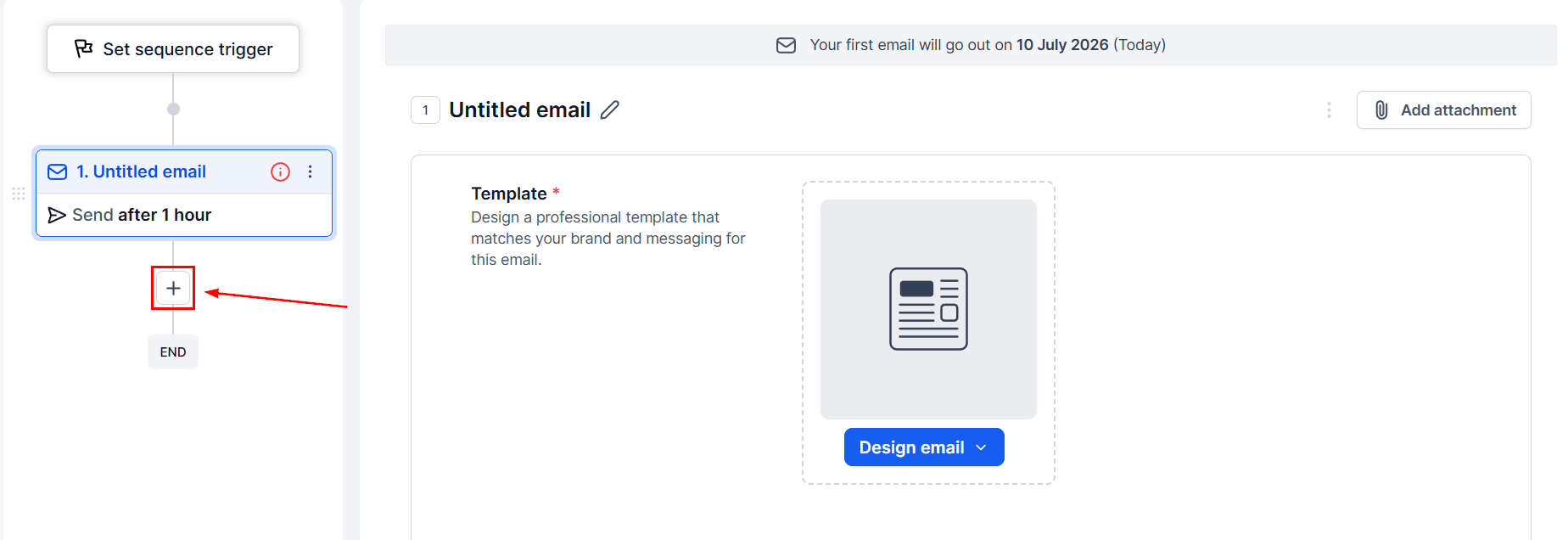
Click the plus sign icon to add more email steps to your sequence.
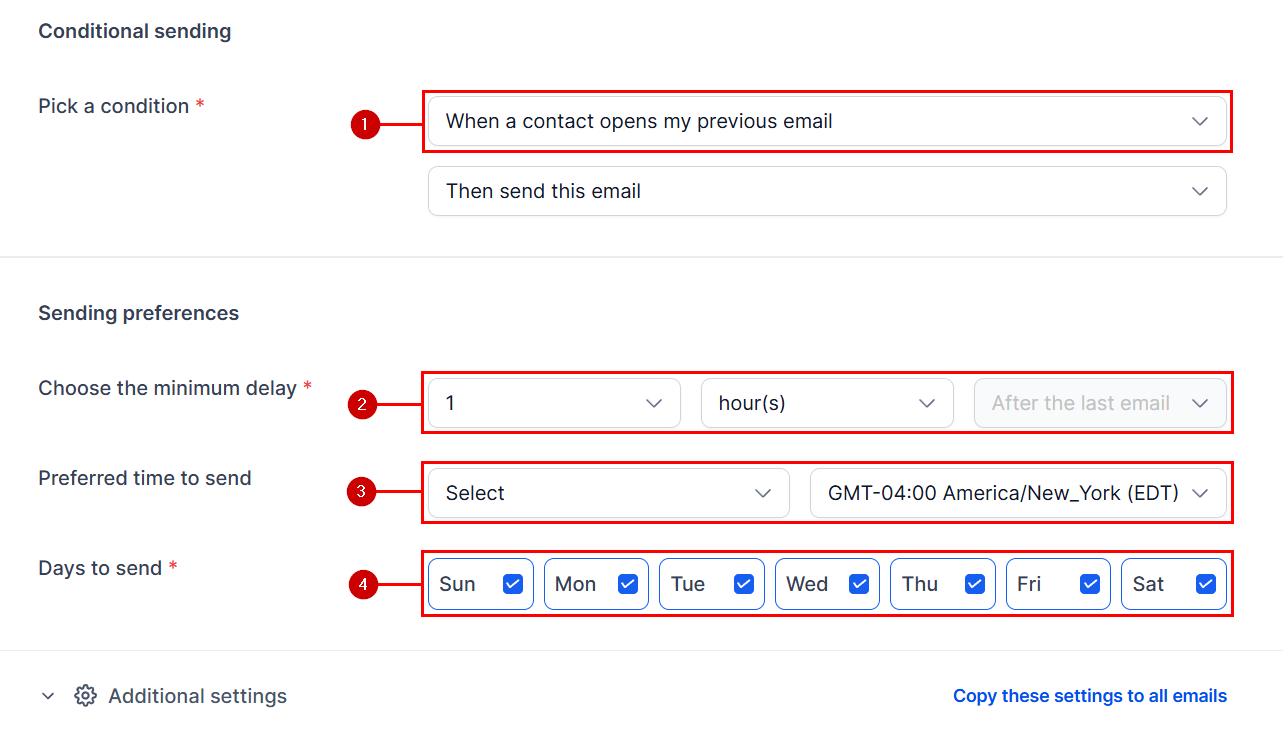
For subsequent steps, scroll down to set what should happen before the email is sent (1), then set the delay (2) between this email and the previous one, your preferred sending time (3), and the weekdays the email can be sent on (4).
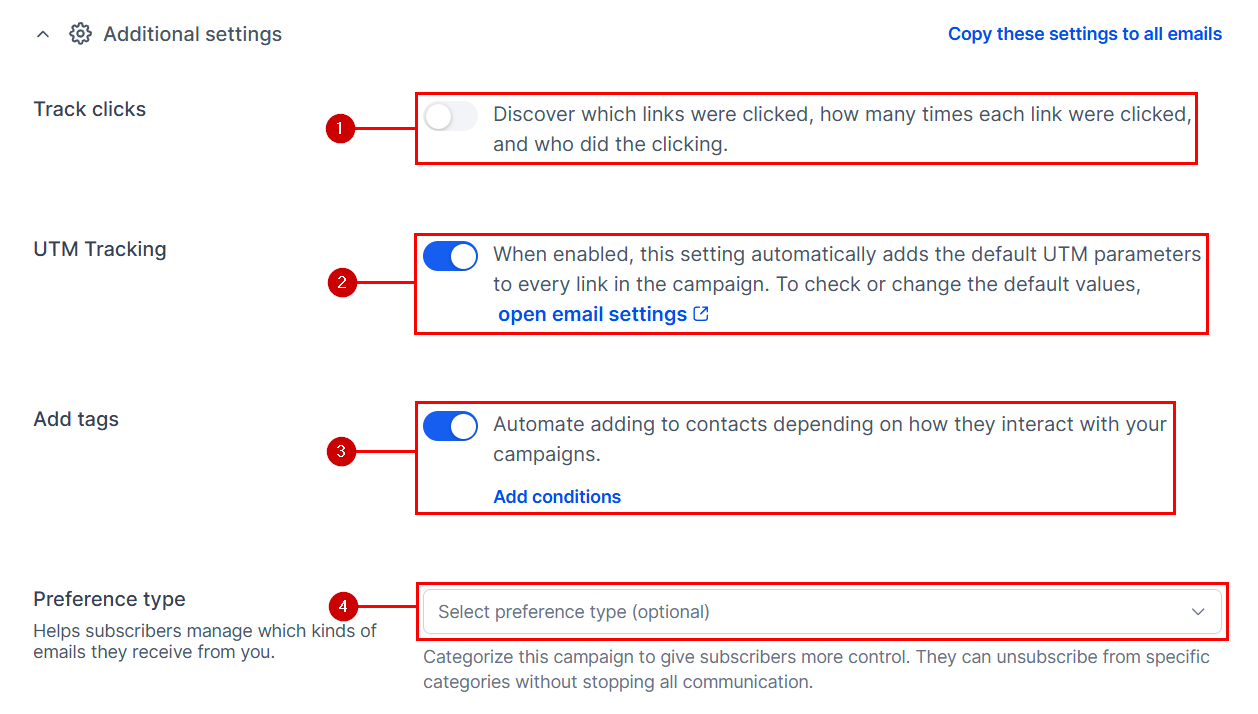
Under Additional settings, you can enable click tracking (1), UTM tracking (2), automatically add tags (3), and categorize your emails (4) to help subscribers manage their preferences.
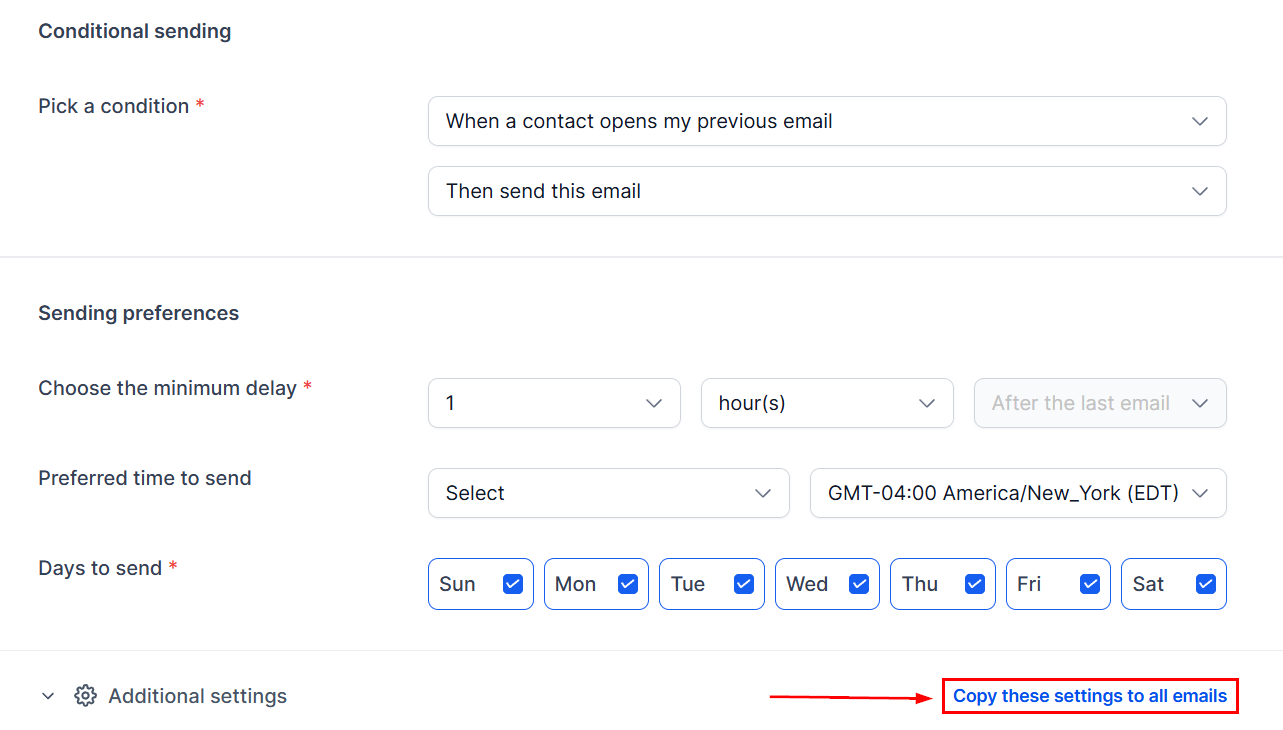
If you add multiple steps, you can click “Copy these settings to all emails” to repeat these conditions for all steps.
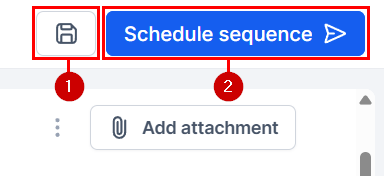
Click the disc icon (1) to save your progress, or click (2) Schedule sequence to start sending it to the selected contacts.
Reviewing Sent Sequences
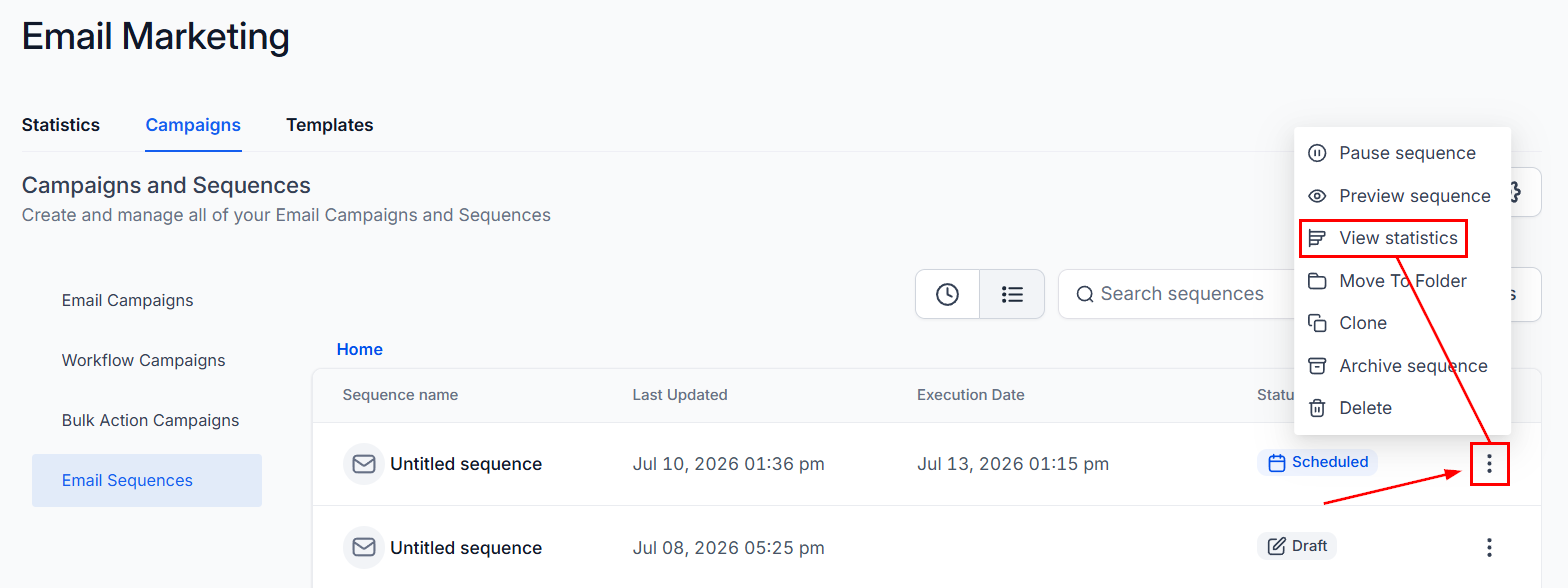
The three-dot icon and select Statistics to check overall and step-level metrics.
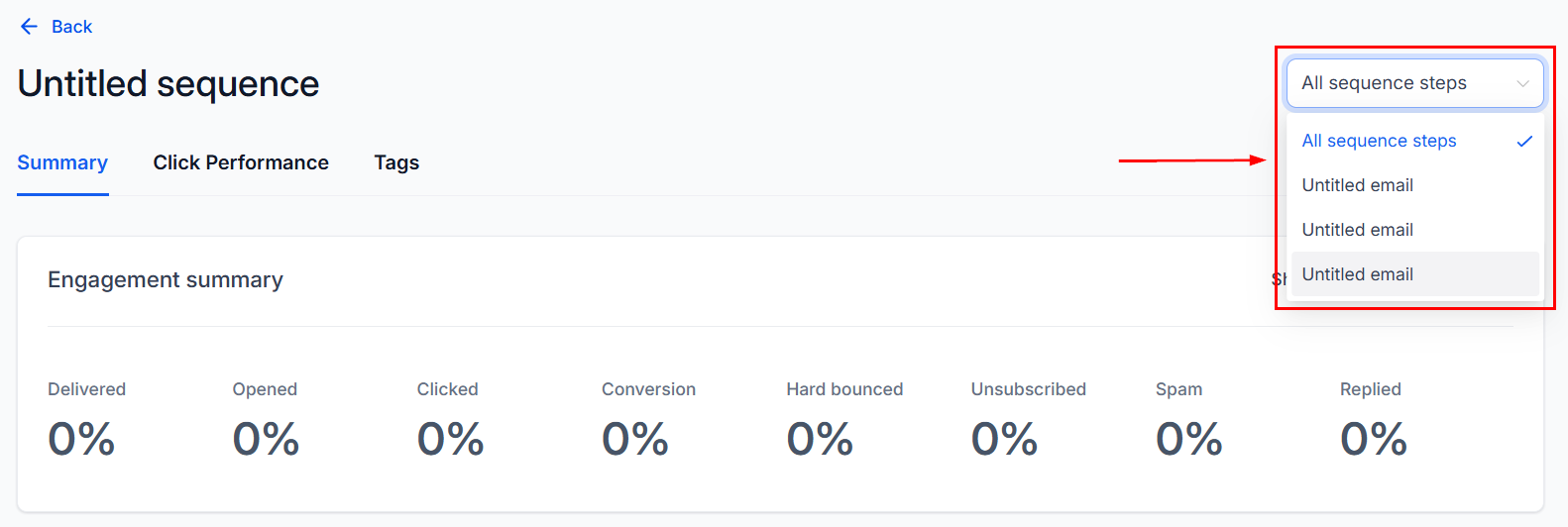
In there, you can check the success of your sequence steps, either individually or as a whole.
This allows you to automate follow-ups, reminders, and nurture campaigns, making it easier than ever to increase engagement with behavior-based outreach and maintain conversation context. We hope you enjoy it!