
How to Build an Ad Campaign Using a Template
Creating an ad campaign doesn’t always mean starting from a blank screen. With Ad Manager templates, you can use a ready-made campaign as a starting point, review the pre-filled details, and make adjustments to fit your business. You can also save an existing campaign as a template so you or other users can reuse it later.
Why Use a Template?
Templates can help you:
- Save time: Start with a prepared campaign instead of building everything from scratch.
- Stay consistent: Reuse campaign formats that work well for your business.
- Customize easily: Change images, colors, text, and other details to match your brand.
- Get a head start: Use professionally designed content as a foundation for your campaign.
- Reuse successful campaigns: Turn an existing campaign into a template for future use.
Create a Campaign Using a Template
Follow these steps when you want to use an existing template to create a new ad campaign.
Open Ad Manager
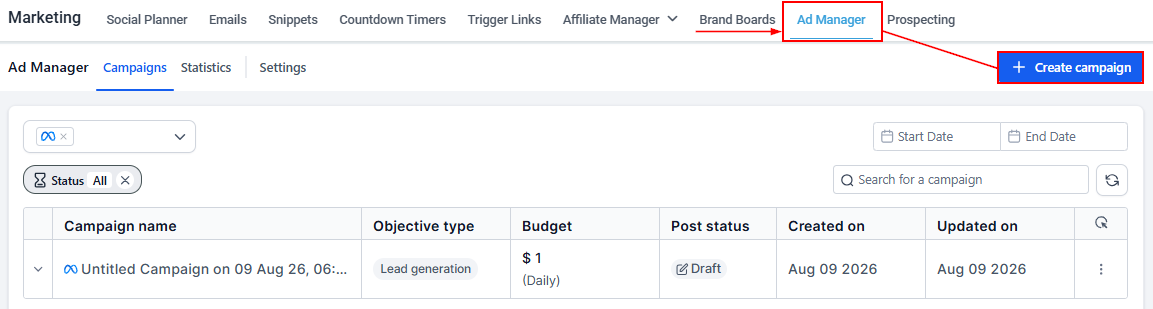
Go to Marketing → Ad Manager. From the Ad Manager home screen, select Create Campaign.
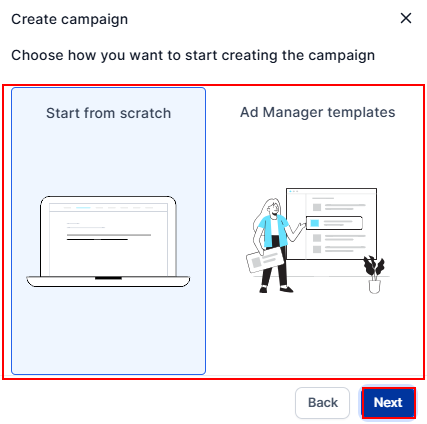
After choosing the campaign channel, you'll see two options:
- Start from Scratch – Build the campaign yourself.
- Ad Manager Templates – Start with a pre-built template.
Select Ad Manager Templates.
Choose a Template
The Template Library will open and display the available ad campaign templates.
You can browse the available options or use the available filters to find a template based on your campaign objective.
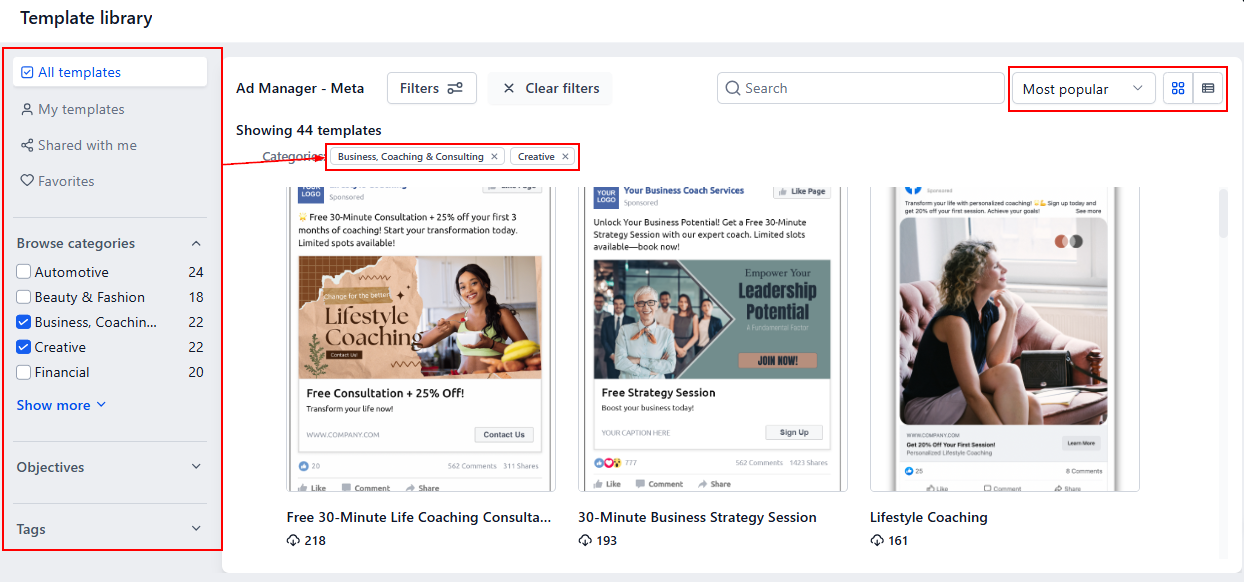
Take a moment to review the templates and choose one that is closest to what you want to create.
Preview the Template
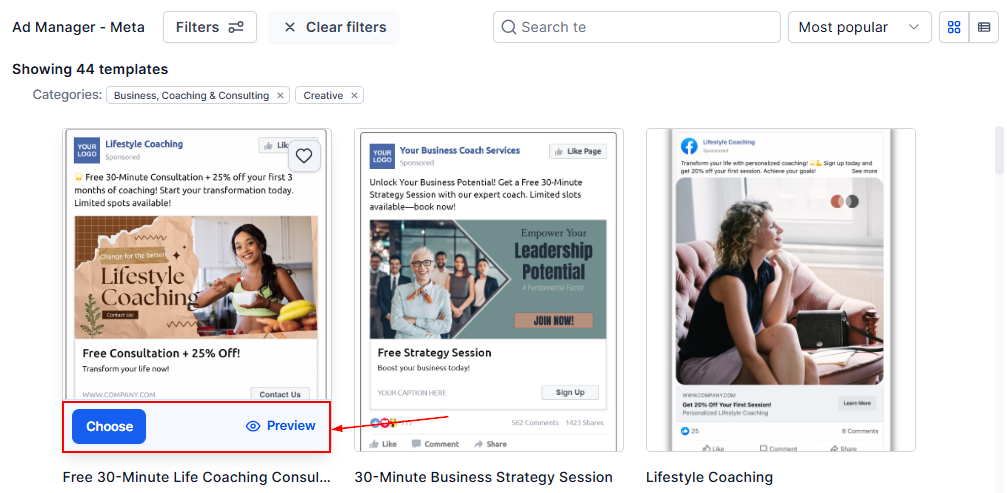
Hover over a template to view its preview. This gives you an opportunity to see what the campaign looks like before using it.
If you're happy with your selection, click Choose.
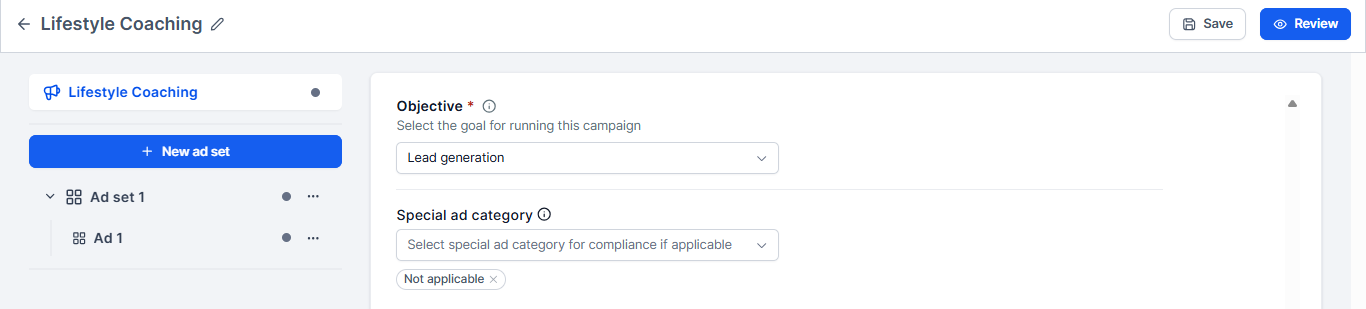
Review the Campaign
A new campaign will be created using the template, with the available campaign details pre-filled.
Before publishing, review the campaign carefully and update anything that needs to be changed.
Depending on your campaign objective, you may need to add or update information such as:
- Campaign details
- Ad content
- Images or other media
- Your Facebook Page
- Lead generation forms
- Other campaign settings
Note: Campaigns created from templates do not automatically have a page associated with them. When you edit the campaign, the default page will be assigned. You can change this if needed.
By using a ready-made template, you can build a reusable library of campaigns that saves time and makes future setup much simpler.