
How to Create a LinkedIn Ad Campaign in Ad Manager
LinkedIn ad campaigns give you a direct way to reach professionals and organizations within a highly targeted environment. By creating structured campaigns through the Ad Manager, you can generate quality leads, drive website traffic, and build brand awareness among audiences that matter most to your business.
This guide walks you through setting up your campaign, from creating a Campaign Group to publishing ads and tracking performance.
How It Works
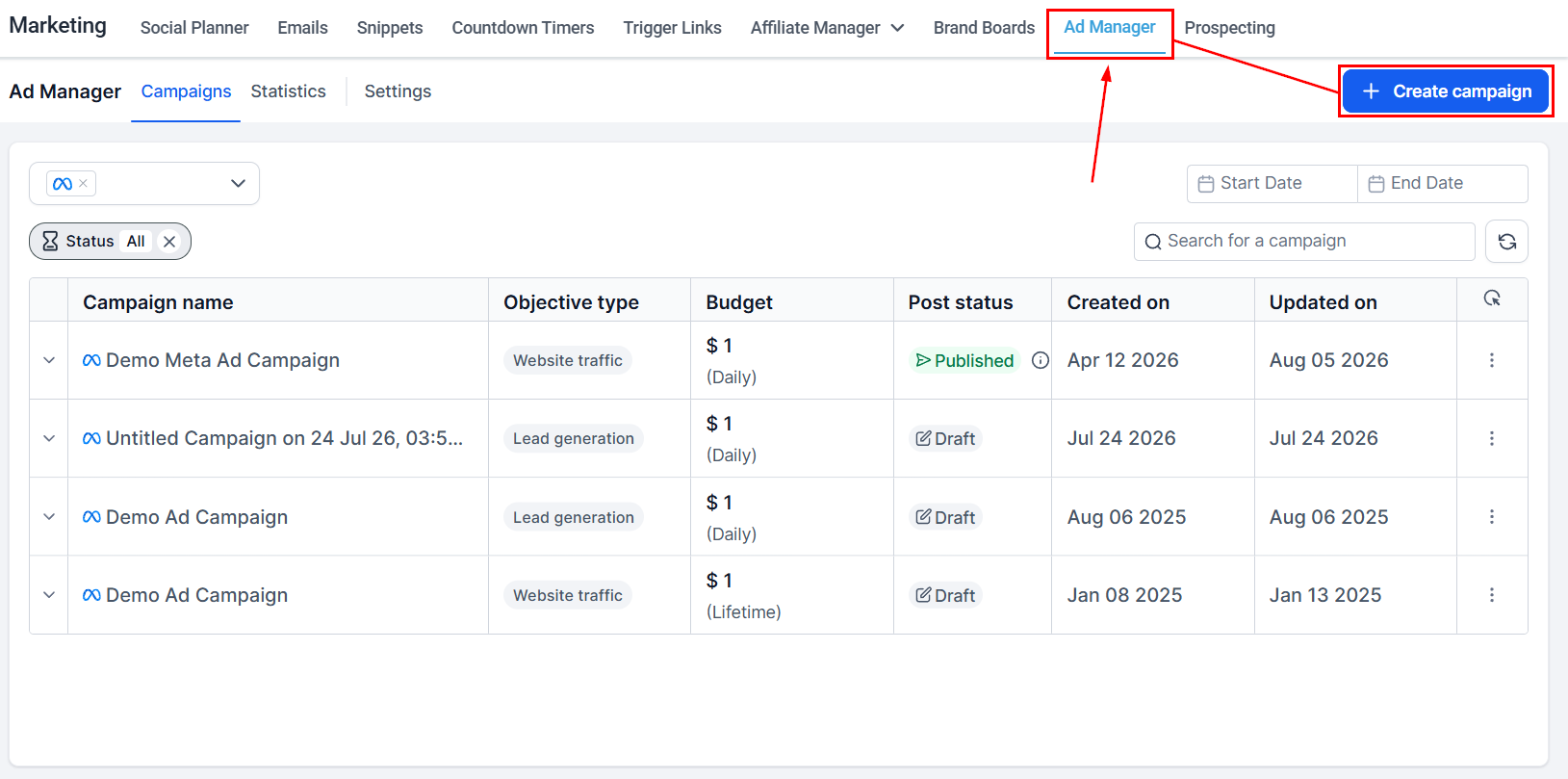
Start by opening the Ad Manager section of the Marketing tool. Then, click Create Campaign.
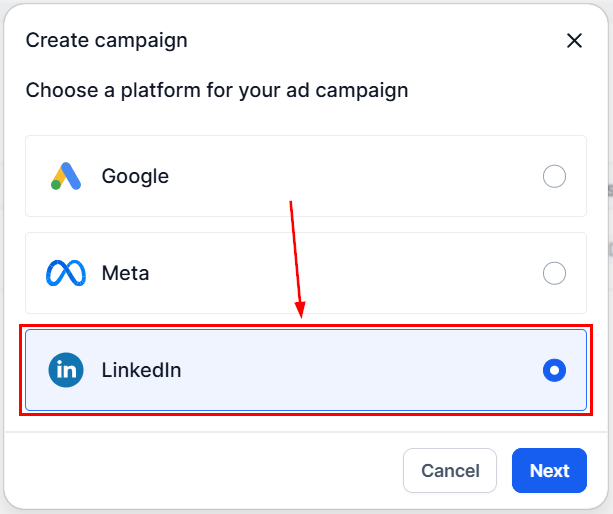
Select LinkedIn as your campaign's platform.
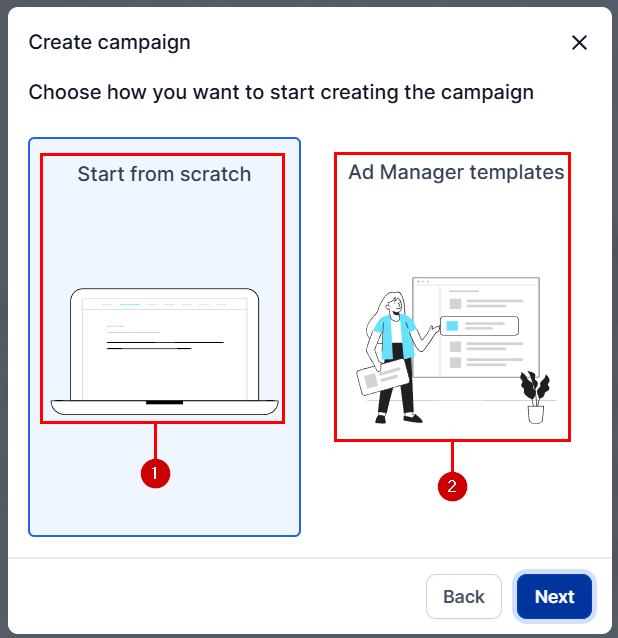
Select whether to “Start from Scratch” (1) or use a template (2).
Ad Manager simplifies this process by organizing campaigns into three levels:
- Campaign Group: The top-level container for your campaigns.
- Campaign: Defines audience, budget, and schedule.
- Ad: Contains the creatives, such as media, text, call-to-action, and forms.
Create a Campaign Group
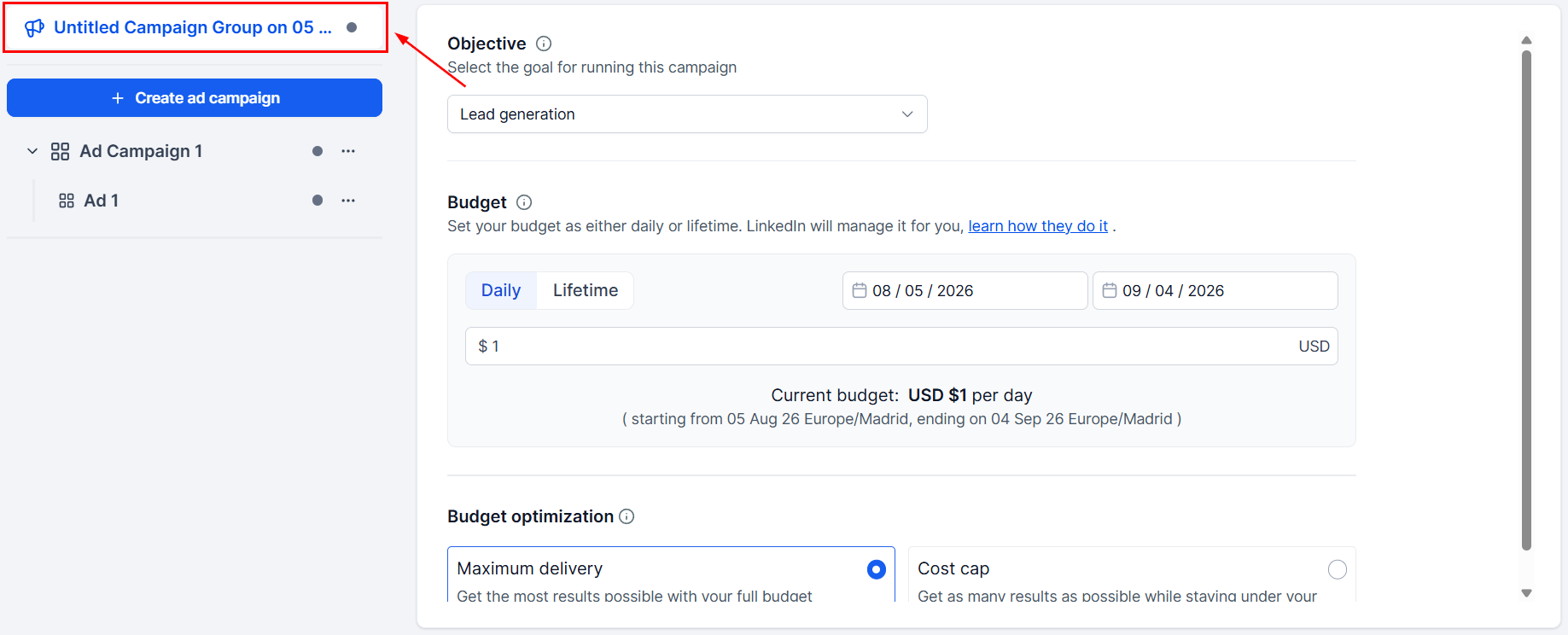
A Campaign Group serves as the highest-level container for your campaigns. Choose a descriptive title for your group, then assign a campaign objective - whether the system should capture leads with LinkedIn forms or drive clicks to landing pages.
Next, set a daily or lifetime budget, along with start and end dates. If necessary, enter manual bids (Cost Per Lead for Lead Gen or CPC for Traffic).
Tip: Organize Campaign Groups by business goals for clarity and consistency.
Create a Campaign Within the Group
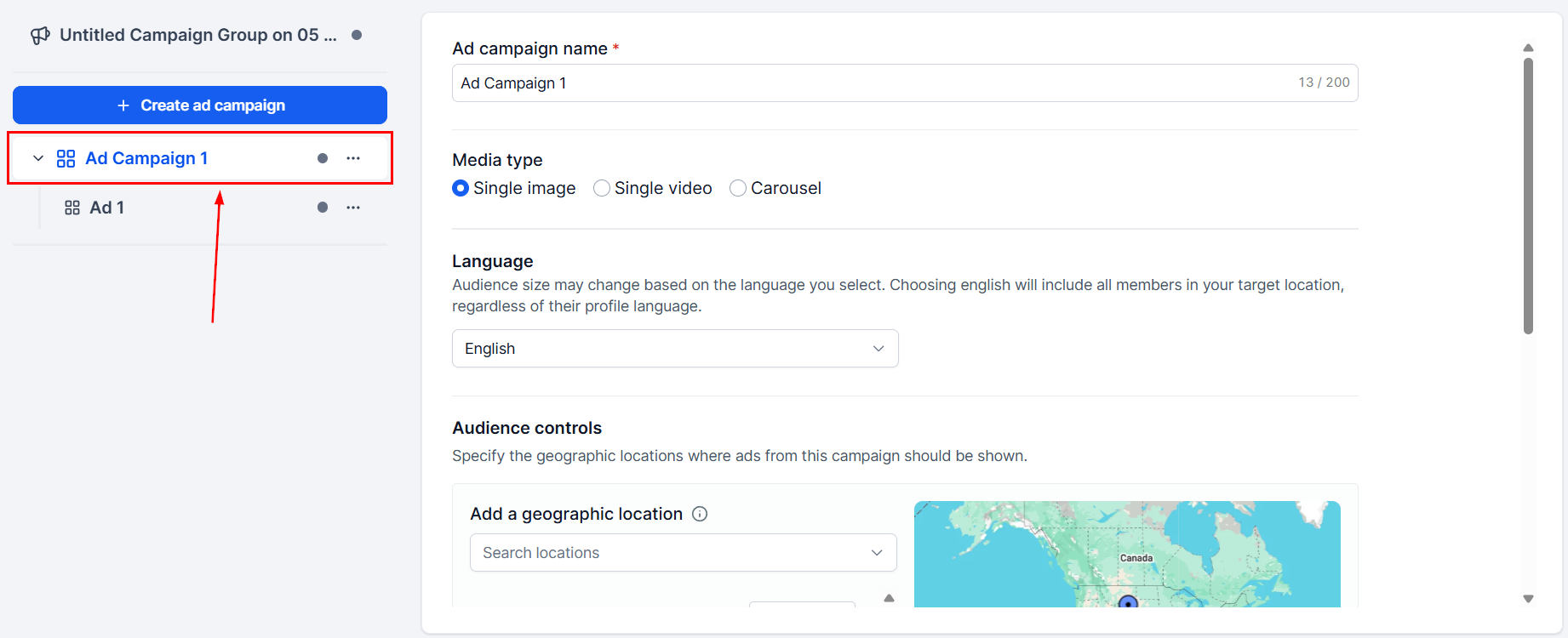
Once a Campaign Group is created, add campaigns to define targeting and media. Assign a unique identifier as the campaign name, then choose whether to upload a single image or video, or a media carousel. Additionally, choose the required targeting fields from the Language and Audience Controls sections.
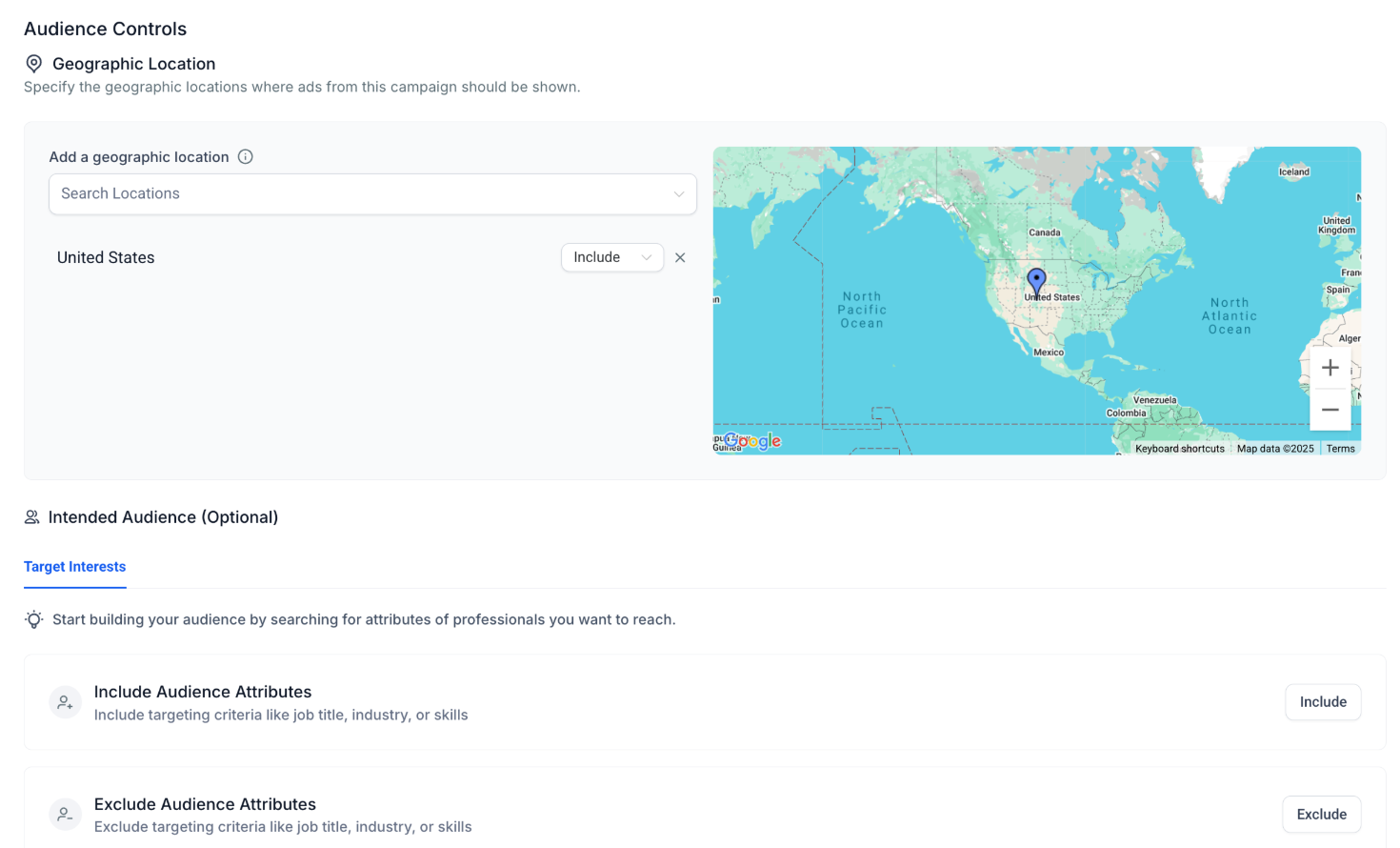
Here, you can target individuals with specific interests by including or excluding attributes such as their job title, industry, or skills. Use AND/OR logic to refine your search.
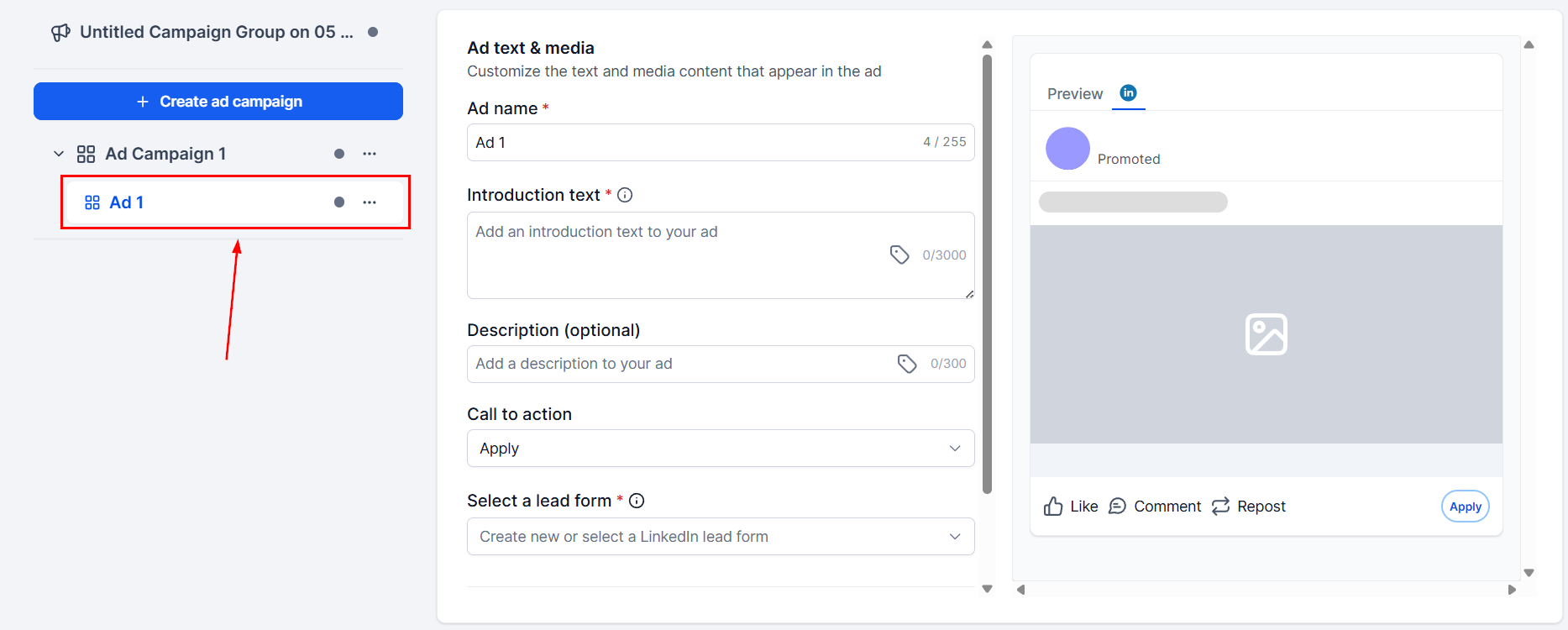
Create Ads Inside the Campaign
Each campaign may include multiple ads. Be sure to assign a unique name to each ad, then enter an Introduction Text of up to 3000 characters and select a call-to-action from LinkedIn's CTA list. Optionally, you can also include a description.
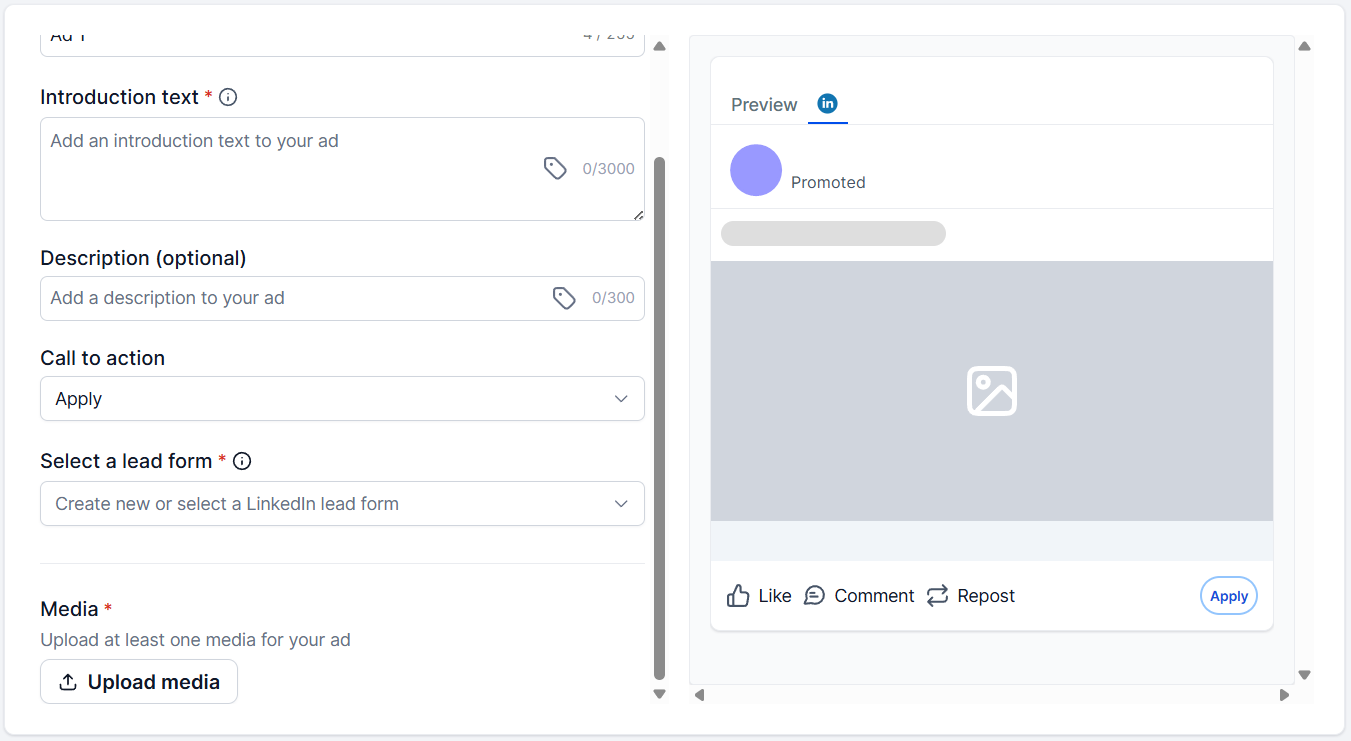
If the Lead Generation objective was selected, create a new form or select a LinkedIn lead form from the drop-down. Creating a new form requires you to customize it with pre-filled fields, custom questions, hidden fields, a privacy section, consent checkboxes, and a confirmation page. Once satisfied, click the Create Form button.
Review & Publish
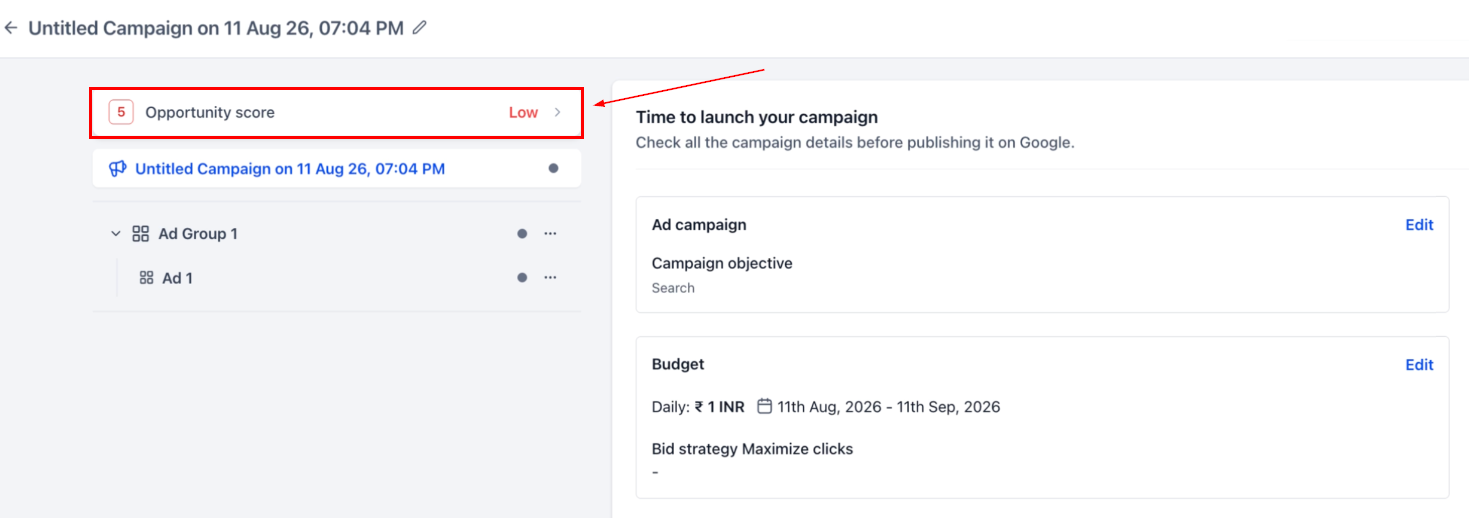
Before publishing, the Review screen will appear. This section confirms campaign objectives, budget, schedule, desktop & mobile previews, and performs validation checks for URLs, budgets, and required fields. It also provides an Opportunity Score to help assess campaign readiness and highlights recommendations for improving the campaign before publishing.
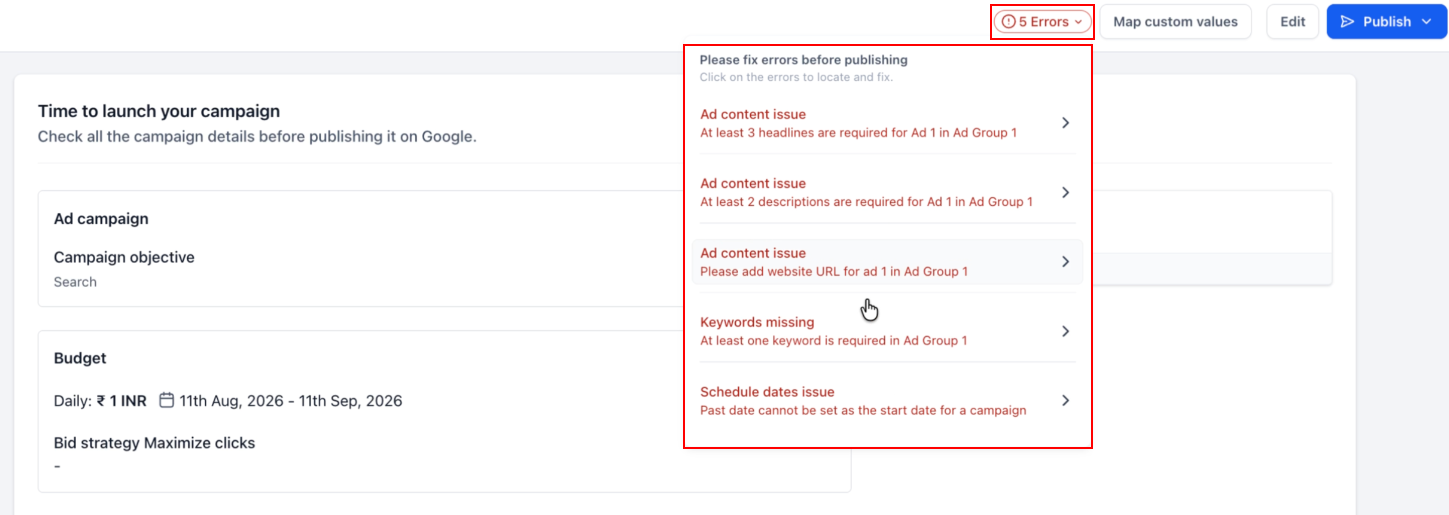
The Review screen also displays multiple validation issues together and provides clearer information about what needs to be corrected. Click an error to navigate directly to the affected field or section, make the necessary corrections, and publish the campaign again.
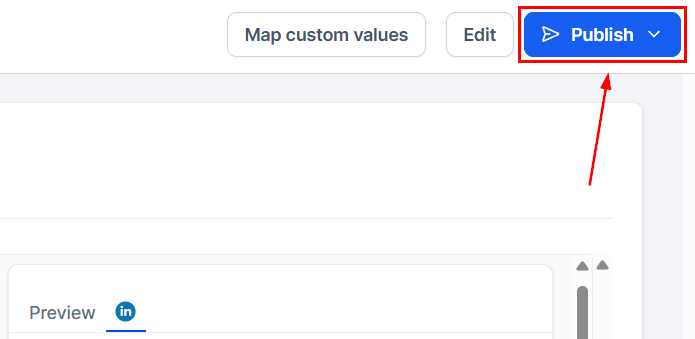
After verifying the campaign configuration, click Publish to launch it.
Monitor Campaign Group Performance
You can then track performance metrics from the campaign group level to the ad level under Statistics > LinkedIn.
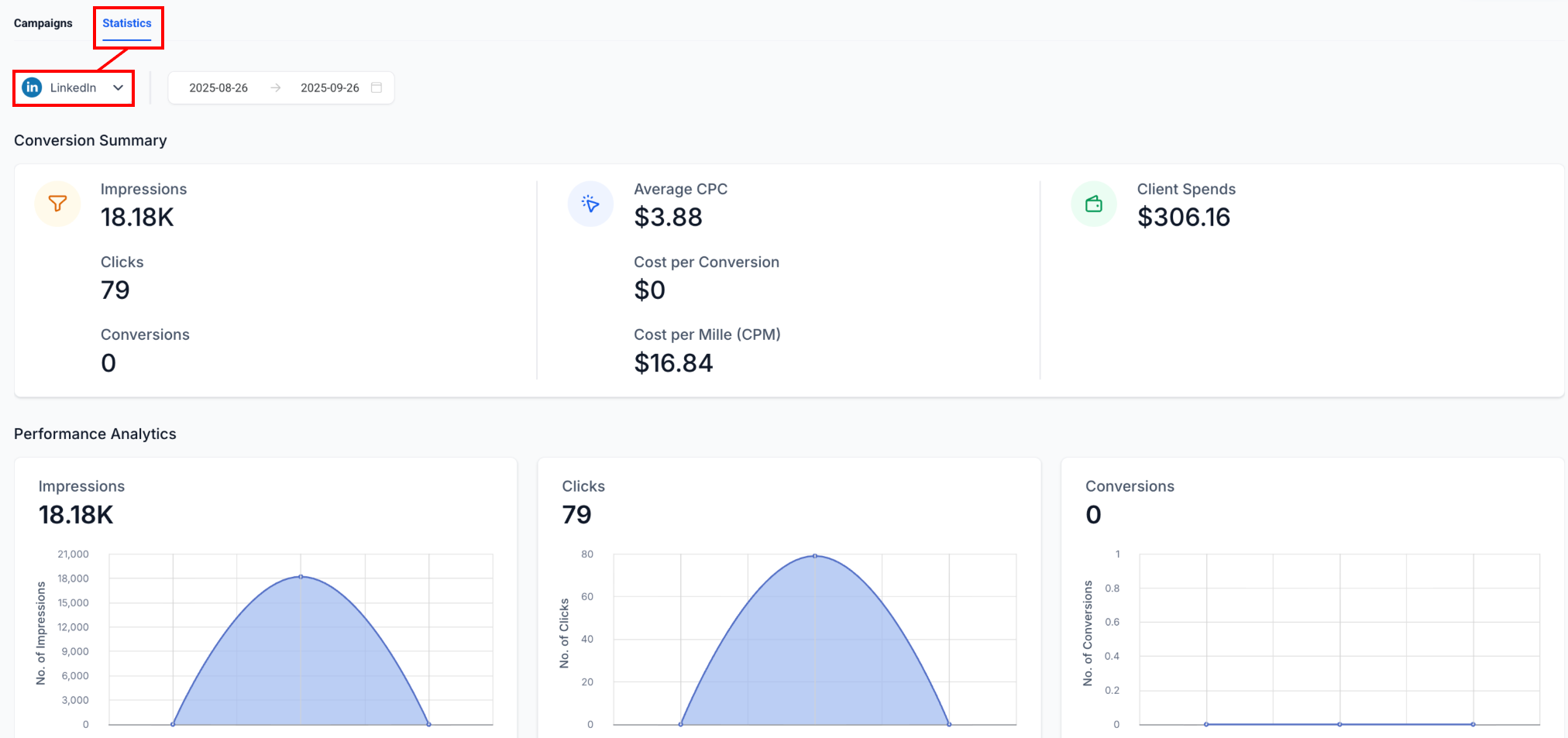
Ad Manager provides a structured framework for launching, monitoring, and optimizing LinkedIn campaigns. By organizing campaigns into groups, defining precise targeting, and leveraging multiple ad formats, you can maximize performance and gain deeper insights into what drives results.
Important Note
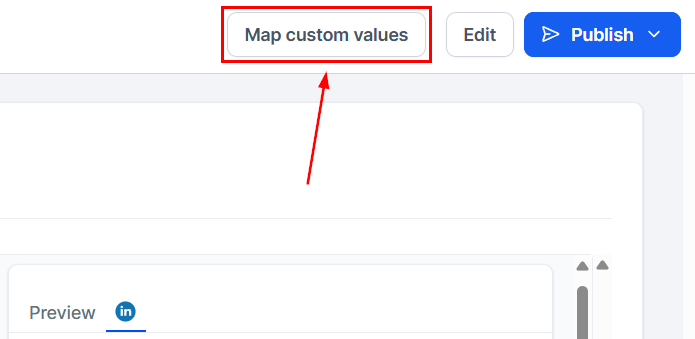
If using custom values, click “Map custom values” before posting to add or review any missing values used in the campaign.
Best Practices
- Align Campaign Groups with business objectives (e.g., Awareness, Lead Gen).
- Limit each campaign to one clear audience definition.
- Run multiple ads per campaign to compare creative performance.
- Start broad, then refine targeting with filters.
- Use shorter Lead Gen forms for higher conversion rates.
- For traffic campaigns, always enable UTM tagging.