
Tasks on the Mobile App
The Tasks section in the mobile app helps you organize, track, and complete work from anywhere. Whether you're managing daily follow-ups, recurring activities, or team assignments, the task manager provides multiple ways to view your work and stay on top of upcoming deadlines.
Accessing the Tasks Section
To open your tasks, open the mobile app and tap Tasks from the Apps menu.
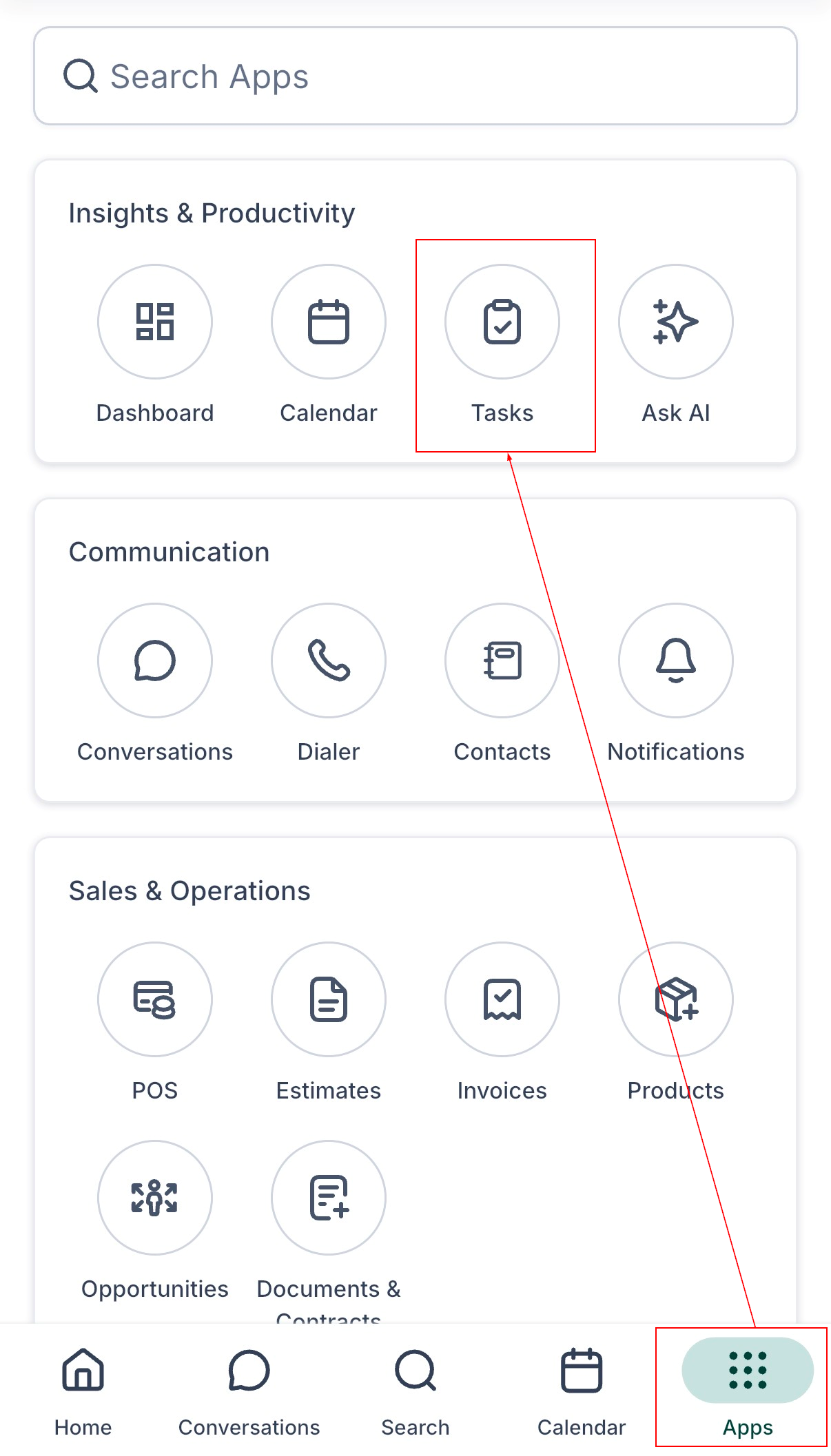
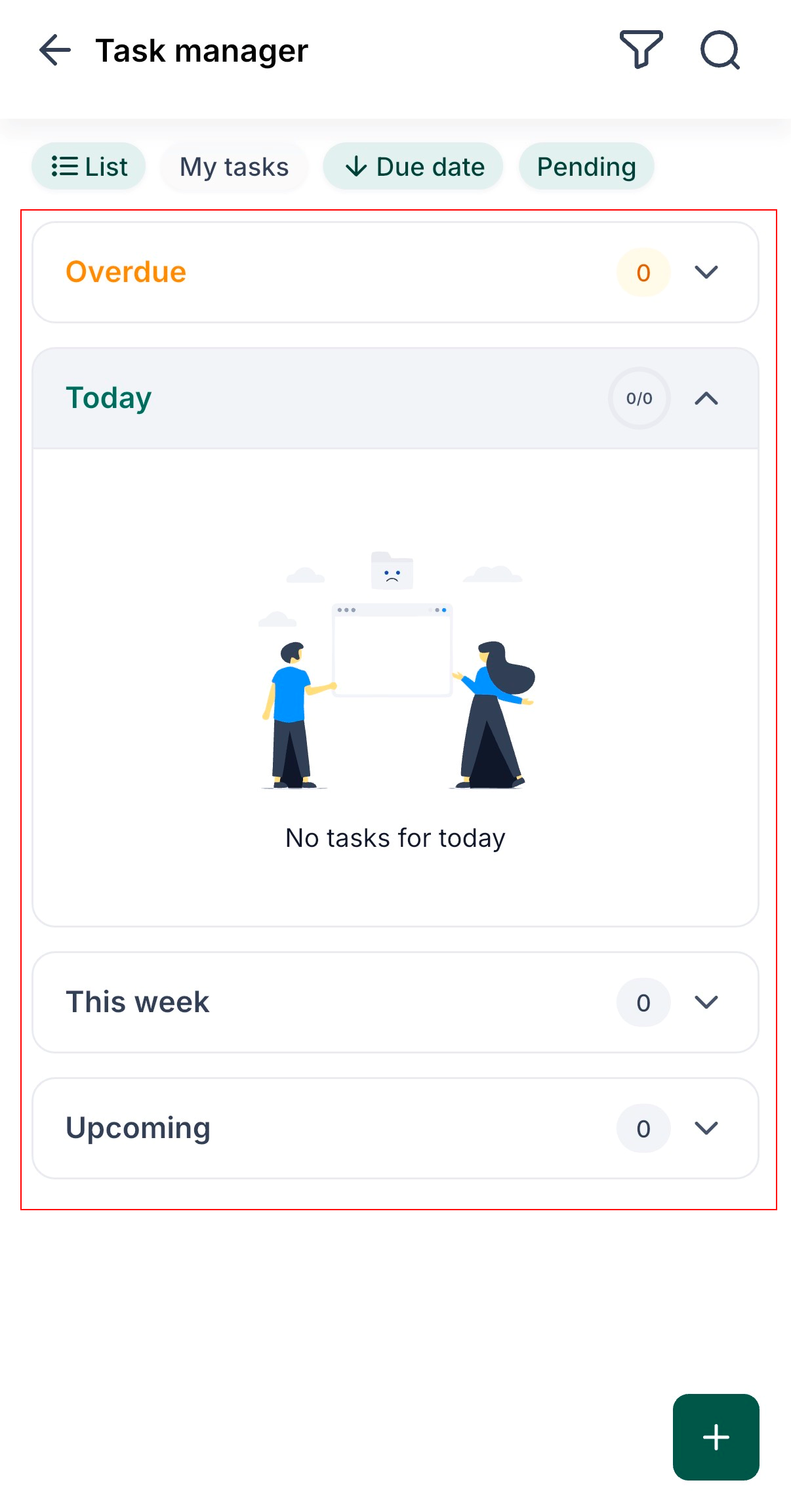
The Tasks page displays your assigned tasks and provides tools to create, organize, and monitor your workload.
You can choose the layout that best fits the way you work.
- List View: List View displays tasks in a traditional list, making it easy to scan upcoming work and review task details.
- Board View: Board View organizes tasks into visual columns, allowing you to see your workload grouped by status or section for a more visual workflow.
Organizing Your Tasks
The Tasks section automatically groups tasks into categories based on their due dates, including:
- Overdue
- Today
- This Week
- Upcoming
These sections help you quickly identify which tasks require immediate attention without manually sorting your task list.
Creating a Task
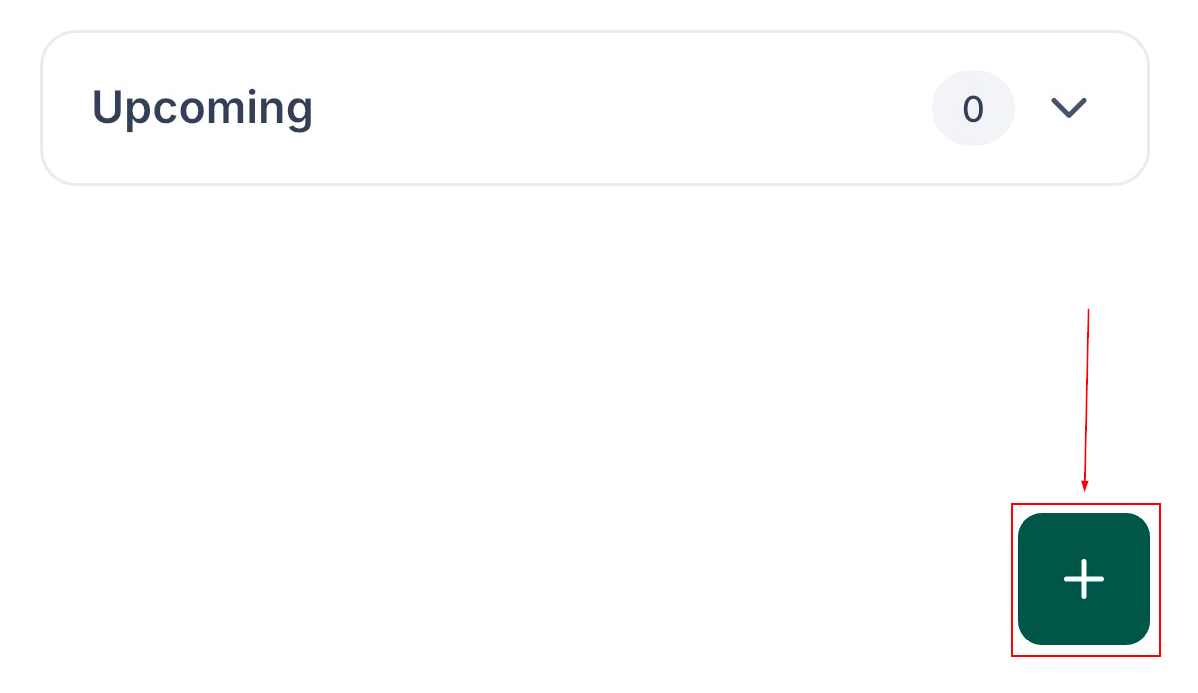
To create a new task, tap the + button.
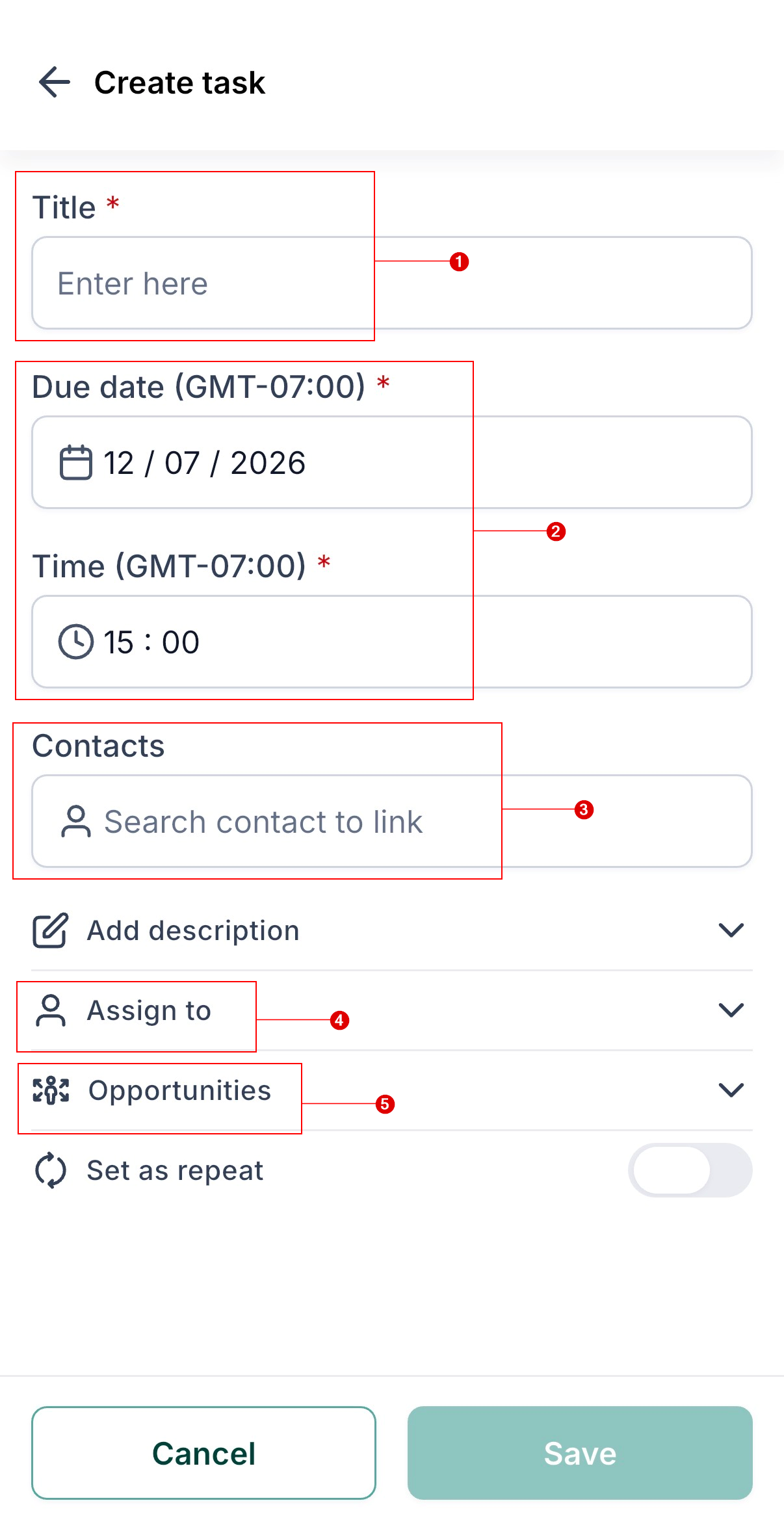
- Enter a task title.
- Select a due date.
- Add one or more contacts, if applicable.
- Assign the task to yourself or another team member.
- Optionally, associate the task with an opportunity to keep follow-up activities connected to the relevant sales pipeline.
Save the task. After it is created, the task will appear in your task list and can be updated or completed at any time.
Setting Up Recurring Tasks
For tasks that need to happen on a regular schedule, you can create recurring tasks instead of creating them manually each time.
When creating or editing a task, enable the Repeat option and choose how often the task should repeat:
- Hourly
- Daily
- Weekly
- Monthly
- Yearly
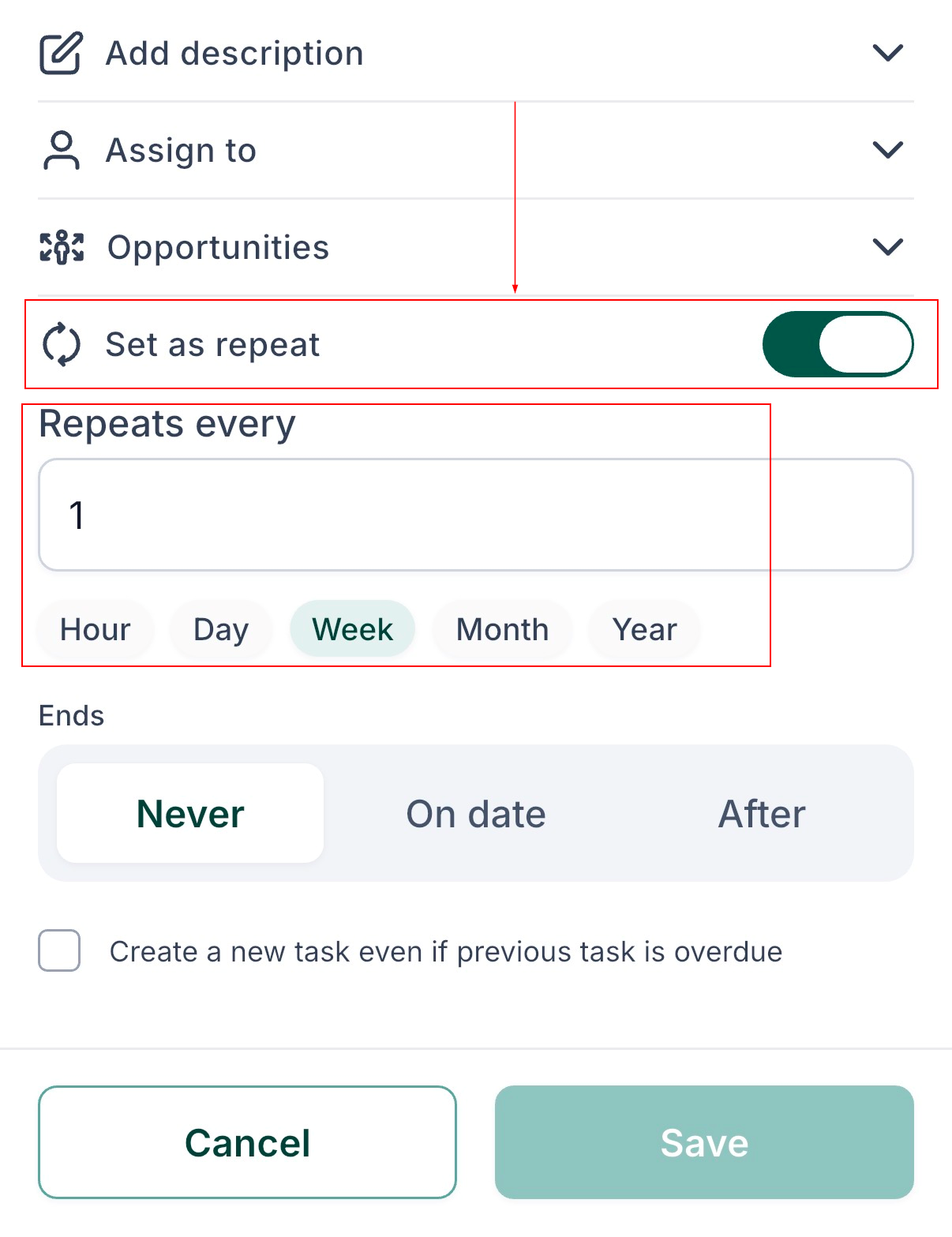
Specify when the recurrence should end by selecting either:
- A specific date, or
- A set number of occurrences.
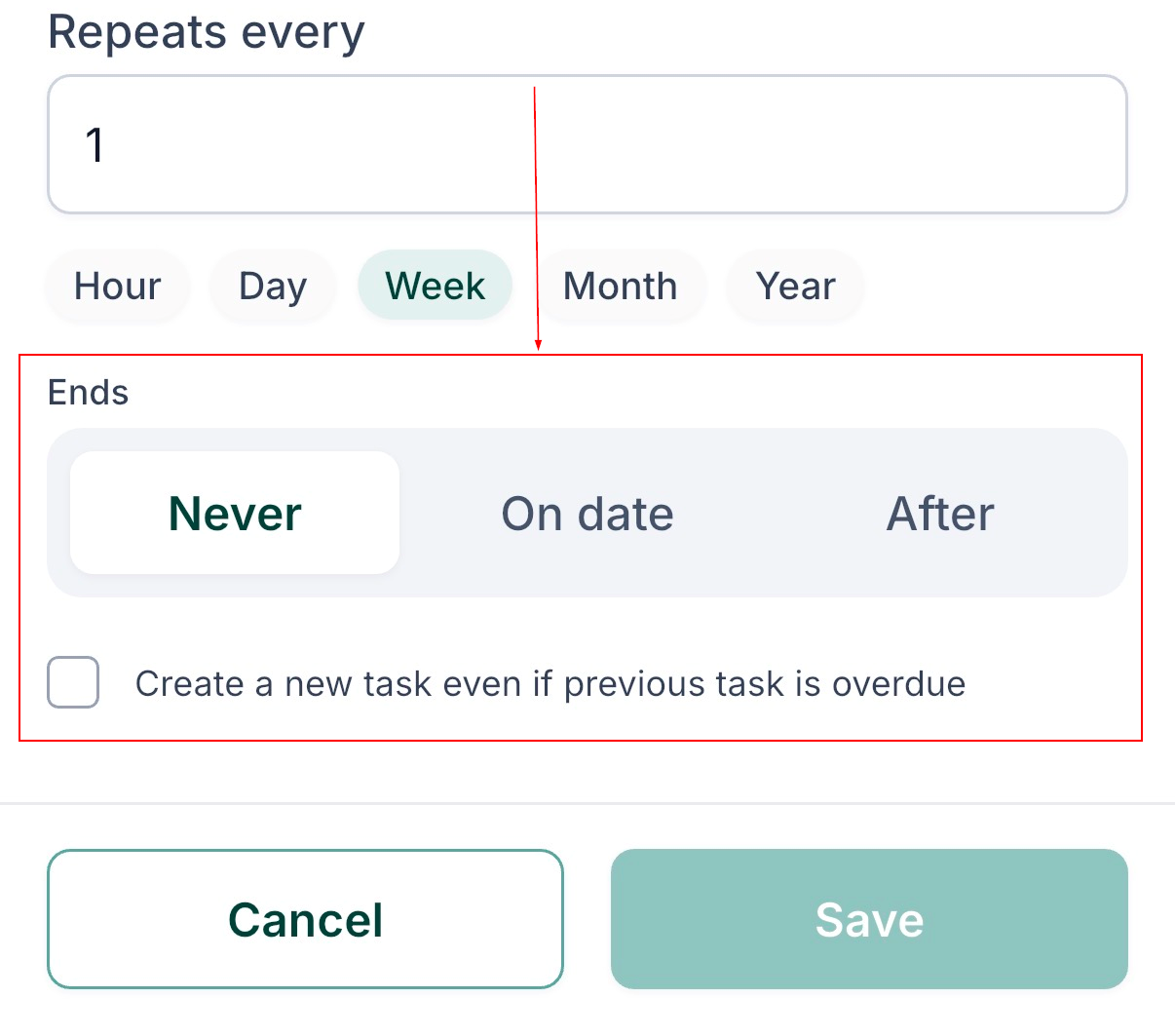
Save the task.
Recurring tasks are automatically recreated based on the schedule you configure.
Tracking Your Daily Progress
The Tasks page includes a progress indicator that shows how many of today's tasks have been completed.
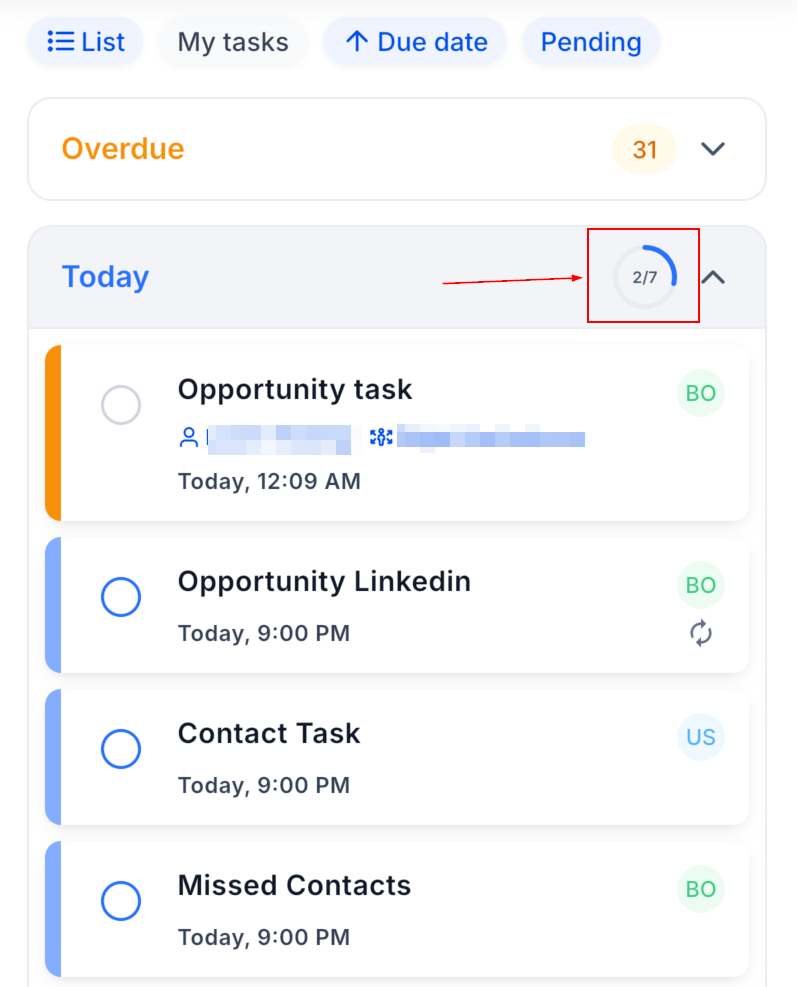
As you complete tasks throughout the day, the progress indicator updates automatically, giving you a quick overview of your daily progress.
Managing Existing Tasks
Selecting a task allows you to review its details and make updates as needed.
Depending on the task, you can:
- Edit task information.
- Update the due date.
- Modify assigned contacts or opportunities.
- Change the assignee.
- Mark the task as complete.
Task cards also display key information, such as linked contacts and opportunities, so you can view important details without opening each task individually.
The Tasks section provides a convenient way to organize work, manage follow-ups, and keep track of daily responsibilities while using the mobile app. By combining recurring tasks, flexible views, contact and opportunity associations, and progress tracking, you can stay organized and complete important work more efficiently from anywhere.